
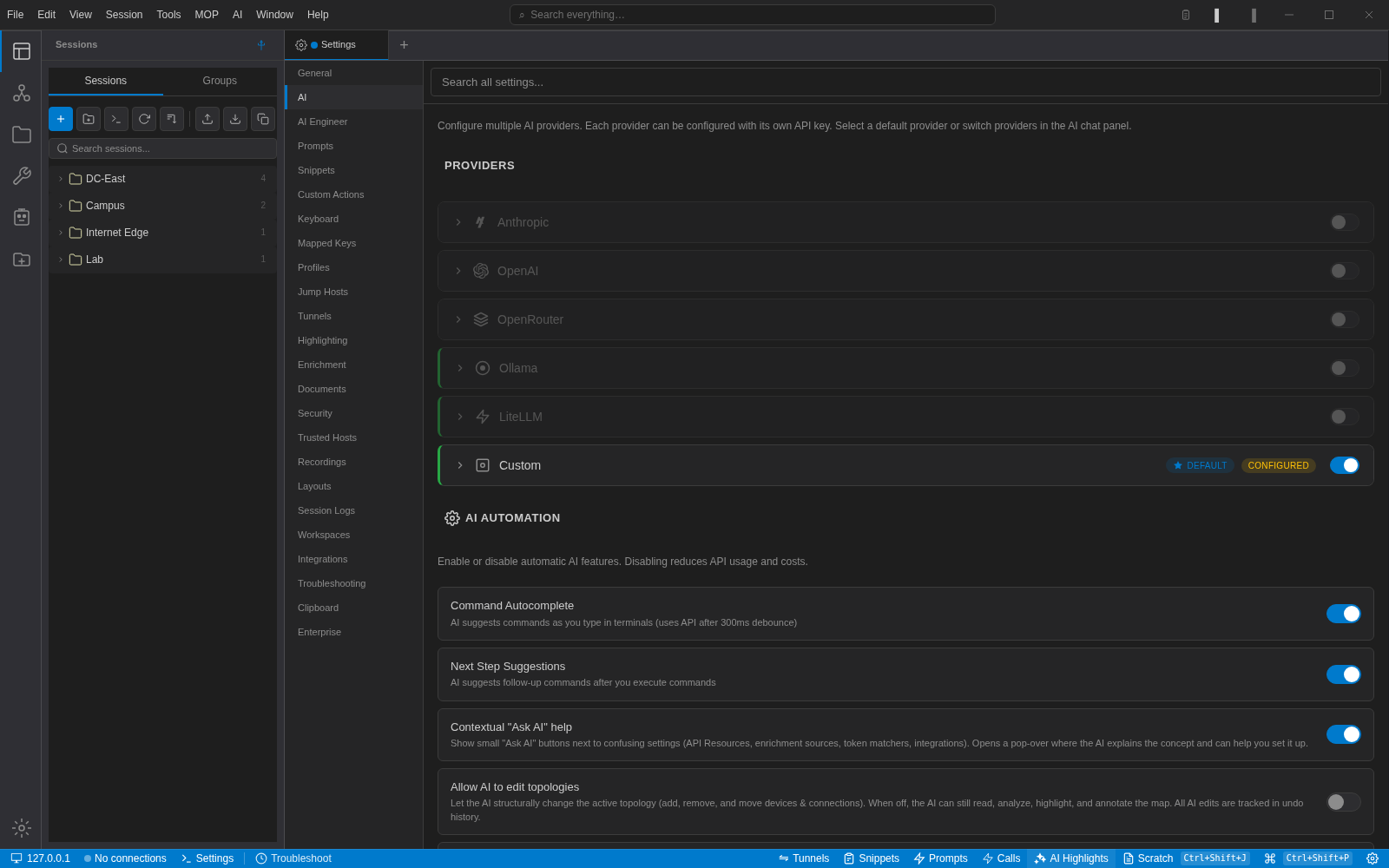
Some networks cannot send a neighbour table to a cloud API, full stop. NetStacks was built so that the AI features still work in that situation: the agent on your machine talks directly to whatever provider you configure, and one of the built-in providers is Ollama.
Setup
Install Ollama and pull a model. For CLI output analysis we have had the best results from the larger instruction-tuned models; the smaller ones are fine for explaining a log line and poor at reasoning across a whole show ip bgp summary.
In NetStacks, open Settings → AI, enable Ollama, and set the base URL if it is not the default http://localhost:11434. Pick a model from the list the server returns. Save and test. If the first-run wizard is still open, the same steps are on its AI page.
If your Ollama runs on another machine, the per-provider overrides let you set a different URL and disable TLS verification for a self-signed certificate. Keep that on a management network.
What works well
Explaining output. Select three syslog lines, right-click, Explain. Local models are good at this and it is the most frequent use.
Command suggestions with the CLI flavour attached. Because NetStacks tells the model the device is Cisco IOS-XE, or Junos, or EOS, you get the right syntax far more often than a bare chat window gives you.
Turning a troubleshooting transcript into a write-up. Long context, low stakes, and you are going to edit it anyway.
What does not
Letting a small local model run commands on its own. An agent that executes commands without asking needs a model that reliably produces well-formed tool calls and knows when to stop. Test it on a lab device with a model you trust before you let it near production, set the permission to Ask so each command waits for your approval, and leave AI config mode off so the assistant stays read-only on devices. Those guardrails exist for a reason.
Latency. A laptop GPU is slower than a datacentre. Command autocomplete uses the API after a short debounce and can feel sluggish locally; there is a switch for it under Settings → AI.
Check what it sends
Because the request goes straight from the agent to Ollama, you can watch it. Run Ollama with debug logging, or put a tiny logging proxy in front of it, and read the request body. You will see the system prompt with the mode prompt and the profile, the session context, the device memory, the last lines of output with credentials replaced by [REDACTED], and your question. No passwords.
Mixing providers
You can enable more than one provider and switch from the footer of the AI panel per conversation. A common pattern is a local model as the default for everything that touches device output, and a cloud model enabled for document drafting where the input is your own prose.