
Introduction
What NetStacks is: the free NetStacks Terminal desktop app, the self-hosted NetStacks Controller for teams, how the two connect, and the browser-based web terminal.
What is NetStacks?
NetStacks is a set of tools for network engineers. It combines an SSH/Telnet terminal, an AI assistant that understands network devices, topology maps and change procedures. It comes as two products:
- NetStacks Terminal is a free desktop app for macOS, Windows and Linux. On its own it runs in standalone mode: everything runs on your computer, and your sessions, credentials and settings stay there.
- NetStacks Controller is the enterprise server your organization hosts. It adds a shared device inventory, central credentials, users and roles, auditing, config automation, AI agents and plugins. It also includes a web-based admin console and a browser version of the Terminal.
The Terminal app is the same in both cases. If you point it at a Controller, it switches to enterprise mode and works with your team's shared inventory instead of local data.
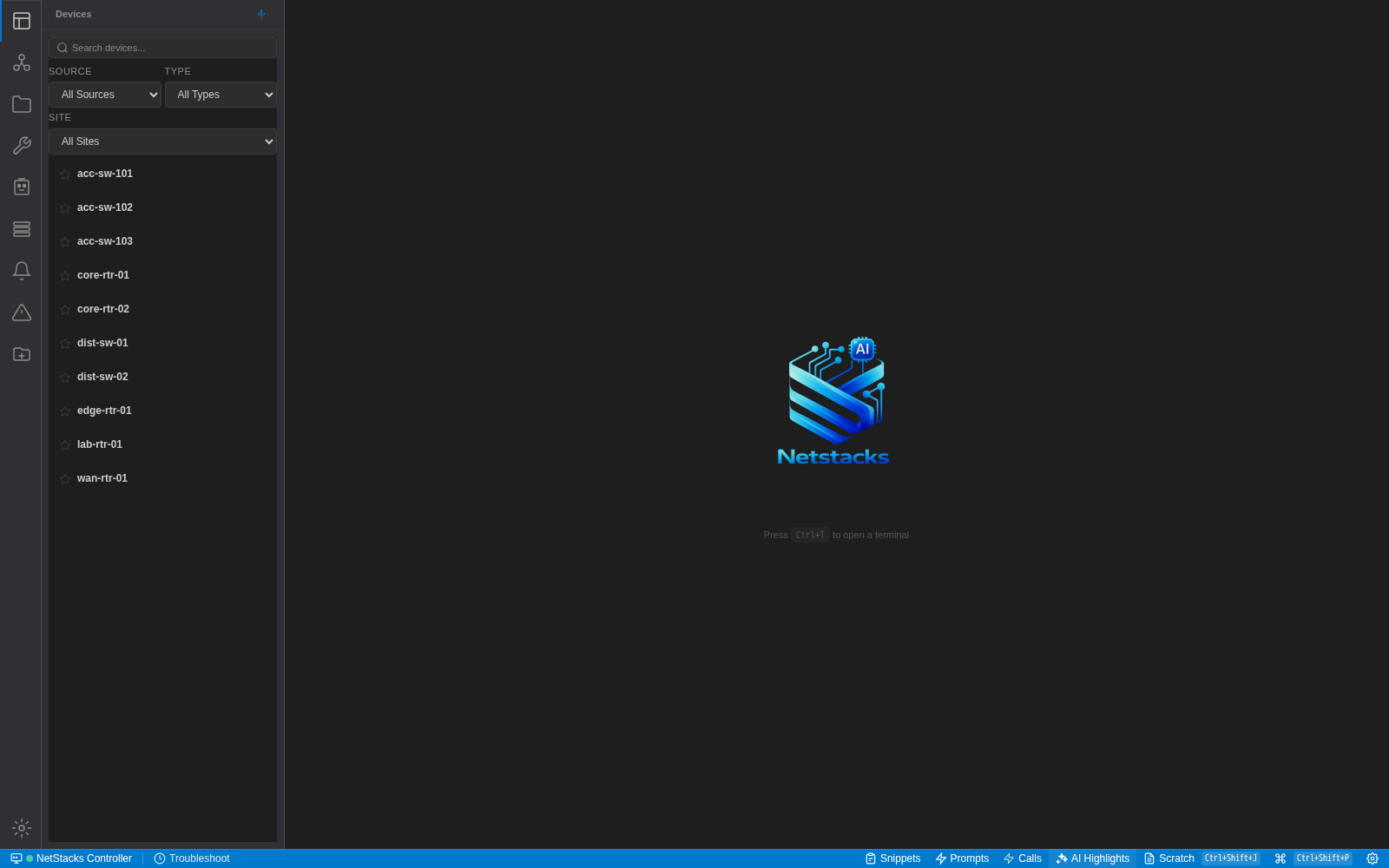
The NetStacks Terminal window. The activity bar is on the far left, then the sidebar (here, the device list). Terminal tabs open in the main area, and the status bar runs along the bottom.
NetStacks Terminal
The Terminal is built with Tauri (Rust and React) and is free to download from netstacks.net/download. You don't need an account or a license key. In standalone mode it ships with a bundled background process, the Local Agent. The Local Agent makes the SSH, Telnet, SFTP and SNMP connections, holds your encrypted credential vault and runs the AI integration, all on your computer.
What you can do with it
- Connect to devices: SSH and Telnet sessions organised in folders. Logins come from reusable credential profiles (password or SSH key), and you can add jump hosts, port forwarding and console access through terminal servers. The Terminal also has tabs, split panes, Multi-Send, snippets and session recording. See Terminal Overview.
- Keep credentials encrypted: a local vault protected by a master password. The vault uses AES-256-GCM with an Argon2id-derived key, and on macOS you can unlock it with Touch ID. See Credential Vault.
- Work with an AI assistant: use your own provider (Anthropic, OpenAI, OpenRouter, Ollama, LiteLLM or any OpenAI-compatible endpoint). The assistant can read your terminal sessions and run commands on your devices, with approval controls. See AI Chat.
- Map your network: build 2D and 3D topologies from your open sessions using CDP and LLDP (over SNMP v2c or the CLI), or draw them by hand. You can also paste traceroute or MTR output, and overlay live SNMP interface statistics. See Network Topology.
- Plan changes: write Methods of Procedure (MOPs) with pre-checks, changes, post-checks and rollback steps, then run them against your sessions. See Methods of Procedure.
- Bring in your existing data: import sessions from CSV, JSON or SecureCRT XML, or from NetBox. You can also pull topology and enrichment data from LibreNMS and Netdisco. See Integrations & API Resources.
- Script and automate: Workspaces give you a code editor, Python scripts, a REST API client and Git, all inside the app. See Workspace Overview.
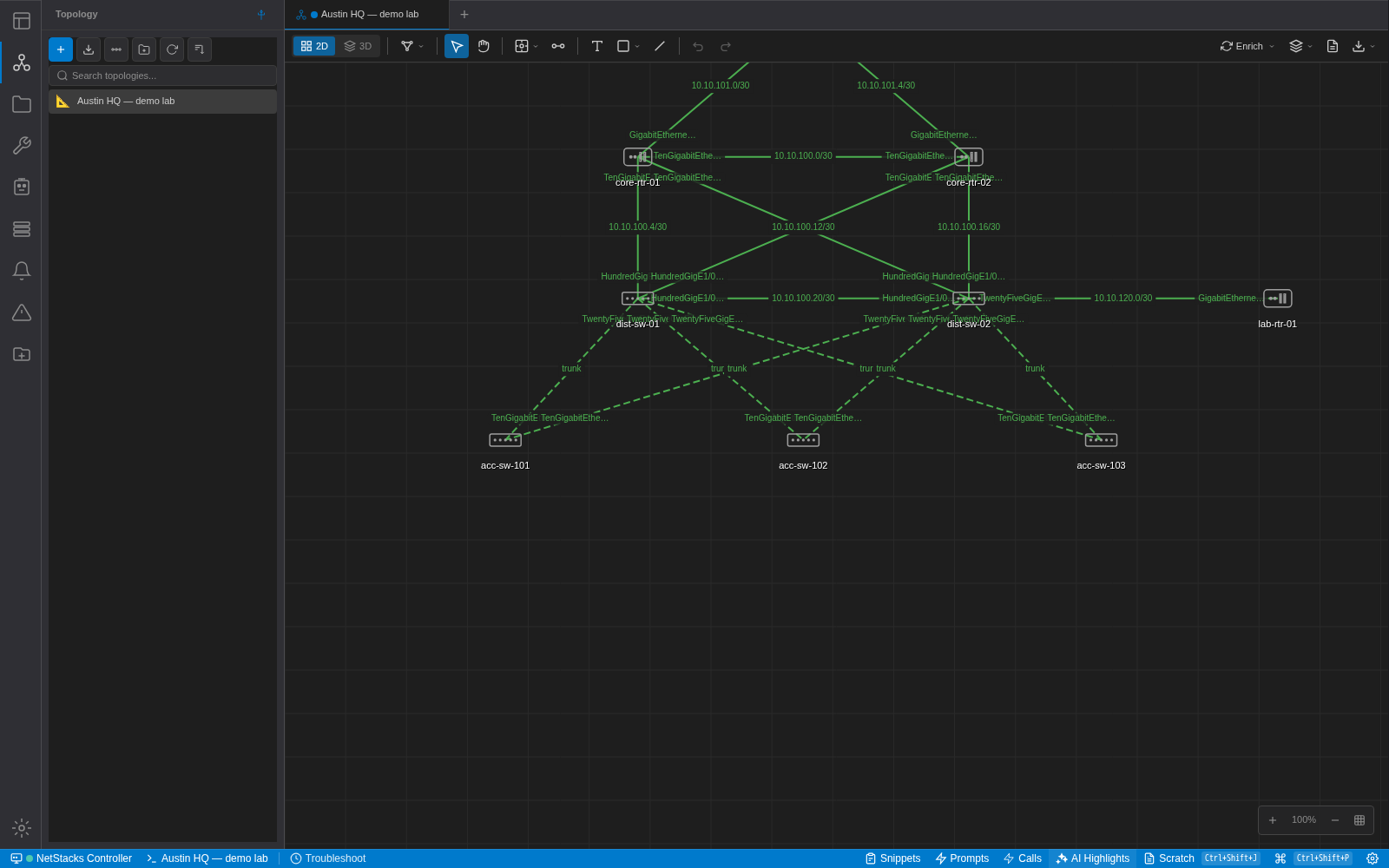
A topology tab. Devices and links are drawn on a canvas, with interface and subnet labels on each link. The toolbar switches between 2D and 3D views and has Enrich and export options.
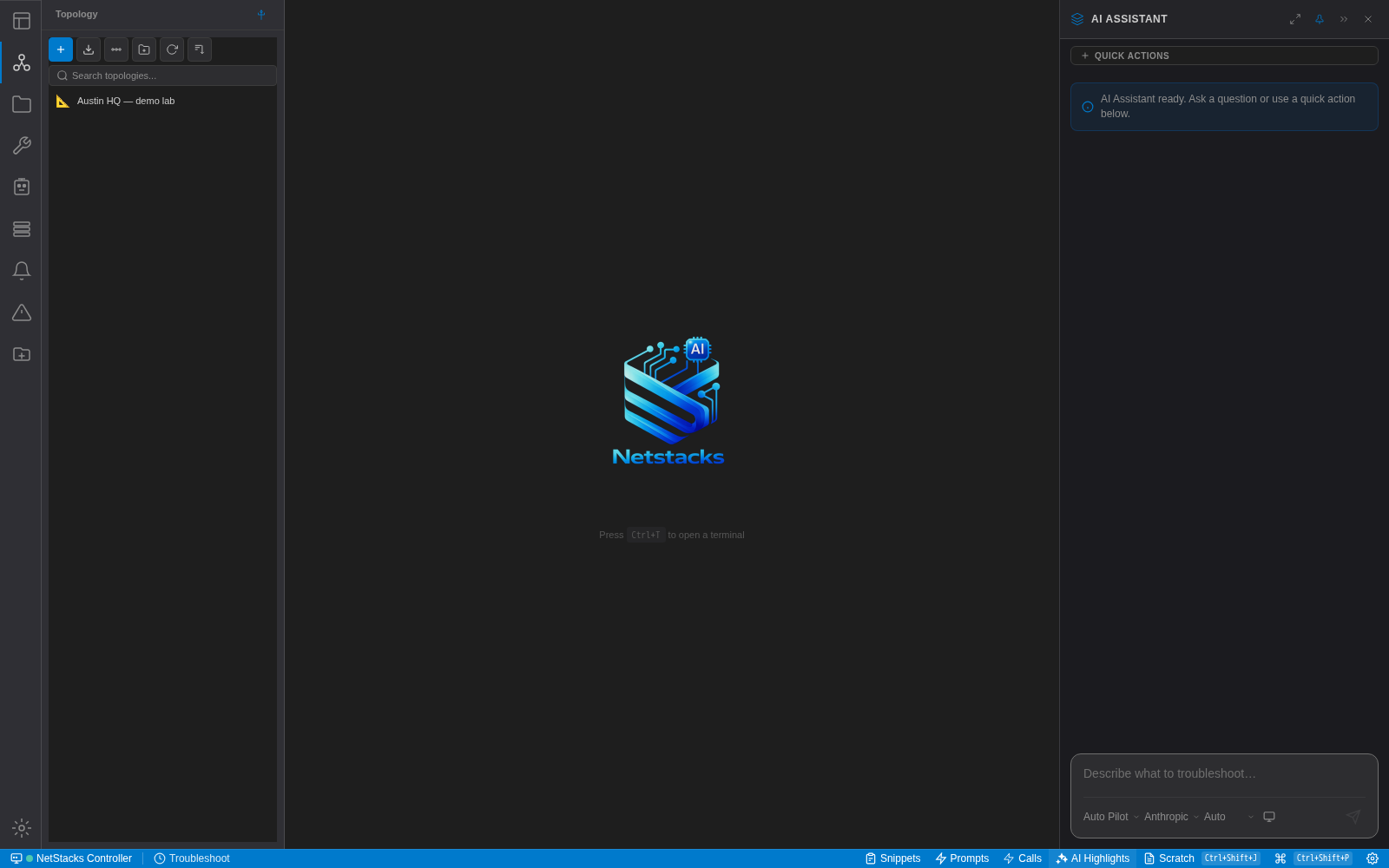
The AI Assistant panel (Ctrl/Cmd+J) docks on the right. The controls at the bottom choose the AI mode, the provider and the model.
NetStacks Controller Enterprise
The Controller is commercial software for teams. You host it yourself: it runs as a set of Docker containers (Rust API, PostgreSQL with pgvector, Valkey, and the web front end) on a server you control. It requires a Team or Enterprise license.
It gives a team one shared place for:
- Inventory and discovery: managed devices, sites, topologies, and network discovery through the built-in NetStacks Crawler (based on Netdisco).
- Access and secrets: connection profiles whose secrets are encrypted in the Controller's vault, an SSH certificate authority, jumpboxes, live session oversight and session recordings. Engineers connect to devices without ever seeing the device passwords.
- Config automation: config templates, stacks and deployments, config snapshots (backups) and MOPs.
- AI and agents: centrally configured LLM providers, AI chat, AI agents, a knowledge base, MCP servers and token usage tracking.
- People and governance: users, roles and permissions, multiple organizations, and an audit log.
- Plugins: Alerts, Incidents and Profiling Agents.
Administrators manage all of this in the admin console, a web app served by the Controller at https://<controller-host>:3000/.
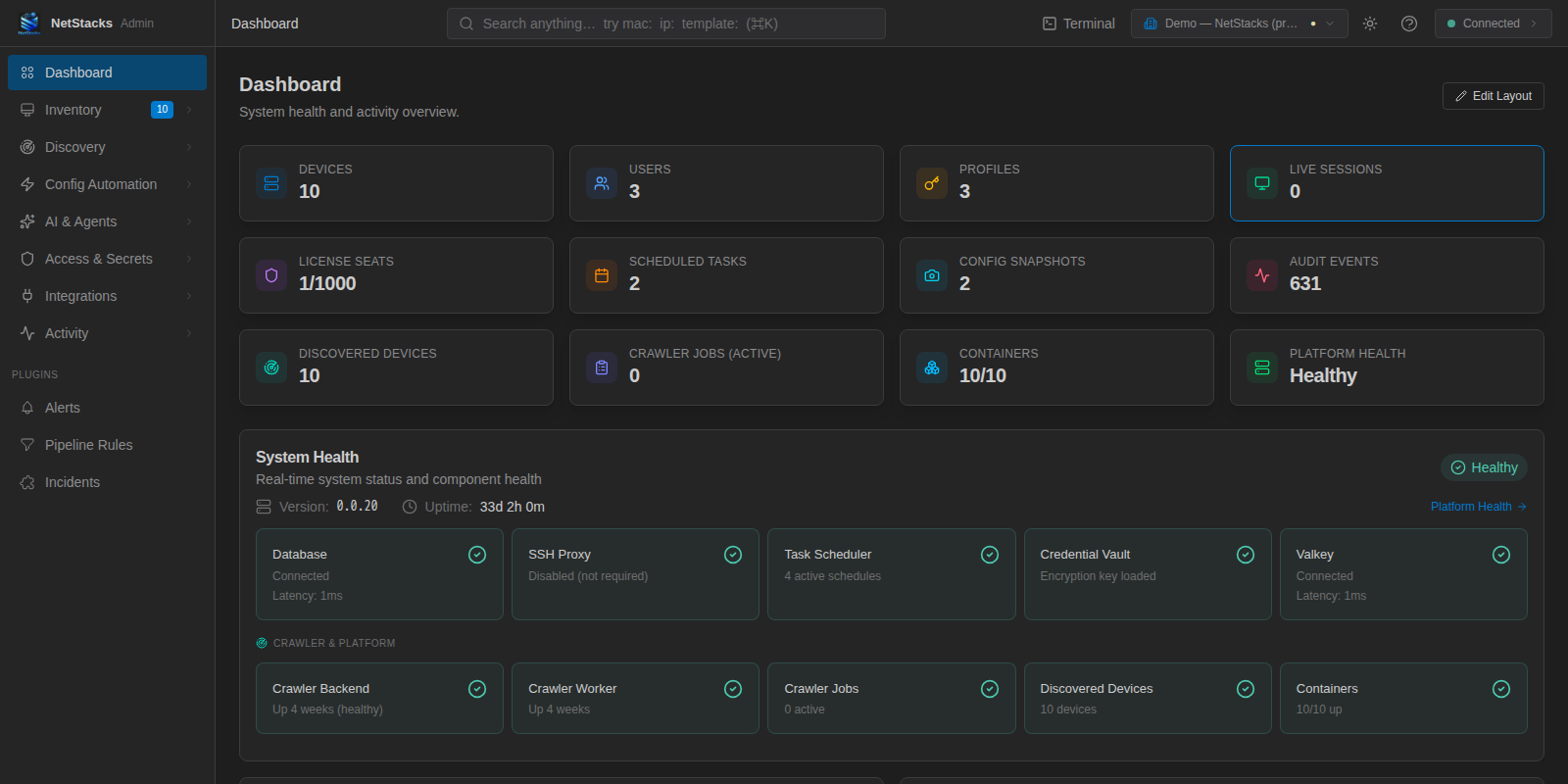
The Controller admin console dashboard. The left sidebar groups Inventory, Discovery, Config Automation, AI & Agents, Access & Secrets, Integrations and Activity. The header has global search, a Terminal link and the organization switcher.
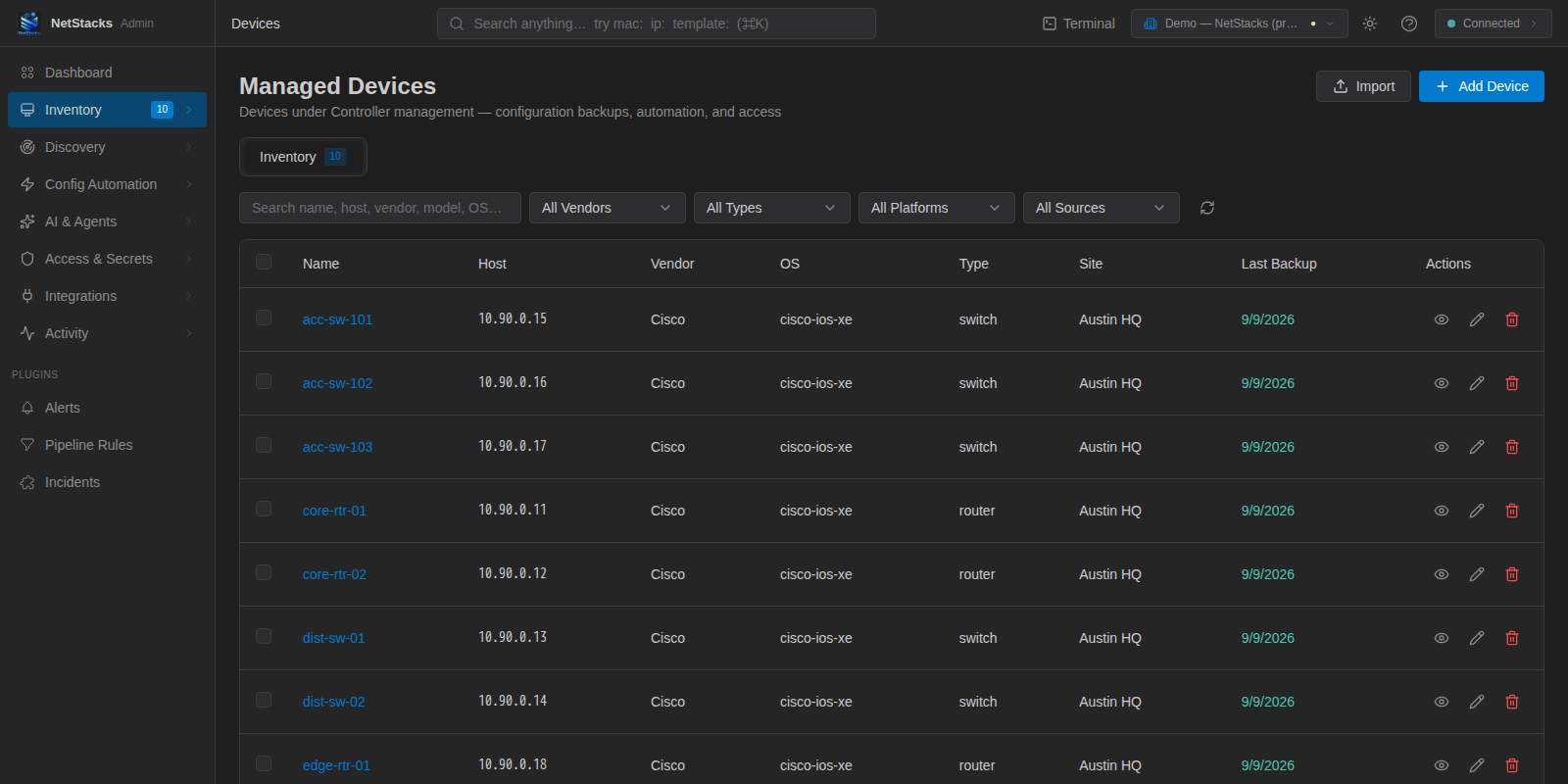
Inventory → Managed Devices in the admin console. Every device here also appears in the Devices sidebar of each engineer's Terminal.
How the Terminal and Controller Relate
There is one Terminal app with two modes. The mode is set when the app starts. To switch, change it in the app and let it restart.
- Standalone mode (the default) is for a single user. The Terminal starts its Local Agent, asks for your vault master password, and keeps everything in a local database. The sidebar is called Sessions.
- Enterprise mode is used when a Controller URL is configured. The Local Agent does not run. You sign in with your Controller username and password. The sidebar becomes Devices and lists the Controller's inventory. SSH sessions are proxied through the Controller, which looks up the device credentials itself, so they never reach your computer.
You can choose a Controller on first launch, under Settings → Enterprise, or go back to standalone mode from the sign-in screen with Use standalone mode instead. Your standalone data stays on your computer when you switch. See Connecting to a Controller.
No. The Terminal is fully usable on its own. Add a Controller when a team needs shared inventory and credentials, role-based access, auditing or central automation.
The Web Terminal Enterprise
Every Controller also serves the Terminal as a web app at https://<controller-host>:3000/terminal/. It is the same interface as the desktop app, always in enterprise mode, so engineers can reach devices from a browser without installing anything. You can open it from the Terminal link in the admin console header.
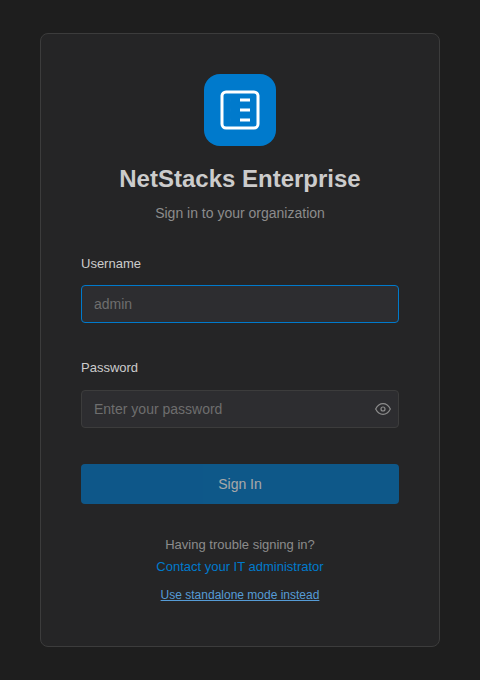
The enterprise sign-in screen, shown in the web terminal and in the desktop app in enterprise mode.
The browser version has no Local Agent, so features that need your own computer are not available. These include the local shell, the local vault, standalone sessions, Workspaces, native window controls and the auto-updater.
Standalone vs Enterprise at a Glance
| Feature | Standalone Terminal | Terminal + Controller |
|---|---|---|
| Cost | Free | Controller requires a Team or Enterprise license |
| Where devices live | Local Sessions (folders, favorites, recent) | Shared Devices inventory on the Controller |
| Credentials | Local vault and credential profiles | Controller profiles and vault; secrets stay on the server |
| SSH connections made by | Local Agent on your computer | The Controller (proxied to your Terminal) |
| AI assistant | Your own provider and API key | Providers configured centrally on the Controller |
| Topology, Documents, MOPs, enrichment | Yes (local) | Yes (plus publishing topologies to the team, and MOP review) |
| Import (CSV/JSON/SecureCRT), NetBox, LibreNMS, Netdisco sources | Yes | Managed on the Controller |
| Workspaces, local shell, tunnels, jump hosts | Yes | Not in the Terminal; the Controller has its own jumpboxes and tunnels |
| Users, roles, organizations, audit log | — | Yes |
| Config backups, templates, stacks, plugins | — | Yes |
| Browser access | — | Web terminal at /terminal/ |
Next Steps
- Installation: download and install the Terminal.
- Quick Start: your first 15 minutes, from vault to first SSH session.
- Connecting to a Controller: sign in to your organization's Controller.
- System Requirements: supported platforms and network access.