
Credential Vault
Where NetStacks keeps device credentials: the local vault in the standalone Terminal (master password, AES-256-GCM) and the Controller vault behind Connection Profiles.
Overview
NetStacks encrypts device credentials at rest: SSH passwords, key passphrases, SNMP community strings, and other secrets. Where they are stored depends on how you run NetStacks:
- Standalone Terminal (personal mode). The desktop app keeps a local vault on your computer, unlocked with a master password you choose. No server is involved.
- Terminal connected to a Controller (enterprise mode), and the web terminal at
/terminal/. Credentials live in the Controller's vault, attached to Connection Profiles. There is no local vault and no master password on the desktop.
Both vaults use AES-256-GCM encryption with Argon2id key derivation. The encryption code is NetStacks' open-source netstacks-credential-vault crate (from the netstacks-crypto repository), which both products use.
Which Vault Am I Using?
| Standalone Terminal | Controller (enterprise) | |
|---|---|---|
| Where secrets live | Inside the local SQLite database on your computer | In the Controller's PostgreSQL database, encrypted per organization |
| How it is unlocked | Your master password (or Touch ID on macOS) | Server-side master key; users just sign in |
| Credential object | Credential profiles (Settings → Profiles) | Connection Profiles (admin console → Access & Secrets → Profiles) |
| Sharing | Single user only | Shared profiles with per-user or per-role grants |
| Do users see device passwords? | It is your own vault | No. Only owners or holders of a reveal grant can reveal, with an audited reason |
If your Terminal shows a NetStacks Enterprise sign-in screen, or the status bar shows a Controller indicator, you are in enterprise mode and the Controller vault applies. If it asks for a master password at launch, you are using the local vault.
Standalone: The Local Vault
The standalone Terminal stores vault data inside its local database. The database lives at:
- macOS:
~/Library/Application Support/netstacks/netstacks.db - Linux:
~/.local/share/netstacks/netstacks.db - Windows:
%LOCALAPPDATA%\netstacks\netstacks.db
Secrets are encrypted with a key derived from your master password. Each encrypted value uses a random 32-byte salt and a 96-bit nonce. After you unlock, the key stays in memory until the app restarts or you lock the vault.
The local vault exists only in the standalone desktop app, so the screens below are described in text. The Controller screenshots further down come from a live Controller.
Creating the Vault
The first time you launch the standalone Terminal, a full-screen gate appears:
- Under Create a master password to protect your credentials, enter a Master Password and repeat it in Confirm Password. It must be at least 12 characters.
- Click Create Vault.
NetStacks cannot recover a forgotten master password. Store it in a password manager.
On the same screen, Sign in to a Controller instead switches the app to enterprise mode. You enter the Controller URL and click Save & restart. In enterprise mode there is no local vault.
Unlocking and Locking
On every launch the gate shows Enter your master password to unlock. Type the password and click Unlock. On a Mac with Touch ID enabled you can click Unlock with Touch ID instead (see Touch ID Unlock).
After 5 wrong passwords in a row, unlocking pauses for 60 seconds.
The vault stays unlocked until the app restarts. To lock it earlier, open Settings → Security and click Lock Vault. There is no idle auto-lock.
Changing the Master Password
- Open Settings → Security. The Credential Vault section shows Vault Unlocked or Vault Locked.
- Under Change Master Password, fill in Current Master Password, New Master Password, and Confirm New Password. Use at least 12 characters.
- Click Change Password.
The same section has Wipe Vault…, which deletes every stored secret after you confirm with your current password. On macOS it also has Touch ID Unlock.
Forgotten Master Password
After two failed unlock attempts, a Forgot password? link appears. It is a reset, not a recovery:
- Click Forgot password? and read the warning.
- Click Reset vault, then Yes, permanently reset — this can't be undone.
A reset deletes everything stored in the vault: SSH and session credentials, AI API keys, integration tokens, secure-note contents, and secret mapped-key commands. Your sessions, profiles (without their secrets), topology, documents, and settings are kept. NetStacks saves a backup of the database first, but that backup is still encrypted with the old password. After the reset you create a new master password and re-enter your credentials.
What the Local Vault Protects
| Encrypted in the vault | Stored unencrypted in the database |
|---|---|
| Profile passwords and key passphrases, jump-host passwords and passphrases, SNMP community strings, AI provider API keys, API Resource credentials, MCP server tokens, SMTP password, Secure Notes contents, secret mapped-key commands | Session names and hosts, profile usernames and other non-secret settings, topology, documents (other than Secure Notes), app settings |
SSH private keys stay where they are on disk. A profile stores only the key's file path and, if the key is encrypted, its passphrase. See SSH Passwords & Keys.
NetStacks does not use the operating system keychain to store credentials. The one exception is Touch ID on macOS, which keeps the master password in the macOS Keychain.
Settings → Integrations → Backup & Seed offers a Full backup, which includes vault secrets still encrypted with your master password, and a Shareable seed with secrets removed.
Controller: The Central Vault Enterprise
On a Controller, every device credential is a secret on a Connection Profile. There is no separate credential list. Secrets are encrypted with AES-256-GCM, using a key derived for each organization from the Controller's master key. Each organization's secrets are therefore encrypted with a different key.
The Controller vault also protects platform secrets: the SSH and X.509 certificate authority private keys, LLM provider API keys, MCP server tokens, and API Resource credentials.
The Vault Page Enterprise
In the admin console, open Access & Secrets → Vault (/access/vault). This page is a read-only inventory of every secret in the organization, grouped by the profile that owns it. To add or change a secret, go to Profiles → Configure → Secrets.
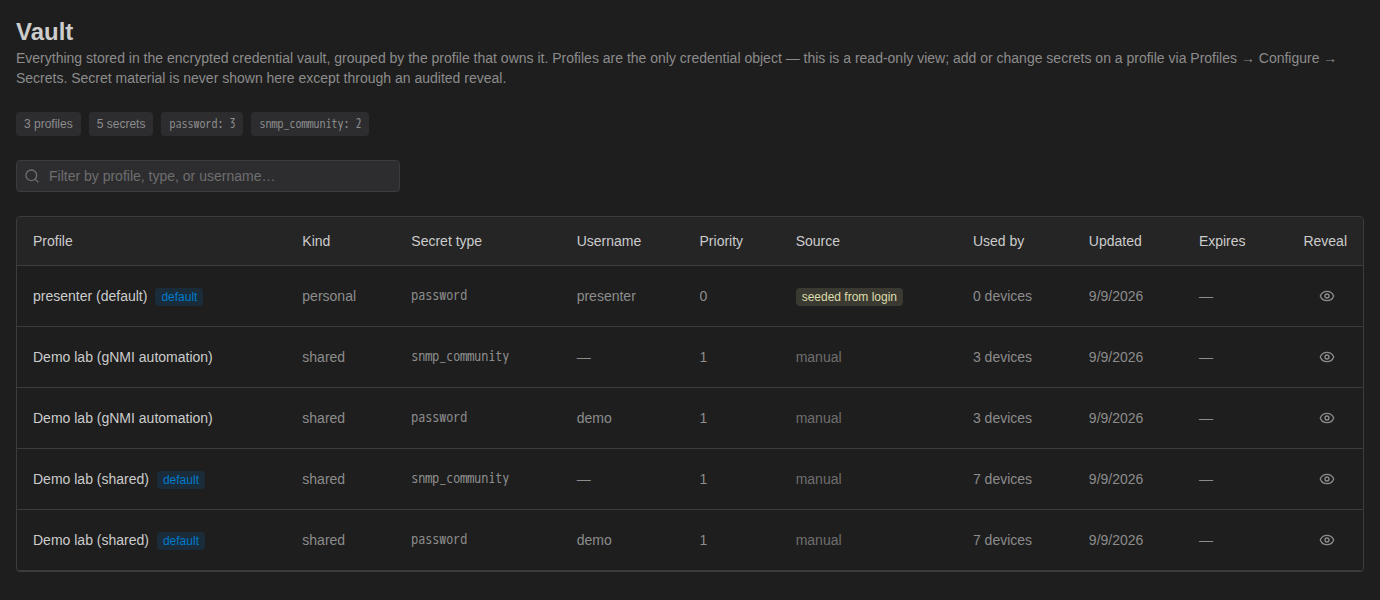
The chips at the top count profiles, secrets, and secrets of each type. Use Filter by profile, type, or username… to narrow the list. The columns are Profile, Kind (personal, shared, or service), Secret type, Username, Priority, Source, Used by (how many devices use the profile), Updated, Expires, and Reveal. A seeded from login badge in Source marks a password copied from the user's login (see Login-password seeding).
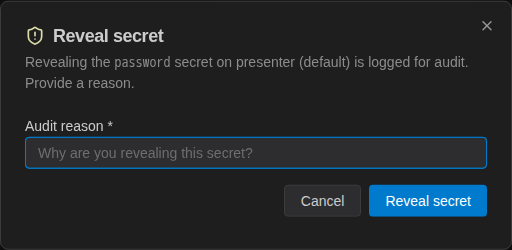
Secret values are never shown in the list. The eye icon starts an audited reveal: you must give an Audit reason, and you must own the profile or hold a reveal grant on it.
How Secrets Reach Devices Enterprise
When you connect from the desktop Terminal in enterprise mode or from the web terminal, the client opens a WebSocket to the Controller and sends only the device and (optionally) the profile you picked. The Controller then:
- Picks the profile and checks that you are allowed to use it.
- Decrypts the secret with your organization's key.
- Opens the SSH or Telnet session to the device itself.
Only terminal output and keystrokes travel between your client and the Controller. The password, key, or certificate never reaches your computer. Automation (config backups, deployments, MOPs, scripts, SFTP, SNMP polling, AI agents) also decrypts secrets on the Controller.
A user only sees a secret by deliberately revealing it. That requires owning the profile or a reveal grant, plus a written reason. Every reveal is recorded in the audit log as profile.secret_revealed.
The Vault Master Key Enterprise
The Controller reads its root key from the VAULT_MASTER_KEY environment variable: 64 hexadecimal characters (32 bytes). The installer generates one with openssl rand -hex 32. The Controller will not start without it.
Every stored secret depends on this key. If it is lost or changed after secrets exist, they cannot be decrypted. There is no re-key procedure. Keep a secure offline copy with your Controller backups. Never use a sample or development key in production.
The Controller has no integration with external secret managers such as HashiCorp Vault, CyberArk, or cloud key management services, and no HSM support.
Troubleshooting
Standalone: "Invalid password"
Check Caps Lock and the keyboard layout. After 5 failures, wait 60 seconds before trying again. If you have truly lost the password, the only option is Forgot password? → Reset vault, which deletes the stored secrets.
Standalone: "Password must be at least 12 characters"
The master password must be 12 or more characters long.
Enterprise: no master password prompt
This is expected. In enterprise mode the local vault is disabled and credentials come from the Controller. Settings → Security is hidden in this mode.
Controller: "Access denied to device profile"
You do not have a use grant on the profile the device uses. Ask an administrator to add one on the profile's Sharing tab. See Sharing a profile.