
Terminal Overview
What the NetStacks terminal does, how standalone and enterprise (Controller) mode differ, which protocols are supported, and a tour of the window layout.
What the Terminal Is
The terminal is the core of NetStacks. It is a tabbed SSH and Telnet client built for network engineers: saved sessions with credential profiles, out-of-band console access through terminal servers, split panes, SFTP, SSH tunnels, keyword highlighting, hover lookups for IPs and MACs, and an AI assistant that can see the session you are working in.
The same terminal runs in two places: the NetStacks desktop app (macOS, Windows, Linux), and the web terminal that a NetStacks Controller serves in the browser at /terminal/.
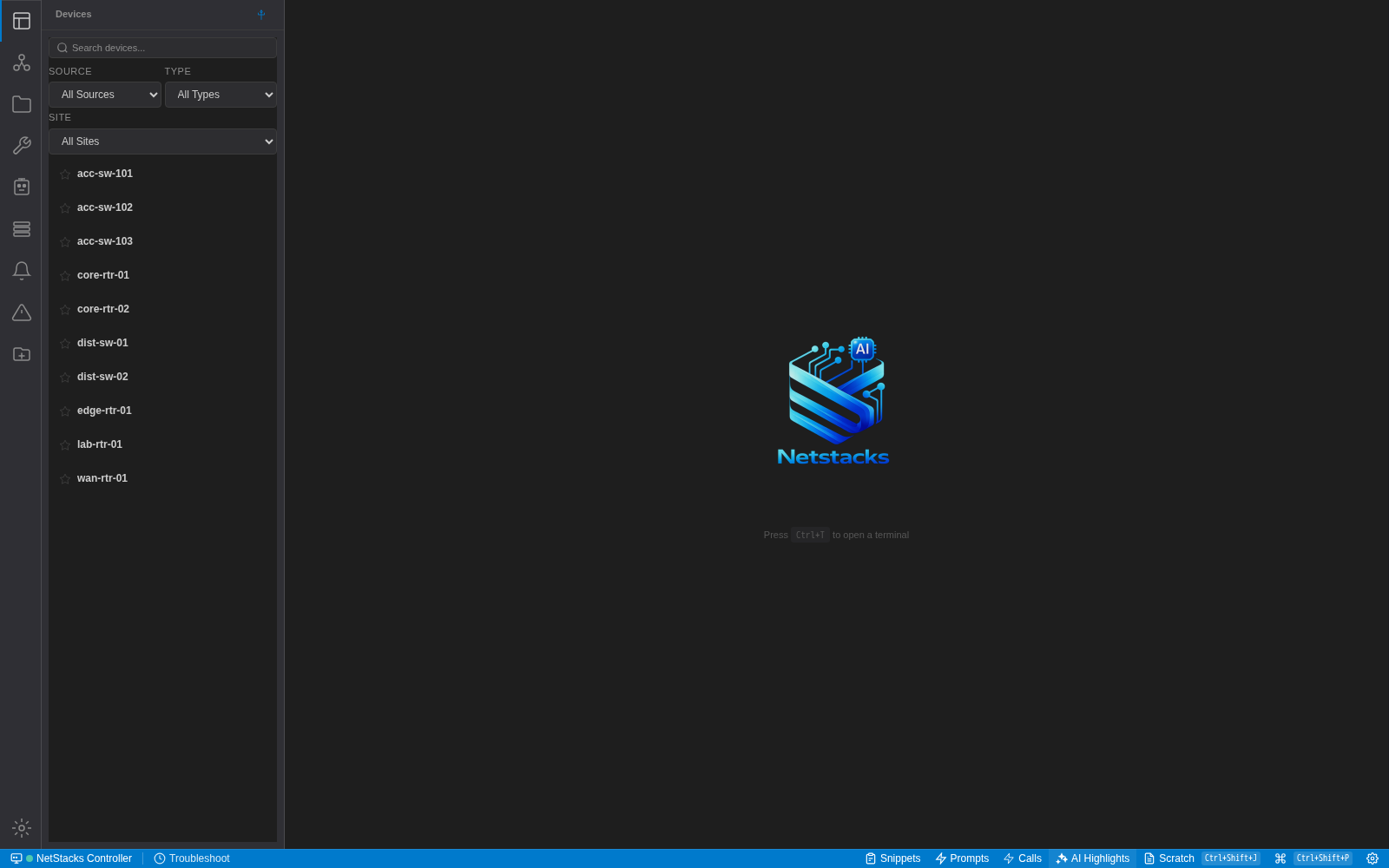
The terminal connected to a Controller: the Devices sidebar on the left, the tab area in the middle and the status bar at the bottom. With no tabs open, the terminal area shows “Press Ctrl+T to open a terminal” (⌘T on macOS).
Standalone vs. Enterprise Mode
NetStacks runs in one of two modes:
- Standalone (Personal Mode) — the desktop app with its bundled local agent. Sessions, credential profiles, jump hosts, tunnels and the credential vault live on your machine. SSH and Telnet connections are made directly from your computer.
- Enterprise — the app (desktop or browser) is signed in to a NetStacks Controller. Devices and credentials come from the Controller's inventory and vault, and every SSH connection is made by the Controller on your behalf. The web terminal at
/terminal/is always in enterprise mode.
The mode depends only on whether a Controller URL is configured. To switch, open Settings → Enterprise, enter or clear the Controller URL and click Save & Restart. On first launch you can also choose Sign in to a Controller instead on the vault screen. The app restarts to change mode.
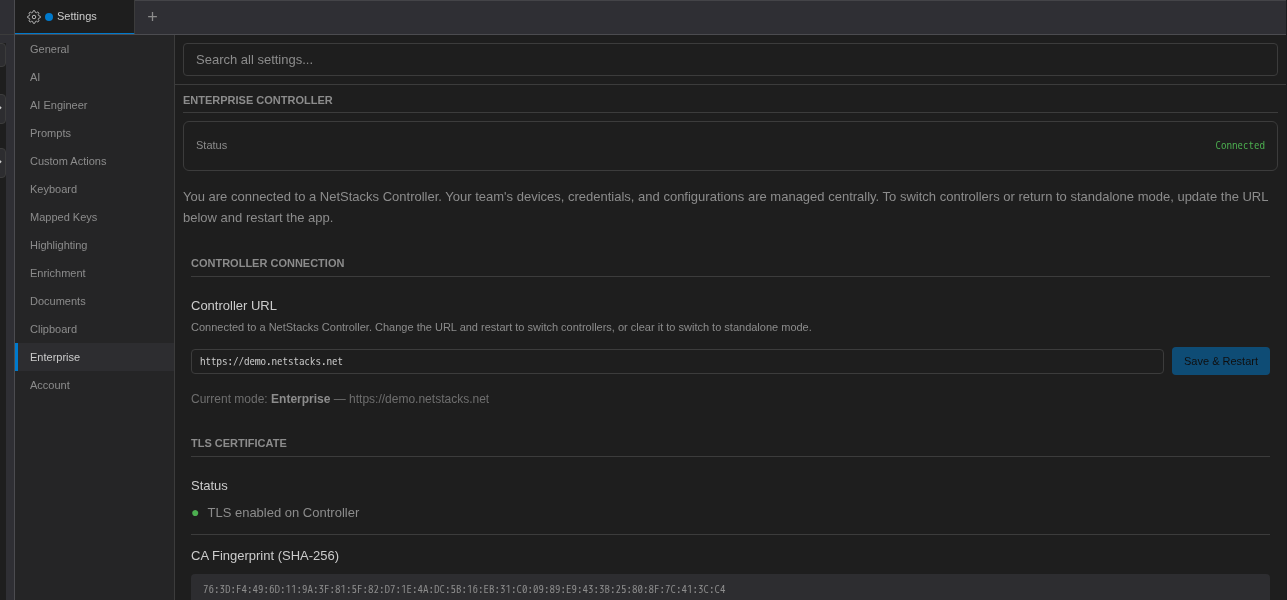
Settings → Enterprise shows the current mode and the Controller URL.
What changes in enterprise mode
- The Sessions sidebar becomes a Devices list from the Controller's inventory. Local saved sessions, folders and session import are not used.
- You can only connect to devices that are in the Controller's inventory. Credentials are chosen per connection from your Controller profiles (see Connecting to Devices).
- New Terminal (the tab strip + button) opens a shell in your personal jumpbox container on the Controller, not a shell on your own computer.
- Standalone-only settings are hidden: Snippets (management), Profiles, Jump Hosts, Tunnels, Security, Trusted Hosts, Recordings, Layouts, Session Logs, Workspaces, Integrations and Troubleshooting. An Account tab is added.
- Signed-in sessions log out after 30 minutes of inactivity. A Session Expiring dialog with a Stay Signed In button appears two minutes before.
What is different in the browser
The web terminal is the same application as the desktop app, with a few desktop-only pieces missing:
- There is no title bar or menu bar. Use the Command Palette (Ctrl+Shift+P / ⌘⇧P, or the status-bar button) to reach menu commands.
- Browser-owned shortcuts such as Ctrl+T, Ctrl+W and Ctrl+N are usually taken by the browser itself.
- Pop-out terminal windows, OS file drag-and-drop and the auto-updater are desktop only.
Supported Connection Types
| Connection | Standalone | Enterprise / web | Notes |
|---|---|---|---|
| SSH | Yes | Yes (through the Controller) | Password (keyboard-interactive is tried first, then plain password) or private key file with optional passphrase. Ed25519, ECDSA and RSA keys. |
| Telnet | Yes (saved sessions) | No | Sends the profile's username and password automatically at the login prompts. |
| Out-of-band console | Yes | No | Reaches a device's console port through a terminal server (Opengear, Cisco async, Avocent, Lantronix) over SSH or Telnet. See Out-of-Band Console. |
| Local shell | Yes | Jumpbox container on the Controller | Windows uses PowerShell 7, Windows PowerShell or cmd.exe (first found). macOS and Linux use your login shell. |
Older devices are supported without extra settings: the SSH client offers legacy key-exchange algorithms, ciphers and host-key types (for example diffie-hellman-group1-sha1, ssh-rsa, ssh-dss and CBC ciphers) alongside modern ones, and negotiates the strongest that both sides support.
Window Layout
The window has four areas: the activity bar (icon rail on the far left), the sidebar next to it, the tab area in the middle and the status bar along the bottom. The AI assistant panel opens on the right (⌘J / Ctrl+J).
On the desktop app the title bar holds a Search everything… box (opens the command palette), a clipboard-history button and buttons to toggle the sidebar and AI panel. On Windows and Linux the menu bar is in the title bar; on macOS the menus are in the system menu bar.
Activity Bar and Sidebar
| Icon (tooltip) | Opens | Availability |
|---|---|---|
| Sessions | Saved sessions and Groups (standalone), or the Devices list (enterprise) | Both |
| Network Topology | Topology maps | Both |
| Documents | Notes, templates, saved outputs | Both |
| Changes | MOPs (methods of procedure) | Both |
| Agents | AI agents | Both |
| Stacks | Service stacks | Enterprise |
| Plugin panels (for example Alerts, Incidents) | Panels added by Controller plugins | Enterprise |
| SFTP Browser (N) | Open SFTP connections | Shown while an SFTP connection is open |
| Workspaces | Git-backed workspaces and scripts | Standalone |
| Gear (bottom) | Settings, opened as a tab | Both |
In enterprise mode, items can also be hidden by your Controller role (for example, Changes needs the MOP management permission). The pin button in the sidebar header switches between Pin sidebar (stay open) and Unpin sidebar (auto-collapse).
Tab Strip
Every open item — terminal, out-of-band console, document, topology, MOP, Settings — is a tab in one strip. The + button at the end (tooltip New Terminal) opens a local shell in standalone mode or a jumpbox shell in enterprise mode. See Tabs, Split View & Groups for the tab menu, split panes and saved groups.
Status Bar

The status bar in enterprise mode.
| Item | What it does |
|---|---|
| Controller indicator (enterprise) | Shows the Controller name and connection state. Click for your user, organization, roles, license and enabled features. Platform admins can switch organization here. |
| Cert: (enterprise) | Time remaining on the SSH certificate the Controller issued you, when certificate authentication is in use. |
| Connection count (standalone) | Number of open connections. |
| SFTP | Opens the SFTP browser for the focused terminal. See SFTP File Browser. |
| Troubleshoot | Starts a troubleshooting session that captures terminal activity and produces an AI summary document (⌘⇧K / Ctrl+Shift+K). |
| ⇌ Tunnels (standalone) | Tunnel status and controls. See SSH Tunnels. |
| Snippets | Types a saved command into the active terminal. See Snippets & Custom Actions. |
| Prompts | Sends a saved AI prompt to the AI assistant. |
| Calls | Runs a saved API request (Quick Calls). |
| AI Highlights | Toggles AI scanning of terminal output for errors, security issues and anomalies. Off at every launch. |
| Scratch | Opens a floating scratchpad editor (⌘⇧J / Ctrl+Shift+J). |
| Command palette, Settings | Open the command palette and the Settings tab. |
Right-click the status bar and choose Customize Status Bar to choose which items show (see Themes & Appearance).
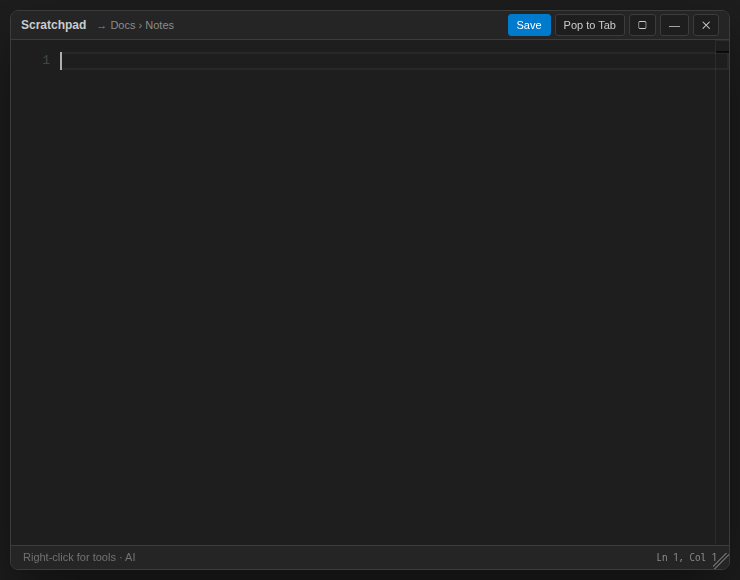
The Scratchpad saves to Docs → Notes. Right-click inside it for text tools such as Format JSON, Sort Lines and Strip ANSI Codes.
Terminal Right-Click Menu
Right-clicking inside a terminal opens this menu (right-click never pastes):
- Ask AI, and AI: Explain, AI: Fix/Debug, AI: Suggest for the selected text
- Copy and Paste
- Session Settings (saved sessions)
- Start Session Logging / Stop Session Logging
- Start Recording / Stop Recording
- Save Output to Docs...
- Visualize Traceroute / MTR (when the output looks like a traceroute)
- Your Custom Actions
Right-clicking an underlined IP address, MAC address, interface, VLAN, subnet or ASN shows lookup actions for that value instead (for example Ping, Traceroute, Whois Lookup, OUI Lookup). See Hover Enrichment & Lookups.
Feature Availability by Mode
| Feature | Standalone | Enterprise (desktop and web) |
|---|---|---|
| Saved sessions, folders, import/export | Yes | Devices list from the Controller |
| Telnet, out-of-band console | Yes | No |
| Jump hosts, SSH tunnels | Yes | Managed by the Controller administrator |
| Host-key prompts | Yes | Per the Controller's host-key policy |
| SFTP browser | Yes | When enabled on the Controller |
| Tabs, split view, command palette, find | Yes | Yes |
| Saved Groups of tabs | Yes | No |
| Session logging, Save Output to Docs | Yes | Yes |
| Session recording (asciicast) | Yes | No |
| Themes, highlighting, snippets, custom actions, mapped keys | Yes | Yes |
| Multi-Send and Broadcast Command | Yes | No |
| Hover enrichment, device context, device memory | Yes | Yes |
| Session sharing | No | Yes |
| Command safety warnings | Yes | No |