
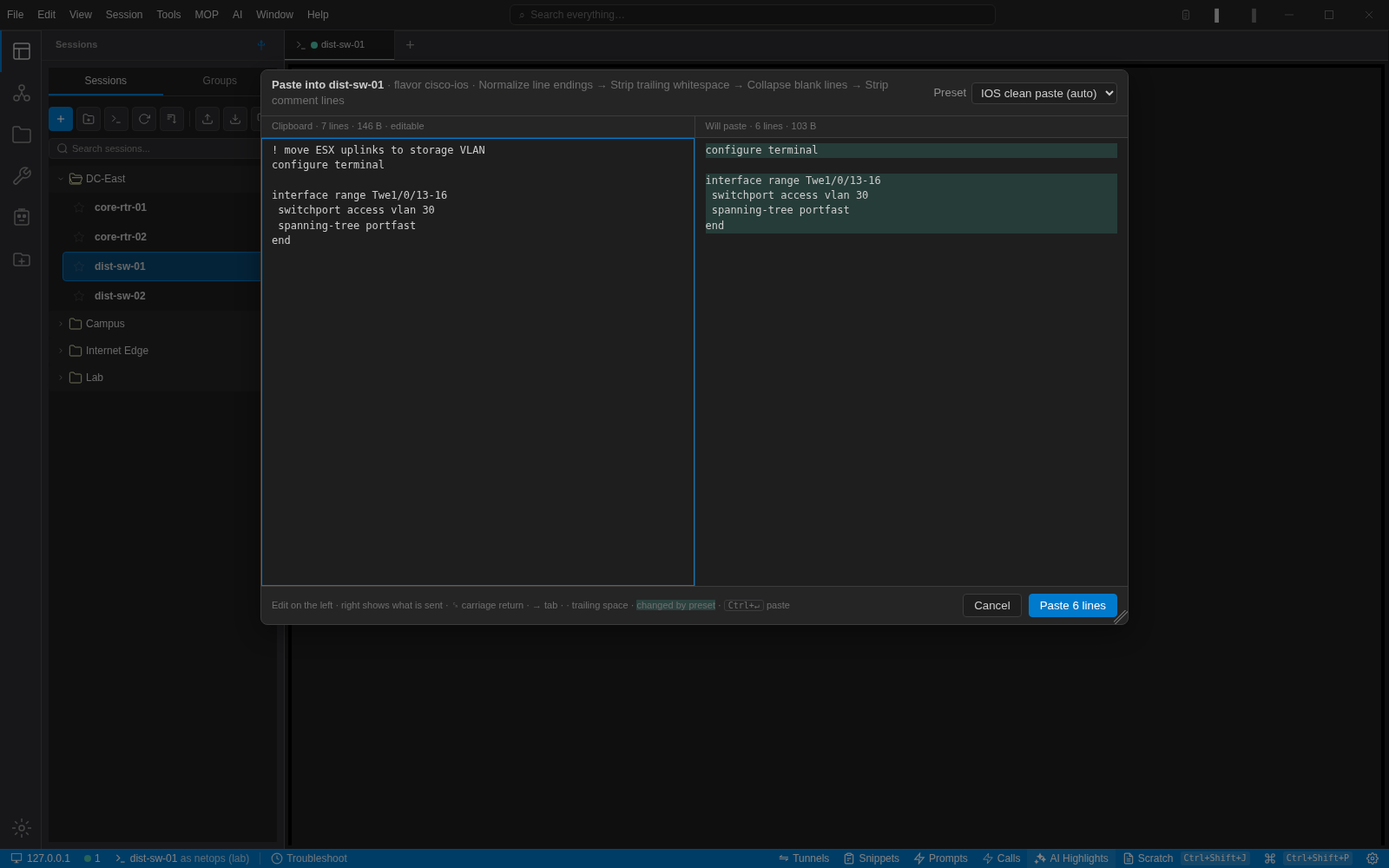
Pasting into a router is the most dangerous thing most of us do every day. A stray blank line commits a half-typed command. A Windows line ending turns no shutdown into no shutdown^M on some platforms. A comment line pasted into IOS becomes a syntax error that scrolls the real error off the screen.
SecureCRT solved this years ago with a confirmation dialog for multi-line pastes. Several people asked for the same thing, so it is in NetStacks now. This post covers the decisions, because two of them are the opposite of what we shipped first.
What happens on Ctrl+V
If the clipboard holds a single line, it is pasted. Nothing changes for the case that is almost always safe.
If it holds two or more lines, a dialog opens. The left pane is the clipboard, and you can edit it. The right pane is what the device will receive after the flavour's preset has been applied. Ctrl+Enter sends it. Escape cancels.
The presets are the interesting part. Each CLI flavour has a default chain of transforms. The IOS preset normalises line endings, strips trailing whitespace, collapses blank lines and removes ! comment lines. The Junos preset normalises line endings and trailing whitespace and cleans up display set output so it can be pasted as set commands. You can edit the chains, add your own presets, and choose which flavours each applies to.
Why we swapped the chords
The first build put the dialog on Ctrl+Shift+V and left Ctrl+V as a plain paste, on the theory that a new behaviour should live on a new key. The feedback was immediate and unanimous: the dialog is the safe path, so it belongs on the key people already press without thinking. Ctrl+V now opens the dialog; Ctrl+Shift+V pastes exactly what the clipboard holds, no transforms, no dialog. Shift+Insert (paste) and Ctrl+Insert (copy) keep working as fixed aliases, and the main clipboard chords are rebindable under Settings → Keyboard.
Turning it off
Settings → Clipboard has a master switch, "Enable advanced paste". Off means every paste chord is a plain paste, no preset and no dialog. Below it, the line threshold controls when the dialog appears; the default of 2 means every multi-line paste, and 1 confirms single lines too.
What the history keeps
Everything copied inside NetStacks is recorded with where it came from: the session, the device, the CLI flavour, or the document and MOP if that is where you copied from. Open it with Ctrl+Shift+H, search it, pin the clips you reuse, and paste straight into the active terminal.
Two things it does not do. It does not read your OS clipboard in the background; only copies made inside the app are recorded, plus anything you import on purpose. And it runs every clip through the same credential sanitiser the AI features use before storing it. enable secret 5 $1$... is stored as enable secret 5 [REDACTED]. The OS clipboard still gets the real text; only the history is scrubbed.
Unpinned clips expire after 24 hours by default, and the store is capped at 500. Both are settings.
Things we learned building it
Dragging a dialog by its title bar used to close it. The browser dispatches the click at the end of a drag to the common ancestor of where the press started and ended, which was the backdrop, and our dismiss hook treated that as a backdrop click. Twenty-four dialogs shared the hook. The fix was to remember where the press began. If your app has movable dialogs and a click-outside-to-close hook, try dragging one onto the backdrop.