
Scratchpad
A floating notepad for quick notes and pasted output, with text tools, AI edit, and saving to Docs or the active workspace.
Overview
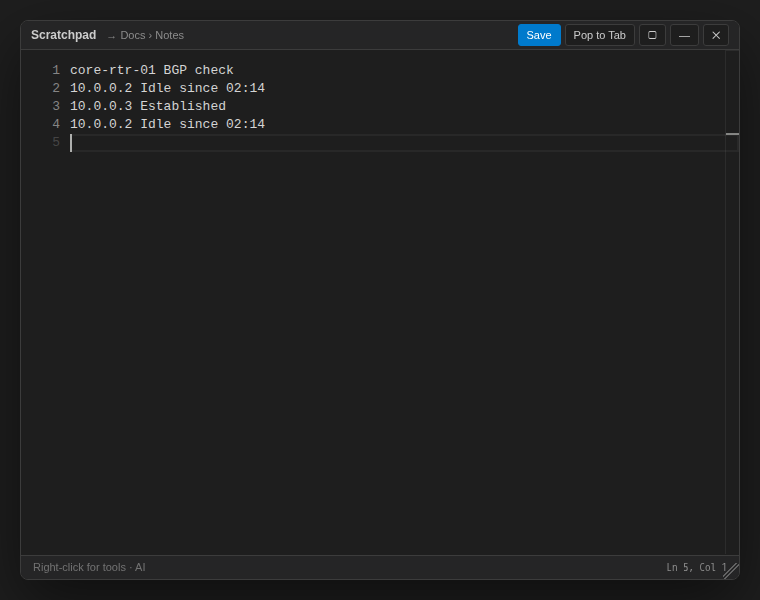
The Scratchpad is a floating editor for quick notes: paste show output, jot down a ticket number, or clean up a list of addresses without opening a document. It works in the standalone desktop app, in enterprise mode and in the web terminal.
Open the Scratchpad
- Press
Cmd/Ctrl+Shift+J. - Click Scratch in the status bar at the bottom of the window.
- Choose Tools → Scratchpad… from the menu.
The Scratchpad Window
Drag the title bar to move the window and drag the bottom-right corner to resize it. The title bar shows where a save will go (for example → Docs › Notes) and these buttons:
| Button | Action |
|---|---|
| Save | Save the note and close the Scratchpad (also Cmd/Ctrl+S) |
| Pop to Tab | Move the text into a Scratchpad tab in the main tab bar |
| ▢ | Maximize or restore the window |
| — | Minimize to the status bar. A dot appears on the Scratch button; click it to bring the note back. |
| ✕ | Close and discard unsaved text (also Esc) |
The footer shows Right-click for tools · AI and the cursor position.
Right-Click Tools
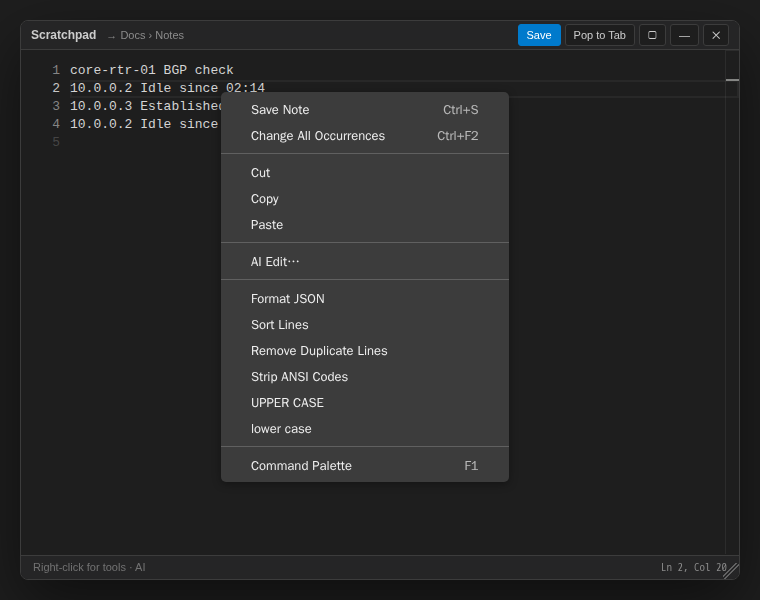
Right-click in the text to get:
| Item | What it does |
|---|---|
| Save Note | Save, same as the Save button |
| AI Edit… | Describe a change (for example "turn this into a table") and the AI rewrites the text. Undo with Cmd/Ctrl+Z. Uses your configured AI provider. |
| Format JSON | Pretty-print JSON |
| Sort Lines | Sort lines alphabetically |
| Remove Duplicate Lines | Keep one copy of each repeated line |
| Strip ANSI Codes | Remove terminal color codes from pasted output |
| UPPER CASE / lower case | Change the case of the text |
The usual Monaco items (Cut, Copy, Paste, Change All Occurrences, Command Palette) are also in the menu.
Saving a Note
Where the note goes depends on the active tab:
- A workspace tab is active (standalone only): the note is saved as a text file in
<workspace>/.netstacks/notes/, named with the date and time. - Any other tab: the note is saved as a Docs document named Scratch <date and time> in the Notes category. In enterprise mode it is saved to the Controller's Docs.
You can change the Docs category and folder used for Scratchpad saves in Settings → Documents.
Tips
- Paste output from a terminal, run Strip ANSI Codes, then Sort Lines and Remove Duplicate Lines to get a clean list of addresses or interfaces.
- If the Scratch button is missing from the status bar, it has been turned off in the status bar settings (Scratchpad Button). The keyboard shortcut still works.