MOP Review & Approval
EnterpriseSubmit a MOP for review from the NetStacks Terminal, approve or reject it in the Controller admin console, and track revisions and execution history.
Overview
When the NetStacks Terminal is connected to a Controller, every MOP is stored on the Controller and has a review status. An engineer can submit a MOP for review from the Terminal; a reviewer then reads it in the Controller's admin console and approves or rejects it with a comment. The status is shown everywhere the MOP appears: the Changes panel, the MOP's Plan tab and the admin console.
Review is optional: a Draft MOP can be run without being submitted. Once a MOP has been submitted, the Terminal will not start it until it is approved.
Standalone Terminals have no review workflow; MOPs are simply saved and run locally.
MOP Statuses
| Status | Meaning | Can it be run from the Terminal? |
|---|---|---|
| Draft | Being written. Edits update the MOP in place. | Yes |
| Pending Review | Submitted and waiting for a reviewer. | No — the Execute tab shows Awaiting Approval |
| Approved | Signed off by a reviewer. | Yes |
| Rejected | Sent back by a reviewer, usually with a comment. | No — the Execute tab shows Rejected — Edit & Resubmit |
Submit a MOP for Review
- Open the MOP in the Terminal (Changes panel, double-click the MOP).
- Make sure your edits are saved. The status bar at the top of the Plan tab shows Draft and Synced once the MOP is on the Controller.
- Click Submit for Review in that status bar. The button is disabled while there are unsaved changes (Save changes before submitting).
The status changes to Pending Review. The Terminal checks for a decision while the MOP is open, so the status updates on its own when a reviewer acts.
A reviewer can also submit a draft from the admin console with the Submit for Review button on the MOP's page.
Review a MOP in the Admin Console
- In the admin console, open Config Automation → MOPs(
/automation/mops). Set the Status filter to Pending Review. - Click a MOP to open its page.
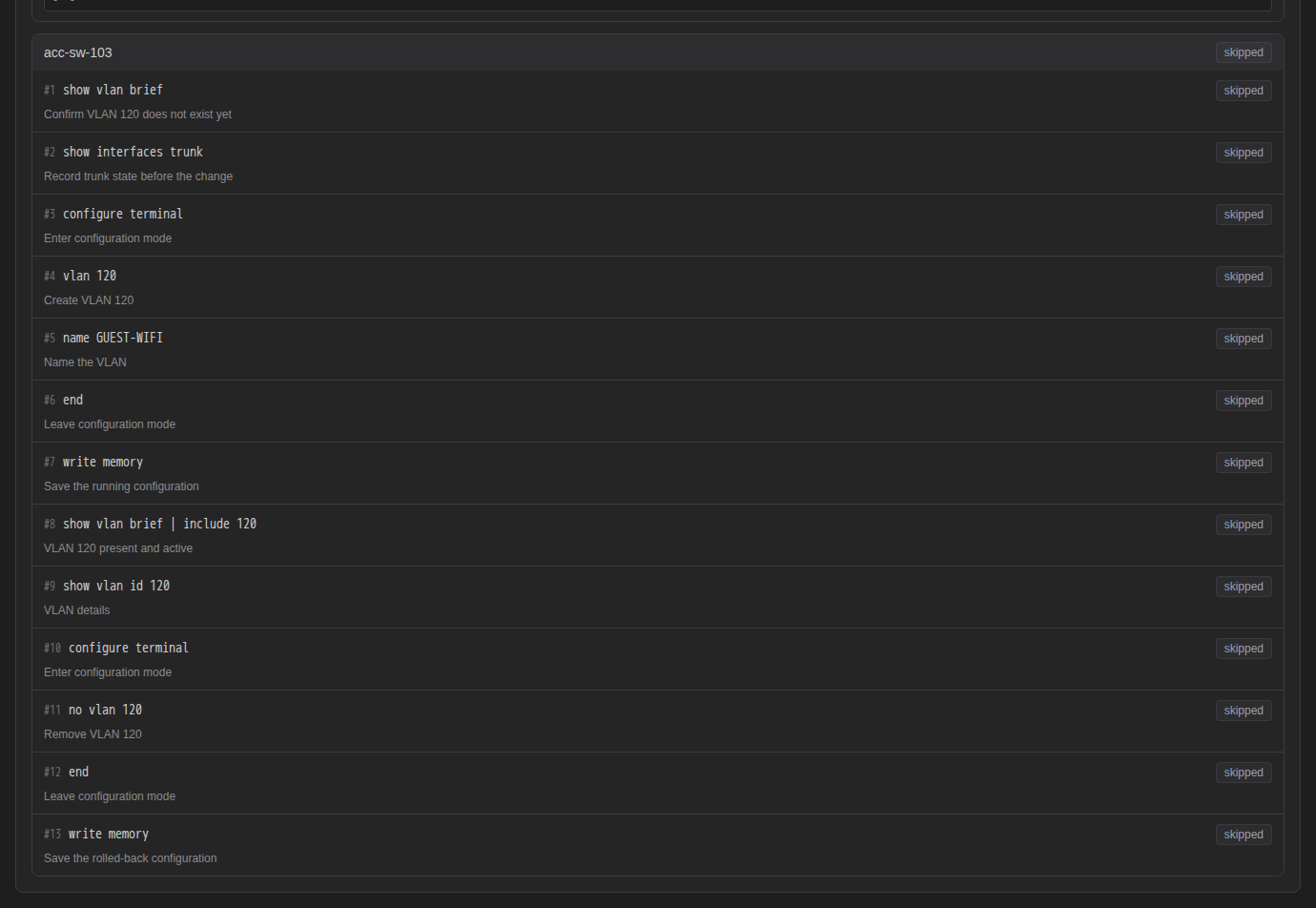
- Read the metadata (Author, Revision, Change Ticket, Est. Duration, Platform Hints, Tags) and the steps under MOP Data, which shows the full MOP package.
- In the Review This MOP box, add an optional comment and click Approve or Reject. Rejecting asks you to confirm.
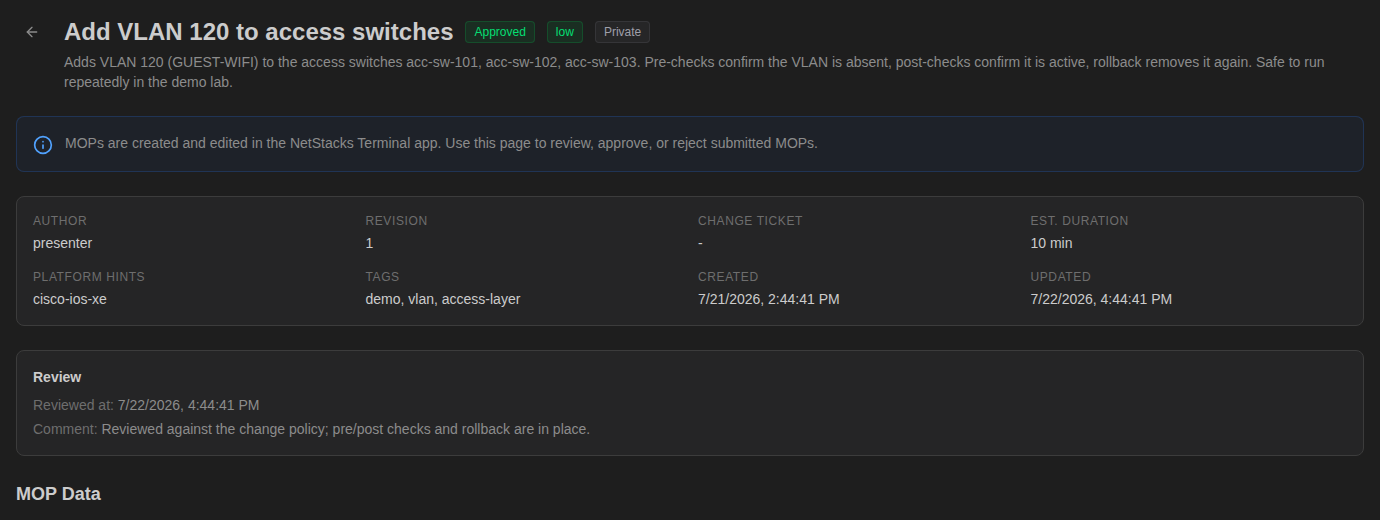
After a decision, the page shows a Review box with the time of the review and the comment.
After the Review
- Approved — the Terminal shows Start Execution again. See Running a MOP.
- Rejected — the Plan tab shows the reviewer's comment (Reviewer: …). Edit the MOP; your edit is saved as a new draft revision, which you can submit again.
Revisions
Editing a MOP that is no longer a draft (approved or rejected) does not change the reviewed version. The Terminal saves your edit as a new revision of the same MOP, starting again as Draft. The admin console page lists all revisions in Revision History (Revision, Status, Author, Created).
Only a draft can be shared or made private: the switch on the admin console page reads Shared — visible to all users in the organization or Private — only visible to you.
The MOPs List
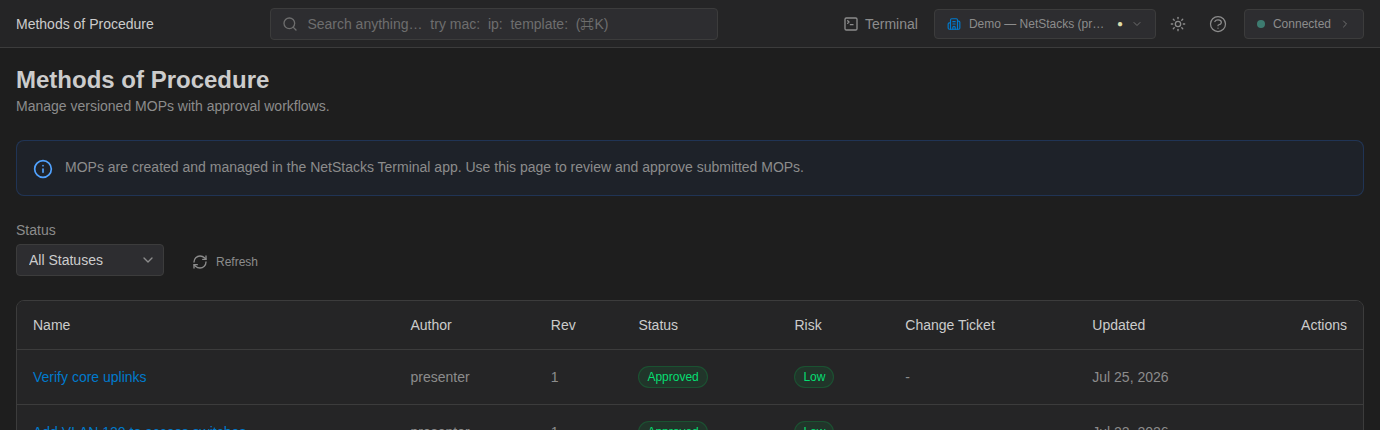
Config Automation → MOPs lists the organization's MOPs with Name, Author, Rev, Status, Risk, Change Ticket and Updated. Filter by status with All Statuses, Draft, Pending Review, Approved or Rejected.
Each MOP page ends with Execution History: every run of the MOP with its strategy, control mode, start time and result. Expand a run to see its current phase, start and finish times, and each device's steps with their status.