
Roles & Permissions
EnterpriseCreate NetStacks Controller roles, choose permissions in the role editor, and understand the built-in admin, operator, viewer and platform-admin roles.
Overview
A role is a named set of permissions. You assign roles to users, and a user's permissions are the union of all their roles. Roles belong to an organization, so each tenant has its own role list.
Managing roles requires the Users & Roles permission. Roles are under Administration → Roles (/admin/roles).
The Roles Page
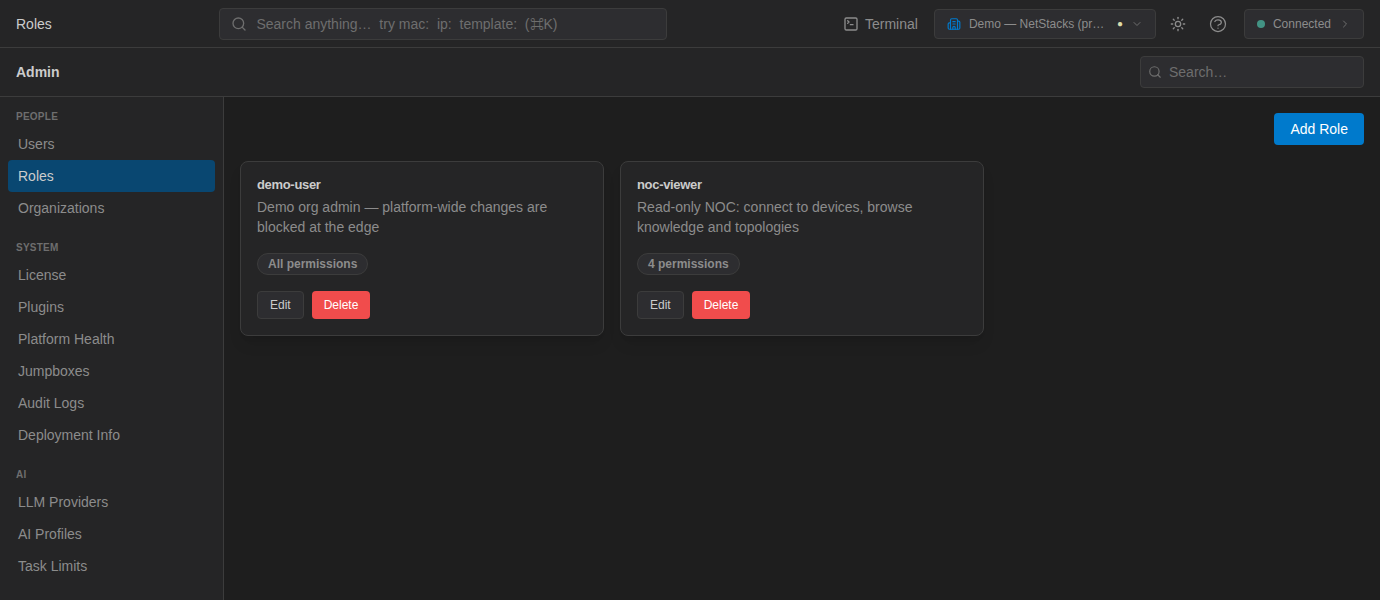
Each card shows the role name, description and a permission summary (All permissions or N permissions), with Edit and Delete buttons. Protected roles carry a Protected badge and can't be deleted.
Create a Role
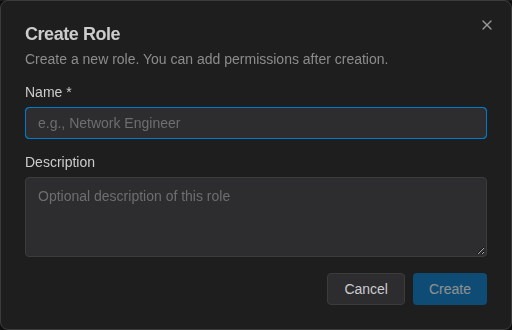
- Click Add Role.
- Enter a Name * (for example
Network Engineer; names must be unique within the organization) and an optional Description. - Click Create. The role starts with no permissions.
- Click Edit on the new role to choose its permissions.
Edit a Role's Permissions
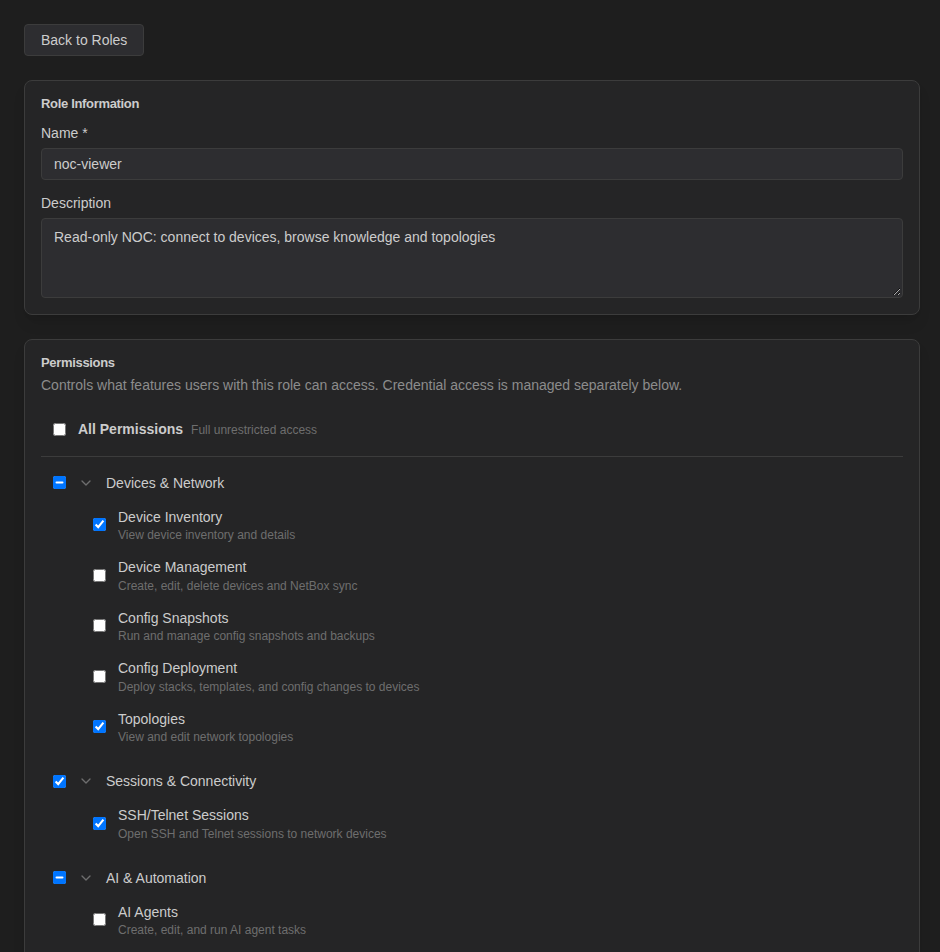
- Click Edit on a role card to open Edit Role.
- In Role Information, adjust Name and Description.
- In Permissions, either switch on All Permissions — Full unrestricted access, or tick individual permissions. They are grouped as Devices & Network, Sessions & Connectivity, AI & Automation, Administration and Platform.
- Click Save Changes.
Changes take effect for all users holding the role on their next action. Role changes are recorded in the audit log (role.created, role.updated, role.deleted).
All Permissions grants everything within the organization. It does not include Platform Administration, which must be granted explicitly (normally only through the built-in platform-admin role).
Permission Reference
These are the permissions offered in the role editor, with the descriptions it shows:
| Group | Permission (key) | Description |
|---|---|---|
| Devices & Network | Device Inventory (devices.access) | View device inventory and details |
Device Management (devices.manage) | Create, edit, delete devices and NetBox sync | |
Config Snapshots (snapshots.manage) | Run and manage config snapshots and backups | |
Config Deployment (config.deploy) | Deploy stacks, templates, and config changes to devices | |
Topologies (topologies.access) | View and edit network topologies | |
| Sessions & Connectivity | SSH/Telnet Sessions (sessions.connect) | Open SSH and Telnet sessions to network devices |
| AI & Automation | AI Agents (agents.manage) | Create, edit, and run AI agent tasks |
Scripts (scripts.run) | Execute user scripts on devices | |
MOPs (mops.manage) | Create, edit, and execute Methods of Procedure | |
Knowledge Search (knowledge.access) | Search the knowledge base | |
Knowledge Management (knowledge.manage) | Upload, edit, and delete knowledge base documents | |
| Administration | Users & Roles (users.manage) | Manage user accounts, roles, and role assignments |
Credentials Vault (credentials.manage) | Manage the credential vault — create, edit, delete credentials | |
System Settings (system.manage) | System settings, license, backup/restore, plugins | |
| Platform | Platform Administration (platform.admin) | Manage all organizations and switch the active organization context (super-admin) |
Device Inventory is the baseline permission for day-to-day work: the admin console's main navigation (Dashboard, Inventory, Discovery, Config Automation, AI & Agents, Access & Secrets, Integrations, Activity) is shown to users who hold it. Give it to every role meant for engineers.
Built-in Roles
A new Controller's Default Organization starts with four roles:
| Role | Permissions | Protected |
|---|---|---|
admin | All Permissions (full access within the organization) | Yes |
operator | Device Inventory, Device Management, Config Snapshots, Config Deployment, Topologies, SSH/Telnet Sessions, AI Agents, Scripts, MOPs, Knowledge Search, Knowledge Management | No |
viewer | Device Inventory, Topologies, Knowledge Search | No |
platform-admin | Platform Administration (manage organizations, switch organization) | Yes |
Protected roles can't be deleted, but you can still edit their permissions and description (the editor shows a Protected Role banner). The built-in admin user holds both admin and platform-admin.
Only the Default Organization is seeded with these roles. When you create another organization, switch to it and create its roles before adding users. See Organizations.
Credential Access by Role
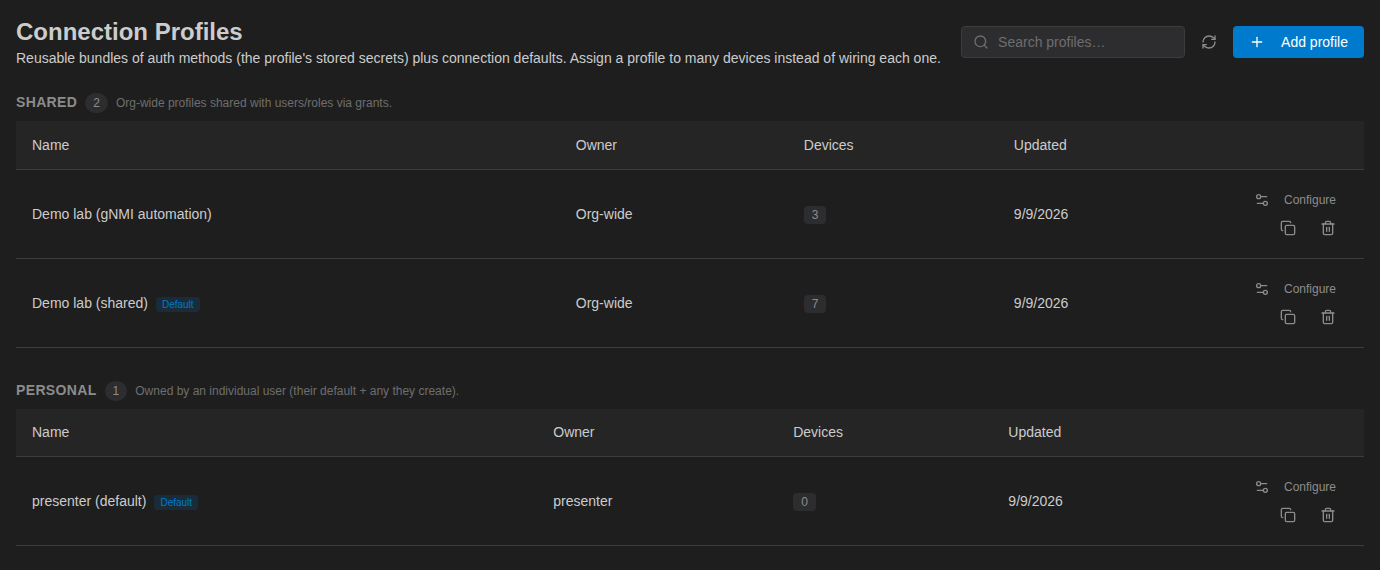
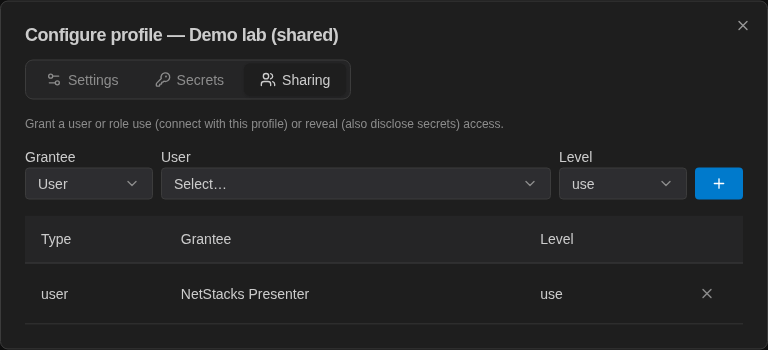
Access to individual device credentials isn't set in the role editor. Instead, share a Connection Profile with a role: open Access & Secrets → Profiles, click Configure on a shared profile, and on the Sharing tab grant the role either use (connect with the profile) or reveal (also view the secrets, with an audited reason). Everyone holding the role then gets that access. See Connection Profiles & Vault.
What Admins See in the Console
- Settings (sidebar) is shown to users with System Settings.
- Administration (sidebar) is shown to users with Users & Roles.
- Organizations in the Admin rail and the header organization switcher are shown to platform administrators only.