
Scheduled Tasks
EnterpriseCreate Controller tasks for stack deployments, device health checks, CLI command runs, config backups and AI agent prompts, with a cron schedule and timezone, and run them on demand.
Overview
Scheduled tasks are saved, repeatable jobs on the NetStacks Controller. Each task has a type (what it does), its settings (which devices, which stack, which prompt) and a cron schedule with a timezone. Tasks belong to the organization you are working in.
Open them in the admin console from Config Automation → Scheduled(/automation/scheduled).
The Scheduled Tasks Page
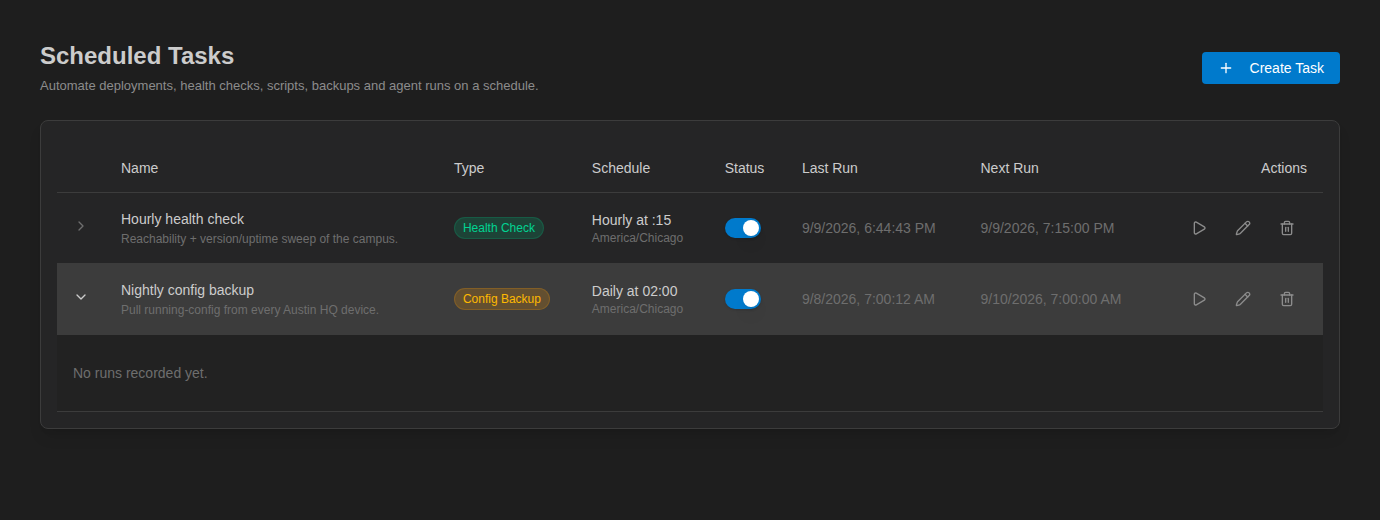
The page lists each task with Name, Type, Schedule (in plain words, with its timezone), Status (an enable switch), Last Run, Next Run and Actions.
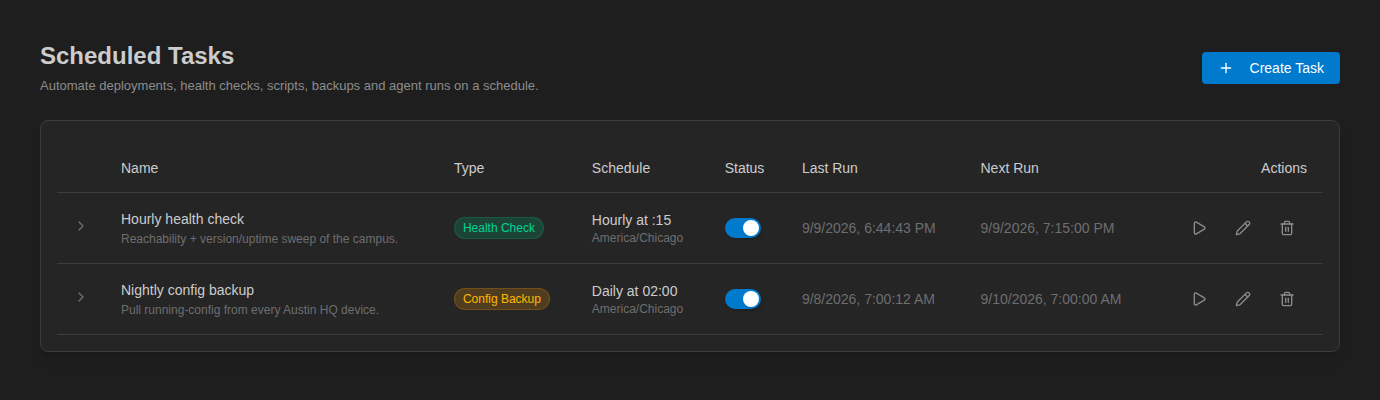
The action icons on each row are Run now, Edit and Delete. The chevron at the start of a row shows the task's run history.
Create a Task
Click Create Task. The Create Scheduled Task wizard has four steps: Type → Configure → Schedule → Review.
- Type — pick one of the five task types.
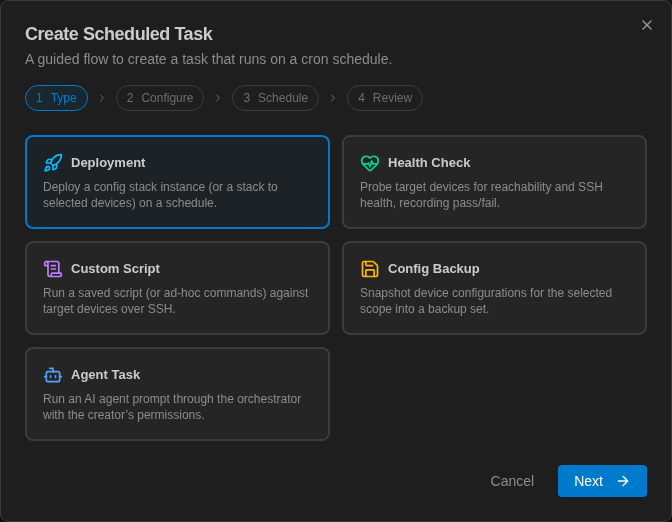
- Configure — fill in the settings for that type (see Task Types).
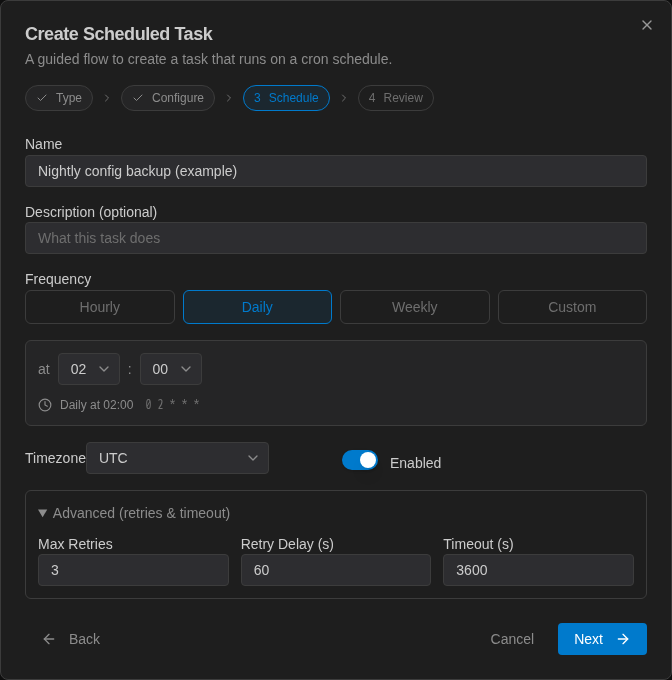
- Schedule — enter a Name (required) and an optional Description, choose the Frequency and Timezone, and leave Enabled on or turn it off (see Schedules and Cron Expressions).
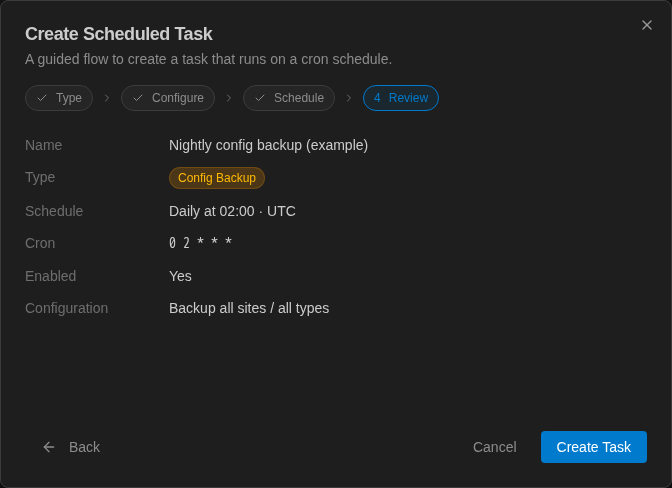
- Review — check the summary (Name, Type, Schedule, Cron, Enabled, Configuration) and click Create Task.
Task Types
| Type | What it does |
|---|---|
| Deployment | Deploys a config stack instance (or a stack to selected devices). |
| Health Check | Probes target devices for reachability and SSH health, recording pass/fail. |
| Custom Script | Runs CLI commands against target devices over SSH. |
| Config Backup | Snapshots device configurations for the selected scope into a backup set. |
| Agent Task | Runs an AI agent prompt with the permissions of the user who created the task. |
For tasks that connect to devices, each device signs in with the credential profile assigned to it in the inventory.
Deployment
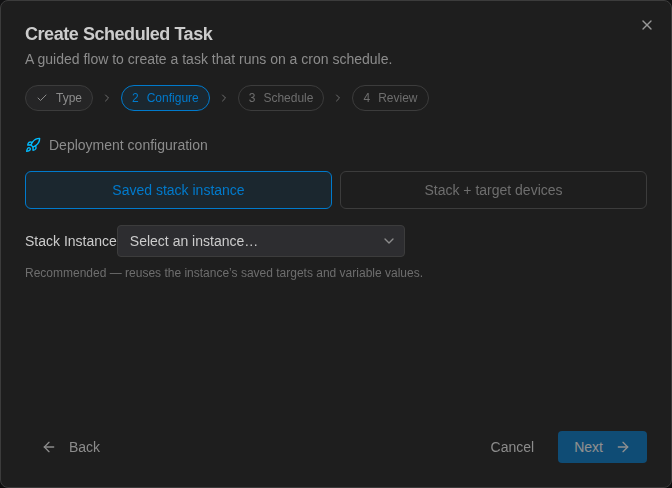
Choose how to deploy:
- Saved stack instance (recommended) — pick a Stack Instance. The task reuses the instance's saved targets and variable values.
- Stack + target devices — pick a Stack and the Target Devices.
See Stack Instances for how instances and deployments work.
Health Check
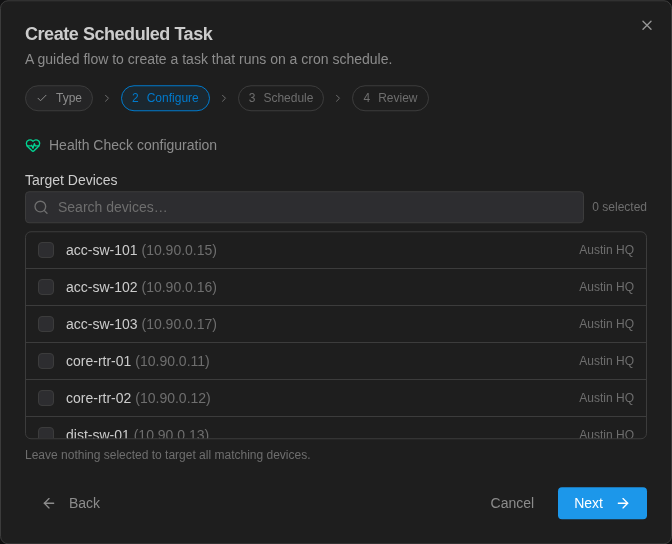
Select Target Devices, or leave nothing selected to check every device. For each device the task:
- Connects to the device's SSH port (5-second timeout) and records the connect time.
- If the device has an SSH credential, runs a short set of health commands (uptime, CPU, memory, interface status). A critical or unreachable result fails the device.
A device with no SSH credential passes if its SSH port answers.
Custom Script
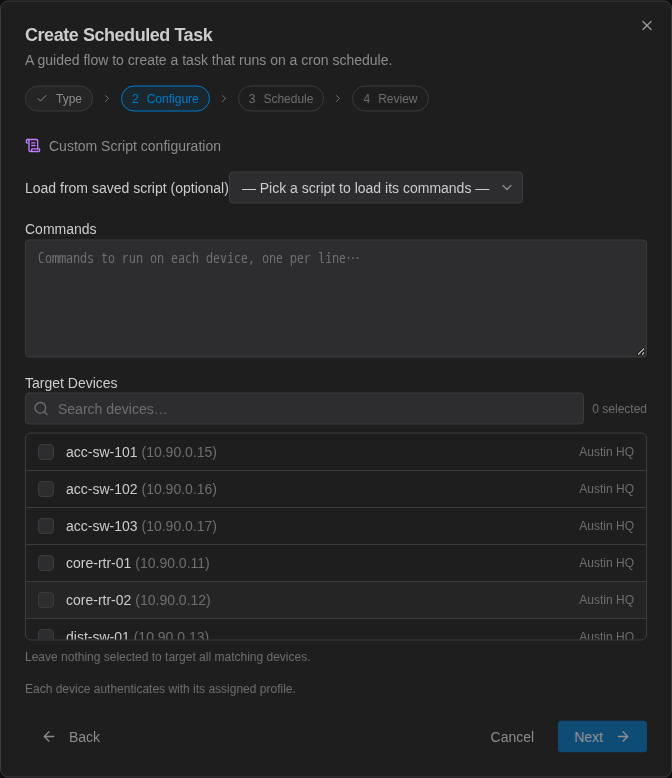
Enter the Commands to run on each device, one per line, and pick the Target Devices (leave nothing selected to target all devices). The commands run in order in one SSH session per device, and each device's output is saved with the run. Empty lines and lines starting with # or ! are skipped.
! Collect state for the weekly report
show version
show ip interface brief
show ip bgp summary
Load from saved script (optional) copies the text of a saved script into the Commands box so you can start from it.
Config Backup
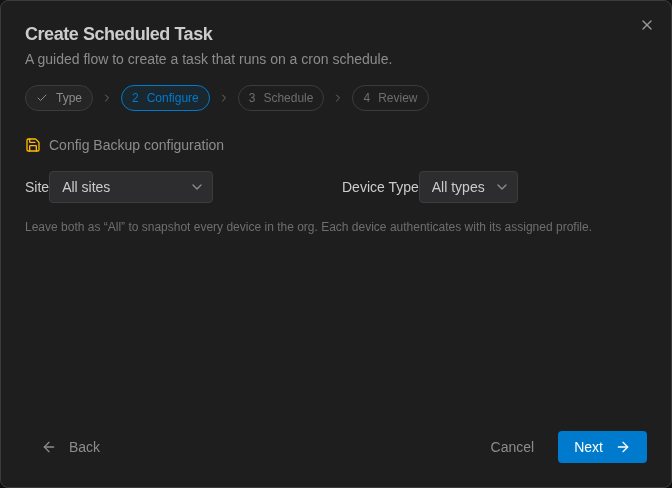
Choose a Site and a Device Type, or leave both as All to back up every device in the organization. Each run creates a config snapshot you can open under Config Snapshots.
Agent Task
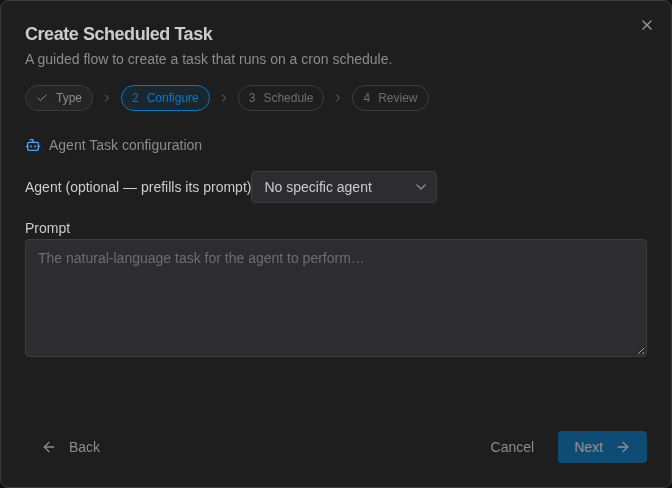
Write the Prompt the AI agent should work on. Optionally pick an Agent to prefill its prompt. The agent runs with the permissions of the user who created the task. See AI Agents.
Schedules and Cron Expressions
The Frequency buttons build a standard five-field cron expression for you:
| Frequency | You choose | Example |
|---|---|---|
| Hourly | the minute | Hourly at :15 → 15 * * * * |
| Daily | hour and minute | Daily at 02:00 → 0 2 * * * |
| Weekly | day of the week, hour and minute | Weekly on Monday at 06:30 → 30 6 * * 1 |
| Custom | any five-field cron expression | 0 */6 * * * (every six hours) |
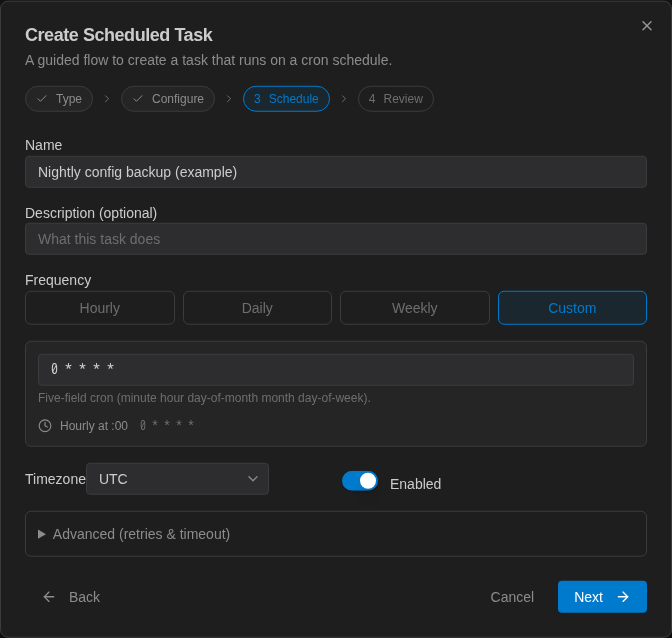
The five fields are minute hour day-of-month month day-of-week. Below the field the wizard shows the schedule in plain words and the resulting cron expression, and the Controller rejects an invalid expression when you save. A few more examples:
*/15 * * * *    every 15 minutes
0 22 * * 1-5    22:00 Monday to Friday
0 3 1 * *       03:00 on the 1st of every month
Pick the Timezone the schedule is written in (for example America/Chicago). The Next Run column is calculated in that timezone.
Run Now and Run History
Click Run now (▶) on a row to run the task immediately. To see what happened, click the chevron at the start of the row: it lists the task's recent runs with their status, start and end time, and any error message.
Task runs also appear in the Activity Monitor under the Task category. A Config Backup run also creates a snapshot, and a Deployment run shows up under Config Deployments.
Edit, Pause and Delete
- Edit opens the same wizard as Edit Scheduled Task.
- The Status switch enables or disables a task without deleting it.
- Delete asks Delete Scheduled Task? and permanently removes the schedule. A run that is already in progress finishes.
Agent Schedules in the Terminal
When the Terminal is connected to a Controller, the Agents view has a Scheduled Tasks section for agent tasks only. There you can create an agent schedule with a Name, Prompt, Cron Expression and Timezone, and view, edit or delete existing ones. Other task types are managed in the admin console.