
Incidents & ITSM
EnterpriseTrack network incidents in NetStacks: create and update incidents from the Terminal, link alerts, add comments, open incidents automatically after AI alert triage, and sync with ServiceNow, Jira or a webhook.
Overview
The Incidents & ITSM plugin (incidents) tracks incidents on the Controller. An incident has a title, description, severity and state, a list of linked alerts, and comments. Incidents can be opened by hand in the Terminal or automatically when an AI agent finishes triaging an alert, and they can be pushed to ServiceNow, Jira or a webhook.
States and Severities
| State | Typical meaning |
|---|---|
open | New incident, nobody has picked it up yet. |
acknowledged | Someone has seen it and owns it. |
in_progress | Work on a fix is under way. |
resolved | Service is restored. |
closed | Follow-up is finished; the incident is done. |
You can move an incident to any state at any time — there is no enforced order. Severities are critical, high, medium (default), low and info.
Work Incidents in the Terminal
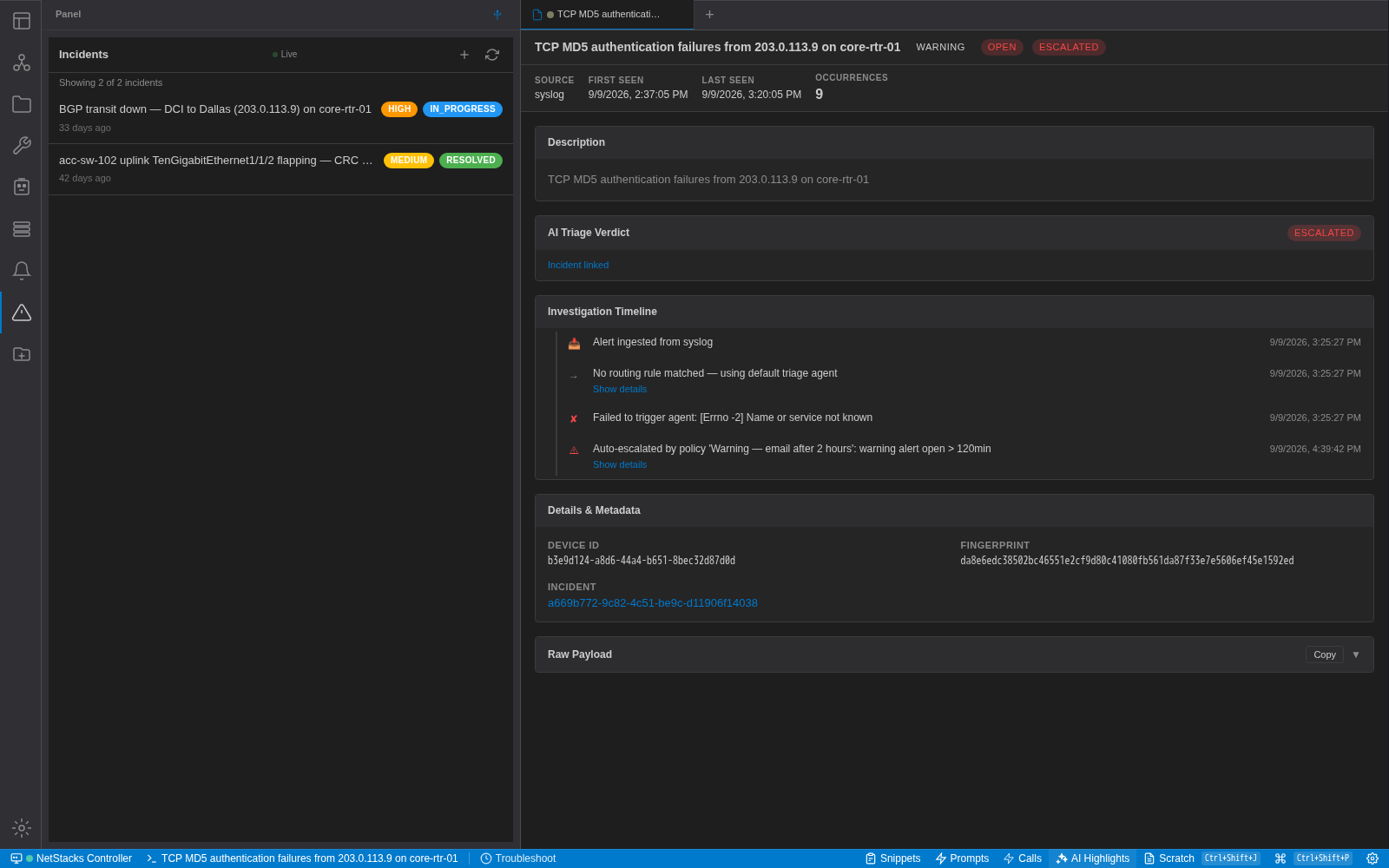
In the Terminal connected to the Controller, click the warning-triangle icon (Incidents) in the left activity bar. The panel lists incidents with severity and state badges and refreshes automatically (the Live indicator). The + button creates an incident and the refresh button reloads the list.
Create an Incident
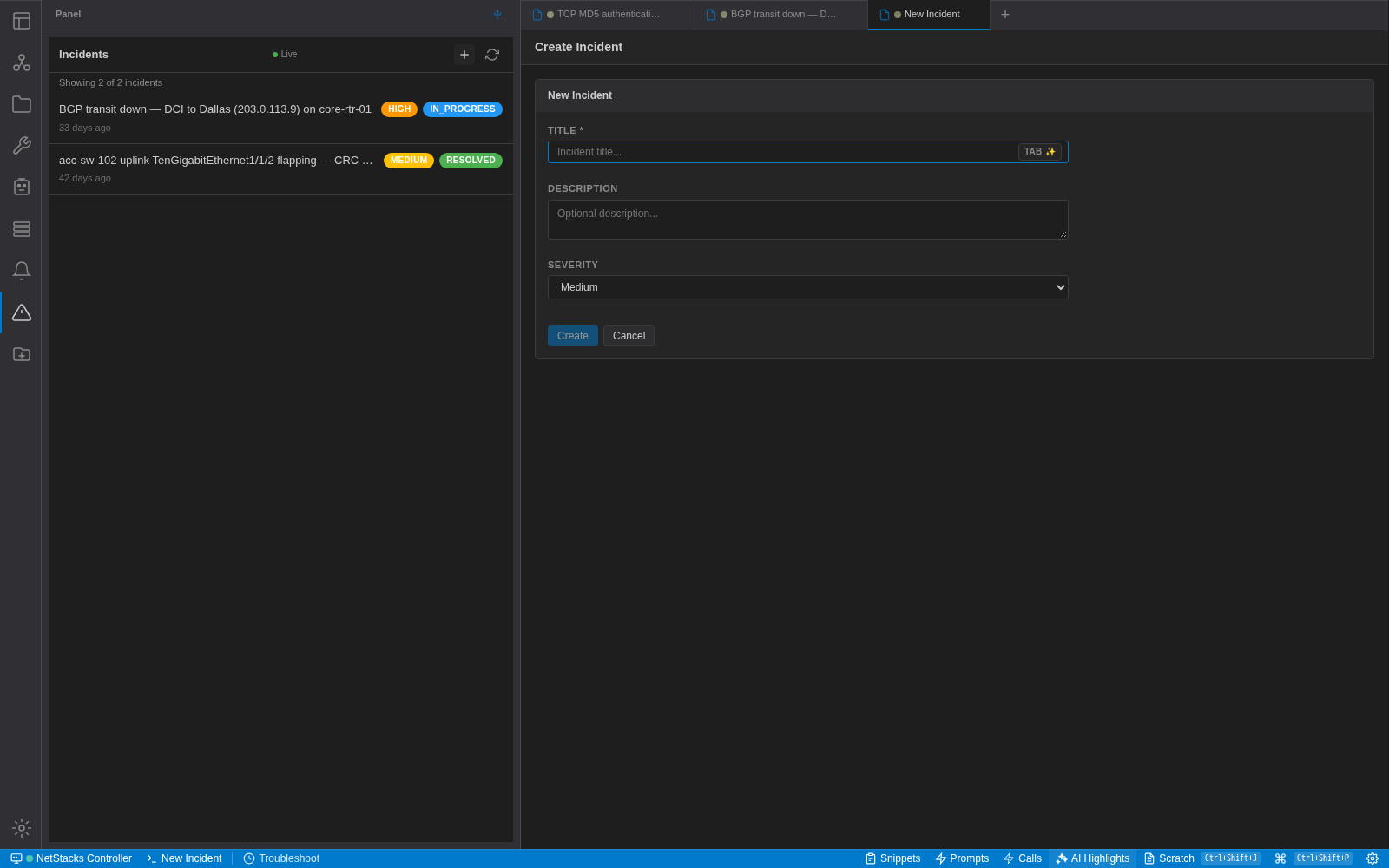
- Click + (Create Incident) in the Incidents panel. A New Incident tab opens.
- Enter a Title (required) and, optionally, a Description.
- Choose a Severity: Critical, High, Medium or Low.
- Click Create. The incident opens in the
openstate.
Incident Details
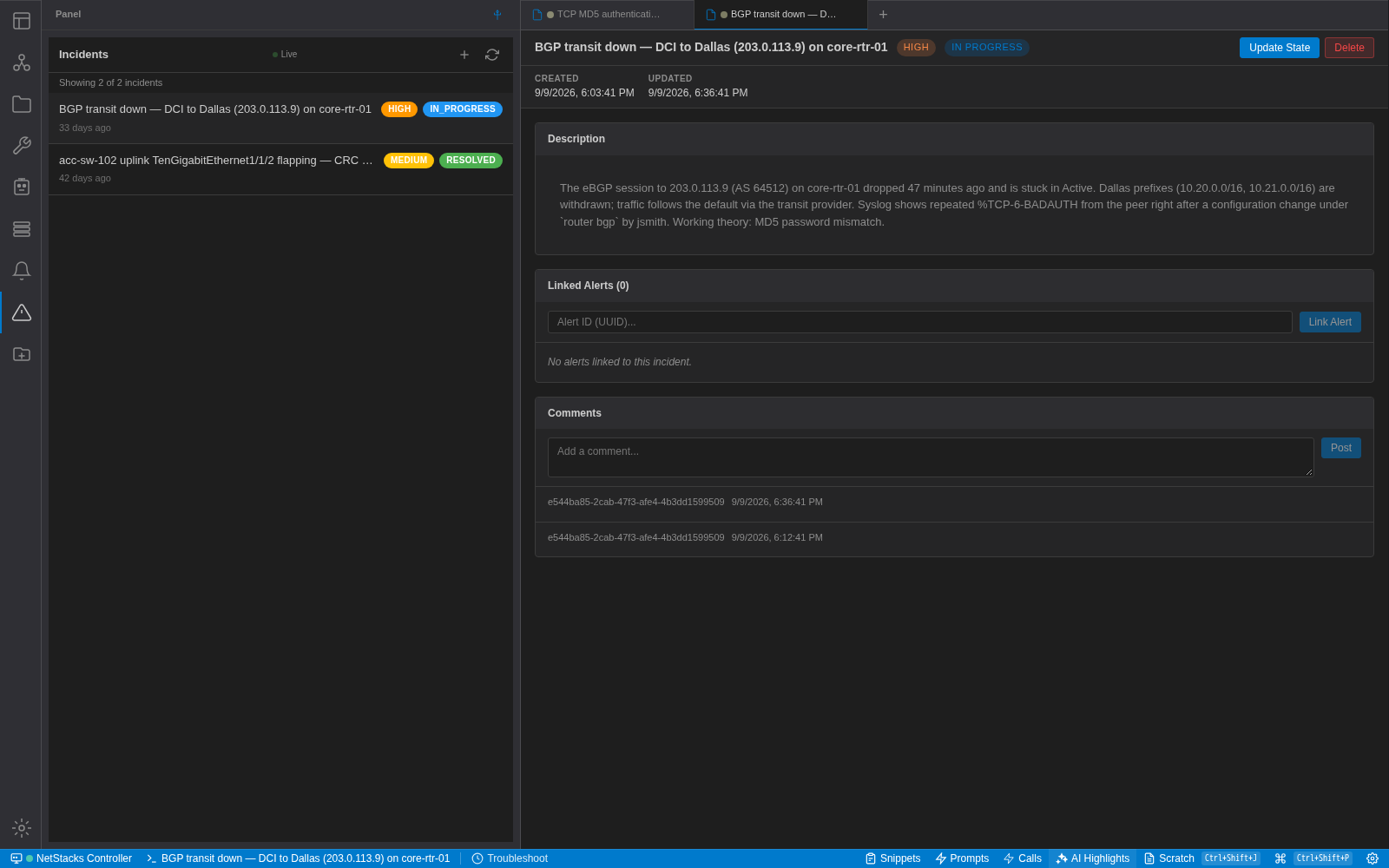
Click an incident to open it in a tab. From the tab you can:
- Edit the title (click it) and change the severity (click the severity badge).
- See Created and Updated times.
- Edit the Description (click it).
- Manage Linked Alerts and Comments.
- Update State or Delete the incident.
Change the State
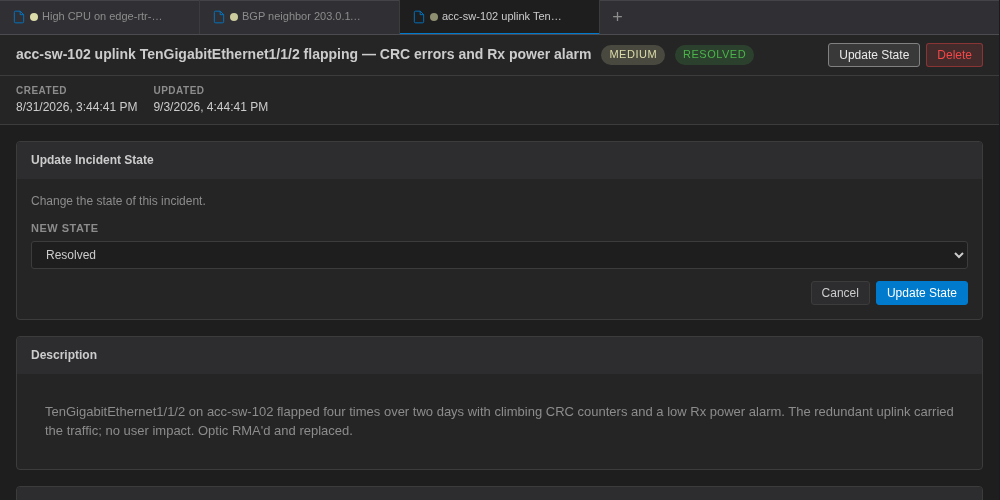
- Click Update State. The Update Incident State panel opens.
- Pick the New State: open, acknowledged, in_progress, resolved or closed.
- Click Update State in the panel.
If the incident is linked to a ServiceNow, Jira or webhook configuration, the change is pushed to the external ticket on the next sync (see ITSM sync).
Delete asks for confirmation and removes the incident together with its alert links and comments.
Link Alerts
In Linked Alerts, paste an alert's ID into Alert ID (UUID)... and click Link Alert. You can find the ID in the alert's tab under Details & Metadata, or in the Raw Payload. Linked alerts are listed with their severity, state and when they were linked; use the unlink action in a row to remove a link.
Comments
Type in Add a comment... and click Post. Comments are listed newest first. If the incident is synced to ServiceNow or Jira, each new comment is also added to the external ticket (as a work note in ServiceNow).
Admin Console View
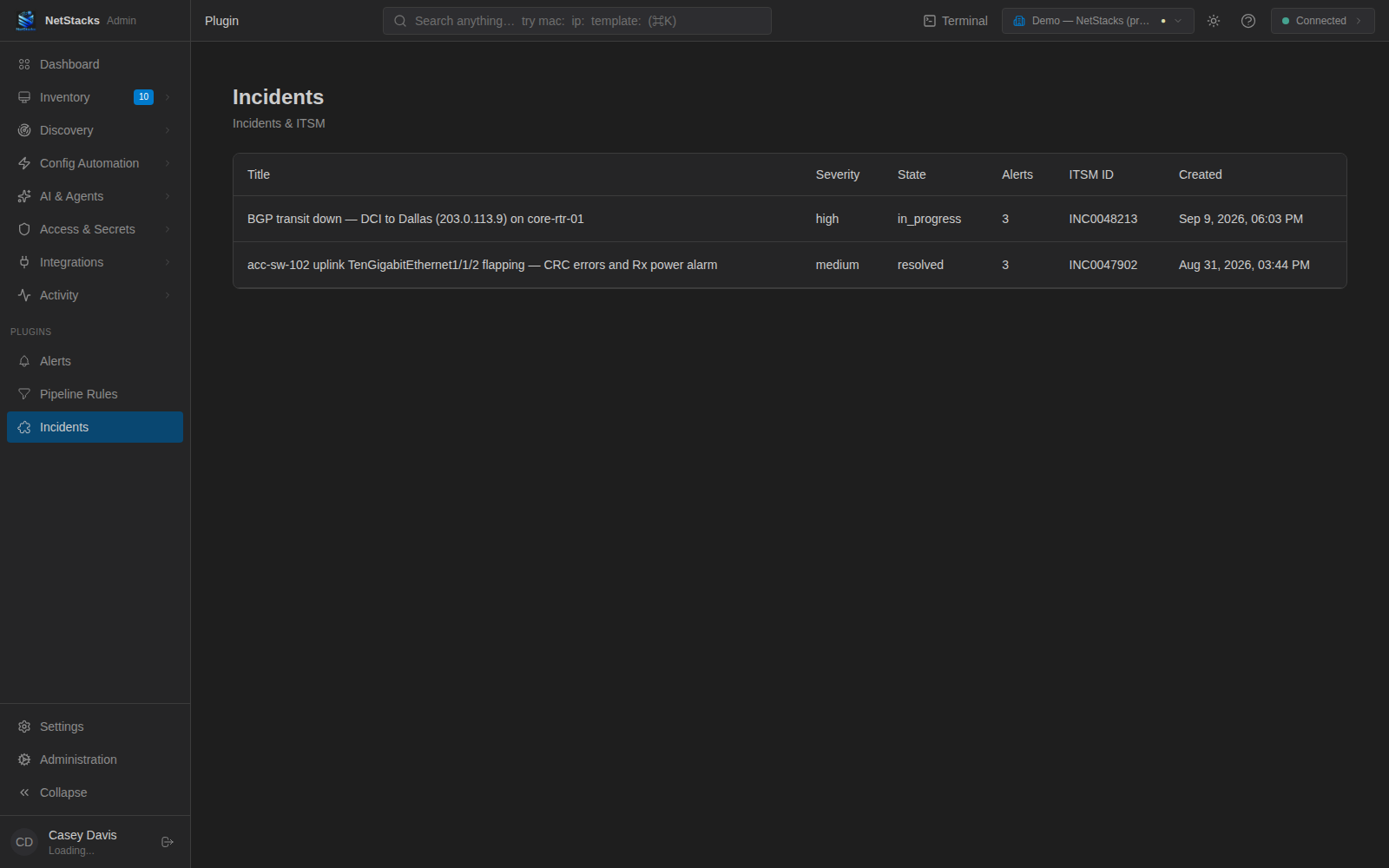
In the admin console, Plugins → Incidents in the sidebar (/plugin/incidents/incident-list) shows a read-only table of incidents with Title, Severity, State, Alerts, ITSM ID and Created. Open the Terminal to work on an incident.
Automatic Incidents from Alerts
When an AI agent finishes triaging an alert (see AI Triage), the Incidents plugin evaluates your incident creation rules:
- If the alert is already linked to an incident that isn't resolved or closed, nothing new is created.
- Otherwise enabled rules are checked in priority order (lowest number first). The first matching rule creates an incident in the
openstate with the rule's severity and title, and links the alert to it.
Alerts that are suppressed or fast-pathed by a pipeline rule, or never triaged, don't create incidents automatically. With no creation rules, incidents are only created by hand.
Rule fields
| Field | Description |
|---|---|
name, priority, enabled | Rule name, evaluation order (default 100), on/off. |
alert_pattern.severity | Minimum alert severity, for example warning matches warning and critical alerts. |
alert_pattern.source | Case-insensitive regular expression on the alert source. |
alert_pattern.summary_pattern | Case-insensitive regular expression on the alert summary. |
incident_title_template | Title with placeholders {summary}, {source}, {severity}, {device_id}, {alert_id}. |
incident_severity | Severity of the new incident (critical, high, medium, low, info). |
itsm_config_id | Optional ITSM configuration; new incidents from this rule are synced to it. |
An empty alert_pattern matches every triaged alert. Create a rule with POST /api/plugins/incidents/admin/creation-rules:
{
  "name": "Critical BGP alerts",
  "priority": 10,
  "enabled": true,
  "alert_pattern": { "severity": "critical", "summary_pattern": "BGP" },
  "incident_title_template": "{summary}",
  "incident_severity": "high",
  "itsm_config_id": "<ITSM config id or omit>"
}
ServiceNow, Jira and Webhook Sync
An ITSM configuration connects the plugin to an external system. Incidents that reference a configuration (set itsm_config_id on the incident or on the creation rule) are synced:
- Push (every 30 seconds): new or changed incidents are sent to the external system — a ticket is created the first time, then updated. The external ticket number appears as the ITSM ID.
- Pull (every 5 minutes): the state of synced tickets is read back, so closing a ticket in ServiceNow or Jira updates the NetStacks incident.
- Comments added in NetStacks are copied to the ticket.
| Provider | How it maps |
|---|---|
servicenow | Creates records in the incident table. States: open ↔ New, acknowledged/in_progress → In Progress, resolved ↔ Resolved, closed ↔ Closed. Comments become work notes. |
jira | Creates issues in project field_mappings.project_key (default INC) with type field_mappings.issue_type (default Bug). State changes use workflow transitions to To Do, In Progress or Done; on pull, To Do → open, In Progress → in_progress, Done → resolved. |
webhook | POSTs the incident as JSON to base_url on each change. |
Create an ITSM configuration
POST /api/plugins/incidents/itsm/configs. Use auth_config.type basic (username and password; for Jira Cloud use your email and an API token) or bearer (credentials.token):
{
  "name": "ServiceNow production",
  "provider": "servicenow",
  "base_url": "https://yourinstance.service-now.com",
  "auth_config": { "type": "basic", "credentials": { "username": "netstacks", "password": "..." } },
  "sync_enabled": true
}
Test it with POST /api/plugins/incidents/itsm/configs/<id>/test-connection. Stored credentials are masked when you read the configuration back.
Incidents API Reference
All paths are under /api/plugins/incidents and need a NetStacks access token (see API Authentication). Results are scoped to your current organization.
| Endpoint | Purpose |
|---|---|
GET / POST /admin/incidents | List (filters state, severity, assigned_to) or create incidents. |
GET /admin/incidents/stats | Incident counts. |
GET / PUT / DELETE /admin/incidents/<id> | Read (with linked alerts and comments), update (title, description, severity, state, assigned_to, itsm_config_id) or delete an incident. |
POST /admin/incidents/<id>/alerts, DELETE /admin/incidents/<id>/alerts/<alert_id> | Link ({alert_id}) or unlink an alert. Send an X-User-Id header with your user ID. |
GET / POST /admin/incidents/<id>/comments | List or add comments ({comment_text}, with an X-User-Id header). |
/admin/creation-rules | GET, POST; GET/PUT/DELETE on /<id>. |
/itsm/configs | GET, POST; GET/PUT/DELETE on /<id>; POST /<id>/test-connection. |
Related Pages
- Alerts — ingestion, pipeline rules and AI triage.
- AI Agents
- Plugin System