
SSH Passwords & Keys
Store SSH passwords, private keys, passphrases and enable secrets in NetStacks: credential profiles in the standalone Terminal and profile secrets on the Controller.
Overview
Both NetStacks modes store SSH logins on a profile, a reusable bundle of username, authentication, and connection defaults that many devices can share. The profile looks different in each mode:
| Standalone Terminal | Controller (enterprise) | |
|---|---|---|
| Where you manage it | Terminal → Settings → Profiles | Admin console → Access & Secrets → Profiles |
| Auth options | Password or Public Key (key file path + optional passphrase) | password, ssh_key (pasted private key + optional passphrase), or certificate, plus an optional enable secret |
| Where the private key lives | Stays in its file on your disk; only the path is saved | Stored encrypted in the Controller vault |
| Who makes the SSH connection | Your computer | The Controller; your client never receives the secret |
Standalone: Credential Profiles
In the standalone Terminal, every saved session must use a credential profile, and all of its authentication settings come from that profile. The profile's password and key passphrase are encrypted in the local vault.
Settings → Profiles exists only in the standalone desktop app, so this part is described in text. The Controller section below has screenshots.
Creating a Profile
- Open Settings → Profiles. Existing profiles are listed with their username, port, and a Password or Key badge. The first profile is marked Default.
- Click Create Profile. The New Profile dialog opens.
- Under Profile Identity, enter a Profile Name (for example Cisco Production) and the Username.
- Under Authentication, choose an Auth Type:
- Password: enter the Password.
- Public Key: enter the Key File Path (for example
~/.ssh/id_ed25519), and a Key Passphrase (optional) if the key is encrypted.
- Adjust the optional sections (listed below), then click Save.
Each profile has Edit, Clone, and Delete buttons. When you edit a profile, leave the password or passphrase field blank to keep the stored value.
Profile Fields
| Section | Fields |
|---|---|
| Profile Identity | Profile Name, Username |
| Authentication | Auth Type (Password / Public Key), Password, Key File Path, Key Passphrase |
| Connection Settings | Default Port (22), Keepalive Interval (30 s), Connection Timeout (30 s), Default Jump (a Jump Host or another session; default (None — direct connect)) |
| Behavior | Auto-Reconnect, Reconnect Delay, Scrollback Lines, Local Echo, CLI Flavor |
| Display | Terminal Theme, Font Family, Font Size |
| Auto Commands on Connect | Commands sent after login (for example terminal length 0) |
| SNMP Community Strings | SNMPv2c communities, see SNMP Communities |
Using a Profile for a Session
- Saved session: in the New Session dialog, open the SSH tab (labelled Auth for Telnet) and pick a Credential Profile *. If you need a new one, click + Create Profile there.
- Quick Connect (Cmd/Ctrl+Shift+Q): enter Host and Port, choose a Credential Profile *, and click Connect.
- Console access through a terminal server has its own Terminal Server Credential Profile on the session's Console tab.
When you change a profile, every session that uses it picks up the change on its next connection.
How SSH Keys Are Handled
- NetStacks reads the private key from the path you enter each time it connects. The key is not copied into the vault; only its passphrase is.
- OpenSSH-format Ed25519, ECDSA, and RSA keys are supported. RSA keys sign with rsa-sha2-512 or rsa-sha2-256.
- With Password auth, NetStacks also tries keyboard-interactive login for devices that need it.
- NetStacks does not use
ssh-agent, and the standalone Terminal does not support SSH certificate login. Certificates are a Controller feature (see SSH Certificates).
Controller: Password and Key Secrets Enterprise
On a Controller, logins are secrets stored on a Connection Profile. A profile can hold several secrets, each with a priority. The relevant secret types are:
password: a username and password. Telnet logins also use this type.ssh_key: a username, the private key pasted in OpenSSH format (-----BEGIN OPENSSH PRIVATE KEY-----), and an optional Key passphrase.certificate: no stored key at all. The Controller issues a short-lived SSH certificate at connect time (see SSH Certificates).
Password and key secrets can also carry an Enable / privileged secret for devices that need an enable password.
Adding a Password or Key Enterprise
You need the credentials.manage permission.
- Open Access & Secrets → Profiles and click Configure on the profile.
- Open the Secrets tab and click Add secret.
- Pick the Auth mode * (
passwordorssh_key) and set a Priority (lower is preferred). - Enter the Username. Host and Port are optional.
- Paste the password or private key into Secret *. For a key, add the Key passphrase if it has one. Add an Enable / privileged secret if needed.
- Optionally set Expires, then click Create secret.
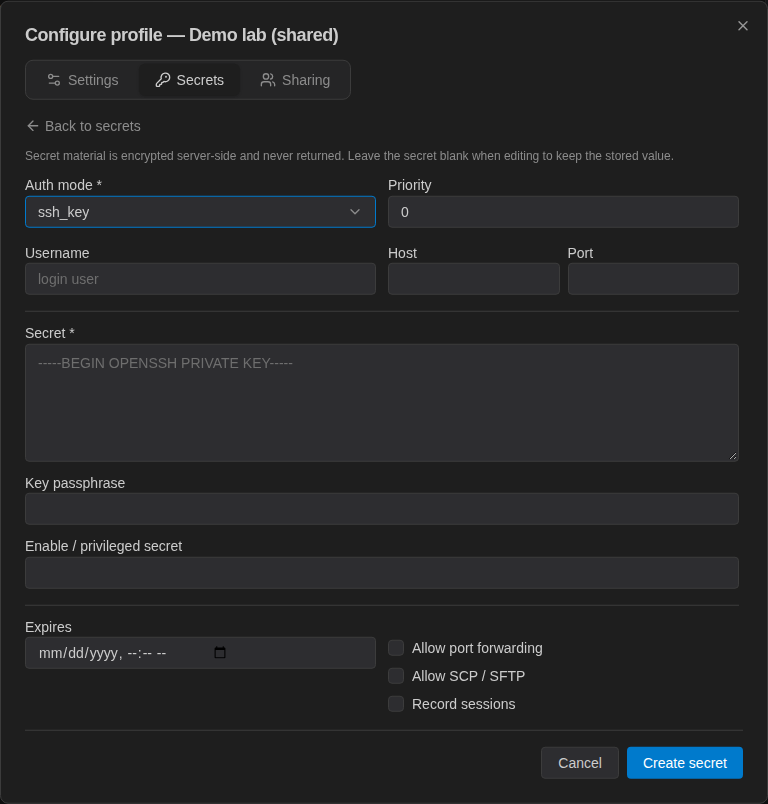
Secret material is encrypted on the server and never sent back to the browser. When you edit a secret, leave Secret blank to keep the stored value.
Which Secret Is Used Enterprise
For an SSH connection, the Controller considers the profile's SSH-capable secrets and picks the one with the lowest priority number. On a tie, certificate beats ssh_key, which beats password.
Each connection uses exactly one secret. If the device rejects it, the connection fails; NetStacks does not move on to the next secret. Make sure the preferred secret works on every device that uses the profile, or split devices across profiles.
Connecting from the Terminal Enterprise
In the web terminal (/terminal/) or the desktop Terminal in enterprise mode, clicking a device opens Connect to <device>. Under Select Profile: the default is Device default (recommended), which uses the device's own profile. To override it for this connection, pick another profile you have access to and click Connect. Profiles are grouped under My Profiles, Shared, and Service, each labelled with its username and auth type.
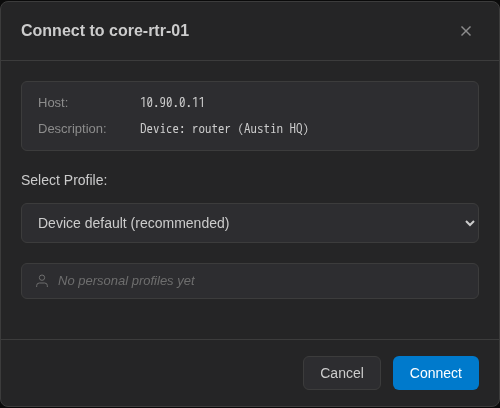
If you do not pick a profile, the Controller uses the device's assigned profile, then your personal default connection profile. If neither exists, the connection fails with Device has no profile assigned and you have no default connection profile set. You can set your default in the Terminal under Settings → Account → My Profiles (see Connection Profiles).
Troubleshooting
Standalone: key authentication fails
- Check that the Key File Path exists and points to the private key, not the
.pubfile. - If the key is encrypted, enter its passphrase on the profile.
- Make sure the matching public key is in the device's authorized keys for that user.
Standalone: older devices will not negotiate
Turn on Legacy SSH Algorithms under Compatibility on the session's SSH tab.
Controller: "Access denied to device profile"
You need a use grant on the profile. Administrators also need a grant to connect with a shared profile.
Controller: login fails but the password is right
Check that a lower-priority (preferred) secret is not being chosen instead, for example an ssh_key at priority 0 ahead of the password you expect.