
SNMP Communities
Store SNMPv2c community strings for discovery and polling: on credential profiles in the standalone Terminal, and as snmp_community secrets on Controller Connection Profiles.
Overview
NetStacks reads device data over SNMPv2c, authenticated with a community string. Communities are credentials, so they are stored encrypted, on the same profiles as your SSH logins.
| Standalone Terminal | Controller (enterprise) | |
|---|---|---|
| Where you enter it | Settings → Profiles → SNMP Community Strings | Profile → Secrets → snmp_community secret |
| How many | A list per profile, tried in order | One or more secrets; the lowest priority number is used |
| Encrypted in | Local vault | Controller vault |
SNMPv3 (USM authentication and privacy) is not supported in either mode, and there is no SNMPv1 option. NetStacks does not receive SNMP traps.
Standalone: Communities on a Profile
- Open Settings → Profiles and click Edit on the profile your devices use, or Create Profile.
- Scroll to SNMP Community Strings ("Community strings used for SNMPv2c polling. Multiple communities are tried in order when discovering devices. Stored encrypted in the vault.").
- Type a community in Community string (e.g., public) and press Enter or click +. Repeat for each community, in the order you want them tried.
- Click Save.
Saved communities are not shown again. When you edit the profile, it only says how many are configured. If you add new ones, saving replaces the whole existing list, so re-enter every community you want to keep.
This is standalone-only UI, so it is described in text.
Where the Terminal Uses Them
- Interface quick look: right-click an interface name in a terminal and choose SNMP Stats: <interface> to see rates, errors and discards.
- Topology: live SNMP overlay and device or link details.
- Discovery: LLDP/CDP neighbor and system information lookups.
Each request times out after 5 seconds, and the next community is then tried. For devices behind a jump host, the Terminal runs snmpget / snmpwalk on the jump host, which needs the net-snmp tools installed. See Device Monitoring & SNMP for the features themselves.
Controller: snmp_community Secrets Enterprise
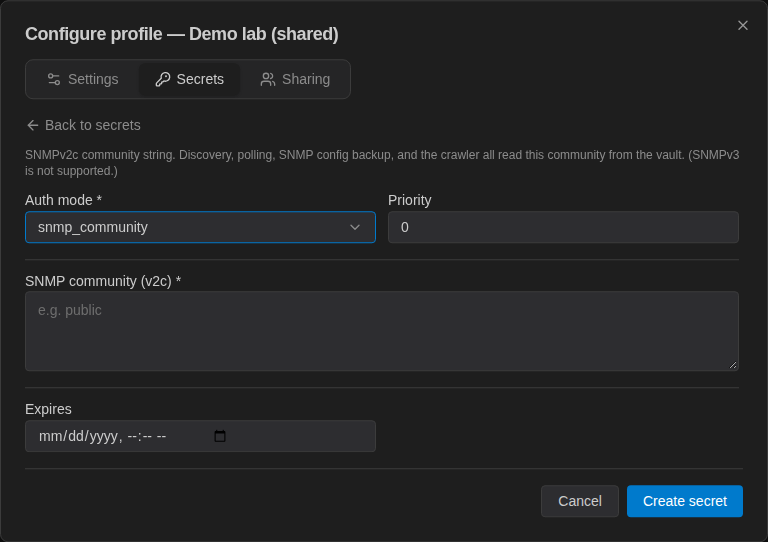
- Open Access & Secrets → Profiles, click Configure on the profile, and go to Secrets.
- Click Add secret and set Auth mode * to
snmp_community. - Enter the community in SNMP community (v2c) *, set a Priority and an optional Expires, and click Create secret.
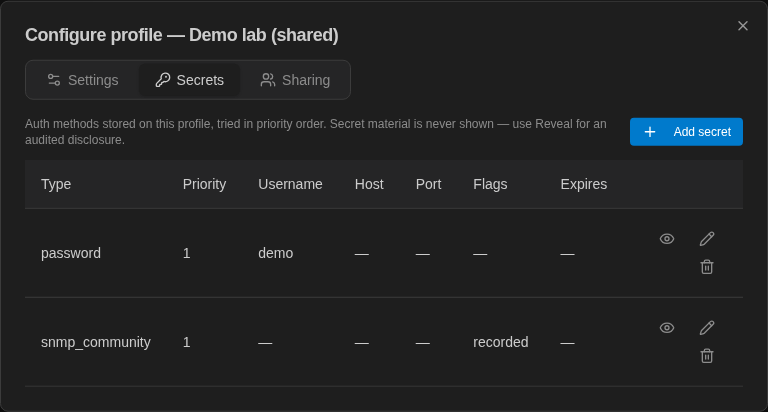
A profile can hold an SNMP community alongside SSH secrets. The demo profile below has both a password and an snmp_community secret. SNMP connections only consider snmp_community secrets.
Where the Controller Uses Them Enterprise
The Controller reads the device profile's community from the vault for discovery, SNMP polling, SNMP config backup, and the crawler. For SNMP-type devices, the profile's Backup commands / OIDs field on the Settings tab lists the OIDs to walk during a backup.
Like every Controller secret, the community is never shown to users and can only be revealed through an audited reveal.
Troubleshooting
No SNMP data
- Check that the device has SNMPv2c enabled with that community, and that its access list allows your Terminal (standalone) or the Controller (enterprise).
- Check that UDP 161 is reachable from wherever the request is sent.
- Check that the device uses the profile that holds the community.
Device only supports SNMPv3
SNMPv3 is not supported, so SNMP features will not work for that device. SSH-based features are unaffected.