
Performance
Keep NetStacks responsive with many tabs and long outputs: scrollback, AI background features, hover lookups, live topology polling, large file transfers, and Controller session limits.
Overview
Most slowdowns come from a few sources: very large scrollback buffers across many tabs, AI features that send requests in the background, and live polling. Each has a setting you can turn down. The sections below list them with their defaults.
Scrollback and Long Outputs
- Scrollback is set per session: Scrollback Lines on the Terminal tab of the session settings (or the profile). Saved sessions default to 10,000 lines. Other tabs (local shells, Controller sessions) keep 1,000 lines.
- Every open tab keeps its own buffer in memory. With dozens of tabs open, lower the scrollback on sessions where you do not need long history, or close tabs you are not using.
- For long outputs such as
show tech-support, set the device's pager off for the session (for exampleterminal length 0) and save the output with Save Terminal Output to Docs (Cmd/Ctrl+Shift+S) instead of scrolling back through it.
AI Background Features
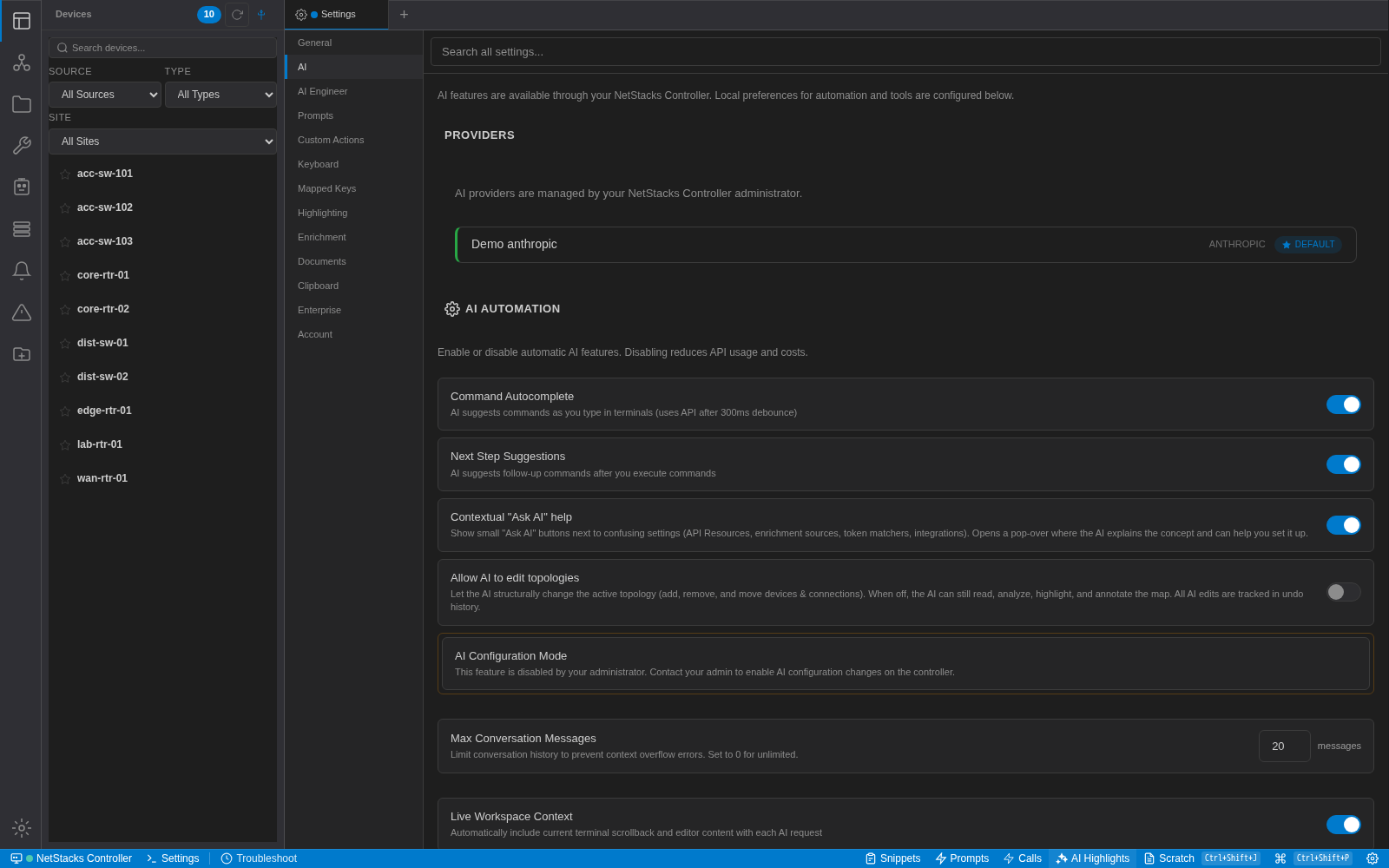
Several AI features send requests while you work. They use your provider's quota and your network. In Settings → AI under AI AUTOMATION:
| Setting | Default | Effect |
|---|---|---|
| Command Autocomplete | On | Requests a suggestion 300 ms after you stop typing in a terminal. |
| Next Step Suggestions | On | Requests follow-up suggestions after each command you run. |
| Live Workspace Context / Terminal Scrollback Lines | On / 200 lines | Sends recent terminal output (and the open editor file) with each AI request. Fewer lines means smaller, faster requests. |
| Max Conversation Messages | 20 | How much chat history is sent with each message. 0 means no limit. |
AI Highlights in the status bar analyses terminal output as it arrives, sending each batch to the AI as three requests (errors, security, anomalies). Leave it off unless you are actively using it.
Hover Lookups and Enrichment
Hovering over an IP address, MAC address or interface name runs lookups (reverse DNS, MAC vendor, and any enrichment sources you set up). If hovering feels slow or you do not use it, turn off Hover Lookups in Settings → General. Settings → Enrichment has its own Enable hover enrichment switch and the list of sources that are queried.
Many Devices at Once
- Broadcast Command (standalone) runs a command on the selected sessions, at most 10 at a time. Larger selections are queued, so they take longer but do not overload your machine.
- Topology discovery also works on up to 10 devices at a time.
- Split view shows at most four panes. For more devices side by side, use separate tabs or windows.
Live Topology Polling
The topology Live button polls every device on the map by SNMP about every 30 seconds while it is on. On large maps, turn it off when you are not watching, or split the map into smaller topologies.
Large File Transfers
The SFTP browser loads a downloaded file into memory before saving it. That is fine for configs and logs. For very large files such as OS images, use scp or sftp from a terminal instead.
Controller Capacity Enterprise
- Max Concurrent Sessions in the Controller's Settings → Terminal Sessions limits how many terminal sessions run at once (0 means unlimited). Idle sessions close after Idle Timeout (minutes) (default 60).
- Watch container status and database size on Administration → Platform Health.
- For more API capacity, run several API instances with the HA compose file (
docker compose -f docker-compose.ha.yml up -d --scale api=3). This needs the bundled Valkey service.
No minimum CPU, memory or disk sizes are published for the Controller. Size the host from what you see on Platform Health and in docker stats.