
Sign-In & Vault Problems
Fix master password and vault unlock problems in the standalone Terminal, Touch ID issues, and sign-in errors on the NetStacks Controller (wrong password, lockout, license seats, idle sign-out, lost admin password).
Overview
There are two separate kinds of sign-in in NetStacks:
- Standalone Terminal: no account. A master password unlocks the local credential vault each time the app starts.
- Controller (enterprise): you sign in with a Controller username and password, in the desktop Terminal, the web terminal or the admin console. There is no local vault in this mode.
Problems logging in to a network device are covered in Connection Issues.
Master Password and Vault (Standalone)
When the standalone app starts, a full-screen NetStacks screen asks for your master password (Enter your master password to unlock). On the very first launch it asks you to create one instead (Create a master password to protect your credentials).
- The master password must be at least 12 characters.
- The vault stays unlocked until you quit the app or click Lock Vault in Settings → Security. It does not lock itself after a period of inactivity.
- The vault holds SSH and session passwords, key passphrases, AI API keys, integration tokens, secure-note contents and secret mapped-key commands. Sessions, profiles, topology, documents and settings are stored outside it.
Vault messages
| Message | What to do |
|---|---|
Invalid password | Check Caps Lock and keyboard layout and try again. After five failed attempts, further attempts are slowed down for 60 seconds. |
Password must be at least 12 characters / Passwords do not match | Shown while creating the vault. Choose a longer password and retype it. |
A master password already exists. Please unlock instead. | A vault already exists in this NetStacks database. Use your existing master password. |
Cannot connect to backend. Please ensure the app is running correctly. | The app could not reach its local agent. Quit NetStacks completely and start it again. If it keeps happening, see Local agent does not start. |
Vault is locked. Unlock the vault to access AI API keys. | Shown in the AI panel. Unlock in Settings → Security. |
Forgot your master password
There is no way to recover a forgotten master password. The password is the encryption key, and NetStacks does not keep a copy anywhere.
If you cannot remember it, you can reset the vault and start again:
- Enter a wrong password twice. A Forgot password? link appears.
- Click it and read the warning. Resetting permanently deletes everything stored in the vault: SSH and session credentials, AI API keys, integration tokens, secure-note contents and secret mapped-key commands. Sessions, profiles, topology, documents and settings are kept.
- Click Reset vault, then Yes, permanently reset — this can't be undone.
- Create a new master password, then re-enter passwords in Settings → Profiles and your AI keys in Settings → AI.
NetStacks saves a copy of the database before the reset. That copy is still encrypted with the old password, so it only helps if you later remember it.
Touch ID (macOS)
On a Mac with Touch ID you can turn on Touch ID Unlock in Settings → Security. The unlock screen then shows Unlock with Touch ID. Touch ID is not available on Windows or Linux.
| Message | What to do |
|---|---|
Touch ID enrollment was removed. Please re-enable it after unlocking. | Your fingerprints changed in macOS. Unlock with the master password, then turn Touch ID back on in Settings → Security. |
Touch ID unlock failed — please use your master password. | Use the password field. The master password always works as the fallback. |
Signing In to a Controller Enterprise
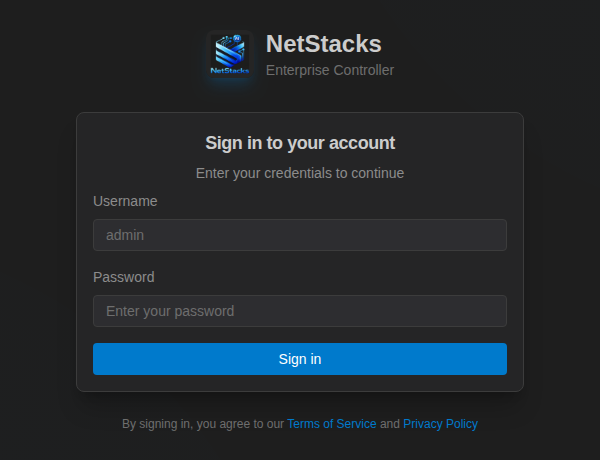
The desktop Terminal in enterprise mode and the web terminal show the NetStacks Enterprise sign-in screen. The admin console has its own Sign in to your account page. Both take a Controller username and password.
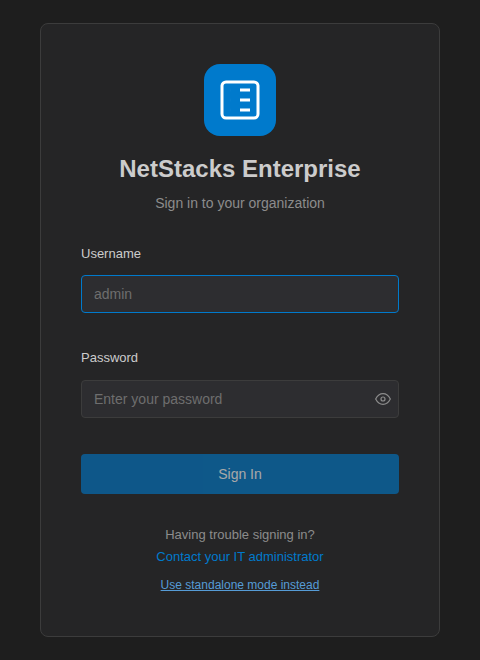
In the desktop app, Use standalone mode instead restarts the Terminal in standalone mode with the local agent. You can switch back later from Settings → Enterprise.
Sign-in error messages Enterprise
| Message | Cause and fix |
|---|---|
Invalid credentials. N attempts remaining. | Wrong username or password. The count shows how many tries are left before a temporary lockout. |
Invalid credentials. Please check your username and password. | Shown by the Terminal for the same problem. |
Too many failed login attempts. Please try again later. | See the next section. |
All license seats are in use. Please try again later or contact your administrator. | See License seats below. |
| A Cannot Connect screen instead of the sign-in form | The Terminal cannot reach the Controller, or does not trust its certificate. See Controller Certificate Errors. |
The sign-in screens have username and password fields only. If your company uses a directory or SSO for other tools, ask your Controller administrator which account to use.
Too many failed attempts Enterprise
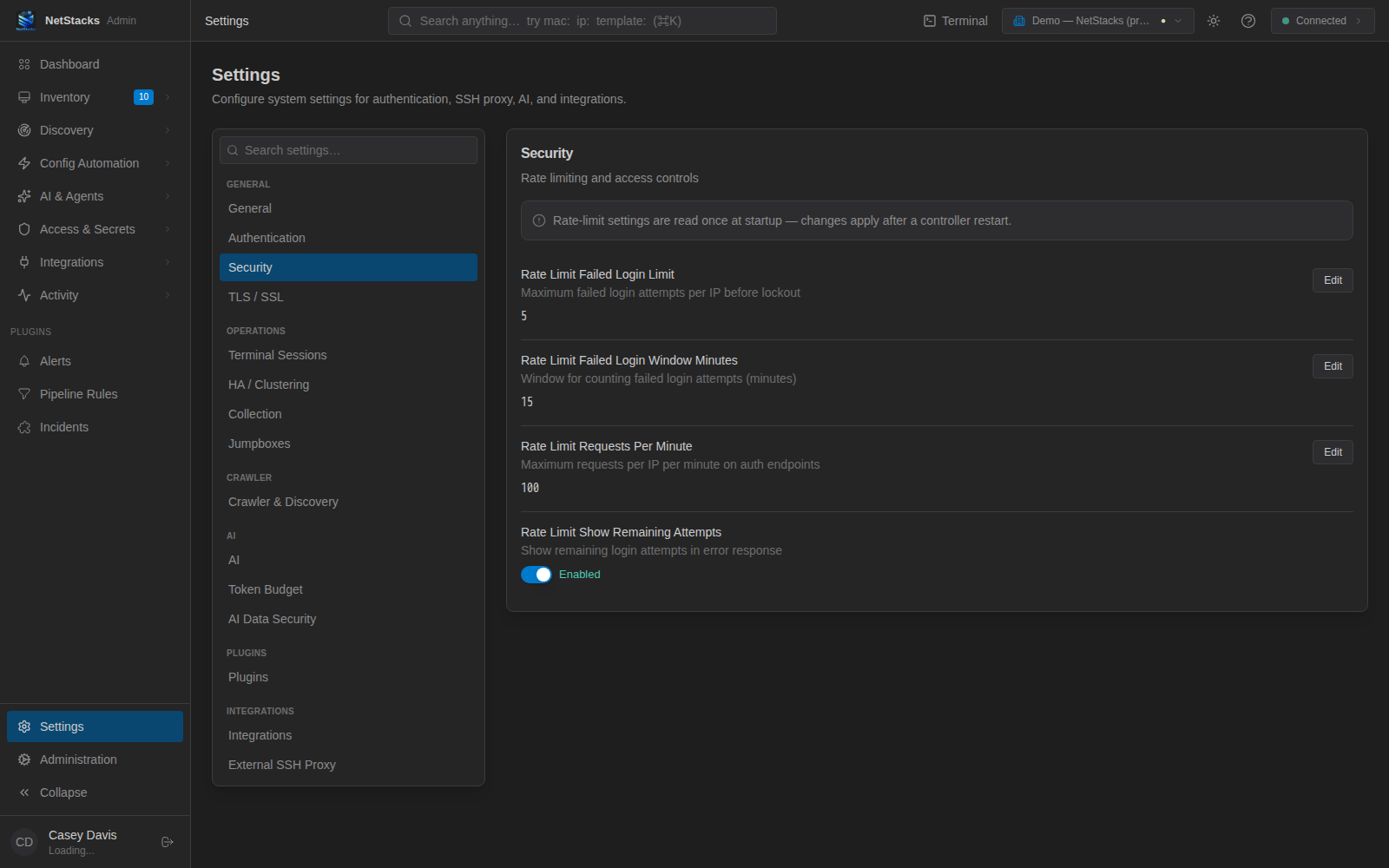
The Controller limits failed sign-ins per IP address. With the default settings, five failures within 15 minutes block further attempts from that address until the window passes. Wait and try again, or ask an admin.
Admins can see and change the limits in the admin console under Settings → Security. These values are read when the Controller starts, so restart the api container after changing them.
Because the limit is per IP, many users behind one NAT or proxy share the same counter.
License seats Enterprise
Each user signed in to the Terminal (desktop or web) uses one license seat. A user counts as active for an hour after their last terminal activity. Signing in to the admin console does not use a seat.
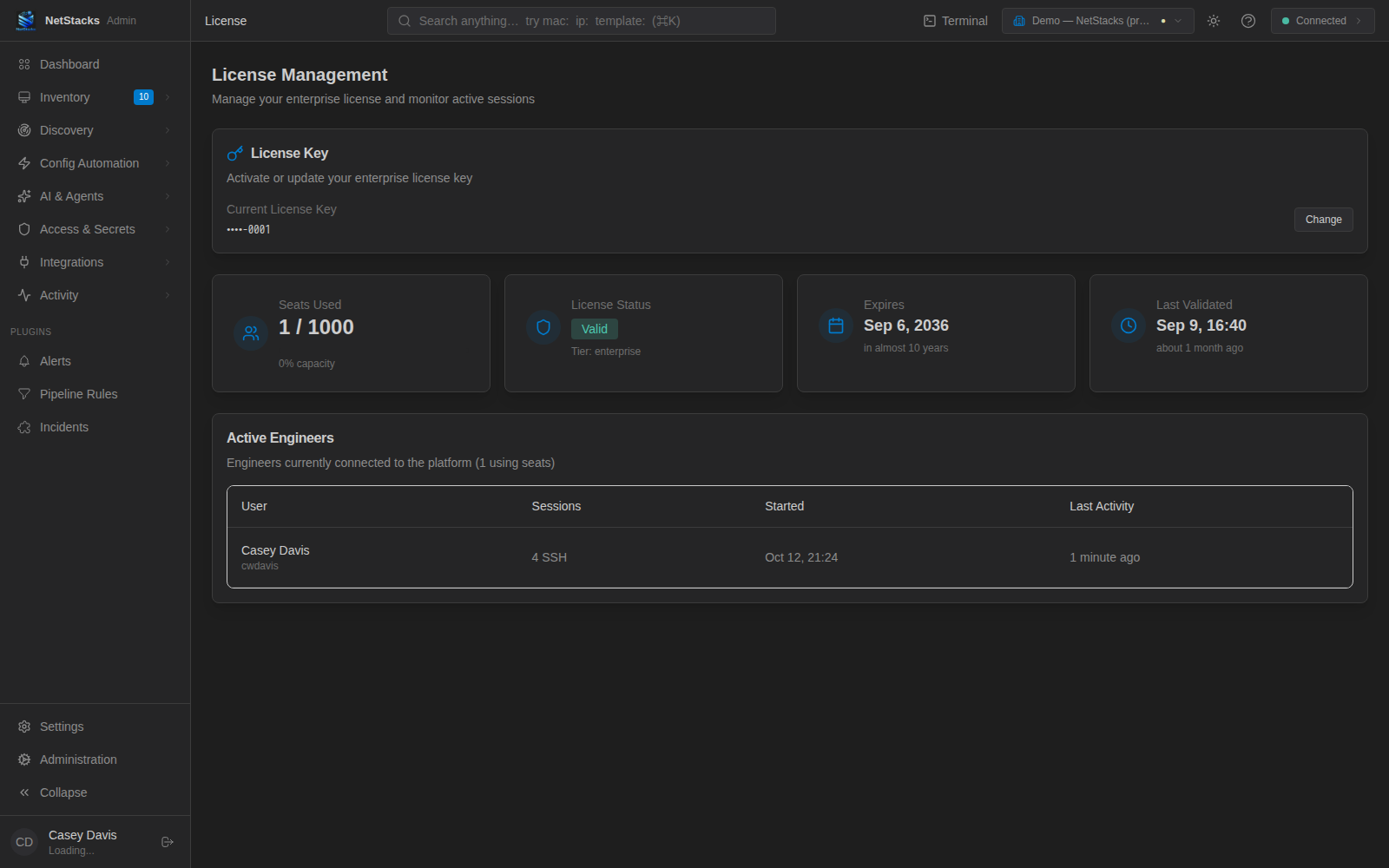
When a Terminal sign-in is refused with All license seats are in use, an admin should open Administration → License and check:
- Seats Used against the total, and the Active Engineers list.
- That a license is activated at all. The same message appears when no license key has been activated.
Signing out of the Terminal frees the seat. For licensing and seat counts, see NetStacks Enterprise or contact us.
Signed out after inactivity Enterprise
When connected to a Controller, the Terminal signs you out after 30 minutes without mouse, keyboard, scroll or touch activity. Two minutes before that, a Session Expiring dialog counts down. Click Stay Signed In to keep working.
The standalone Terminal has no idle sign-out.
Lost Controller Admin Password Enterprise
On first start the Controller creates the user admin with a random 16-character password and writes it to the API log. The installer prints it at the end. To read it again from the deployment directory:
docker compose logs api | grep "Password:"To set a new random admin password:
- In
docker-compose.yml, under theapiservice'senvironment, uncomment or add:ADMIN_PASSWORD_RESET: "true" - Recreate the API container and read the new password:
docker compose up -d api docker compose logs api | grep "Password:" - Remove
ADMIN_PASSWORD_RESETagain and rundocker compose up -d api, otherwise the password is reset on every restart.
For other users, an admin can set a new password from Administration → Users. Passwords must be at least 12 characters and must not be a common password.