
Deployments & Rollback
EnterpriseReview stack deployments in the NetStacks Controller: statuses, the six-stage progress bar, logs with the exact config sent, backups taken, and rolling back.
Overview
Every time an instance is deployed, the Controller keeps a deployment record: who ran it, when, on which devices, the result, and a log that includes the exact config sent to each device. Use it to confirm a change went in, find out why a device failed, or roll the change back.
The Deployments Page
Open Config Automation → Deployments (or View Deployments on the Stacks page). The Config Deployments page, "Track stack deployment execution and device-level results", lists every deployment in your organization, newest first.
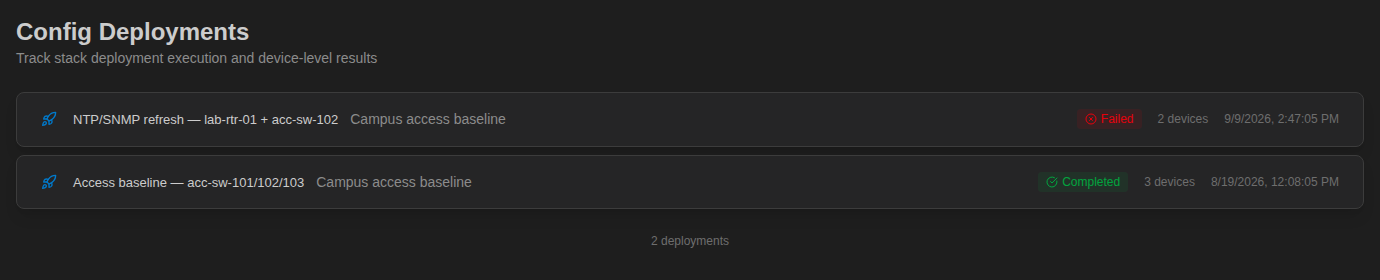
Each card shows the deployment name, the stack, a status badge, the number of devices, and when it was created. Click a card to expand it. The same deployments also appear in the Deployments card of each instance of that stack.
Statuses
| Status | Meaning |
|---|---|
| Pending | Created and about to start. |
| In Progress | Running through the stages. |
| Completed | Every device succeeded. |
| Failed | At least one device failed, or the deployment stopped before pushing (for example a render or backup error). On a non-atomic stack, devices that succeeded keep their changes. |
| Rolling Back | Reverting devices, either automatically (atomic stack) or after Roll Back. |
| Rolled Back | The revert has finished. |
Deployment Details
An expanded deployment shows:
- Roll Back (for Completed or Failed deployments)
- Deployment Progress: the six stages Render, Backup, Push, Validate, Confirm, and Sync. Green means done, red means the stage failed, grey means not reached or not needed.
- Deployment Logs, with filters All, Info, Debug, Warning, and Error
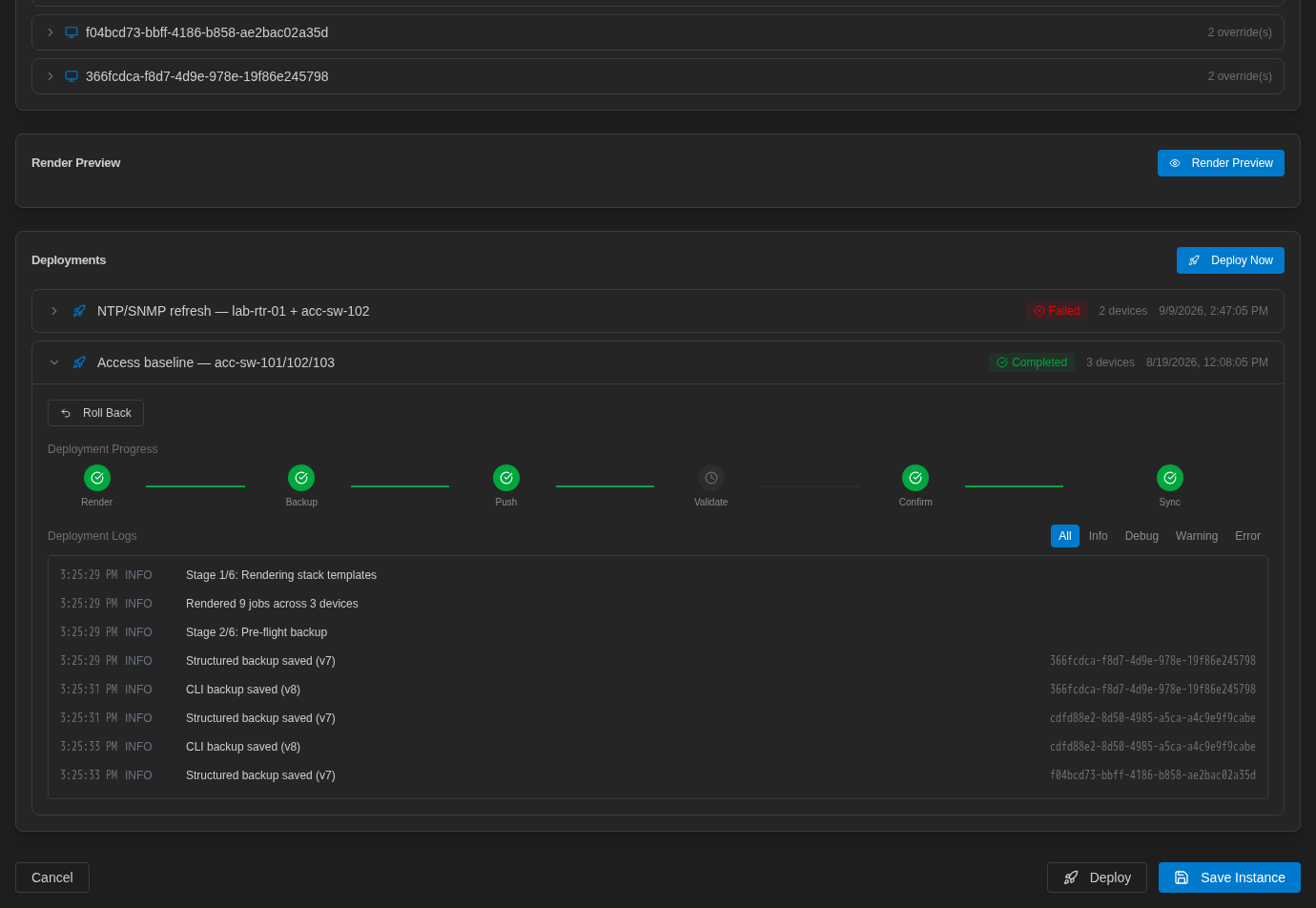
What each stage does is described in What happens when you deploy.
Reading the Logs
Log lines tied to a device show its ID on the right. The most useful lines are:
| Log line | Tells you |
|---|---|
| Stage N/6: … | Where the deployment has got to |
| Rendered N jobs across N devices | How many service/device combinations will be pushed |
| Structured backup saved (vN) / CLI backup saved (vN) | The pre-deploy backup version stored for the device |
| Sending '<template>' via … ---CONFIG--- (Debug) | The exact rendered config sent to the device |
| Push failed for '<template>' … (Error) | The device's own error message, for example an invalid interface |
| Drift detected (Warning) | Validation found the device config differs from what was sent |
Debug log lines include the complete rendered config, including values such as SNMP communities. Anyone who can open Config Automation can read them.
Backups Taken by a Deployment
Before pushing, a deployment saves each device's config as a pre-deploy backup, and after a successful push it saves a post-deploy sync. Both are stored with the device's other config backups, so you can compare before and after on the device's Config Backups tab (see Config diff).
Roll Back a Deployment
Roll Back re-applies each device's pre-deploy backup, taken in the Backup stage, as a full replace over gNMI or NETCONF.
- Expand a deployment with status Completed or Failed.
- Click Roll Back.
- Confirm in the Roll Back dialog ("Restores the pre-deployment configuration on the affected devices.").
- Watch the logs: each device shows "Restored backup config (version N)" or "Rollback failed" with the reason. The status ends as Rolled Back.
Rollback restores the whole configuration as it was before the deployment. Any change made on the device since then, by anyone, is overwritten. Check the device afterwards, for example by pulling a new backup and comparing it.
Rollback is only possible for devices that have a pre-deploy backup. On an atomic stack, a failed push rolls back automatically (see Atomic stacks).