Stacks Overview
EnterpriseWhat stacks, instances, and deployments are on the NetStacks Controller, how a deployment pushes config over gNMI or NETCONF, and what you need before you deploy.
Overview
A stack bundles several config templates into one unit you deploy together, such as a campus access-switch baseline made of NTP and logging, SNMP, and an access-port template. Stacks are a NetStacks Controller feature, found under Config Automation in the admin console.
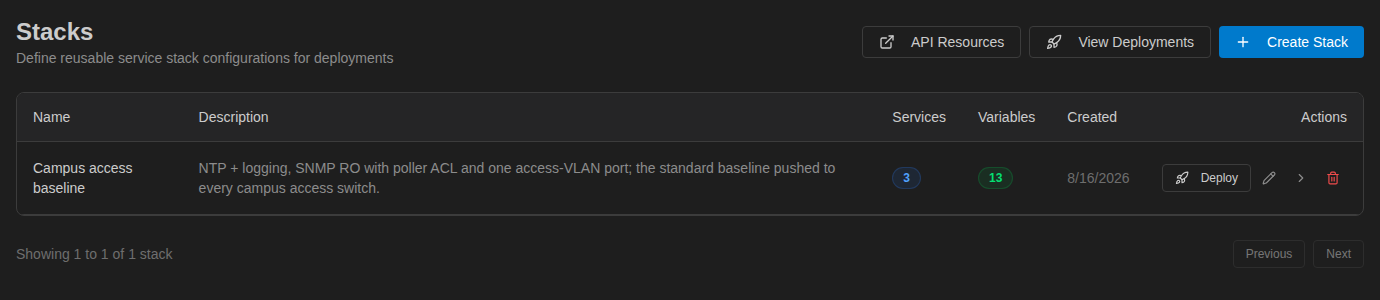
The Stacks page lists each stack with its number of Services (templates) and Variables. The buttons at the top open API Resources, View Deployments, and Create Stack.
Stacks, Instances, and Deployments
| Object | What it is | Example |
|---|---|---|
| Stack | An ordered list of templates (each one is a service), plus a Shared or Per Device scope for each variable and optional API lookups. A stack has no devices and no values of its own. | Campus access baseline |
| Instance | A stack filled in for a particular job: which devices each service targets, shared values, and per-device values. Saved so it can be reviewed, previewed, and deployed (more than once if needed). | Austin HQ access switches |
| Deployment | One run of an instance against its devices, with a status, a stage-by-stage progress bar, logs, and rollback. | Access baseline — acc-sw-101/102/103 |
Keeping the stack separate from its values means one stack can serve many sites: each site gets its own instance with its own devices and values.
Where to Find Them
| Sidebar item | Route | Use it to |
|---|---|---|
| Templates | /automation/templates | Write and preview the templates a stack uses |
| Stacks | /automation/stacks | Build stacks (see Creating a Stack) |
| Instances | /automation/instances | Fill in devices and values, preview, and deploy (see Instances & Deploying) |
| Deployments | /automation/deployments | Follow progress, read logs, and roll back (see Deployments & Rollback) |
What Happens When You Deploy
A deployment runs in the background on the Controller in six stages, shown as the Deployment Progress bar:

- Render: every service is rendered for every device it targets. A template error, or two services with the same target path on one device, stops the deployment here.
- Backup: the Controller pulls each device's current config (a structured backup over gNMI/NETCONF and a CLI backup) and saves it as a pre-deploy backup. If any device cannot be reached or backed up, the whole deployment fails before anything is pushed.
- Push: config is sent to up to 10 devices at a time. On each device the services are applied in stack order, and the first failure stops the remaining services on that device. On NETCONF devices that support it, the change is made in the candidate datastore and committed with a confirmed commit.
- Validate: for CLI templates, the Controller checks that the pushed lines appear in the running config. For JSON/XML templates, it re-reads the target path and compares it with what was sent.
- Confirm: confirms the commit on NETCONF devices that used a confirmed commit.
- Sync: pulls the post-deployment config and stores it as a new backup.
Deployments push config over gNMI or NETCONF. They never open an SSH CLI session to type commands. CLI-format templates are sent as CLI text inside gNMI or NETCONF (see How the config reaches the device).
Deployments start as soon as you confirm. There is no approval step, so use your team's change process before clicking Deploy, and limit who has the devices.access permission.
Atomic Stacks
Turn on Atomic deployment (rollback all services on failure) in the stack editor when the services must succeed or fail together. If any device fails during the push, the deployment status changes to Rolling Back and the devices that had already succeeded are reverted:
- gNMI devices: the pre-deploy backup is pushed back as a full replace.
- NETCONF devices: the confirmed commit is not confirmed, so the device reverts on its own when the confirm timer (120 seconds) runs out.
The final status is Rolled Back. Without atomic mode, a failure leaves the deployment Failed, keeps the changes on devices that succeeded, and you decide whether to roll back.
Before You Deploy
- Each target device is in the Controller's inventory with a credential profile that holds working automation (gNMI or NETCONF) credentials.
- The transport can be worked out for each device: either the profile sets an automation transport (gNMI or NETCONF) and port, or the device's platform maps to a known platform (for example EOS to gNMI, IOS-XR or Junos to NETCONF).
- NETCONF (port 830) or gNMI (port 6030 by default) is enabled on the device.
- Your account has the devices.access permission, which opens Config Automation.
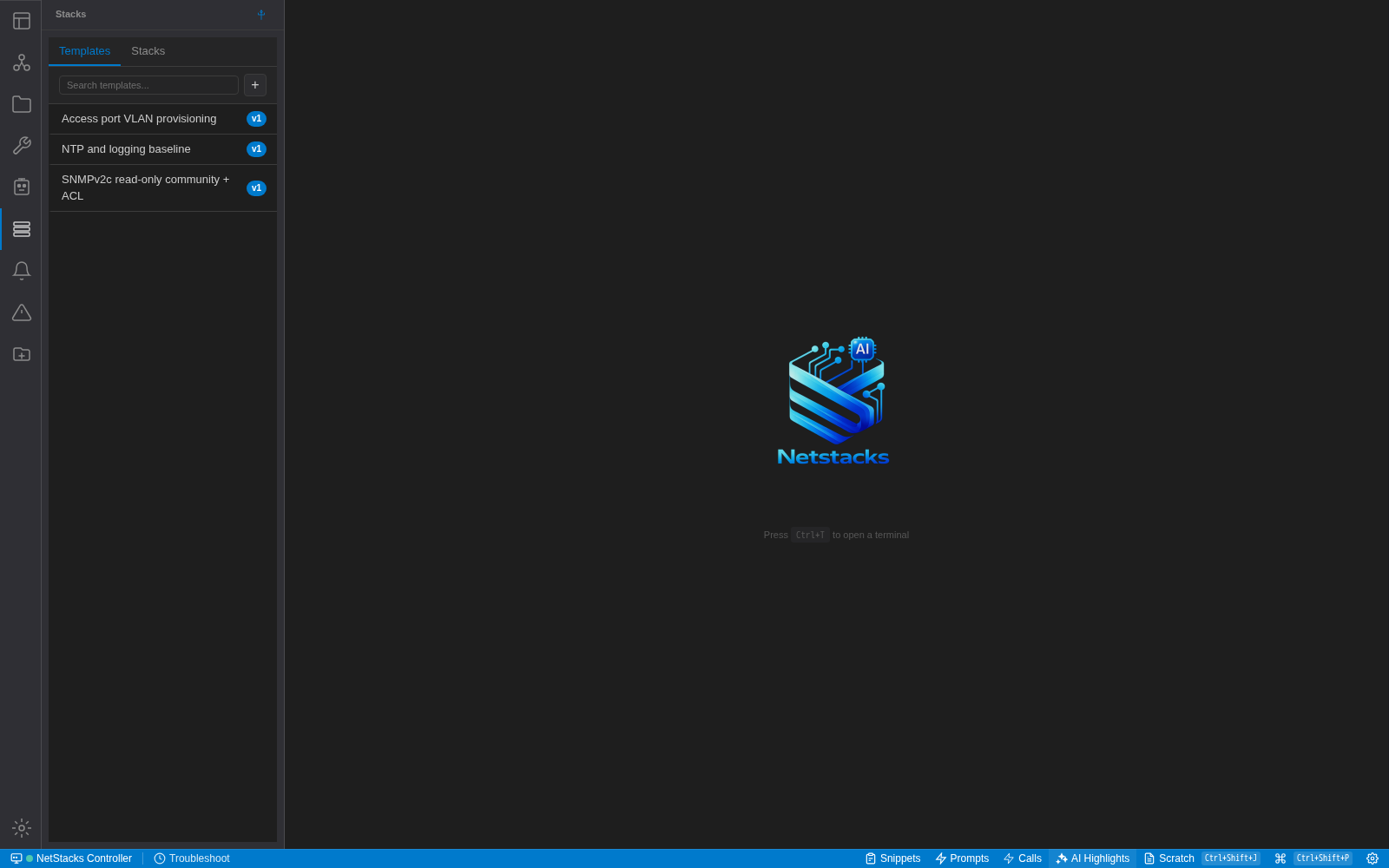
Stacks in the Terminal
When the Terminal is connected to a Controller that licenses service stacks, the activity bar shows a Stacks view with the organization's Templates and Stacks, with each stack's instances listed under it. Opening an item gives you a tab to view or edit the template, stack, instance, or deployment, using the same Controller data as the admin console. Stacks are not available in standalone mode.