
Config History & Diff
EnterpriseBrowse every stored configuration version of a device, compare two versions side by side, track when a line was added or removed, and keep notes.
Overview
Every backup the Controller takes is kept as a numbered version (see Config Backups & Snapshots). You can review that history in two places:
- The Terminal (desktop app connected to a Controller, or the browser terminal) — the Backups tab, with diff, line tracking and notes.
- The admin console — the Config Backups tab on a managed device's detail page.
Config history requires a Controller; the standalone Terminal does not store config versions.
In the Terminal: Backup History
In the Devices sidebar, right-click a device and choose Backup History (or View Latest Backup). A Backups: <device> tab opens.
The left column lists Config Backups newest first, with the date, a LATEST badge on the newest, the format (CLI or JSON/XML for structured backups), how it was pulled (ssh, gnmi, netconf), the version number and the start of the config hash. Filter the list with All, CLI or Structured. Pull New takes a fresh backup (CLI and structured) and Refresh reloads the list.
View a Backup
Click a backup to open it in the editor on the right, with line numbers, syntax highlighting and the line count, size and format in the header.
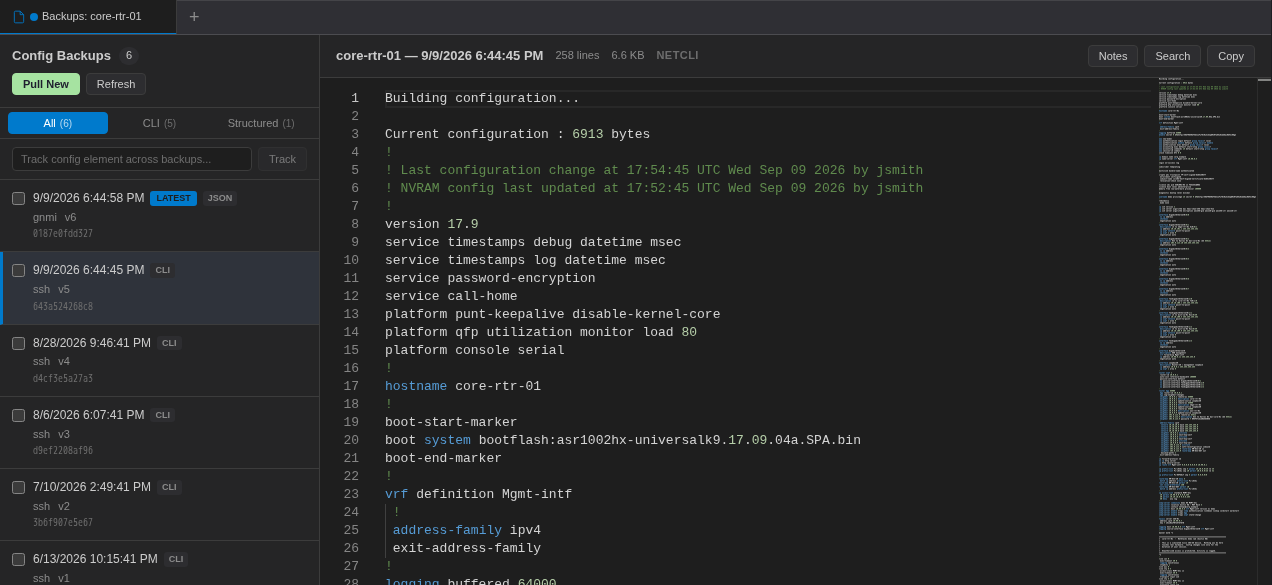
Use Copy to copy the whole config. You can edit the text in the viewer as a scratch draft (marked Local draft — not saved); drafts are never written to the Controller or the device.
Compare Two Versions
- Tick the checkboxes of two backups (the footer shows “2/2 selected for compare”).
- Click Compare.
The Config Diff view shows a unified diff with the number of added (green,+) and removed (red, -) lines in the header. Click Close Diff to go back.
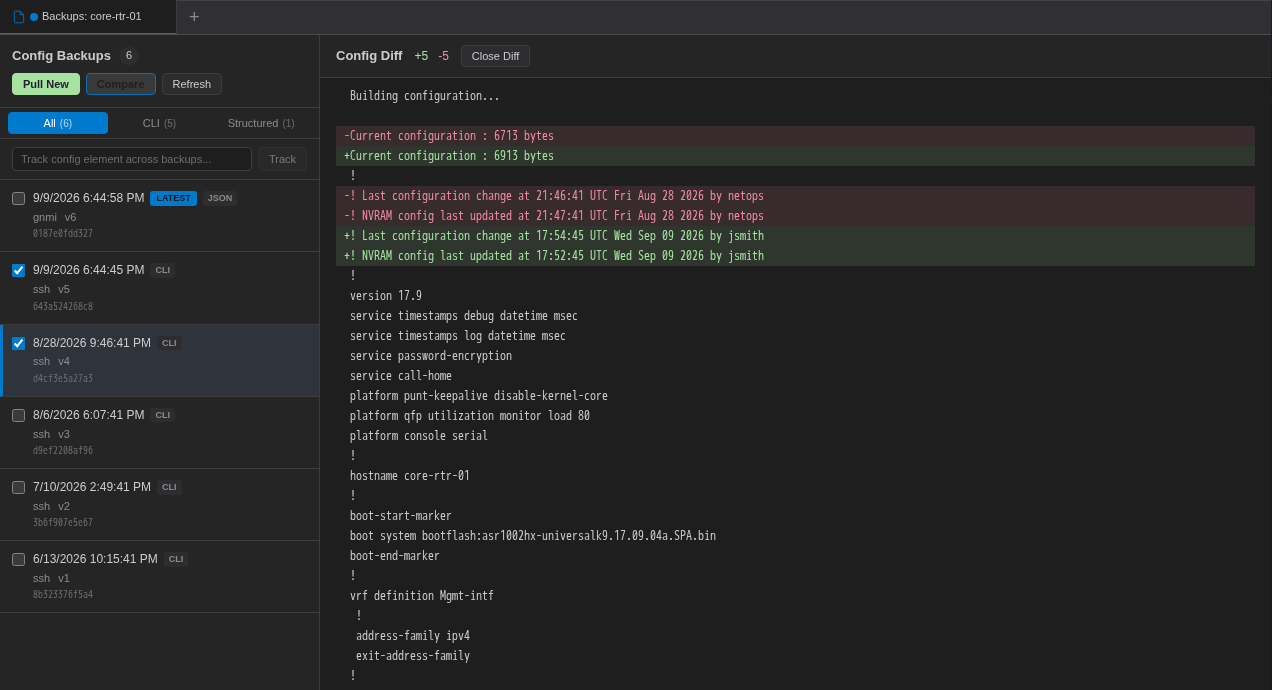
Compare two CLI backups or two structured backups. A CLI config and a JSON config of the same device will differ on every line.
Track a Config Line Over Time
To find out when a piece of configuration was added, changed or removed, type it into Track config element across backups... (for example ntp server) and click Track.
Each backup in the list gets a hit count or not found, and the right pane shows a Config Timeline: every version with the matching lines highlighted, and ADDED / REMOVED badges where the line first appears or disappears. Click Close Timeline when done.
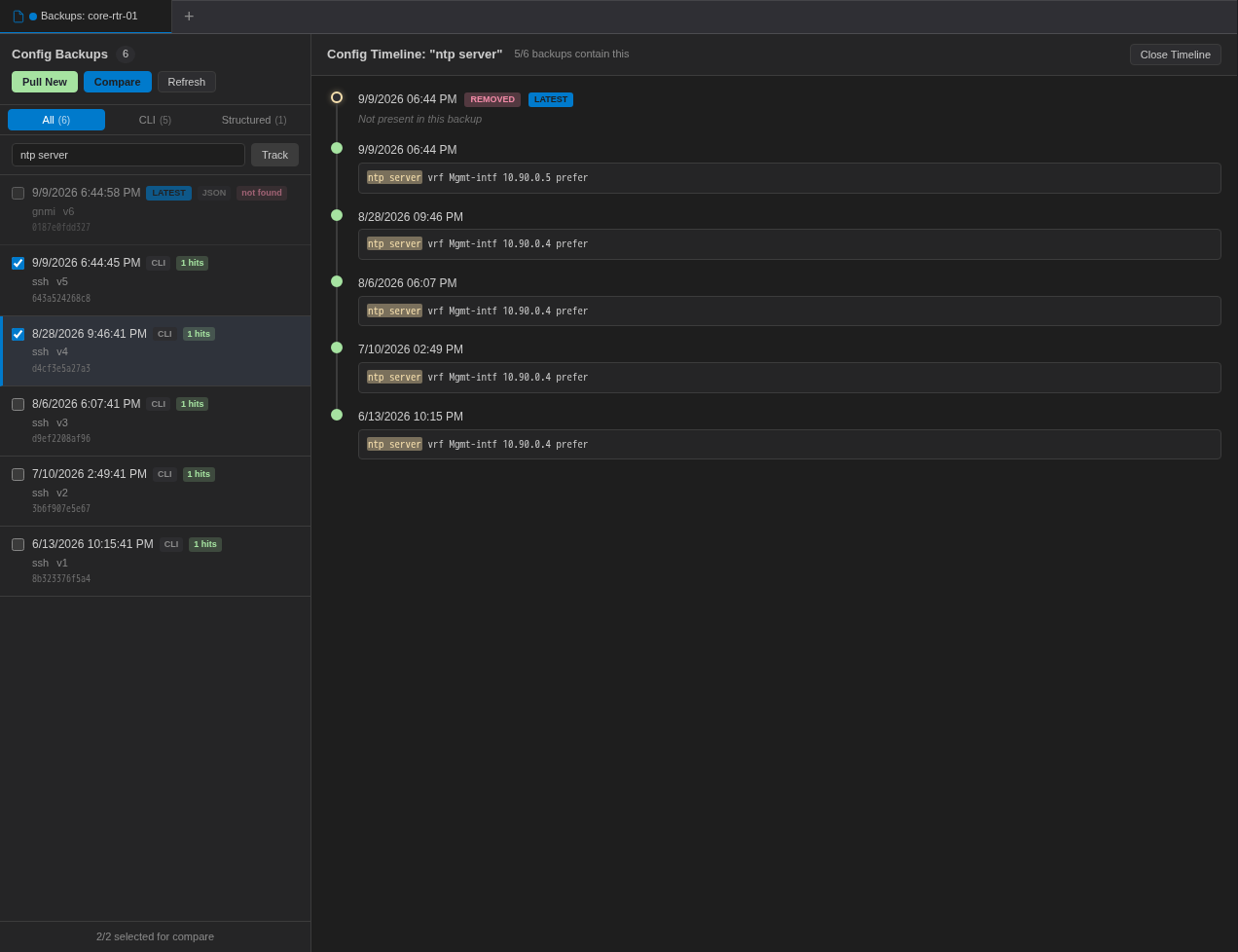
In this example the timeline makes it obvious that the NTP server changed from 10.90.0.4 to 10.90.0.5 in the 9/9 backup.
Notes and Search
- Notes attaches operator notes to the selected backup (for example “taken before the WAN migration”). Notes are saved on the Controller, visible to your team, and readable by the AI assistant.
- Search (Ctrl/Cmd+F) finds text inside the open config.
In the Admin Console: Config Backups Tab
On a managed device's detail page (Inventory → Managed Devices → device), the Config Backups tab offers the same history in table form:
- A segmented control: All, CLI, Structured.
- Buttons Pull Both, Pull CLI and Pull Structured.
- A table with the columns Diff (checkbox), Version, Date, Format, Transport, Source, Hash and Actions. Badges mark the Latest version and Failed attempts (with the error).
- View config opens a version; View transcript / log shows the full session log captured during that attempt.
- Tick exactly two versions and click Compare Selected to open Config Diff — vA → vB.
The tab shows the 50 most recent versions. If the device isn't managed yet, the tab explains that config backups are a managed-device feature; manage it first from the Manage tab.
Tips
- Take a backup (or a named snapshot) immediately before and after a change, then compare the two.
- Because every pull is stored even when nothing changed, compare the hashes first: identical hashes mean identical configs.
- Failed attempts are kept with their transcript, which is the quickest way to see why a backup failed.