
Shared & Per-Device Variables
EnterpriseChoose whether each stack variable is shared or set per device, how values are combined at deploy time, and how to fill variables automatically from an API such as NetBox.
Overview
Most config is the same across a group of devices (NTP servers, SNMP pollers, a guest VLAN) with a few values that differ per device (the access port, its description). Stacks handle this with a scope on each variable: shared values are typed once, and per-device values once for each device. Values can also be fetched from an external API instead of typed.
Choosing a Scope
Set the scope in the stack editor's Detected Variables card, using the selector next to each variable:
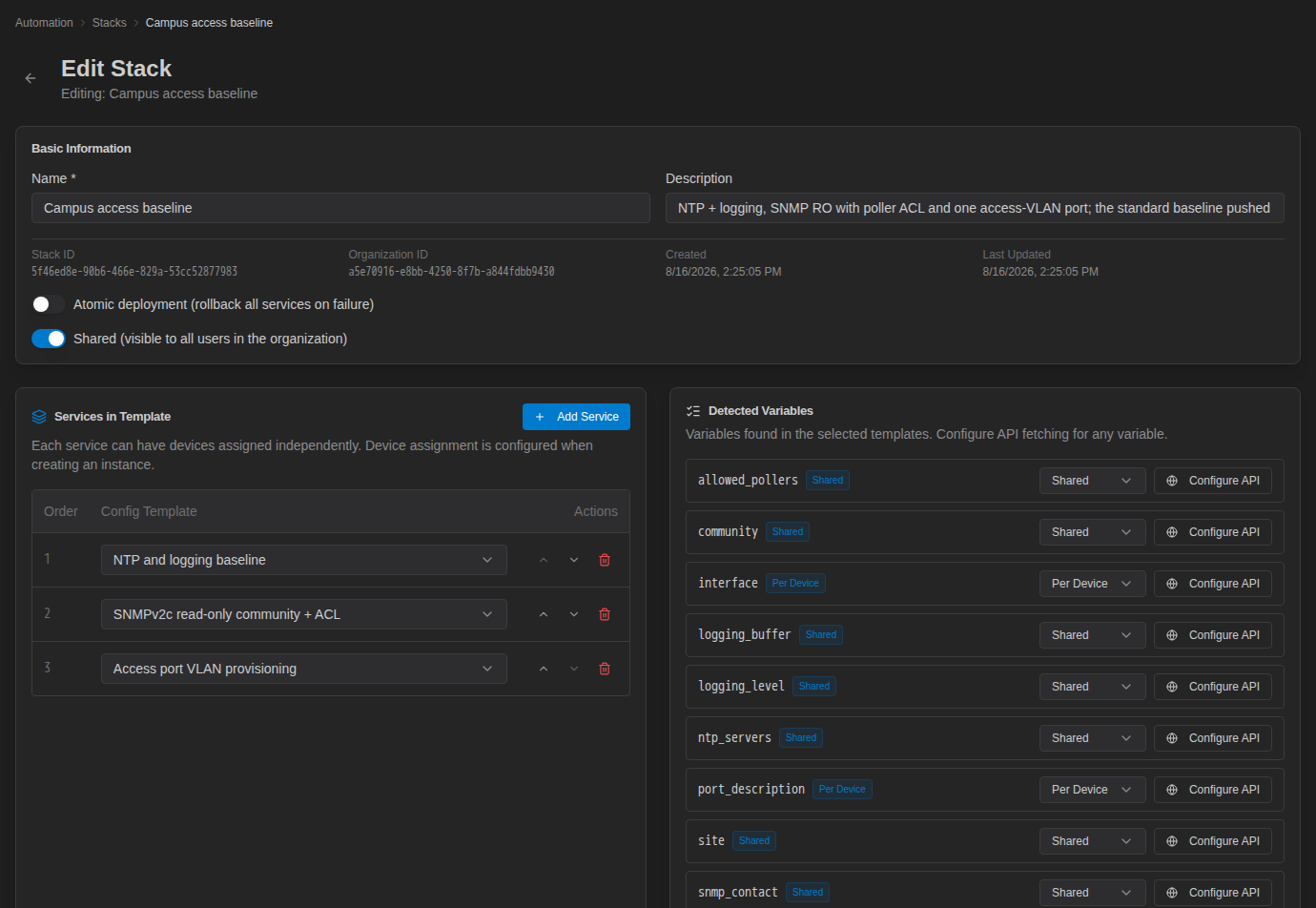
| Scope | Where you enter it in an instance | Campus baseline examples |
|---|---|---|
| Shared (default) | Shared Variables: one field per service | ntp_servers, syslog_server, community, allowed_pollers, vlan_id, vlan_name |
| Per Device | Per-Device Variables: one field per device in the service | interface, port_description |
The scope belongs to the variable name, so a name used in several templates of the stack has the same scope in all of them.
How Values Are Combined
When a deployment renders a service for a device, it builds the variable set in this order, each step overriding the one before:
- Default values stored on the stack's service, if any
- The instance's Shared Variables for that service
- The instance's Per-Device Variables for that device
Values are kept per service. If two services use a variable with the same name, fill it in both service cards.
Templates do not receive any device data automatically. A value such as the device hostname has to be a per-device variable or come from an API lookup.
Filling Variables from an API
Instead of typing values, a stack variable can be fetched from an API Resource: an HTTP API you have registered in the Controller, such as NetBox or an IPAM. You set up the lookup once on the stack, then pull the values into each instance with one click.
Configure the Variable
- Open the stack and click Configure API next to the variable.
- In the API Config panel, choose the API Resource. (Create API Resources with the API Resources button on the Stacks page.)
- Enter the API Path, relative to the resource's base URL. Use
{{ device.<field> }}to look up something for each device. - Enter the JSON Path that selects the value from the response.
- Click Test to call the API. The panel shows the raw response and the Extracted Value.
- Click Save Stack. The variable now shows API Configured.
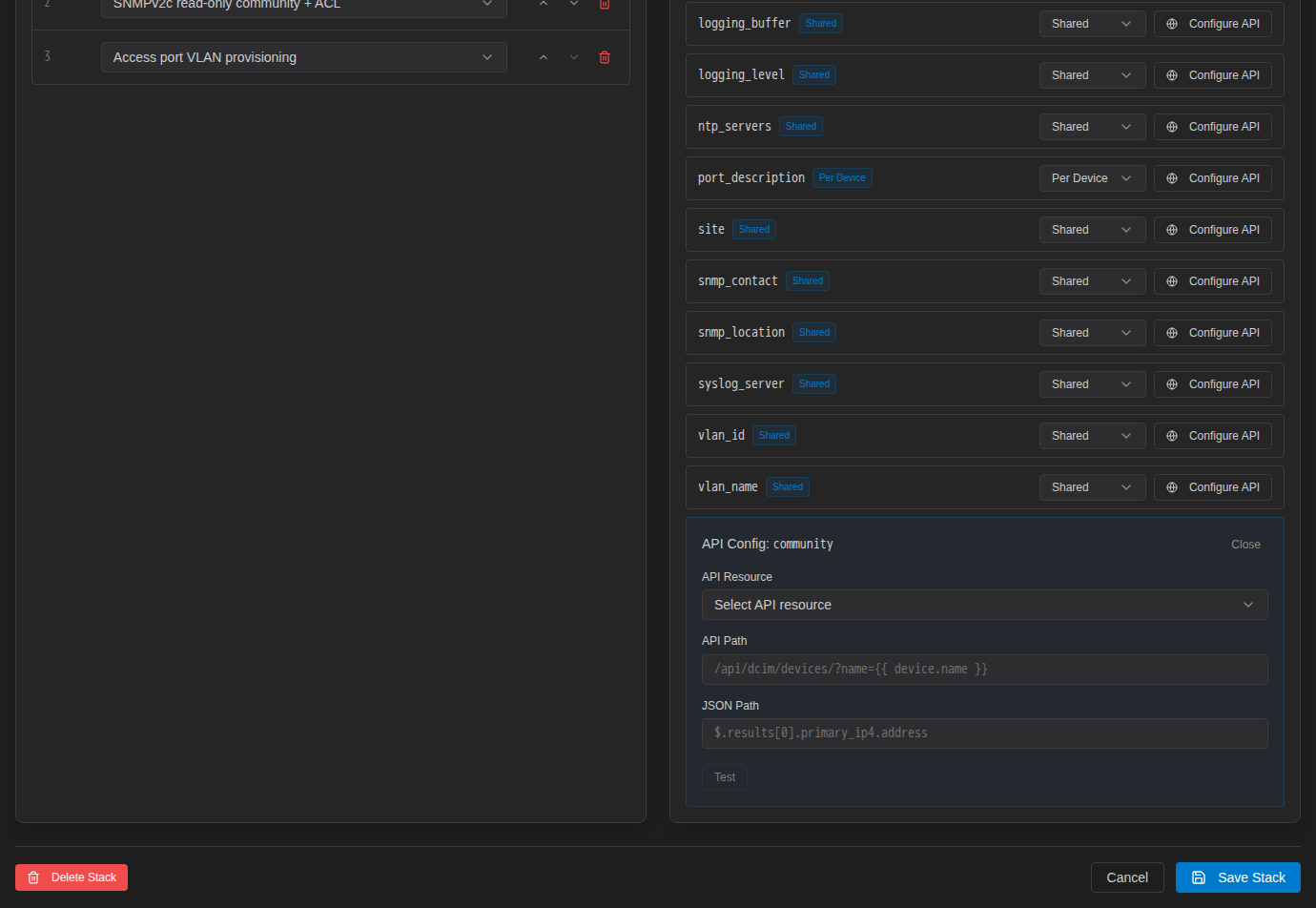
For example, to fetch each device's primary IPv4 address from NetBox:
API Path:  /api/dcim/devices/?name={{ device.name }}
JSON Path: $.results[0].primary_ip4.address
Device fields available in the API Path: device.name, device.host (or device.hostname), device.site, device.platform, device.manufacturer, device.model, device.device_type, device.serial_number, device.asset_tag, device.id.
A lookup whose path uses {{ device... }}, or whose variable is set to Per Device, fetches one value per device. Otherwise it fetches one shared value.
Resolve Values in an Instance
- Open the instance and assign devices to the service.
- Click Resolve from API in that service's card. The Controller calls the API (once per device for per-device lookups) and fills in the matching fields.
- Review the values, then Save Instance.
Values are fetched only when you click the button, not at deploy time, so what you save is what gets deployed. A lookup that fails or whose JSON Path matches nothing leaves the field as it was; check those fields before deploying.
If you add devices to a service later, click Resolve from API again so the new devices get their per-device values.
Tips
- Start with everything Shared and change a variable to Per Device only when the value really differs between devices. Fewer per-device fields means fewer chances for a typo.
- Run Render Preview in the instance after filling in values. It shows the merged result for every device.
- Use the template's
defaultfilter for values that are usually the same, so they can be left blank:{{ logging_level | default("informational") }}.