
Creating a Stack
EnterpriseBuild a stack in the NetStacks Controller: add templates as ordered services, choose atomic deployment and sharing, and set each variable's scope.
Overview
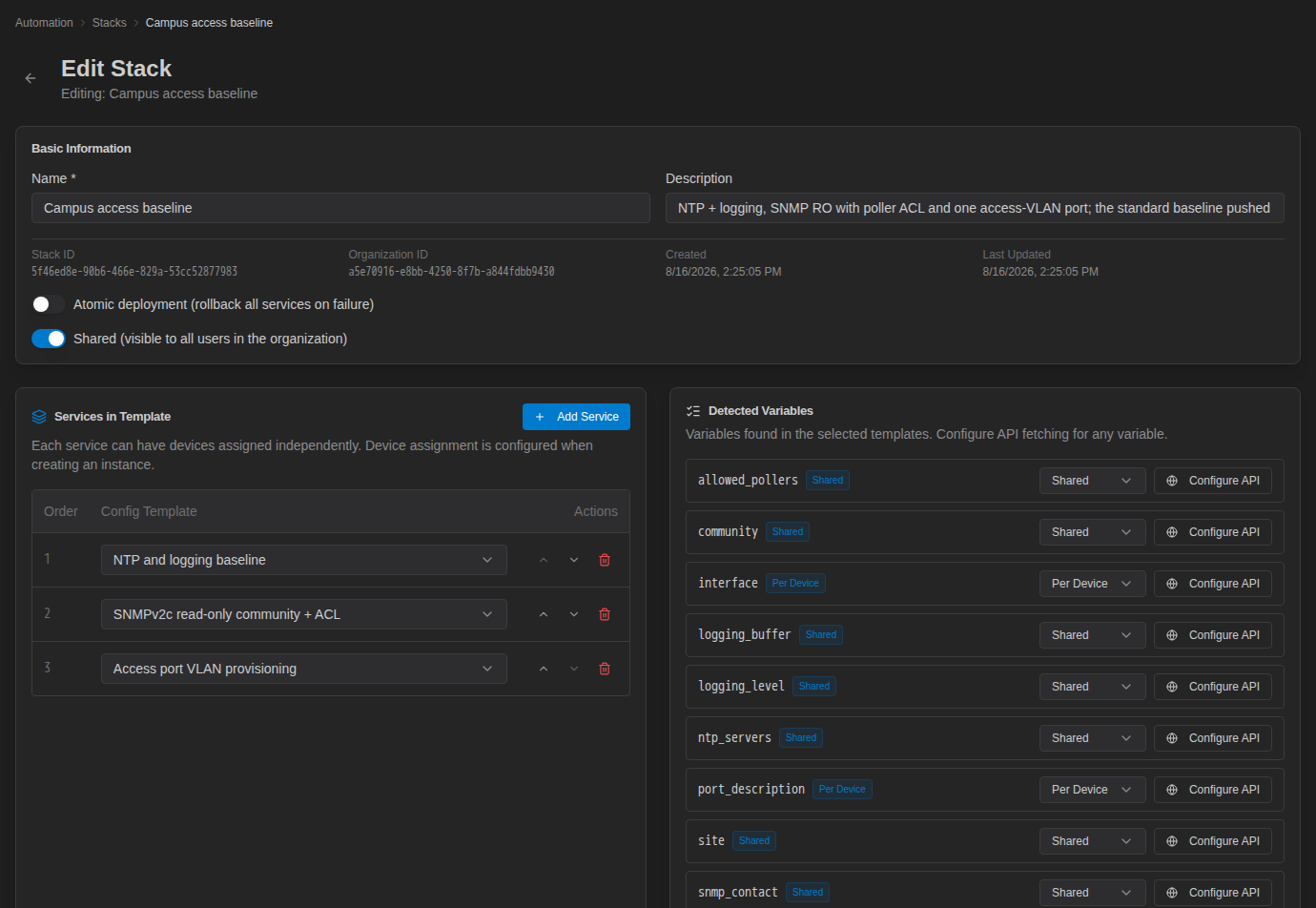
A stack is a reusable recipe: which templates to apply, in what order, and how each variable gets its value. It contains no devices or values; those go on an instance. This page builds the Campus access baseline stack from the three example templates.
Before You Start
- Create and preview the templates you need (see Config Templates Overview).
- Give each template a different Target Path. A deployment stops if two services in a stack target the same path on the same device.
- If you want variables filled from NetBox or another system, set up an API Resource first (the API Resources button on the Stacks page opens it).
Create the Stack
- Go to Config Automation → Stacks and click Create Stack.
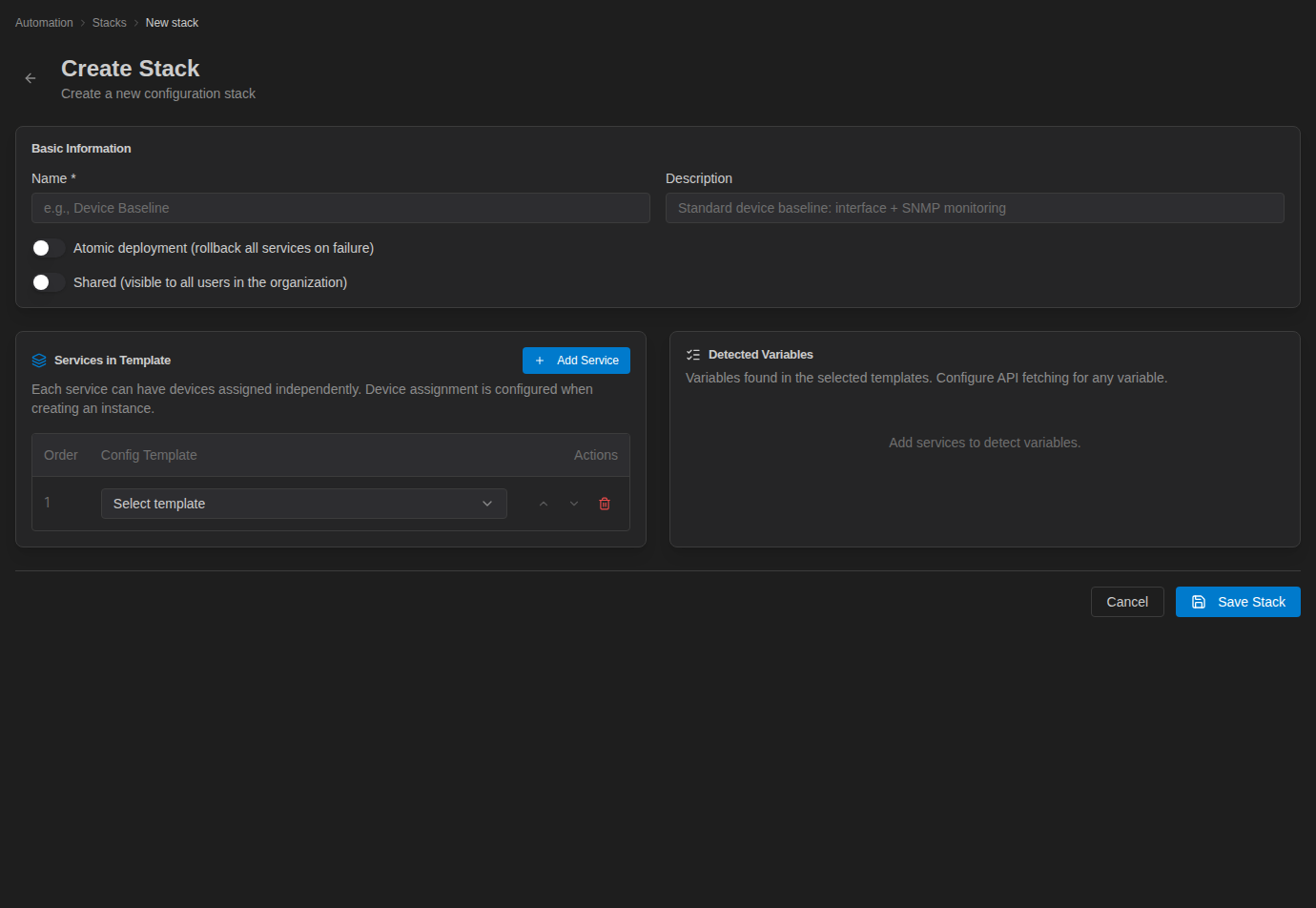
- Enter a Name (for example "Campus access baseline") and a Description. Turn on Atomic deployment if the services must succeed or fail together.
- Click Add Service once per template, and pick a template in each row's Config Template list.
- Use the up and down arrows to put the services in the order they should be applied.
- In Detected Variables, set each variable to Shared or Per Device.
- Click Save Stack.
Basic Information
| Setting | Meaning |
|---|---|
| Name (required) | Shown on the Stacks page and when you create an instance. |
| Description | What the stack is for. |
| Atomic deployment (rollback all services on failure) | If any device fails during a deployment, the devices that succeeded are reverted as well and the deployment ends as Rolled Back. See Atomic stacks. |
Services in Template
Each row is a service: one template in the stack. The Order column is the order in which services are pushed to a device. In the example, NTP and logging go first, then SNMP, then the access port.
- Devices are not chosen here. As the card says, "Device assignment is configured when creating an instance", and each service can target a different set of devices.
- The stack always uses each template's current version (see Versions and stacks).
Detected Variables
This card lists every variable from every template in the stack (13 for the campus baseline). For each one:
- Shared: one value for all devices a service targets. Good for NTP servers, syslog collector, SNMP community, VLAN ID.
- Per Device: a separate value for each device. Good for the interface name and port description.
- Configure API: fetch the value from an API Resource instead of typing it. See Filling variables from an API.
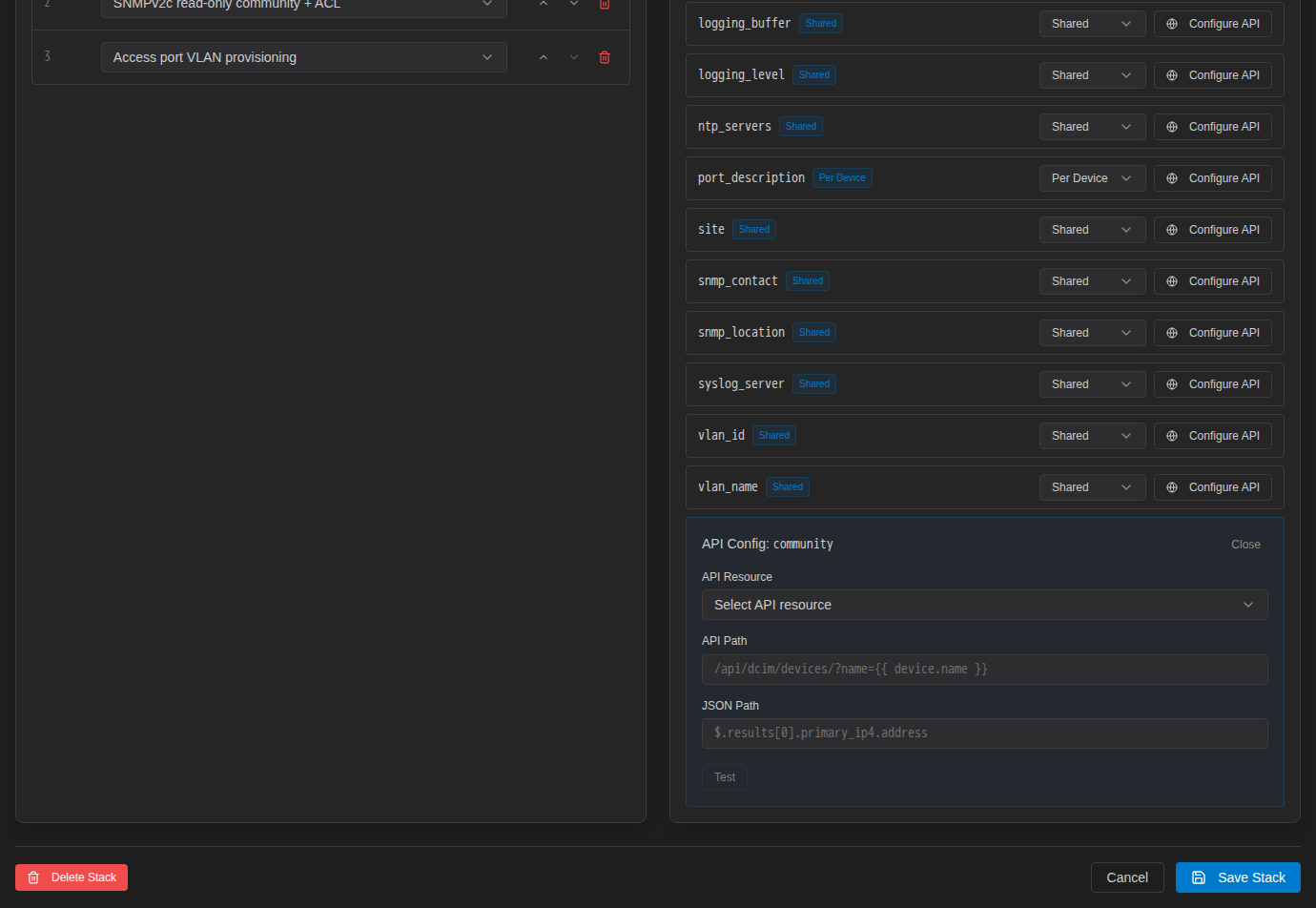
A variable used by several templates (for example a site variable used everywhere) appears once and has one scope.
Editing and Deleting Stacks
Open a stack with the pencil icon on the Stacks page. The edit page shows the Stack ID, Organization ID, Created, and Last Updated details as well as the settings above. Delete Stack is at the bottom left.
Instances store their values per service position (service 1, service 2, and so on). If you remove or reorder services after instances exist, open each instance and check that its devices and values still line up with the right service before you deploy it.
The Linked number on the Templates page links to the Stacks page filtered to the stacks that use that template ("Showing stacks using template …", with Clear filter).
Troubleshooting
A variable is missing from Detected Variables. The list comes from each template's saved variables. Open the template, check the variable chips under Template Source, and save the template if you recently edited it.
"Path collision detected" when previewing or deploying. Two services target the same path. Change one template's Target Path.