
Sign-In & Sessions
EnterpriseHow users sign in to the NetStacks Controller admin console and NetStacks Terminal, session lifetimes, failed-login limits, JWT secret rotation, and login-password profile seeding.
Overview
Users sign in to the Controller with a username and password belonging to a local Controller account. The same account works in the admin console, the web terminal (/terminal/) and NetStacks Terminal desktop clients connected in enterprise mode. Accounts are created by administrators under Administration → Users.
After a successful sign-in, the Controller issues a short-lived access token and a longer-lived refresh token. Clients refresh the access token automatically, so users stay signed in until the refresh token expires or they sign out.
Signing In to the Admin Console
- Browse to
https://<controller>:3000. - Enter your Username and Password and click Sign in.
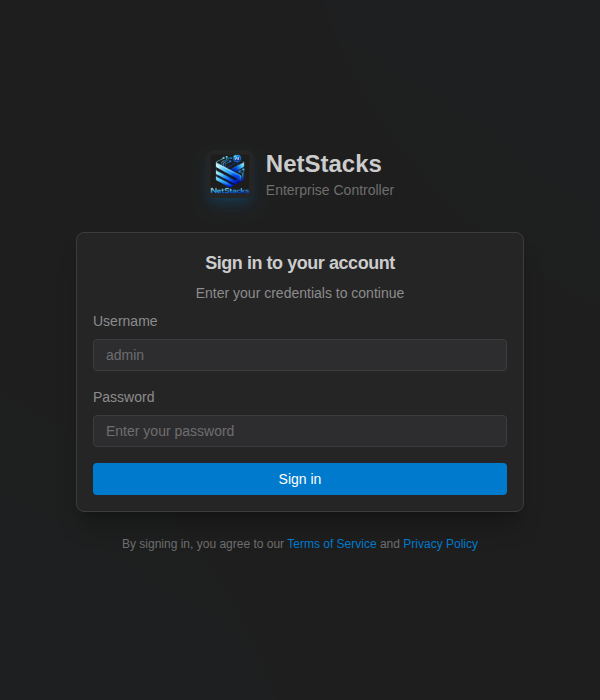
To sign out, click the logout icon next to your name at the bottom of the sidebar.
Signing In from NetStacks Terminal
In NetStacks Terminal, connecting to a Controller asks for the Controller URL and the same username and password. Terminal sign-ins use a license seat (admin console sign-ins don't) — see How Seats Are Counted. For the client-side steps, see Connecting to a Controller.
Session Lifetime
Two settings in Settings → Authentication control how long sign-ins last. Both are read when the API starts, so restart the api container after changing them.
| Setting | Default | Meaning |
|---|---|---|
Access Token Hours (session.access_token_hours) | 24 | Lifetime of the access token used on every request. |
Refresh Token Days (session.refresh_token_days) | 30 | How long a user can stay signed in without entering their password again. |
Separately, browser-terminal device sessions have their own idle timeout and reconnect window under Settings → Terminal Sessions (see System Settings).
Failed-Login Limits
Sign-in requests are rate-limited per client IP address. After too many failed attempts in the window, further attempts from that address are refused with HTTP 429 until the window passes. The values are under Settings → Security and are read when the API starts:
| Setting | Default |
|---|---|
security.rate_limit.failed_login_limit | 5 failed attempts |
security.rate_limit.failed_login_window_minutes | 15 minutes |
security.rate_limit.requests_per_minute | 100 requests per minute to sign-in endpoints |
security.rate_limit.show_remaining_attempts | On — the error says "Invalid credentials. N attempts remaining." |
The Controller identifies clients by the X-Forwarded-For or X-Real-IP header when present. If you put another proxy in front of the Controller, make sure it passes the real client address.
Rotating the Signing Secret
Access tokens are signed with the JWT Secret setting. Set your own value after installation and rotate it if you suspect it was exposed:
- Open Settings → Authentication and click Edit on JWT Secret.
- Paste a long random value, for example the output of
openssl rand -base64 48. - Click Save and confirm Rotate secret in the Rotate JWT Secret dialog.
- Restart the API:
docker compose restart api. All users are signed out and sign in again.
Login-Password Profile Seeding
Many teams sign in to network devices with the same credentials they use for NetStacks. With login-password seeding, the Controller stores a user's sign-in password (encrypted) as the first secret on that user's default connection profile each time they sign in, so device connections can reuse it.
It is off by default and needs two switches, both under Settings → Authentication → Login-password profile seeding:
- Enable for this organization — the administrator gate.
- Seed my login password — each user's own opt-in.
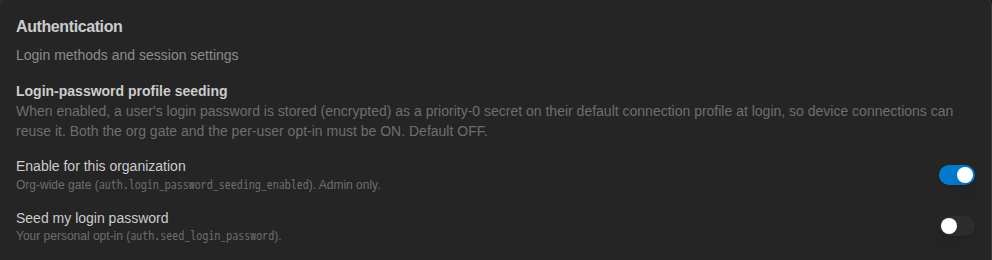
Admins can also copy a password onto a user's default profile when resetting it, with Also set this password on the user's default connection profile in Edit User.
Directory and SSO Integration
The admin console and NetStacks Terminal offer username/password sign-in with local Controller accounts only. SAML, multi-factor authentication and SCIM provisioning are not currently supported.
For custom integrations, the Controller API also includes LDAP / Active Directory (POST /api/auth/ldap) and OpenID Connect (/api/auth/oidc/authorize) sign-in endpoints. They are configured through the auth.ldap.* and auth.oidc.* rows in Settings → Authentication (read when the API starts) and are not shown as sign-in options in the NetStacks clients. Accounts created through them are placed in the Default Organization with no roles; an administrator assigns roles afterwards. See the API authentication reference for details.
Sign-In Auditing
Successful and failed sign-ins (auth.login.success, auth.login.failed), sign-outs, token refreshes, password changes and organization switches are written to the audit log with the client IP address.