
Config Backups & Snapshots
EnterpriseBack up device configurations on the NetStacks Controller over SSH, gNMI or NETCONF, one device at a time or as named multi-device snapshots.
Overview
Configuration backups are a Controller feature. The Controller logs in to managed devices with each device's profile, captures the configuration, and stores every capture as a new numbered version you can view and compare later.
The standalone Terminal has no config archive. You can save command output to Documents, and MOPs capture pre/post-check output, but versioned backups, history and diff need a Controller.
Backup Methods
| Method | How | Requirements |
|---|---|---|
| CLI | SSH (or Telnet) session that disables paging and runs the platform's show-config command | An SSH/Telnet credential on the device's profile and a supported device type (see commands by platform) |
| Structured | gNMI or NETCONF get of the running configuration (JSON or XML) | An automation transport (gNMI or NETCONF) set on the profile |
| SNMP | Reads the OIDs listed in the profile's Auto Commands | Device type SNMP (read profile OIDs) and Allow SNMP Backup enabled in Settings → Collection |
Back Up One Device
From the admin console:
- Open Inventory → Managed Devices and click the device.
- Open the Config Backups tab.
- Click Pull Both, Pull CLI or Pull Structured (the first backup of a device shows Pull First Config).
From the Terminal in enterprise mode, right-click a device and choose Backup History, then click Pull New (pulls CLI and structured).
Each attempt is stored, including failures, with the full session transcript so you can see exactly what happened. See Config History & Diff for browsing the results.
Back Up Many Devices
On Managed Devices, select devices (or filter and use Select all N), choose CLI + Structured, CLI only or Structured only, and click Pull Config. This creates a snapshot named “Bulk Config Pull (N devices)” and shows a progress banner on the page until it finishes. See Bulk Operations.
Config Snapshots
A config snapshot is a named, point-in-time backup run across a set of devices — for example “Pre-maintenance backup” before a change window. Open Config Automation → Snapshots (/automation/snapshots).
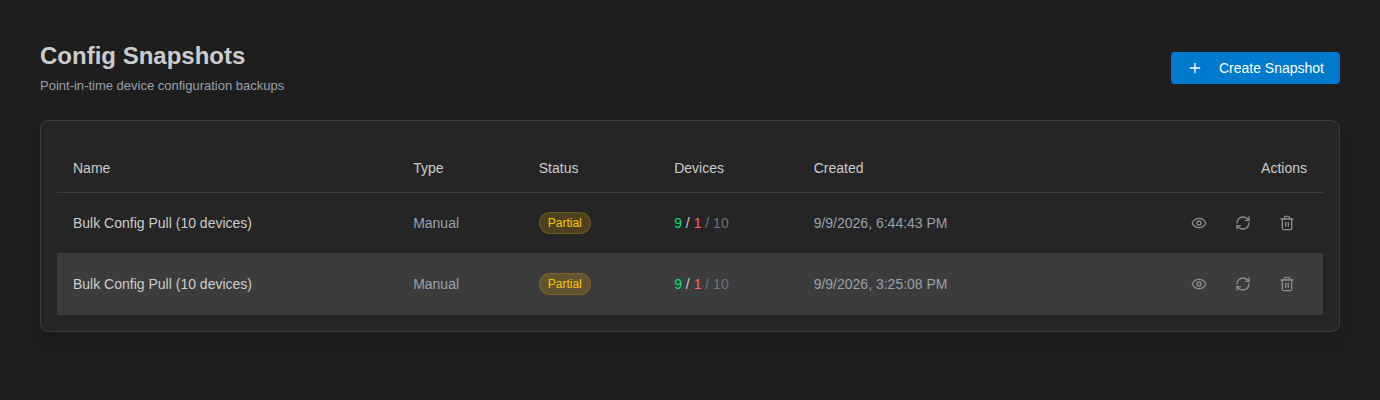
The table shows each snapshot's Name, Type (Manual or Scheduled), Status, Devices (succeeded / failed / total) and Created time. Row actions are View Details, Re-collect and Delete. Deleting a snapshot also deletes the backup records it collected.
Create a Snapshot
- Click Create Snapshot.
- Enter a Name and optional Description.
- Under Device Filter, choose All sites or one site, and optionally a device type. Leave it empty to collect from all devices with credentials.
- Click Create & Collect.
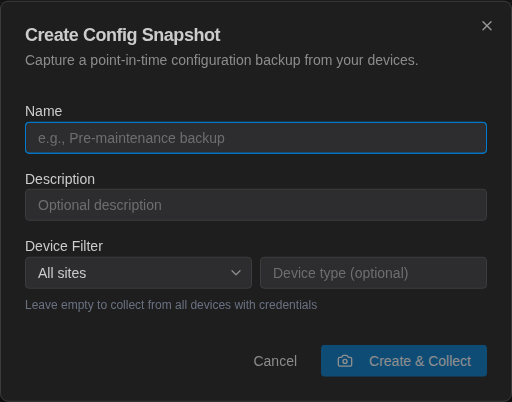
Snapshots collect CLI backups (and SNMP backups for SNMP-type devices). To include structured gNMI/NETCONF configs, use Pull Config from Managed Devices instead.
Snapshot Results
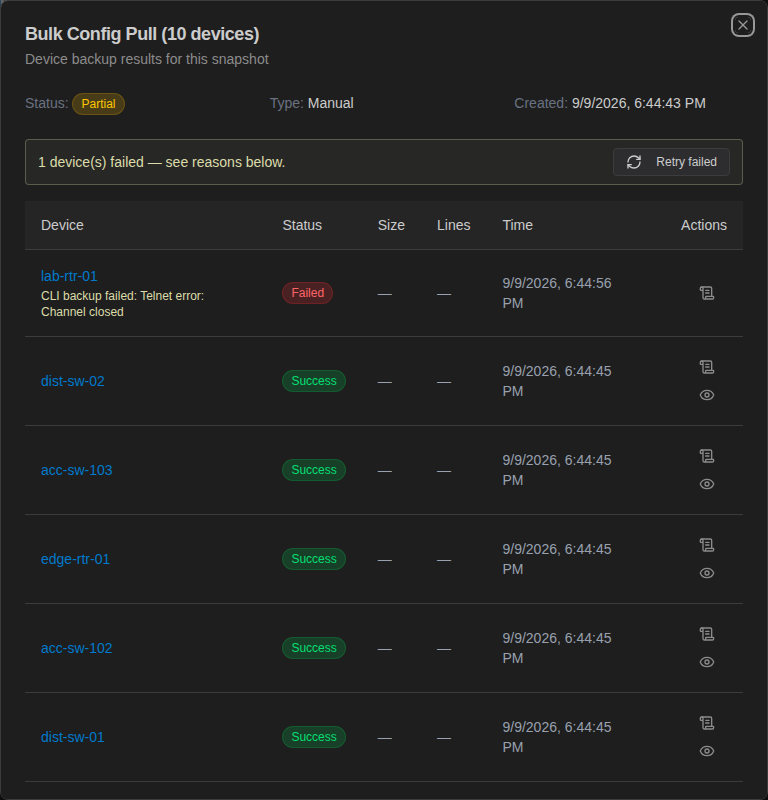
Click View Details to see the result for every device: status, size, lines, time, and icons to view the transcript or the captured config. Failed devices show the reason, and Retry failed re-collects just those.
Collection Settings
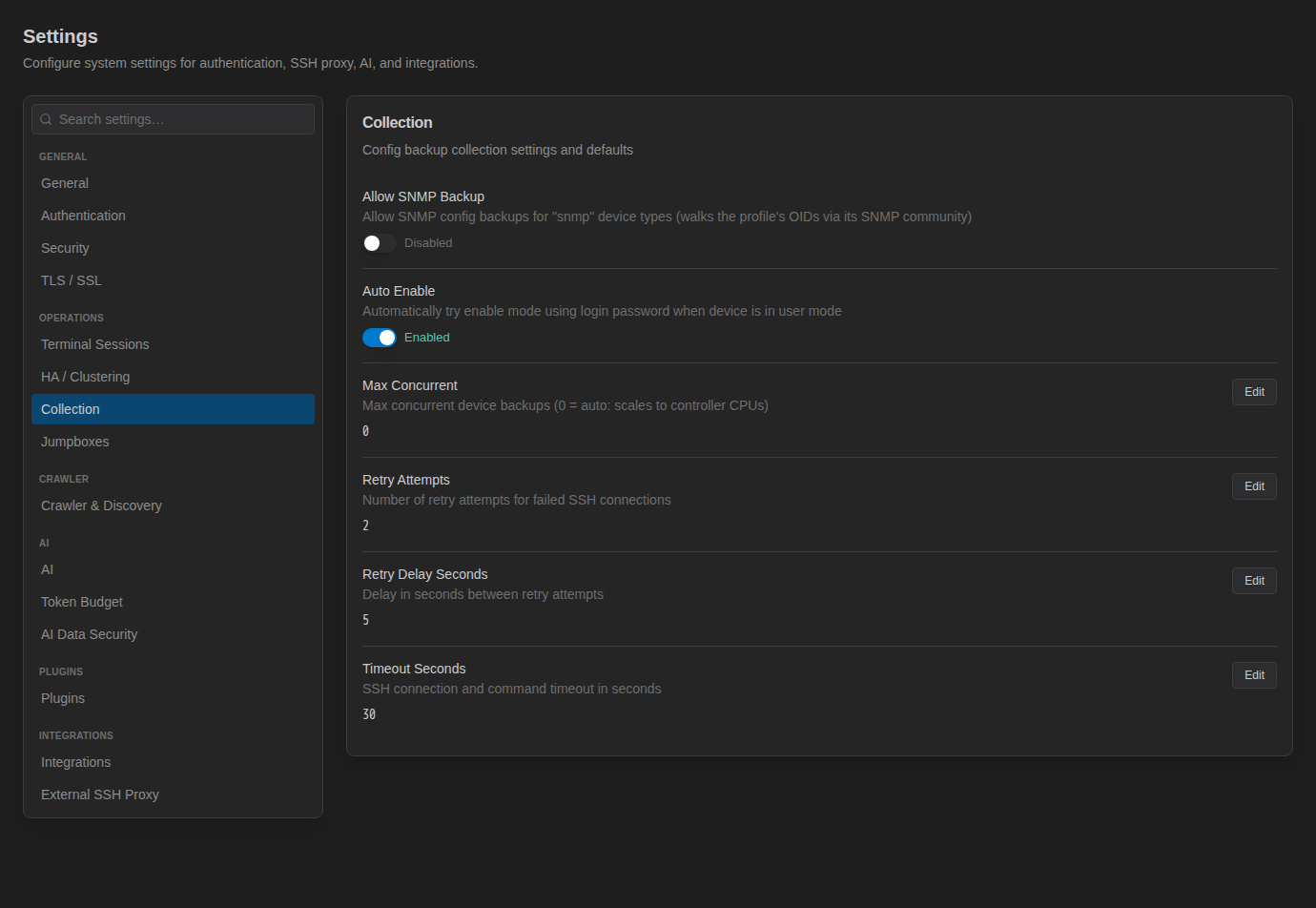
Settings → Collection controls how backups are collected:
| Setting | Default | Meaning |
|---|---|---|
| Allow SNMP Backup | Disabled | Permit SNMP backups for devices of type SNMP. |
| Auto Enable | Enabled | If a device lands in user mode, try the login password as the enable password. |
| Max Concurrent | 0 | Maximum devices backed up at once. 0 scales automatically with the Controller's CPUs. |
| Retry Attempts | 2 | Retries for failed SSH connections. |
| Retry Delay Seconds | 5 | Wait between retries. |
| Timeout Seconds | 30 | SSH connection and command timeout. |
What Is Stored
- The full configuration text, its format (CLI, JSON, XML or SNMP) and a SHA-256 hash.
- A per-device version number, the time, how it was pulled (SSH, gNMI, NETCONF or SNMP) and what triggered it (manual pull, snapshot, deployment).
- Success or failure, the error message, and the session transcript.
- Operator notes you add later.
Every pull creates a new version, even when nothing changed. Backups are kept until you delete the snapshot that created them or unmanage the device.
Unmanaging a device deletes all of its stored backups. Back up anything you need before you unmanage.
Troubleshooting
| Symptom | What to check |
|---|---|
| “No backup credential resolved” on the Manage tab | Assign a profile that has an SSH credential (and/or an automation transport). |
| Unsupported device type | Change the device type to one listed in Device Types & Platforms, or use Custom. |
| Telnet or SSH channel errors | Open the transcript (scroll icon) to see where the session stopped; check reachability, the protocol setting and the profile credentials. |
| Structured pull does nothing | The profile has no automation transport; structured backups are skipped for that device. |
| Config is truncated or paged | Make sure the device type matches the platform so the right paging command is sent. |