
Config Templates Overview
EnterpriseWhat config templates are on the NetStacks Controller, how they relate to stacks and deployments, and how to create your first template.
Overview
A config template is a piece of device configuration written once, with {{ placeholders }} for the values that change from device to device: VLAN IDs, interface names, NTP servers, SNMP communities. NetStacks fills in the placeholders and pushes the result to your devices as part of a stack deployment.
Config templates are a NetStacks Controller feature. You manage them in the Controller admin console under Config Automation → Templates (/automation/templates). When the Terminal is connected to a Controller you can also view and edit them from the Terminal's Stacks view.
Templates use MiniJinja, a Jinja-compatible template engine. Each template has:
- Variables that NetStacks finds in the source automatically (see Variables)
- A live preview that renders the template with test values (see Preview & Rendering)
- Version history: a new version is saved every time the source changes (see Version History)
Anyone with the devices.access permission can open Config Automation and work with templates.
How Templates Fit In
A template never goes to a device by itself. The path from template to device is:
- Template: one piece of config, for example "NTP and logging baseline".
- Stack: an ordered list of templates (called services) that you deploy together, for example "Campus access baseline" = NTP and logging + SNMP + access port.
- Instance: a stack with target devices and variable values filled in, saved so you can review it and deploy it.
- Deployment: one run of an instance against its devices, with progress, logs, and rollback.
You can create and preview templates without any devices. You only need devices and credentials when you deploy.
The Templates List
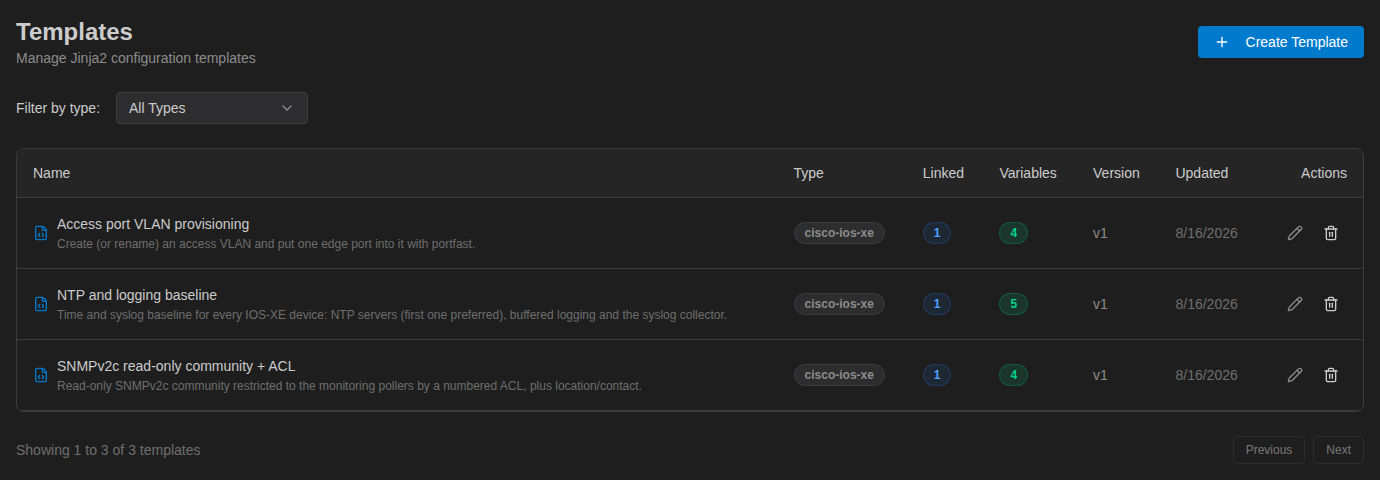
Config Automation → Templates lists every template in your organization. The columns are:
| Column | Shows |
|---|---|
| Name | Template name and description |
| Type | The template's platform label |
| Linked | How many stacks use the template. Click it to open the Stacks page filtered to those stacks. |
| Variables | How many variables were detected in the source |
| Version | Current version number |
| Updated | Date of the last change |
Use Filter by type to show only one platform. The pencil icon opens the editor; the trash icon deletes the template after a confirmation.
Create a Template
- Go to Config Automation → Templates and click Create Template.
- Under Template Details, enter a Name and an optional Description.
- Pick a Platform and a Config Format. For ordinary vendor CLI commands choose CLI (vendor commands). Choosing a platform fills in its usual format for you.
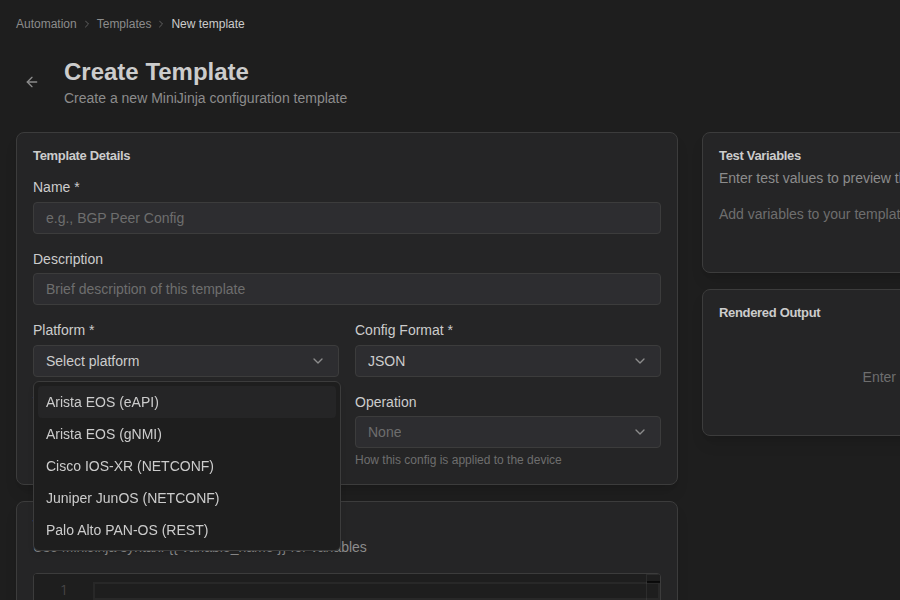
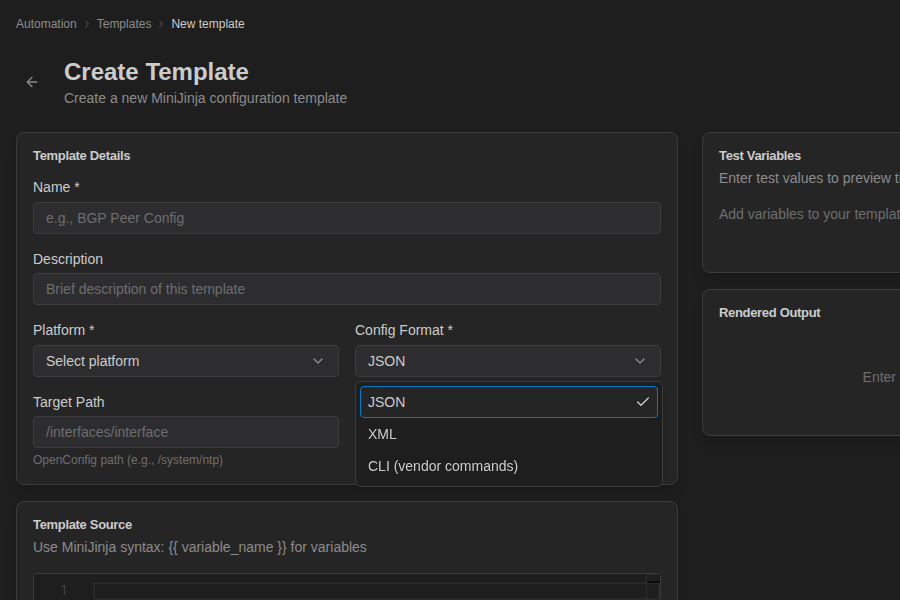
- Enter a Target Path and choose an Operation (see Template Fields).
- Write the configuration in Template Source. The variables NetStacks detects appear as chips under the editor.
- Click Save. You are taken to the edit page, where Test Variables and Rendered Output let you preview the result.
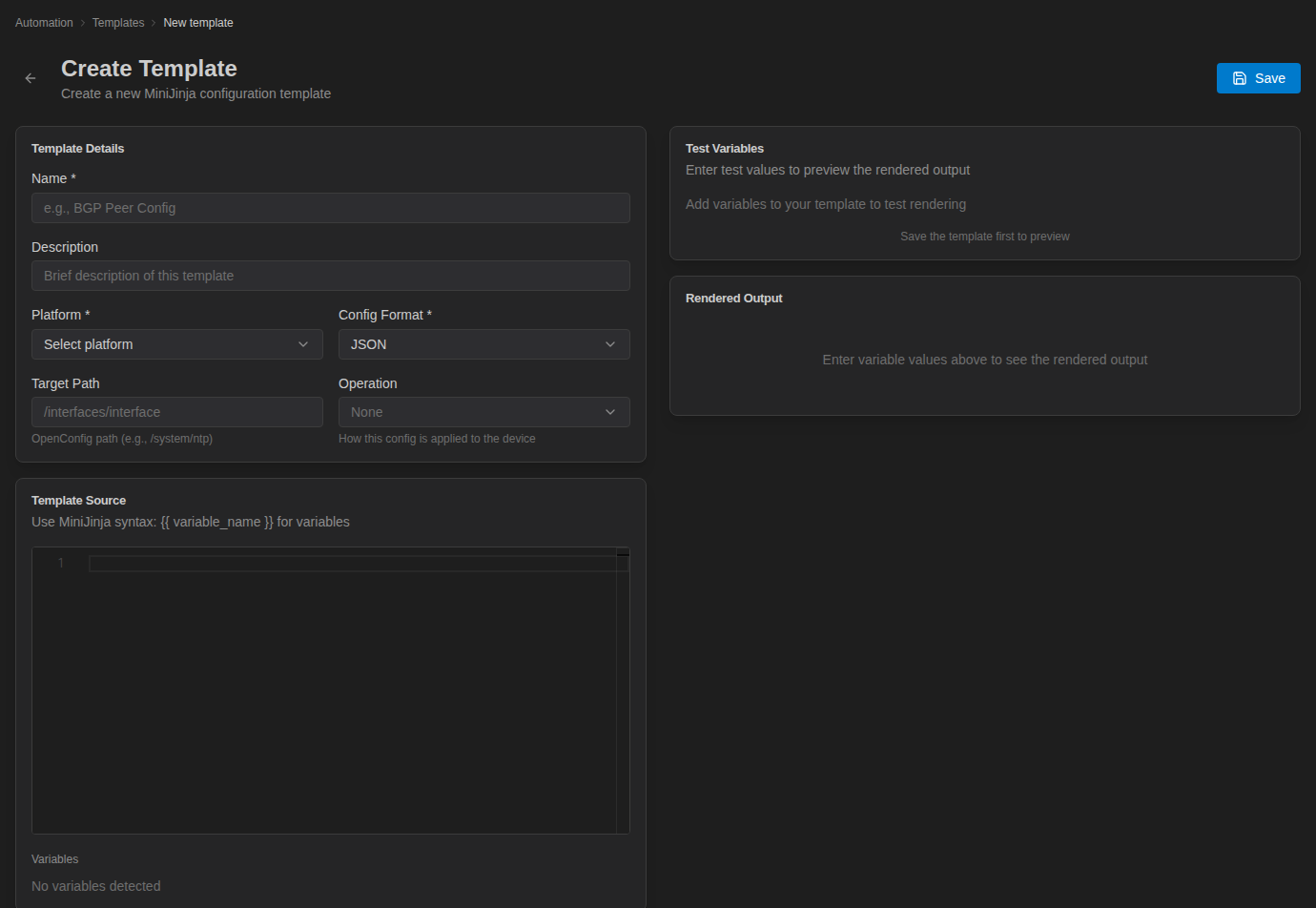
The Create Template page. The preview needs a saved template, so the right-hand cards say Save the template first to preview until you save.
Example Templates has three complete IOS-XE templates you can paste in and adapt.
Template Fields
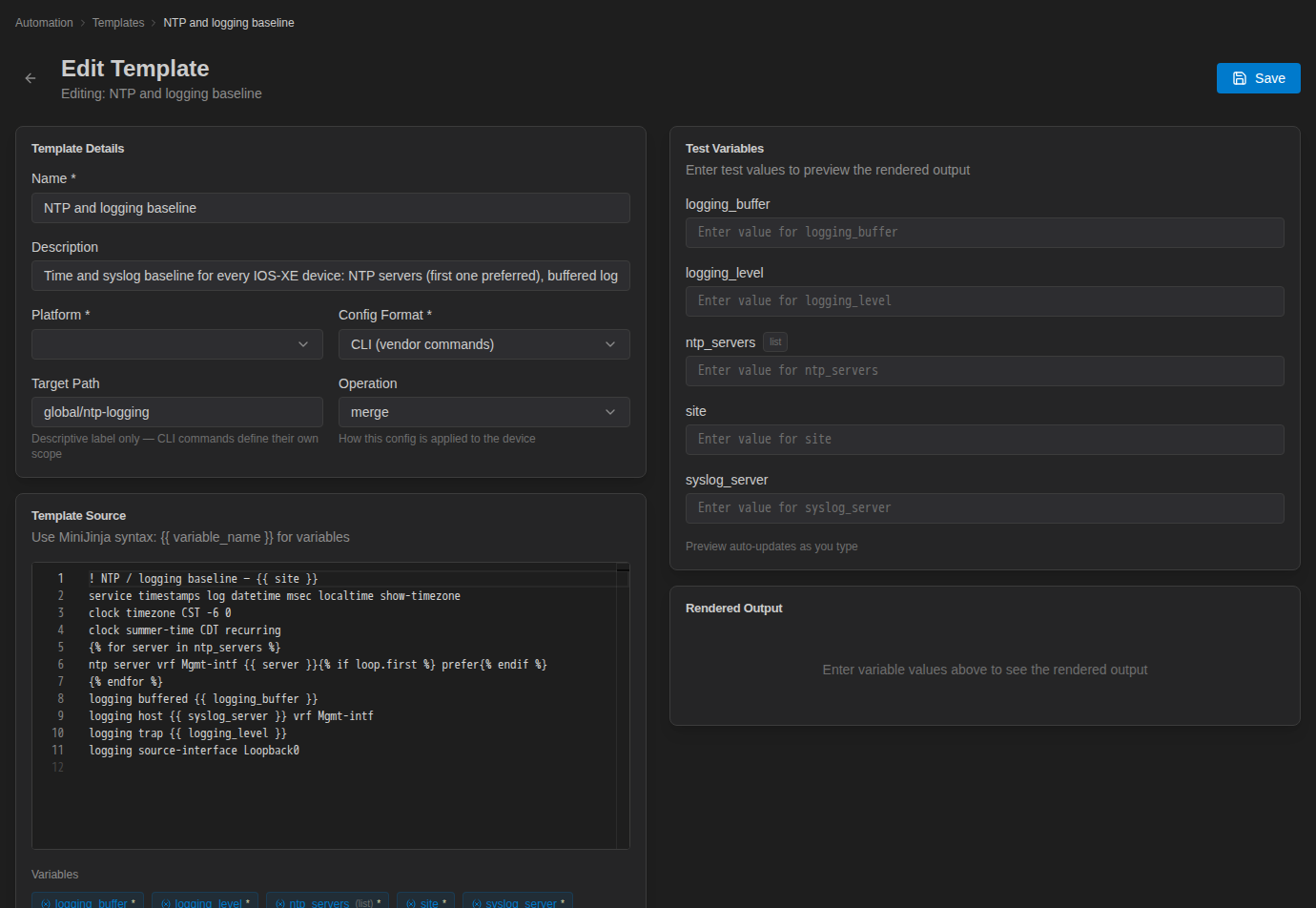
| Field | What it does |
|---|---|
| Name (required) | Shown in the Templates list and when you add the template to a stack. |
| Description | Free text shown under the name. |
| Platform (required) | Labels the template and drives Filter by type. The list contains the structured-automation platforms the Controller knows about. The platform on the template does not pick the transport: that comes from the target device (see below). |
| Config Format (required) | JSON, XML, or CLI (vendor commands). It sets the editor's syntax highlighting and how the rendered text is sent: JSON and XML go to the device as structured (OpenConfig/YANG) data, while CLI is sent as plain vendor commands. |
| Target Path | For JSON/XML, the YANG/OpenConfig path the config applies to (for example /system/ntp). For CLI it is a descriptive label only ("Descriptive label only — CLI commands define their own scope"). Give each template in a stack a different target path, because a deployment refuses to send two services to the same path on one device. |
| Operation | How the config is applied: merge (add to the existing config), replace (replace the config at the target path), or delete. |
| Template Source (required) | The template itself, in MiniJinja syntax (see Template Syntax). |
How the Config Reaches the Device
The Controller pushes rendered templates over gNMI or NETCONF. It does not open an SSH CLI session and type commands. CLI-format templates go over the same structured transports:
- gNMI: the CLI text is sent with the
cliorigin (as used by Arista EOS). - NETCONF: the CLI text is wrapped in the vendor's CLI envelope. Cisco IOS, IOS-XE, and NX-OS use
cli-config-data; IOS-XR and Junos use their own text-config RPCs.
The transport for each device comes from its credential profile's automation transport and port settings, or else from the device's platform. The device's profile must therefore hold working gNMI or NETCONF credentials, and NETCONF or gNMI must be enabled on the device. Deployment is covered in Instances & Deploying.
Config push works over gNMI (default port 6030) and NETCONF (default port 830). The Arista eAPI and PAN-OS REST platforms appear in the platform list but cannot be used for config push.
Templates in the Terminal
The NetStacks Terminal has two template features:
- Config templates (enterprise mode only). When the Terminal is connected to a Controller that licenses service stacks, the activity bar shows a Stacks view. Its Templates list opens the same Controller templates in a tab with Info, Template Source, Variables & Preview, Rendered Output, and Version History sections.
- Document templates (standalone and enterprise). In the Documents panel, the Templates category holds Jinja documents. Open one and click Render to fill in its variables and copy the output. These documents are not pushed to devices and are separate from Controller config templates. See Document templates.
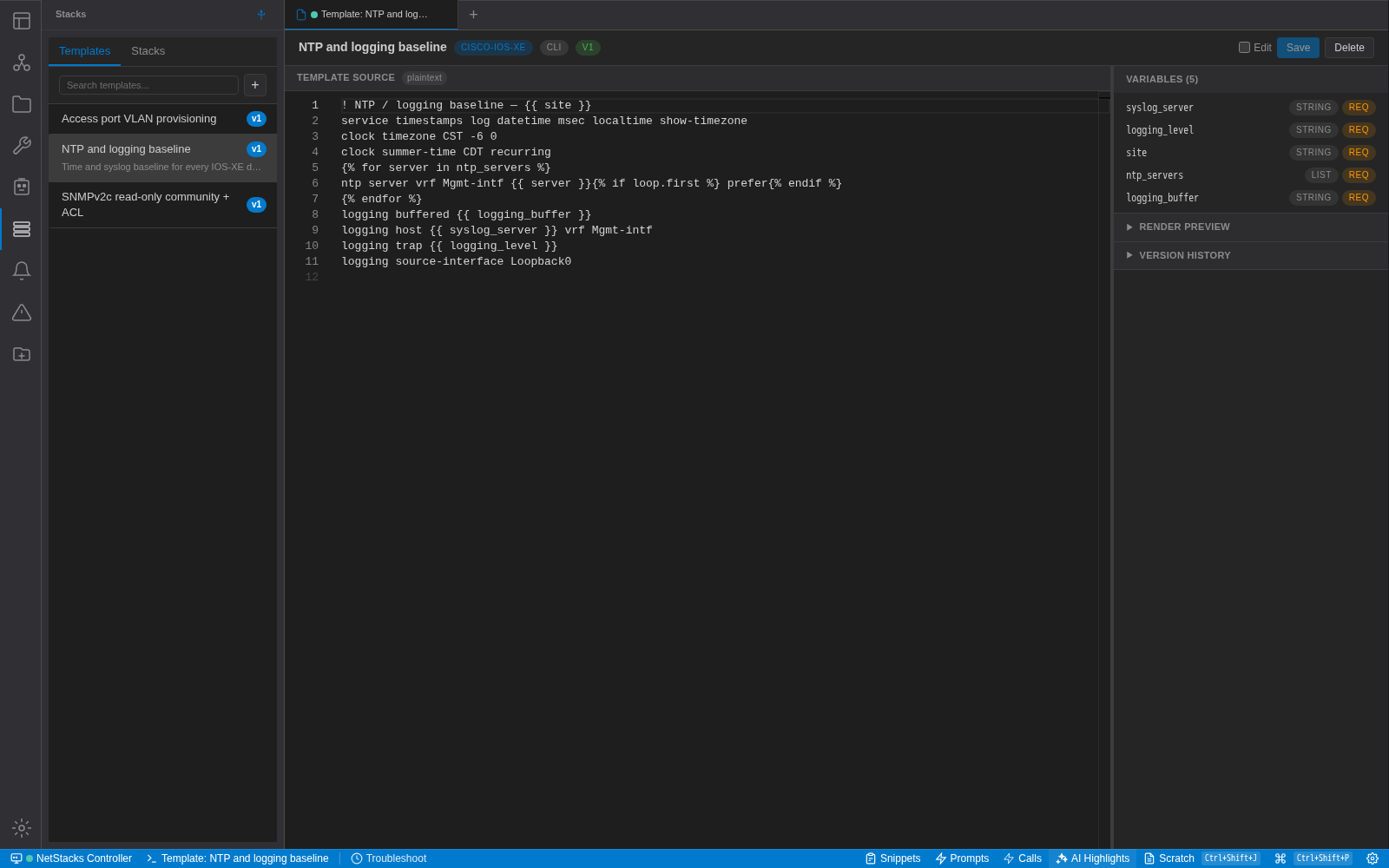
A Controller template opened from the Terminal's Stacks view, with its source on the left and detected variables on the right.
Troubleshooting
Save fails with "Platform and config format are required". Pick both a Platform and a Config Format before you save a new template.
No variables detected. Variables are found only when the source parses as a valid template. Look for an unclosed {% if %} or {% for %} block or a missing }}; the preview shows a Render Error with the problem.
Deployment fails with "Path collision detected". Two templates in the stack have the same Target Path. Give each one a unique path (even for CLI templates, where it is only a label).