
System Settings
EnterpriseReference for every category on the NetStacks Controller Settings page: general, authentication, security, TLS, terminal sessions, HA, collection, jumpboxes, discovery, AI, token budget, AI data security, plugins and integrations.
Overview
Settings (sidebar, or Help (?) → Settings) holds the Controller's platform-wide configuration. It is visible to users with the System Settings permission. Settings apply to the whole Controller, including every organization.
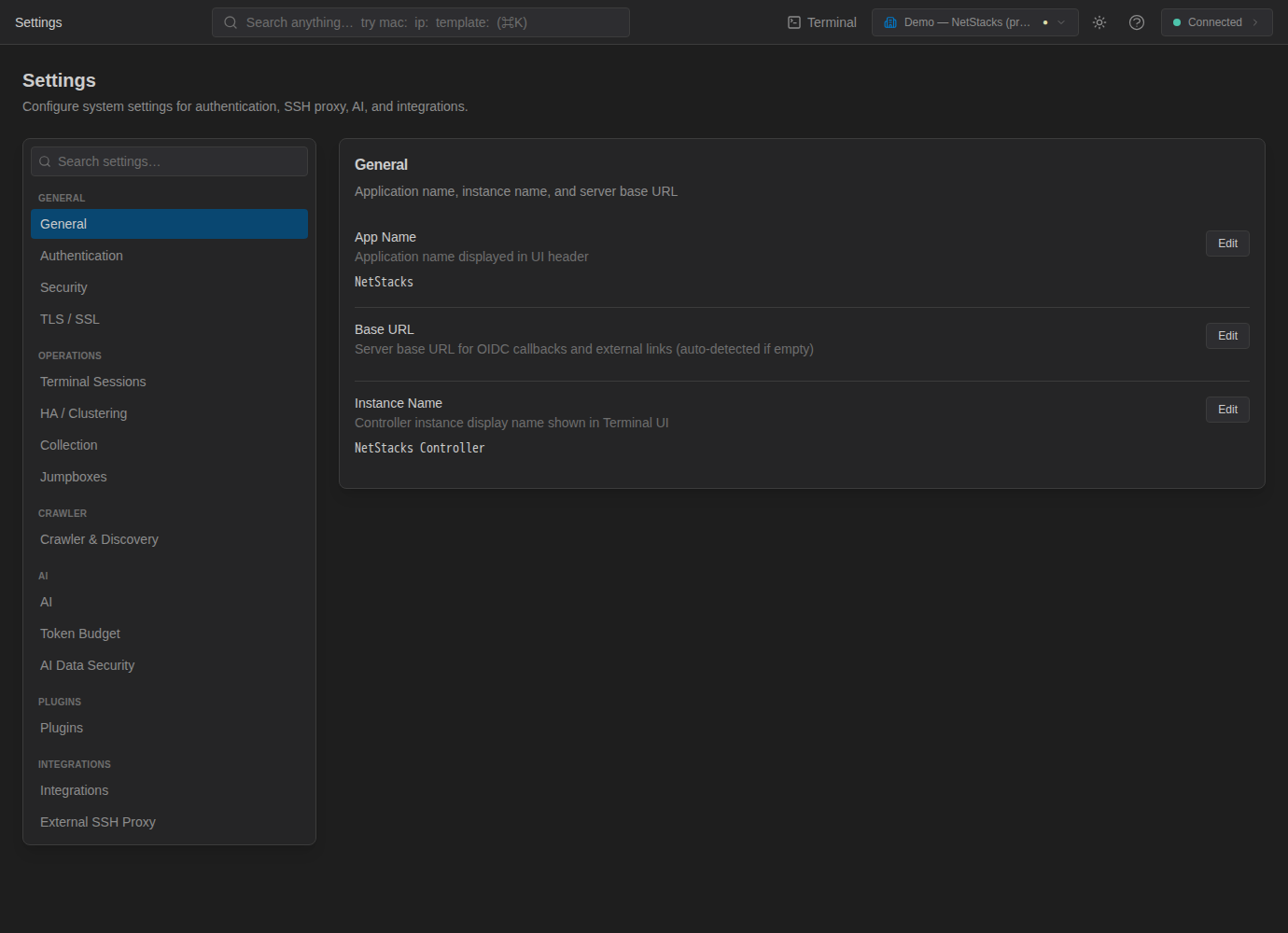
The left rail groups categories under General, Operations, Crawler, AI, Plugins and Integrations. Use Search settings… to find a category. Each category can also be linked directly with /settings?category=<key> (for example ?category=tls).
Editing a Setting
- For value rows, click Edit, change the value, and click Save (or Cancel). A confirmation such as Setting "App Name" saved successfully appears.
- On/off settings are switches that save when you toggle them.
- Secret values (passwords, client secrets) are masked.
- Some settings are read only when the API starts; the page says so next to them. Apply those with
docker compose restart api.
General
| Setting | Purpose |
|---|---|
| App Name | Application name displayed in the UI header (default NetStacks). |
| Base URL | The Controller's external URL, used for callbacks and external links (auto-detected if empty). Read at startup. |
| Instance Name | Display name shown in NetStacks Terminal for this Controller (default NetStacks Controller). |
Authentication
Sign-in and session settings. See Sign-In & Sessions for how they fit together.
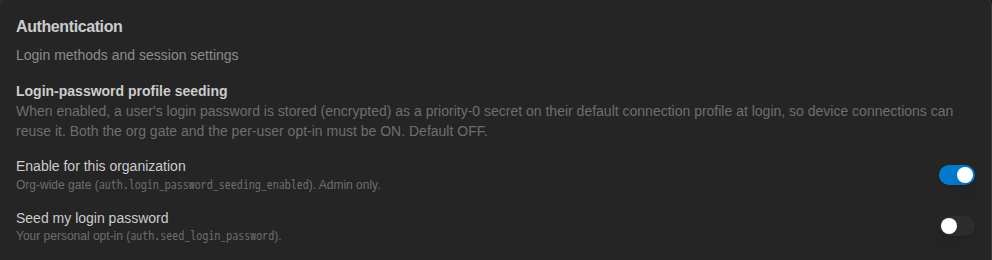
- Login-password profile seeding — Enable for this organization and Seed my login password. When both are on, a user's sign-in password is stored (encrypted) on their default connection profile.
- JWT Secret — signing secret for access tokens. Saving a new value asks you to confirm Rotate JWT Secret; it takes effect on the next API restart and signs everyone out.
- Access Token Hours (default 24) and Refresh Token Days (default 30) — session lifetime, read at startup.
- LDAP … and Oidc … rows — configuration for the API's LDAP and OpenID Connect endpoints, read at startup. These are for custom integrations; the admin console and NetStacks Terminal sign in with local accounts.
Security
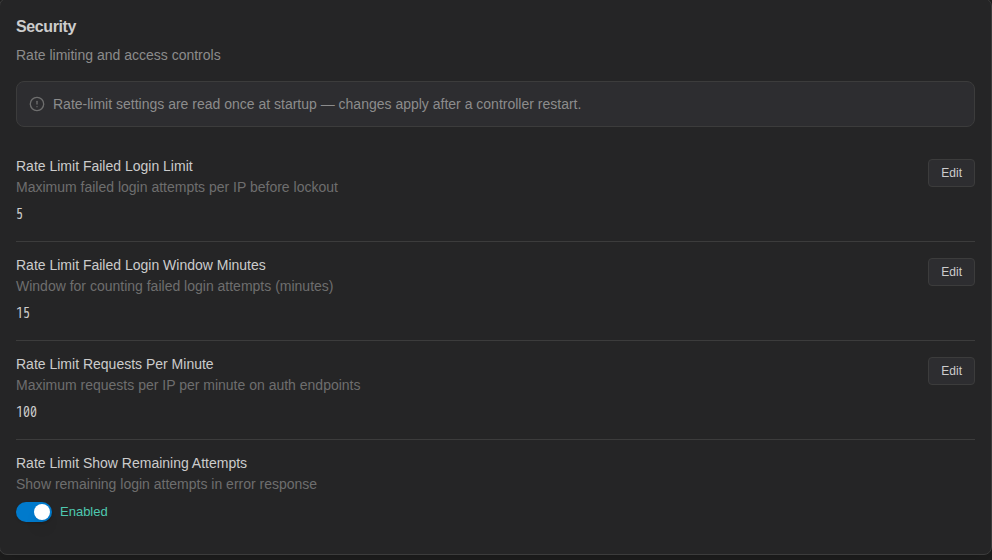
Sign-in rate limits, per client IP. Read at startup.
| Setting | Default | Meaning |
|---|---|---|
| Rate Limit Failed Login Limit | 5 | Failed sign-ins allowed per IP within the window. |
| Rate Limit Failed Login Window Minutes | 15 | Window for counting failed sign-ins. |
| Rate Limit Requests Per Minute | 100 | Requests per IP per minute to the sign-in endpoints. |
| Rate Limit Show Remaining Attempts | On | Include the number of remaining attempts in the error message. |
TLS / SSL
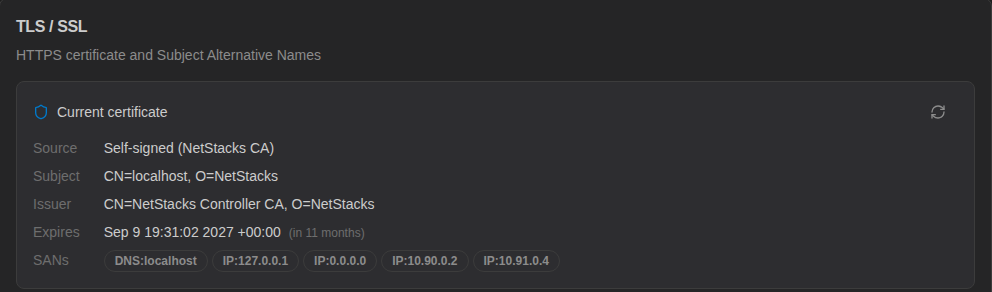
The Current certificate panel shows the certificate's source, subject, issuer, expiry and Subject Alternative Names (SANs).
Under Self-signed certificate options, the Sans row lists additional hostnames and IPs (comma-separated) to include in the Controller's certificate. Add the names users connect with, then run docker compose restart api admin-ui. See HTTPS Certificate.

Terminal Sessions
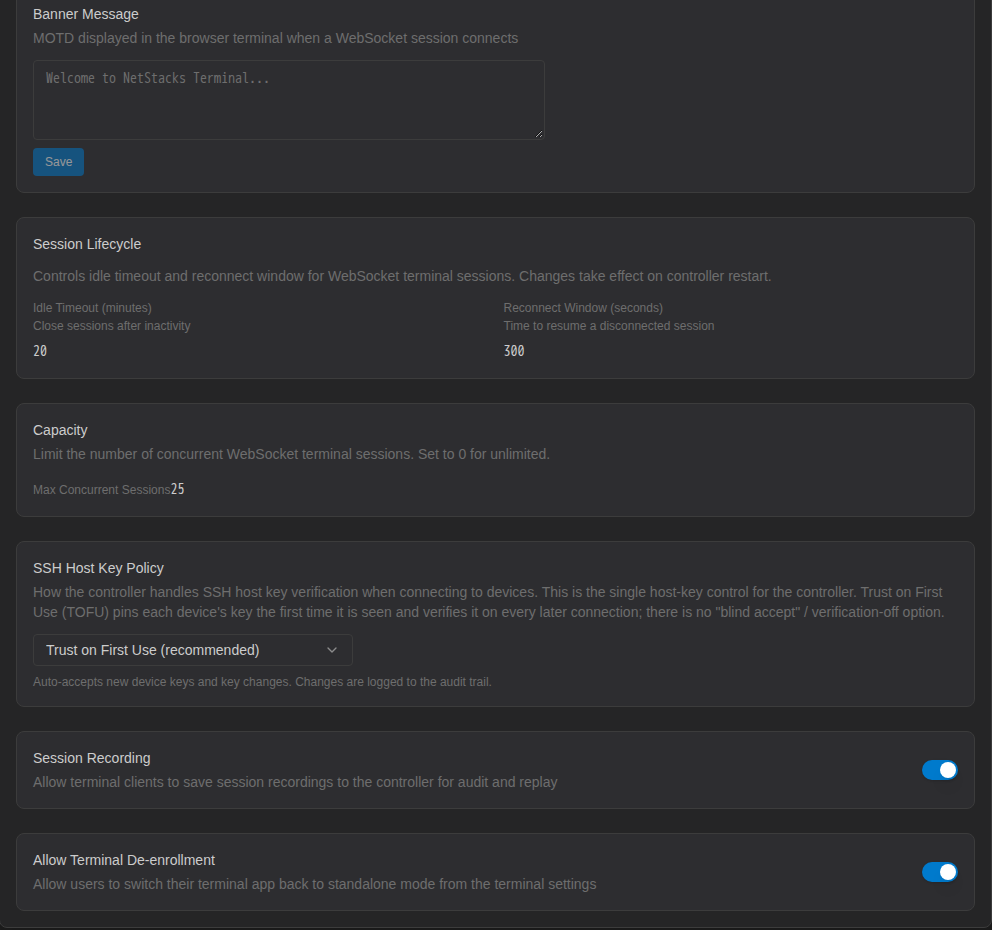
Settings for SSH/Telnet sessions brokered by the Controller (the web terminal and enterprise-mode Terminal).
| Setting | Purpose |
|---|---|
| Banner Message | Message of the day shown when a browser-terminal session connects. Click Save under the box. |
| Idle Timeout (minutes), Reconnect Window (seconds) | Close idle browser-terminal sessions, and how long a dropped session can be resumed (default 300 s). Applied on restart. |
| Max Concurrent Sessions | Limit on concurrent browser-terminal sessions; 0 = unlimited. |
| SSH Host Key Policy | Trust on First Use (recommended) — auto-accepts new device keys and key changes, logging changes; Trust on First Use — Strict — key changes are blocked until an admin approves; Always Prompt User — every new device connection requires the user to verify the fingerprint. |
| Session Recording | Allow Terminal clients to save session recordings to the Controller (viewed under Access & Secrets → Recordings). |
| Allow Terminal De-enrollment | Allow users to switch their NetStacks Terminal back to standalone mode from the Terminal's settings. |
HA / Clustering
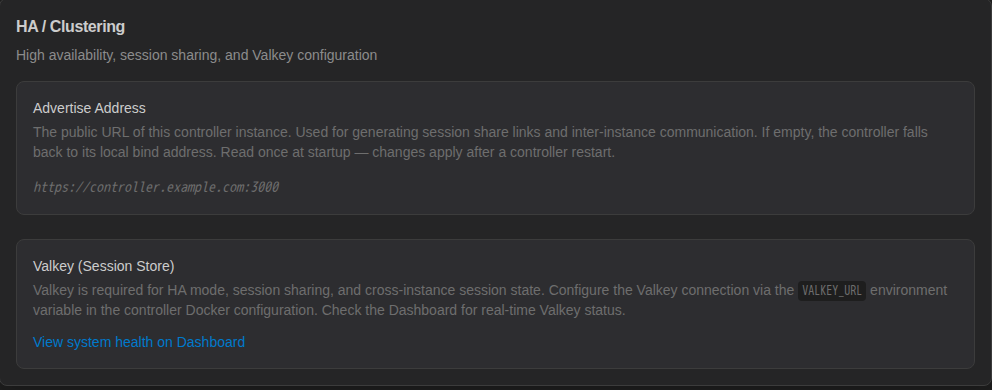
Advertise Address is the public URL of the Controller (for example https://controller.example.com:3000), used to build session-share links. It is read at startup. The Valkey (Session Store) panel is informational: Valkey is configured with the VALKEY_URL environment variable. See High Availability.
Collection
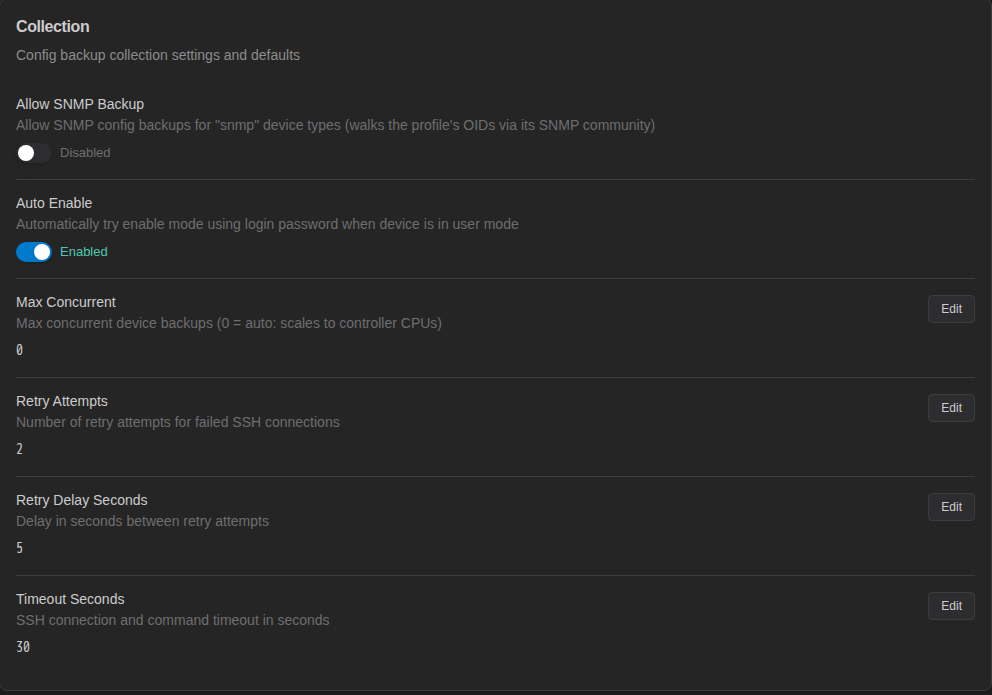
Defaults for config backup collection (see Config Backups).
| Setting | Default | Meaning |
|---|---|---|
| Allow SNMP Backup | Off | Allow SNMP config backups for snmp device types, walking the profile's OIDs. |
| Auto Enable | On | Automatically try enable mode with the login password when a device is in user mode. |
| Max Concurrent | 0 | Concurrent device backups; 0 scales to the Controller's CPUs. |
| Retry Attempts | 2 | Retries for failed SSH connections. |
| Retry Delay Seconds | 5 | Delay between retries. |
| Timeout Seconds | 30 | SSH connection and command timeout. |
Jumpboxes
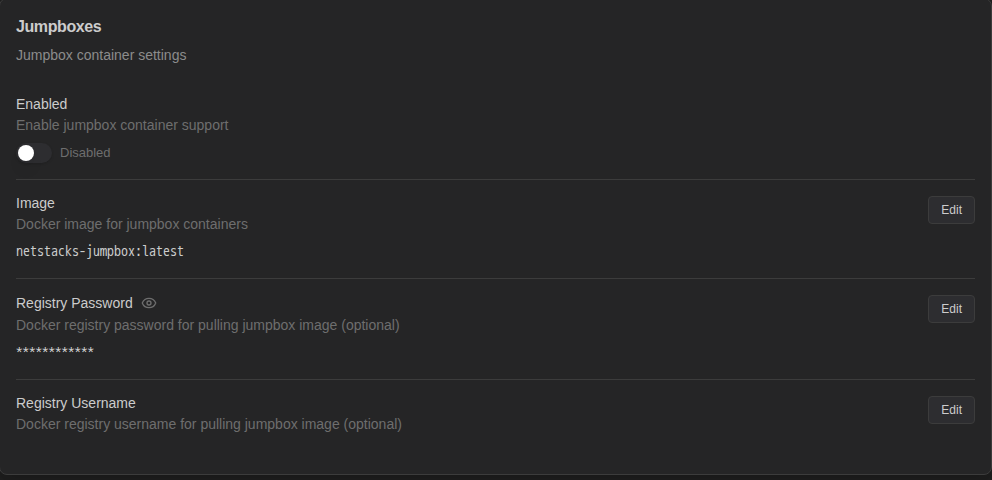
Enabled turns per-user jumpbox containers on or off. Image is the container image to use; Registry Username and Registry Password are optional credentials for pulling a private image. Running jumpboxes are managed in Administration → Jumpboxes.
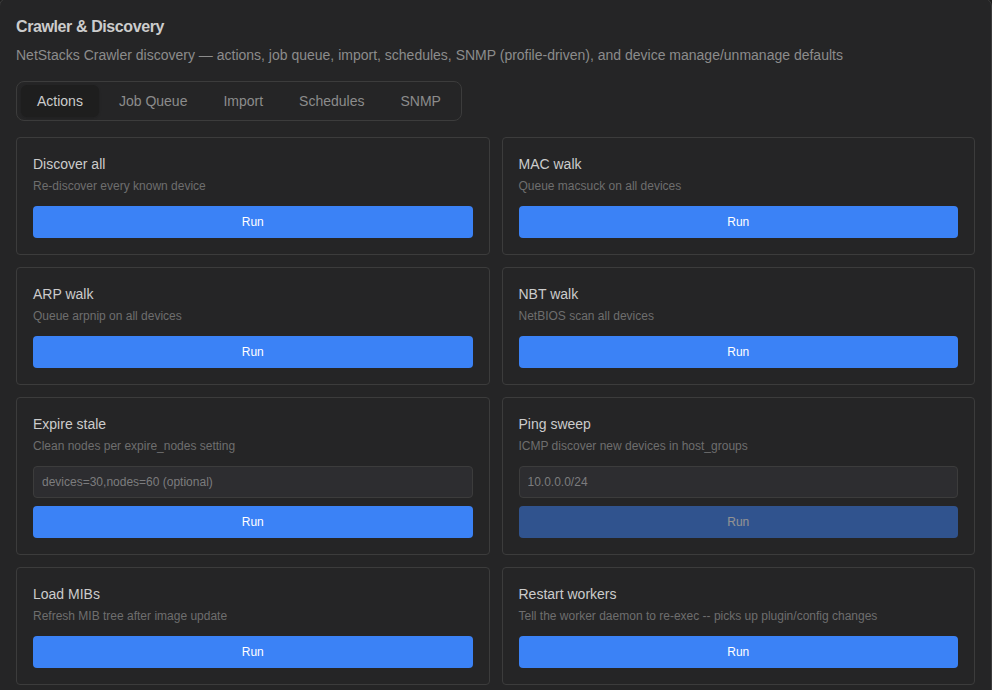
Crawler & Discovery
Controls for the integrated discovery engine, in tabs Actions, Job Queue, Import, Schedules and SNMP, followed by device manage/unmanage defaults. The Actions tab runs discovery tasks on demand (Discover all, MAC walk, ARP walk, NBT walk, Expire stale, Ping sweep, Load MIBs, Restart workers) and lists recent jobs. See Discovery.
AI
- Global System Prompt — prepended to all AI chat conversations. Click Save System Prompt.
- Allow AI Configuration Changes — when off (default), AI commands on devices are restricted to read-only operations regardless of user-level settings.
- Allow AI Terminal Mode — when on, AI agents can open live device sessions and run commands directly (off by default).
- AI Model Providers — the configured providers, with a Manage LLM Providers link.
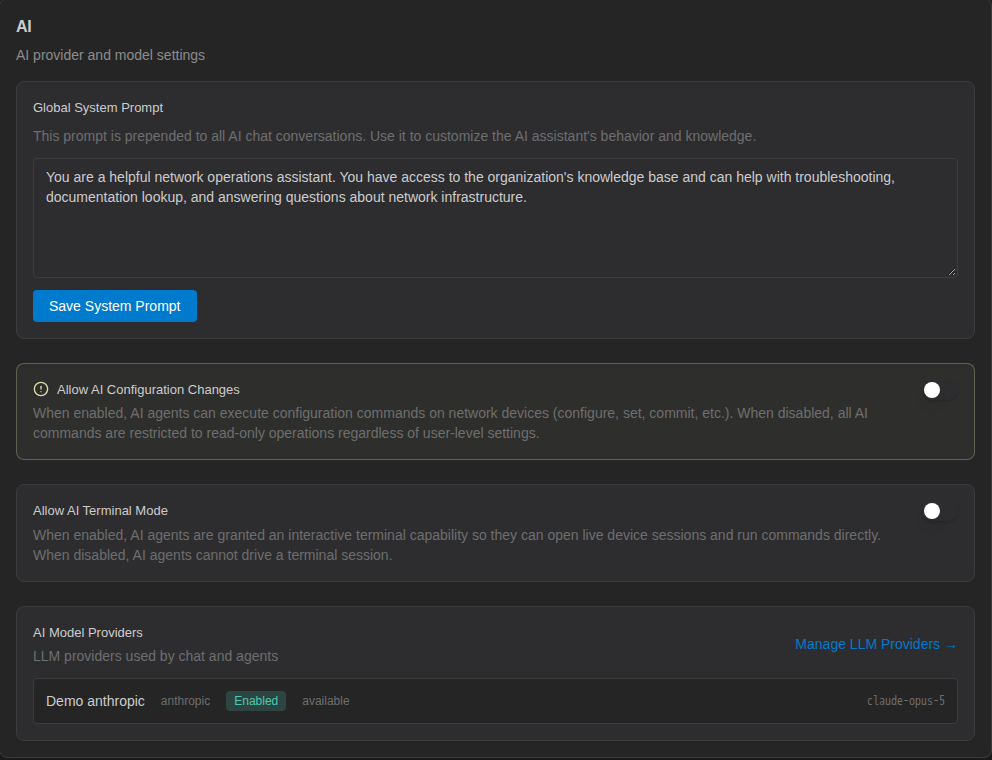
See AI for provider setup and features.
Token Budget
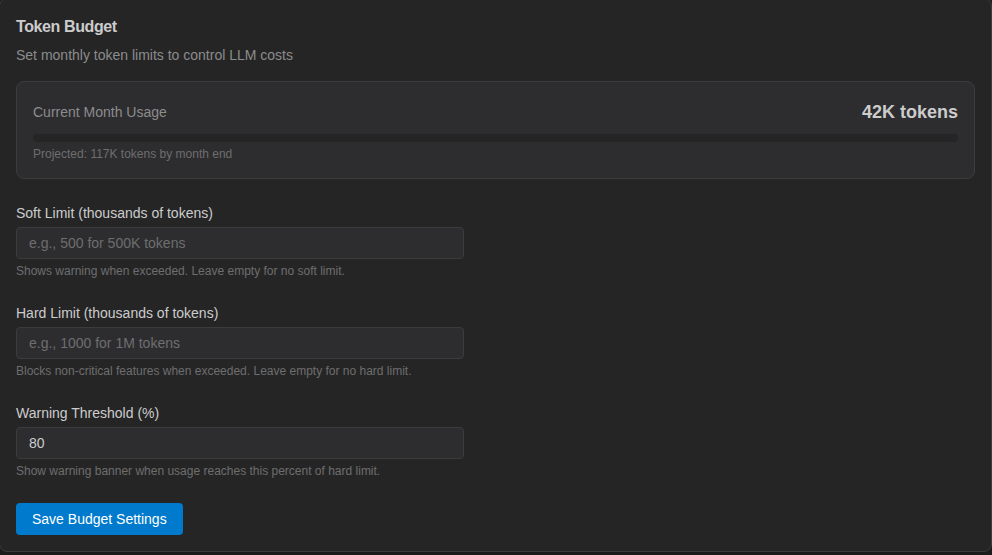
Shows Current Month Usage and a projection, and sets monthly limits in thousands of tokens: Soft Limit (warning when exceeded), Hard Limit (blocks non-critical AI features when exceeded) and Warning Threshold (%) (default 80). Click Save Budget Settings. Detailed usage is under AI & Agents → Token Usage.
AI Data Security
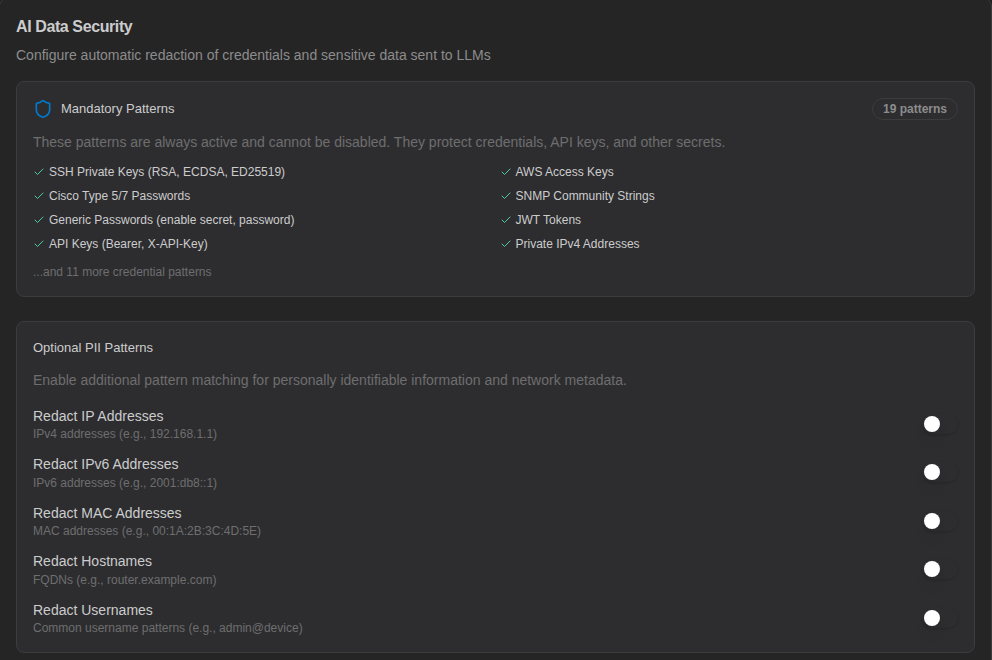
Controls redaction of sensitive data before it is sent to an AI provider:
- Mandatory Patterns — 19 always-on patterns covering SSH private keys, Cisco type 5/7 passwords, generic passwords, API keys, AWS keys, SNMP communities, JWTs and more.
- Optional PII Patterns — Redact IP Addresses, IPv6 Addresses, MAC Addresses, Hostnames and Usernames.
- Custom Patterns — your own regex rules (Pattern Name, Regex Pattern, Replacement).
- Allowlist, Test Sanitization, an Audit Summary of redactions, and Log All Redactions.
Plugins
Enabled turns the plugin system on or off (read at startup). Plugins are installed and managed in Administration → Plugins — see Plugins.
Integrations
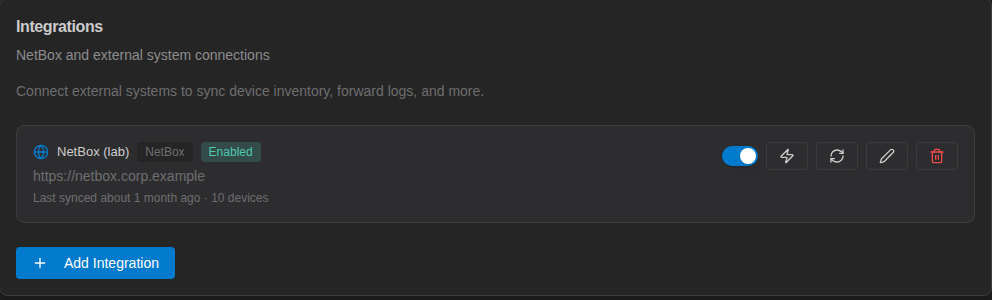
Connect a NetBox instance to sync device inventory. Click Add Integration and enter a name and URL, choose whether to verify SSL and sync automatically (with an interval in hours), and optionally filter by site, manufacturer, role, tag or status. Each integration row has buttons to test the connection, sync now, edit and delete. See NetBox.
External SSH Proxy
- SFTP File Browser — allow users to browse and transfer files on devices over SFTP through the Controller (on by default).
- Certificate Authorities — a summary of your SSH CAs with a Manage SSH CAs link (see SSH Certificates).
The External SSH Proxy Server (port 2222) option is not yet supported; leave it off. Engineers connect through the web terminal or NetStacks Terminal instead.