
Licensing
EnterpriseActivate a NetStacks Controller license key, understand seats and license status, and see which engineers are using seats.
Overview
A NetStacks Controller needs a Team or Enterprise license key. The license defines the number of seats — how many engineers can be signed in from NetStacks Terminal at the same time — and an expiry date. Personal (free) Terminal licenses cannot be used on a Controller.
The license page is at Administration → License (/admin/license), and also in the header Help (?) menu under License. Activating or changing a key requires the System Settings permission.
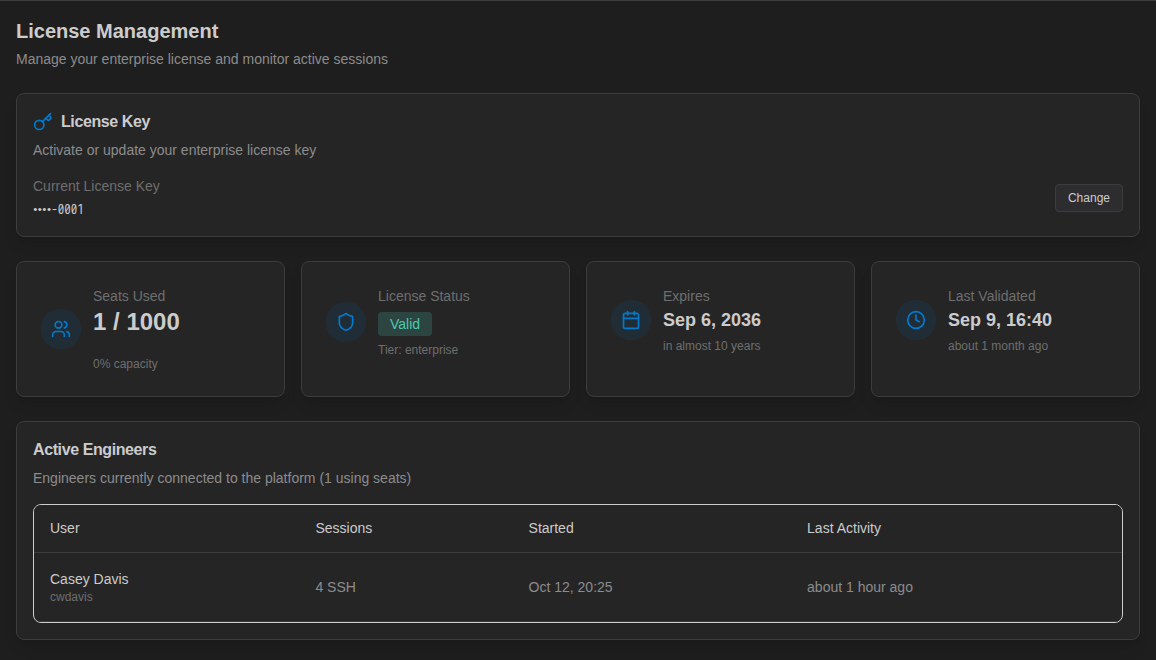
One license covers the whole Controller, including every organization hosted on it.
Activate a License
- Open Administration → License.
- In the License Key card, paste your key into License Key (format
XXXX-XXXX-XXXX-XXXX-XXXX). Tick Show license key to check what you pasted. - Click Activate License.
The Controller contacts the NetStacks license server at www.netstacks.net, verifies the signed response, and stores the license. The host therefore needs outbound HTTPS access to www.netstacks.net; there is no offline or license-file activation.
To replace an existing key (for example after a renewal or a seat increase), click Change next to Current License Key, enter the new key and activate it.
License Status
The four status cards show:
| Card | Meaning |
|---|---|
| Seats Used | Seats currently in use out of the licensed total, with percentage. |
| License Status | Valid, Grace Period, Expired or Pending (no license activated yet), plus the tier. |
| Expires | The license expiry date. |
| Last Validated | When the Controller last confirmed the license with the license server. |
Periodic validation and grace period
The Controller revalidates the license online every 24 hours. If validation can't reach the license server, the license enters a Grace Period of 7 days from the last successful validation, and the page shows a banner ("License Validation Grace Period", escalating to "License Grace Period Warning" and "Critical: License Grace Period Expiring" as the deadline approaches). Restore outbound access to www.netstacks.net to clear it.
License tier and seat usage are also shown on the Dashboard (License Seats card and License & Seats panel) and in the header connection-status popover.
How Seats Are Counted
- A seat is used by each distinct engineer signed in to the Controller from NetStacks Terminal (desktop app or the web terminal) and active within the last hour. One engineer with several Terminal sessions uses one seat.
- Signing in to the admin console does not use a seat.
- When all seats are in use, additional engineers are refused at Terminal sign-in with a
seat_limit_reachedmessage until a seat frees up. - Terminal sign-in requires an activated license. Activate the license before rolling the Terminal out to engineers.
- A seat is released when the engineer signs out, or after an hour without activity.
Active Engineers
The Active Engineers card lists who is currently using seats, with columns User, Sessions, Started and Last Activity. Use it to see who is holding seats when you approach your limit. To see the individual SSH sessions those engineers have open, use Live Sessions.
Troubleshooting
- "Only team and enterprise licenses can be used with the controller" — the key is a Personal license. Contact NetStacks for a Team or Enterprise key.
- Activation fails or times out — check that the Controller host can reach
https://www.netstacks.net(proxy and firewall rules). - Terminal users get "No license found" — no license has been activated yet.
- Terminal users get
seat_limit_reached— all seats are in use. Check Active Engineers, ask idle users to sign out, or add seats.
The standalone NetStacks Terminal has its own personal license flow. See the Terminal installation docs in Getting Started.