Bulk Operations
Work with many devices at once: broadcast commands to several sessions in the Terminal, and bulk-edit, back up, manage or unmanage devices on the Controller.
Overview
| Action | Where | Mode |
|---|---|---|
| Broadcast Command (run one command on many sessions, collect output) | Sessions sidebar | Standalone |
| Connect All | Sessions sidebar | Standalone |
| Multi-Send (type into several open terminals at once) | Terminal tabs | Both |
| Bulk Edit, Pull Config, Unmanage | Admin console → Managed Devices | Controller |
| Manage / Unmanage discovered devices | Admin console → Discovery → Discovered | Controller |
Standalone Terminal
In the Sessions sidebar, select several sessions with Cmd/Ctrl-click or Shift-click, then right-click the selection.
Broadcast Command
- Right-click the selected sessions and choose Broadcast Command....
- In Broadcast Command to N Session(s), type the Command.
- Pick a Timeout (10, 30, 60 or 120 seconds).
- Click Execute (or press Cmd/Ctrl+Enter).
NetStacks connects to each device in the background (up to 10 at a time), runs the command and shows a result per session: Success, Error, Timeout or Auth Failed, with the output. Use Copy All or Export Results (Markdown) to keep them.
Broadcast runs the same command everywhere at once. Use it for show commands and checks; make changes through MOPs, which add pre-checks, post-checks and rollback.
Connect All and Multi-Send
Connect All (N) (or Cmd/Ctrl+Shift+Enter) opens a terminal tab for every selected session. Delete Selected (N) removes them.
To type interactively into several open terminals at once, use Multi-Send (Cmd/Ctrl+Shift+M).
Controller Inventory Enterprise
On the admin console's Inventory → Managed Devices page, ticking one or more rows opens a bulk actions bar above the table.
Selecting Devices Enterprise
- Tick a row's checkbox; Shift-click another to select the range between them.
- The header checkbox selects every device on the current page.
- Select all N selects every device matching the current search and filters, across all pages.
- Clear empties the selection.
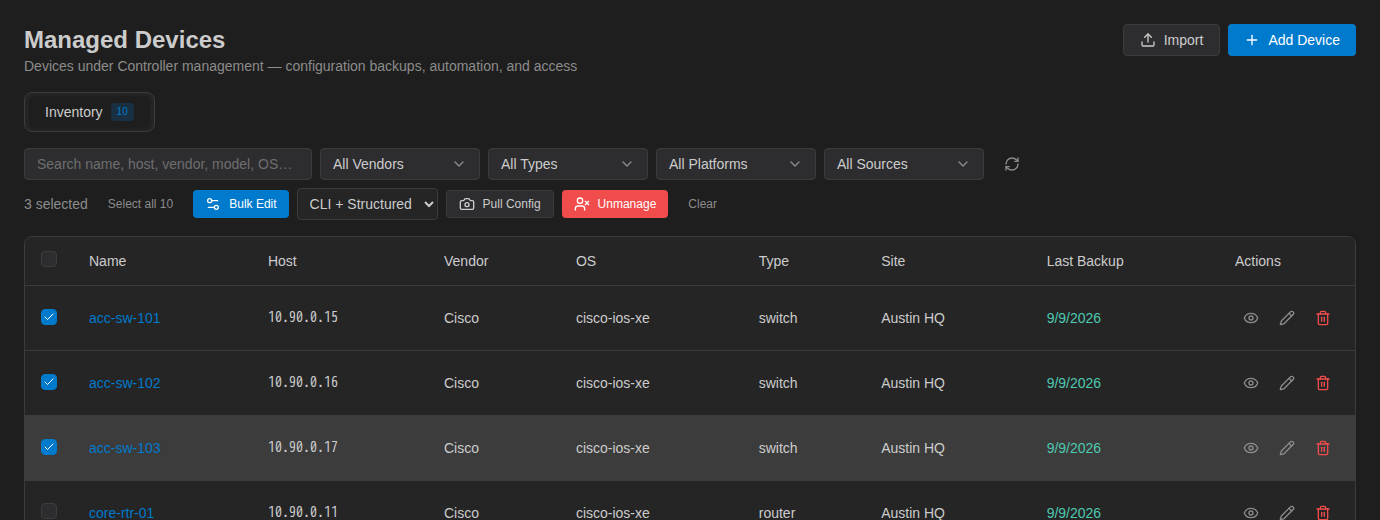
Tip: filter first (for example by type or vendor), then use Select all N to act on exactly that group.
Bulk Edit Enterprise
Bulk Edit changes shared fields on every selected device. Only the fields you fill in are changed; blank fields keep each device's current value.
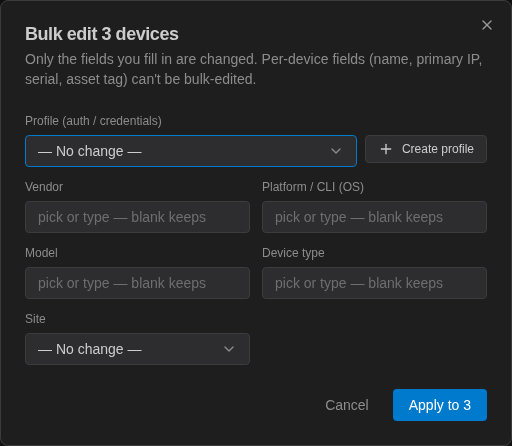
- Profile (auth / credentials) — reassign credentials. Create profile makes an empty profile you can complete later under Access & Secrets → Profiles.
- Vendor, Platform / CLI (OS), Model, Device type — pick an existing value or type a new one.
- Site — assign a site.
Name, primary IP, serial number and asset tag are per-device and can't be bulk-edited. Click Apply to N to save.
Pull Config Enterprise
Choose the backup method in the drop-down next to the buttons — CLI + Structured, CLI only or Structured only — and click Pull Config. The Controller starts a background collection for the selected devices and records it as a snapshot named “Bulk Config Pull (N devices)”. A progress banner appears at the top of the page while it runs, linking to the snapshot.
Results are listed under Config Snapshots, and each device's backups appear in its history (Config History & Diff).
Unmanage Enterprise
Unmanage removes devices from the Controller inventory. Use the trash icon on a row for one device, or the Unmanage button in the bulk bar for the selection.
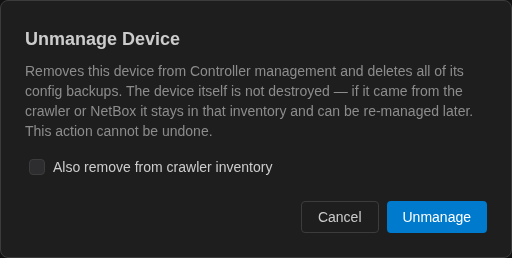
- All of the device's stored config backups are deleted. This cannot be undone.
- The device itself is not touched. If it came from the crawler or NetBox, it stays there and can be managed again later.
- Tick Also remove from crawler inventory to also remove it from discovery. The default for this checkbox is set by Unmanage Remove From Crawler under Settings → Crawler & Discovery.
Manage Discovered Devices Enterprise
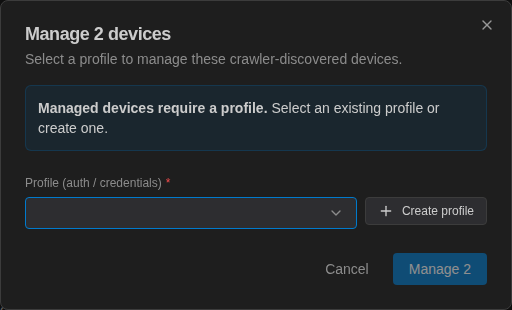
Discovery → Discovered lists everything the NetStacks Crawler has found. Select devices to show Manage, Unmanage and Clear; or click Manage all N matching to manage every device that matches the current search.
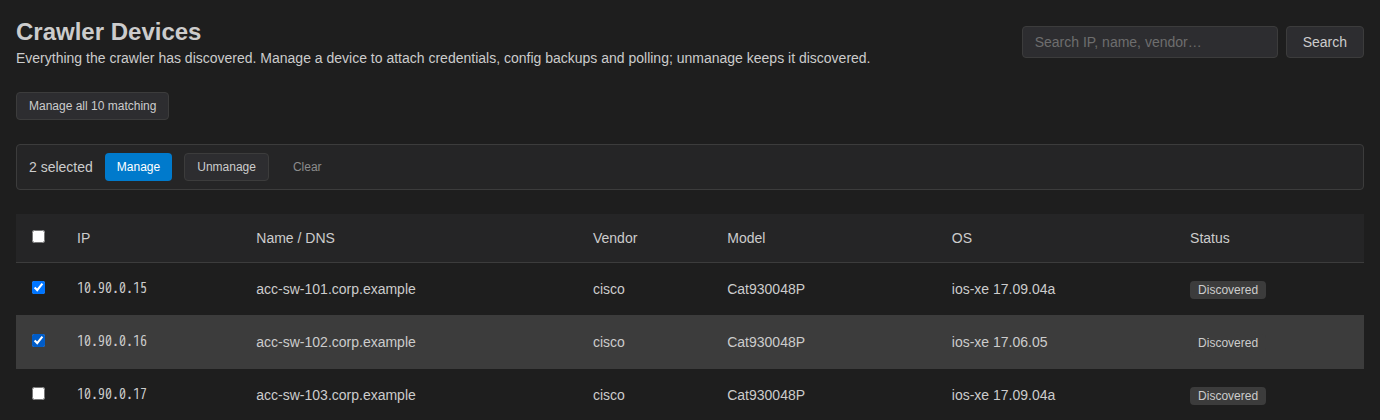
Manage asks for the profile the new managed devices should use. Devices that are already managed are skipped, so it is safe to run again.