
Devices in the Terminal
Browse, search and connect to devices from the Terminal sidebar: local sessions in standalone mode, or the Controller's inventory in enterprise mode.
Overview
The first icon in the Terminal's left activity bar (tooltip Sessions) opens your device list. What it shows depends on the mode:
- Standalone — the sidebar is titled Sessions and lists the sessions saved on your machine.
- Enterprise (Terminal connected to a Controller, or the browser terminal at
/terminal/) — the sidebar is titled Devices and lists the Controller's Managed Devices. The command palette entry is Show Devices.
Standalone: the Sessions Panel
In standalone mode every device is a session with a name, host, port, protocol (SSH or Telnet), folder and credential profile. The panel has two sub-tabs, Sessions and Groups (saved tab groups), and a toolbar with New Session, New Folder, Local Shell, Refresh, a sort toggle, Export CSV, Import CSV/JSON and a button that downloads an example CSV template.
- Search sessions... filters by name or host.
- Favorites (star) and Recent sections sit above your folders.
- Ctrl/Cmd-click and Shift-click select several sessions; drag and drop moves them between nested folders.
- Right-click a session for Connect, Connect in New Tab, Open Console, Add to Favorites, Settings..., Duplicate Session, Export Session... and Delete Session. With several sessions selected you get Connect All (N), Broadcast Command... and Delete Selected (N).
The browser terminal always runs in enterprise mode, so there is no screenshot of the standalone panel here. To create and import sessions see Adding Devices; for the session dialog in detail see Sessions.
Enterprise: the Devices Panel Enterprise
When the Terminal is connected to a Controller, the Devices panel loads the organization's inventory. Every engineer sees the device list; whether you can connect depends on the profiles your account can use. The count badge and a refresh button sit in the sidebar header.
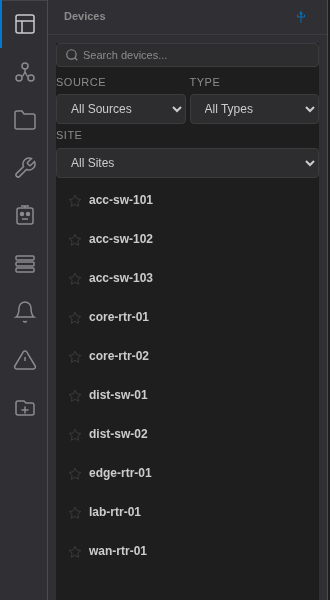
Hover a device to see its host, source and type badges, site, vendor and model, plus an inline Connect button.
Search, Filters and Favorites Enterprise
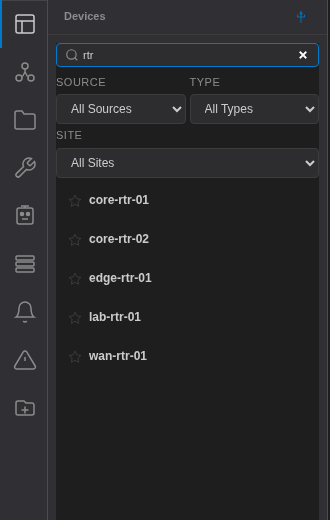
- Search devices... matches name, host, site, manufacturer and model as you type.
- Source, Type and Site drop-downs (All Sources, All Types, All Sites) are built from the devices in the list.
- Click the star next to a device to pin it to a Favorites section. Favorites are stored in this Terminal (or browser) only.
Connecting to a Device Enterprise
There are two ways to open an SSH session to a Controller device:
- Inline Connect (hover the device, click Connect) connects straight away with the default credential: the device's assigned profile, falling back to your default profile.
- Click the device to open Connect to <device>. It shows the host and a description, and a Select Profile: list whose first entry is Device default (recommended), followed by your personal, shared and service profiles. Pick one and click Connect.
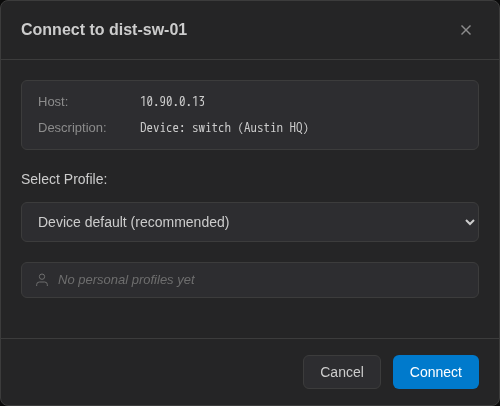
The session is proxied through the Controller, so credentials never reach your machine. See Connecting for what happens next.
Device Menu Enterprise
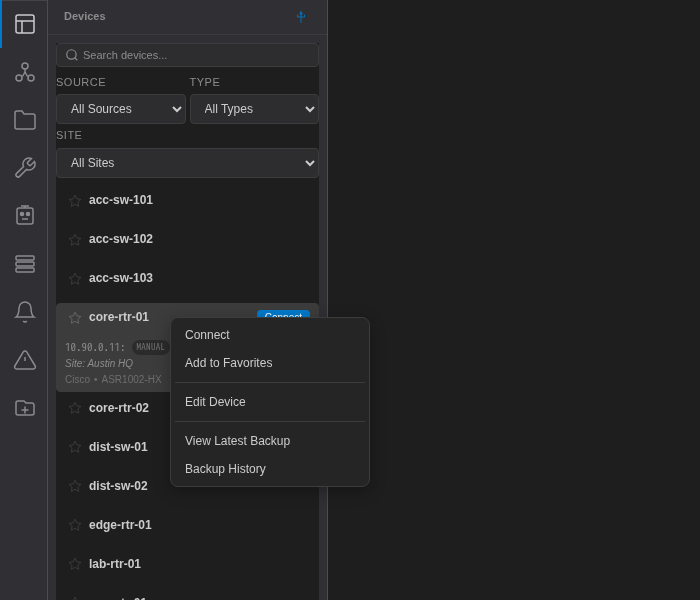
Right-click a device for:
- Connect — opens the connect dialog.
- Add to Favorites / Remove from Favorites.
- Edit Device — see below.
- View Latest Backup and Backup History — open the device's Backups tab with its stored configurations (see Config History & Diff).
Edit Device, Device Memory and Context Enterprise
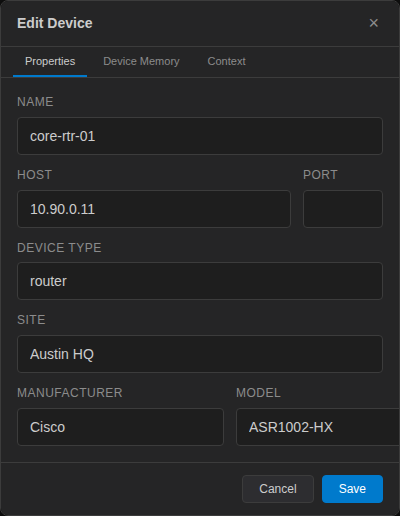
Edit Device opens a dialog with three tabs.
Properties edits the device record on the Controller: Name, Host, Device Type, Site, Manufacturer and Model. Click Save to write the change back to the Controller inventory. (The connection port comes from the device's profile, not from this dialog.)
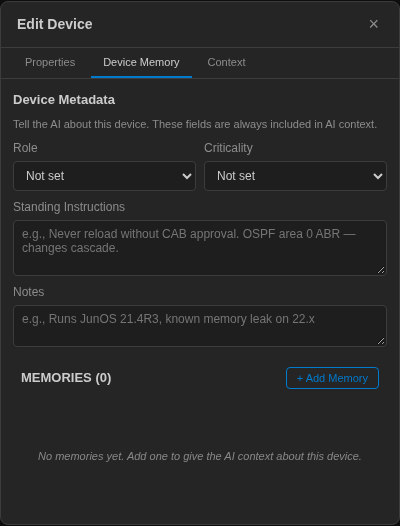
Device Memory tells the AI assistant about the device. The Device Metadata fields (Role, Criticality, Standing Instructions, Notes) are always included in AI context for this device. Below them, Memories are facts saved manually with + Add Memory or captured during troubleshooting.
Context holds team knowledge about the device — troubleshooting notes, known issues and helpful commands — added with + Add Context. See Device Memory and Session Context for details.
The enterprise Devices panel shows the Controller inventory; new devices are added in the admin console. See Adding Devices.