
Device Memory
Tell the NetStacks AI about a device: its role, criticality, standing instructions, notes and dated memories, included automatically whenever you ask the AI about that device.
Overview
Device Memory is a set of facts about one device that the AI assistant always sees when you work with that device: what the device is, how careful to be with it, and anything worth remembering. It sits next to Device Context, which holds team troubleshooting notes.
Device Memory is for the AI. It does not change how the terminal itself behaves.
Open Device Memory
- Standalone: open a saved session's settings (right-click the session → Settings..., or right-click its tab → Session Settings) and choose the Device Memory tab. The tab appears once the session has been saved.
- Enterprise: in the Devices sidebar, right-click a device → Edit Device → Device Memory tab. Device memory is stored on the Controller and shared with everyone in your organization.
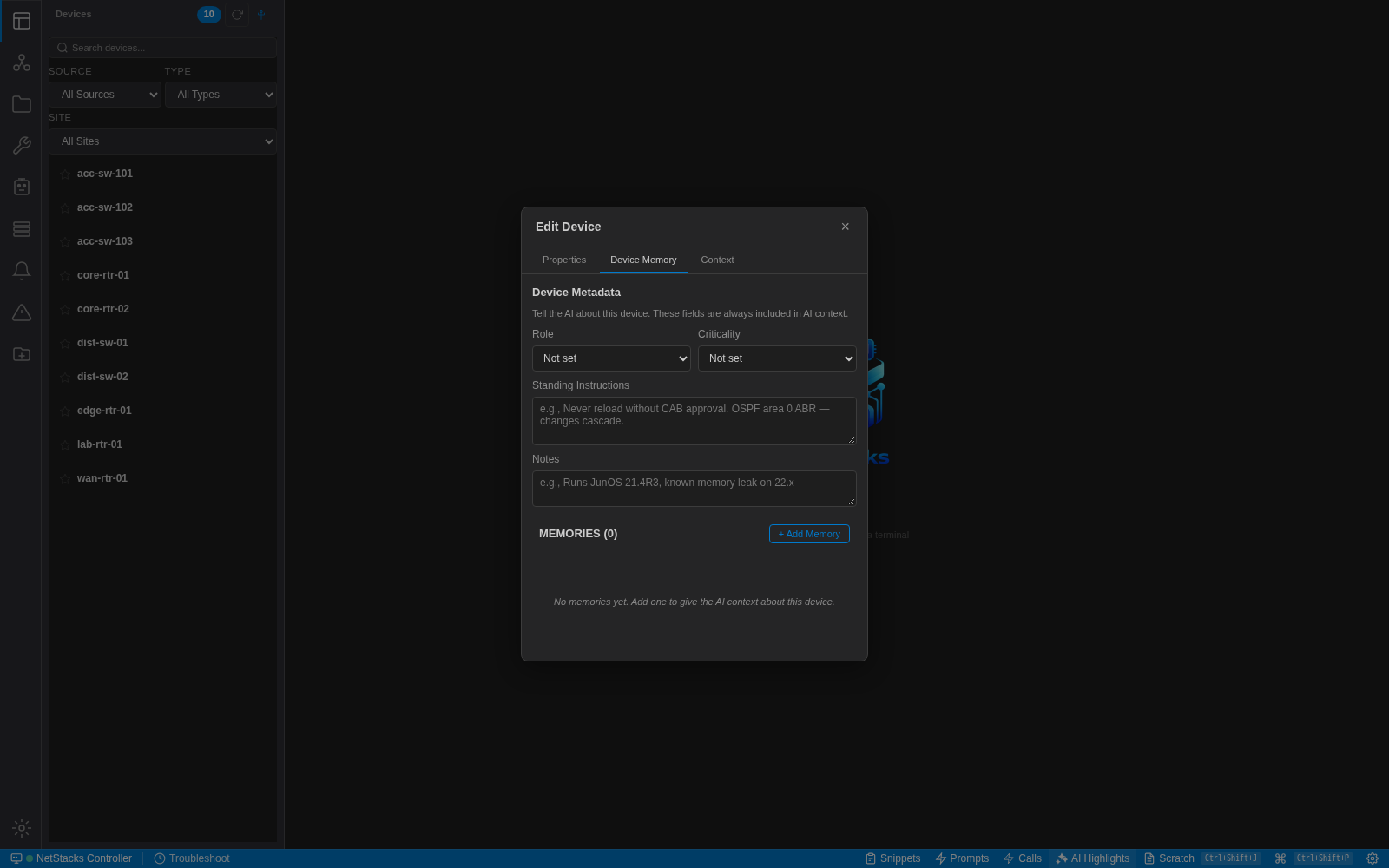
Device Memory in the enterprise Edit Device dialog.
Device Metadata
“Tell the AI about this device. These fields are always included in AI context.”
| Field | Values |
|---|---|
| Role | Not set, Core Router, Edge Router, Distribution Switch, Access Switch, Firewall, Load Balancer, Server, Jumpbox, Wireless Controller, Other |
| Criticality | Not set, Low, Medium, High, Critical |
| Standing Instructions | Rules the AI should follow, e.g. “Never reload without CAB approval. OSPF area 0 ABR — changes cascade.” |
| Notes | Background, e.g. “Runs JunOS 21.4R3, known memory leak on 22.x” |
Text fields show a TAB ✨ badge when empty: press Tab to have the AI draft a value from what it knows about the device.
Memories
Under Memories (N), click + Add Memory and type something the AI should remember (“What should the AI remember about this device?”). Each memory is dated and can be edited (✎) or deleted (✕).
Memories can also come from troubleshooting sessions and from the AI's Overlord mode, in addition to the ones you add by hand.
How the AI Uses It
Whenever you chat with the AI about an active session — in the AI panel, the floating Ask AI chat, or the AI: Explain / Fix/Debug / Suggest popups — the device's metadata, memories and device context are added to the AI's instructions. This works in both standalone and enterprise mode. See AI Assistant.
Tips
- Put hard rules (“never…”, “always… ”) in Standing Instructions and background facts in Notes.
- Set Role and Criticality on your most important devices first; they help the AI judge how cautious to be.
- Keep memories short and specific, one fact each, so they stay useful as the list grows.