
Copy, Paste & Find
Copy and paste in the NetStacks terminal: multi-line paste review, CLI-flavor paste presets, raw paste, clipboard history, and searching the scrollback.
Copying
- Select text and press ⌘⇧C / Ctrl+Shift+C, or Ctrl+Insert, or right-click → Copy.
- Ctrl+C is never copy in the terminal; it sends an interrupt to the device.
- To copy as soon as you select (SecureCRT-style), turn on Copy on Select in Settings → General → Terminal. It is off by default.
Pasting
| Method | Behavior |
|---|---|
| ⌘V / Ctrl+V, Shift+Insert, right-click → Paste | Smart paste: applies the paste preset for the session's CLI flavor and opens the review dialog for multi-line text. |
| Middle-click | Pastes the clipboard (setting Middle-Click Paste, on by default). Ignored while a full-screen program such as vim or htop is using the mouse. |
| ⌘⇧V / Ctrl+Shift+V | Paste Passthrough: sends the clipboard exactly as is, with no preset and no dialog. |
Right-clicking never pastes; it always opens the menu.
Paste Review for Multi-Line Pastes
When you paste two or more lines, NetStacks opens a review dialog titled Paste into <target> before anything is sent:
- The left pane shows your clipboard text, which you can edit (with a revert link).
- The right pane, Will paste, shows exactly what the device will receive after the preset runs, with carriage returns, tabs and trailing spaces made visible and the preset's changes highlighted.
- The Preset drop-down lets you pick a different preset for this paste.
- Click Paste N lines (or press ⌘↩ / Ctrl+Enter) to send, or Cancel.
Open the dialog on demand from the command palette with Clipboard: Paste with preview…. The line threshold is set in Settings → Clipboard.
Paste Presets by CLI Flavor
Each session's CLI Flavor picks a preset that cleans up text before it is sent:
| Preset | Used for | Steps |
|---|---|---|
| IOS clean paste | Cisco IOS/IOS-XE, IOS-XR, NX-OS, Arista EOS | Normalize line endings, strip trailing whitespace, collapse blank lines, strip comment lines |
| Junos set-mode | Juniper Junos | Normalize line endings, strip trailing whitespace, clean up display set output |
| PAN-OS | Palo Alto PAN-OS, Fortinet FortiOS | Normalize line endings, strip trailing whitespace |
| Linux shell | Linux/Unix Shell | Normalize line endings |
| Raw | Auto-detect (and any session without a flavor) | No changes |
Presets can be edited in Settings → Clipboard. Other available steps include Tabs to spaces, Remove common indentation and Strip prompts and echoed commands. Use the Restore button to bring back the built-in presets.
Clipboard History
Everything you copy inside NetStacks is kept in Clipboard History, with the device and session it came from. Open it with ⌘⇧H / Ctrl+Shift+H, the clipboard button in the desktop title bar, or the palette command Clipboard: History….
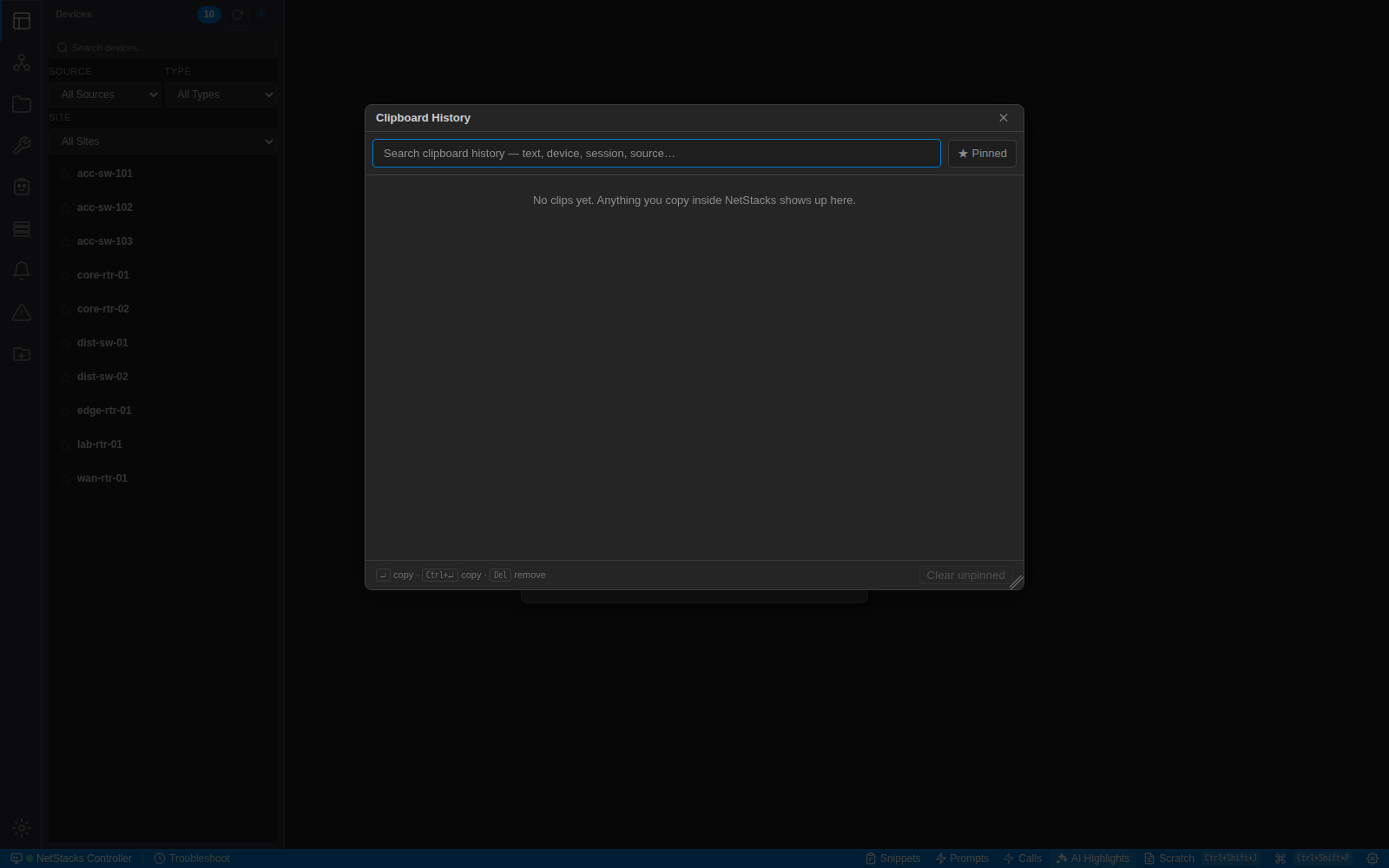
- Search by text, device, session or source; click ★ Pinned to show only pinned clips.
- Per clip: pin (pinned clips never expire), preview, copy, delete.
- Enter pastes the selected clip into the terminal, Ctrl+Enter copies it, Del removes it.
- Text copied in other applications is only added when you run Clipboard: Import from OS clipboard.
Clipboard Settings
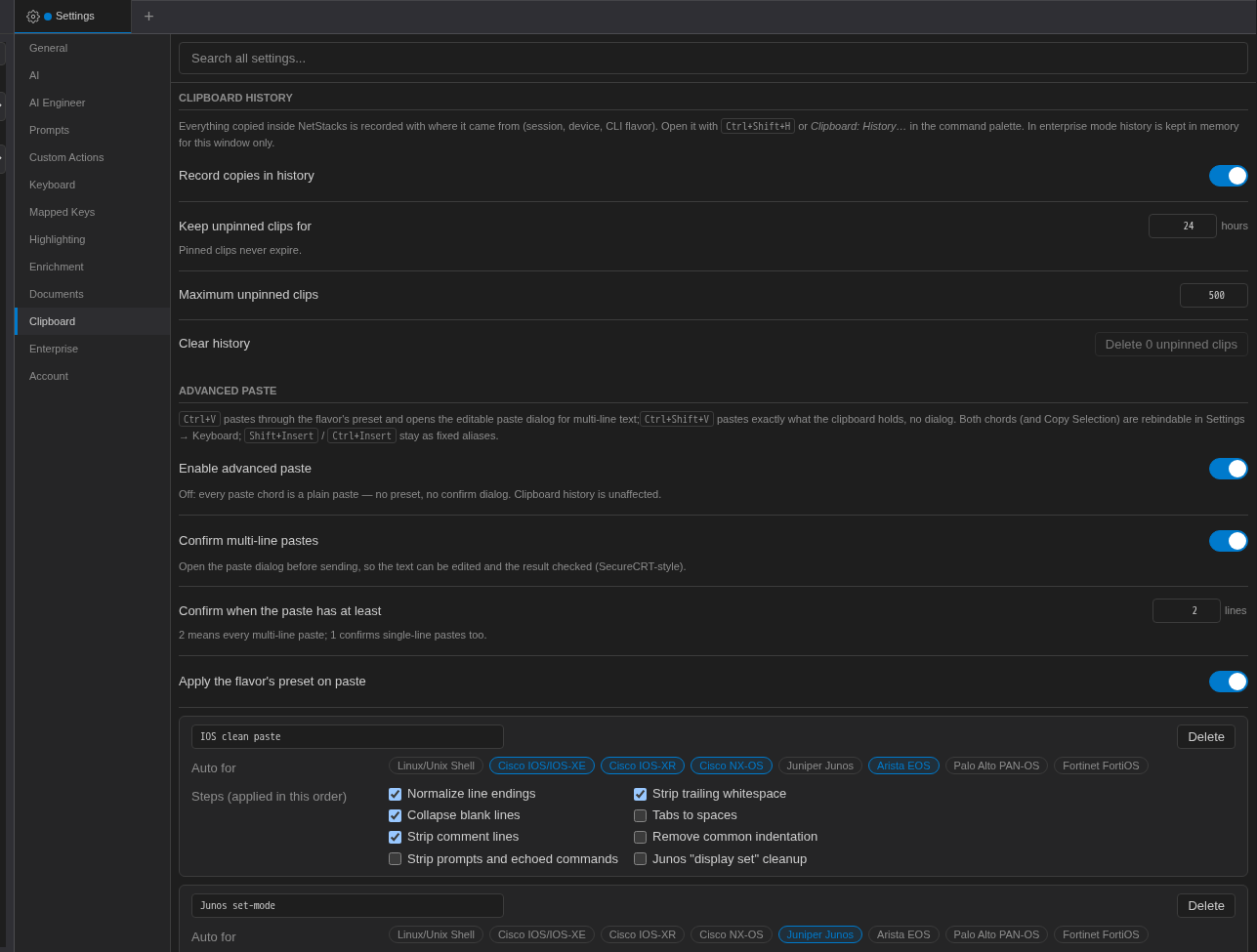
| Setting | Default |
|---|---|
| Enable advanced paste (master switch for presets and review) | On |
| Confirm multi-line pastes | On |
| Confirm when the paste has at least N lines | 2 (1–1000) |
| Apply the flavor's preset on paste | On |
| Record copies in history | On |
| Keep unpinned clips for | 24 hours (1–720) |
| Maximum unpinned clips | 500 (10–5000) |
Find in Scrollback
Press ⌘F / Ctrl+F in a terminal (or Edit → Find…). A bar labelled Find in terminal... appears at the top of the terminal and searches the whole scrollback, highlighting matches.
- The counter shows
X of Nor No results. - Enter goes to the next match, Shift+Enter to the previous, Esc closes the bar.
- Aa turns on Match case; the regex button turns on Use regular expression.
How far back you can search depends on the session's Scrollback Lines (10000 for saved sessions; 1000 for local shells and Controller sessions).