
Hover Enrichment & Lookups
Hover over IP addresses, MAC addresses and interface names in NetStacks terminal output to see reverse DNS, vendor, NetBox and Netdisco data, and right-click detected values for ping, traceroute, whois and more.
Overview
NetStacks recognises network identifiers in terminal output and offers two ways to learn more about them without leaving the session: hover cards that pull data from DNS, the IEEE vendor list and your integrations, and right-click lookups that run tools such as ping or whois on the value. Both work in standalone and enterprise mode.
Hover Cards
Hover the mouse over one of these in terminal output and a card appears:
- IPv4 addresses
- MAC addresses, in colon/dash form (
00:1a:2b:3c:4d:5e) or Cisco form (001a.2b3c.4d5e) - Cisco and Arista interface names (
Gi0/1,GigabitEthernet0/1) - Juniper interface names (
ge-0/0/0,xe-0/1/0)
Sections of the card fill in as each source answers. Drag the card by its header to keep it open; otherwise it closes shortly after the pointer leaves. The {} button shows the raw response. If turned on, the ✦ AI Digest button asks your AI provider to summarise the card.
What the Card Shows
| Hovered value | Built-in sources | Sources that need an integration |
|---|---|---|
| IPv4 address | Reverse DNS | Netdisco / NetStacks Crawler device; NetBox IP |
| MAC address | MAC address type; vendor (from the IEEE OUI list, refreshed about every 30 days) | Netdisco / NetStacks Crawler MAC lookup |
| Interface name | — | Netdisco / NetStacks Crawler port and neighbor; NetBox interface (looked up on the current session's device) |
The integration sources start working once a matching API resource is set up: they attach to the first resource whose name contains “netbox”, or “netdisco” / “crawler”. Until then they are skipped. See Integrations and NetBox. In enterprise mode the sources use the Controller's integrations.
Turning It On or Off
Hover cards need both of these switches on (both are on by default):
- Settings → General → Hover Lookups
- Settings → Enrichment → Enable hover enrichment
The AI Digest button is off by default; turn on Show AI Digest button (✦) in Settings → Enrichment.
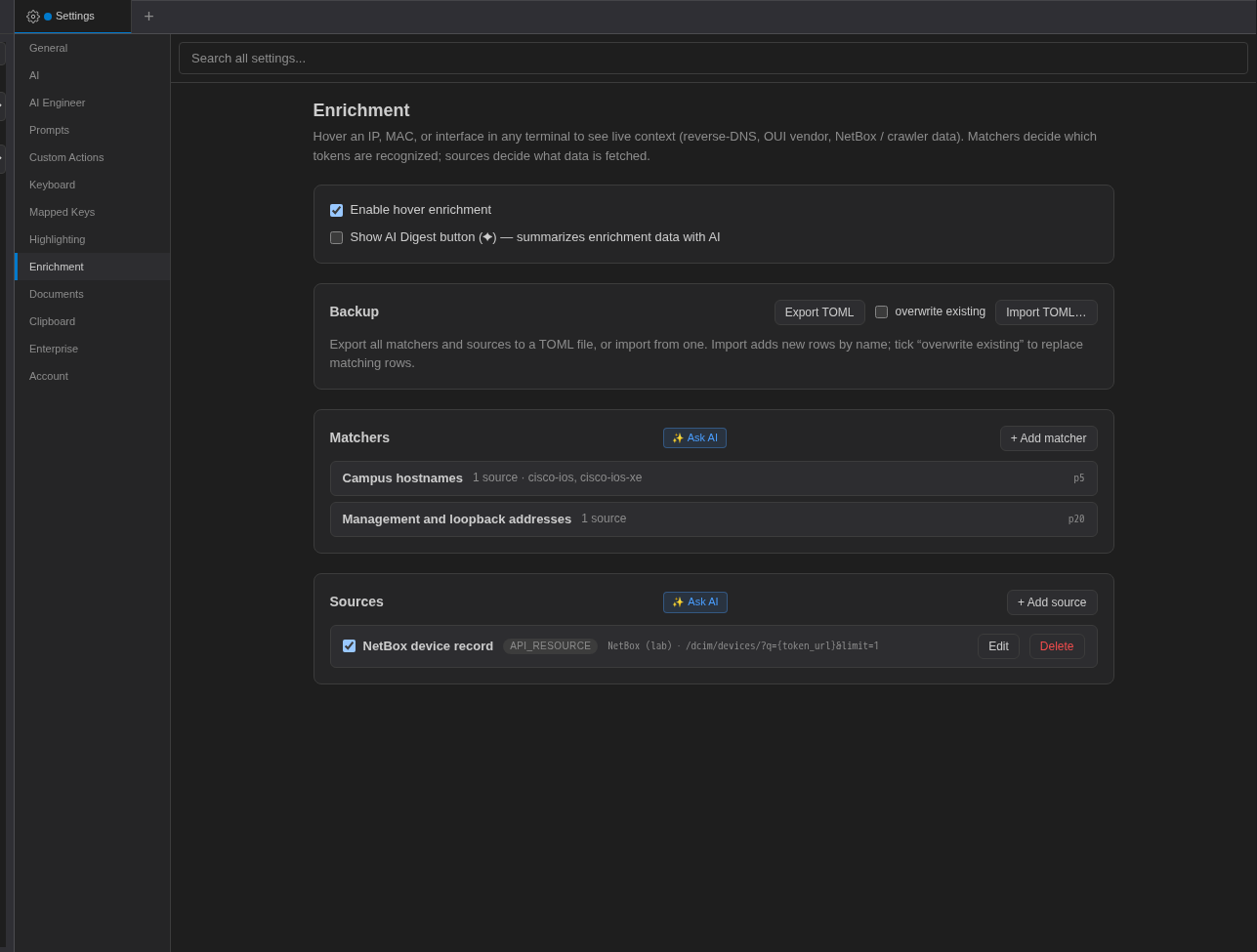
Custom Matchers and Sources
The Enrichment page lets you extend hover cards. Built-in matchers and sources are read-only; you add your own alongside them.
Matchers (what to recognise)
Fields: Name, Priority, Description, Patterns (one regex per line), CLI flavors (comma-separated; empty means all), and Assigned sources. Use Test against sample text to check your patterns.
Sources (where to look it up)
A custom source calls one of your API resources. Fields include API resource, Method, Path template (for example /api/search?q={token_url}), Response unwrap (dotted path or JSONPath; empty uses the whole body) and Picked fields (the key/label pairs shown on the card). Live preview runs it against a test value. Each source has an on/off switch.
Backup
Export TOML and Import TOML… save and restore your matchers and sources.
Right-Click Lookups on Detected Values
With Highlight detected network identifiers on (Settings → Highlighting, on by default), IP addresses, MAC addresses, hostnames and ASNs are underlined. Right-click one for actions:
| Value | Actions |
|---|---|
| IP address | Ping, Traceroute, MTR, DNS Reverse Lookup, Whois Lookup |
| MAC address | OUI Lookup |
| Hostname | DNS Lookup |
| Interface | SNMP Stats, Show Interface |
| VLAN | Show VLAN Info |
| Subnet (CIDR) | Calculate Subnet, Ping Network |
| ASN | ASN Lookup |
Every value also gets Copy: <value>, plus any Custom Actions set to show for that type.