
Keyboard Shortcuts
The complete default NetStacks keyboard shortcut table for macOS and Windows/Linux, how terminal focus affects Ctrl shortcuts, rebinding shortcuts, mapped keys and the command palette.
Important: Ctrl Shortcuts in a Terminal
On macOS, shortcuts use ⌘ and work everywhere, including inside a terminal. On Windows and Linux, shortcuts use Ctrl, which shells and network CLIs also use (Ctrl+W deletes a word, Ctrl+N is next history line, and so on). So NetStacks applies one rule:
While the cursor is in a terminal, any shortcut whose only modifier is Ctrl is sent to the device, not to NetStacks. This includes Ctrl+T, Ctrl+W, Ctrl+N, Ctrl+B, Ctrl+I, Ctrl+J, Ctrl+S, Ctrl+G, Ctrl+,, the zoom keys and Ctrl+Enter.
Shortcuts with Ctrl+Shift still work inside the terminal, and so do Ctrl+F (find), Ctrl+V (paste) and your mapped keys. To use a single-Ctrl shortcut, click outside the terminal first.
Ctrl+C in a terminal always sends an interrupt to the device (on every platform). To copy, use ⌘⇧C / Ctrl+Shift+C or Ctrl+Insert.
Terminal
| Action | macOS | Windows / Linux | Notes |
|---|---|---|---|
| New Terminal | ⌘T | Ctrl+T | Local shell (jumpbox in enterprise) |
| Close Tab | ⌘W | Ctrl+W | |
| Reconnect Session | ⌘⇧R | Ctrl+Shift+R | |
| Toggle Multi-Send | ⌘⇧M | Ctrl+Shift+M | |
| Find in Terminal | ⌘F | Ctrl+F | Works inside the terminal on all platforms |
| Save Terminal Output to Docs | ⌘⇧S | Ctrl+Shift+S | |
| Clipboard History | ⌘⇧H | Ctrl+Shift+H | |
| Copy Selection | ⌘⇧C | Ctrl+Shift+C | Ctrl+Insert also copies |
| Paste (preset + confirm dialog) | ⌘V | Ctrl+V | Shift+Insert also pastes |
| Paste Passthrough (raw, no dialog) | ⌘⇧V | Ctrl+Shift+V |
Navigation and Tabs
| Action | macOS | Windows / Linux | Notes |
|---|---|---|---|
| Command Palette | ⌘⇧P | Ctrl+Shift+P | |
| Toggle Sidebar | ⌘B | Ctrl+B | |
| Next Tab | ⌘⇧] | Ctrl+Shift+] | |
| Previous Tab | ⌘⇧[ | Ctrl+Shift+[ | |
| Close All Tabs | ⌘⇧W | Ctrl+Shift+W | |
| Reopen Closed Tab | ⌘⇧T | Ctrl+Shift+T | |
| Group Selected Tabs | ⌘G | Ctrl+G | Temporary group from selected tabs |
| Save Tabs as Group | ⌘⇧D | Ctrl+Shift+D | Saved group (standalone) |
| Go to tab 1–8 | ⌘1 – ⌘8 | Ctrl+1 – Ctrl+8 | Not rebindable |
| Go to last tab | ⌘9 | Ctrl+9 | Not rebindable |
View
| Action | macOS | Windows / Linux | Notes |
|---|---|---|---|
| Open Settings | ⌘, | Ctrl+, | |
| Zoom In | ⌘= | Ctrl+= | |
| Zoom Out | ⌘- | Ctrl+- | |
| Actual Size | ⌘0 | Ctrl+0 | |
| Quick Look: Notes | ⌘⇧E | Ctrl+Shift+E | |
| Quick Look: Templates | ⌘⇧L | Ctrl+Shift+L | |
| Quick Look: Outputs | ⌘⇧U | Ctrl+Shift+U | |
| Open Scratchpad | ⌘⇧J | Ctrl+Shift+J |
Sessions
| Action | macOS | Windows / Linux | Notes |
|---|---|---|---|
| New Session | ⌘N | Ctrl+N | Opens the Quick Connect dialog |
| Quick Connect | ⌘⇧Q | Ctrl+Shift+Q | |
| Connect Selected Sessions | ⌘⇧↩ | Ctrl+Shift+Enter | Sessions selected in the sidebar |
| Start Troubleshooting Session | ⌘⇧K | Ctrl+Shift+K |
AI
| Action | macOS | Windows / Linux | Notes |
|---|---|---|---|
| AI Assistant | ⌘I | Ctrl+I | Opens the AI panel with the active terminal as context |
| Toggle AI Chat Panel | ⌘J | Ctrl+J | |
| AI: Open Chat Tab | ⌘⇧A | Ctrl+Shift+A | |
| AI Generate Script | ⌘⇧G | Ctrl+Shift+G |
Documents
| Action | macOS | Windows / Linux | Notes |
|---|---|---|---|
| New Document | ⌘⇧N | Ctrl+Shift+N | |
| Save Document | ⌘S | Ctrl+S | Also saves scripts, MOPs and SFTP edits |
| Run Script | ⌘↩ | Ctrl+Enter |
Fixed Keys
These keys are built in and cannot be changed:
| Where | Keys |
|---|---|
| Terminal | Ctrl+C interrupt; Ctrl+Insert copy; Shift+Insert paste; middle-click paste (on by default); ⌘/Ctrl + mouse wheel changes font size |
| Find bar | Enter next match, Shift+Enter previous, Esc close |
| Command palette | ↑/↓ or Tab/Shift+Tab move, Enter run, Esc close |
| Paste preview | ⌘↩ / Ctrl+Enter pastes |
| Clipboard History | Enter pastes into the terminal (or copies), Ctrl+Enter copies, Del removes |
| AI command suggestion | Tab accepts the grey suggestion, Esc dismisses |
| Broadcast Command dialog | ⌘↩ / Ctrl+Enter sends |
| Reserved by the system | Copy, Cut, Select All, Undo, Redo (⌘/Ctrl + C, X, A, Z, ⇧Z), New Window ⌘⌥N (macOS menu), Quit (⌘Q / Alt+F4), Hide (⌘H), Minimize (⌘M) |
Changing Shortcuts
Every shortcut in the tables above (except tab numbers) can be changed in Settings → Keyboard.
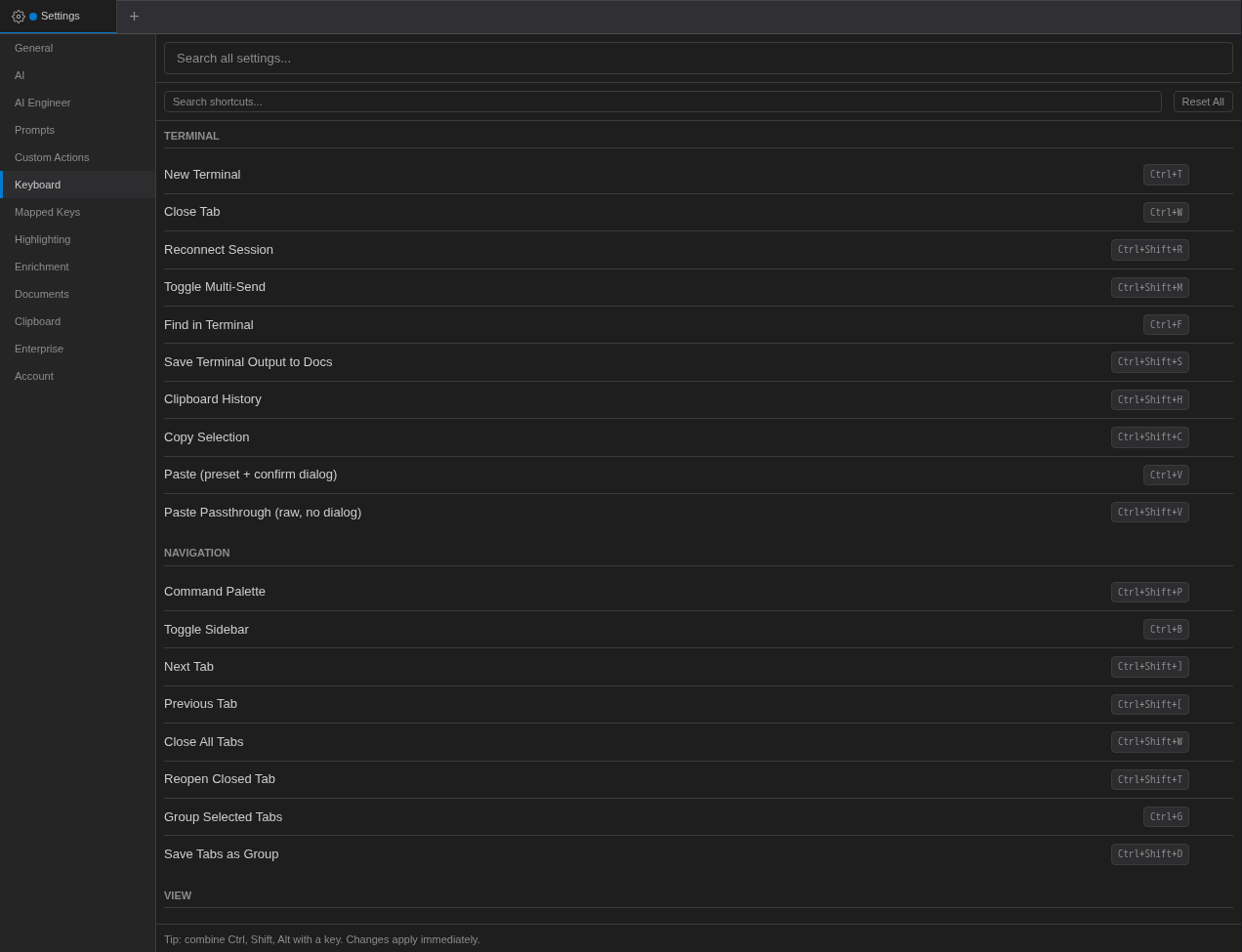
- Find the action, or type in Search shortcuts....
- Click the action's Edit button. The field shows Press keys....
- Press the new combination and click Save.
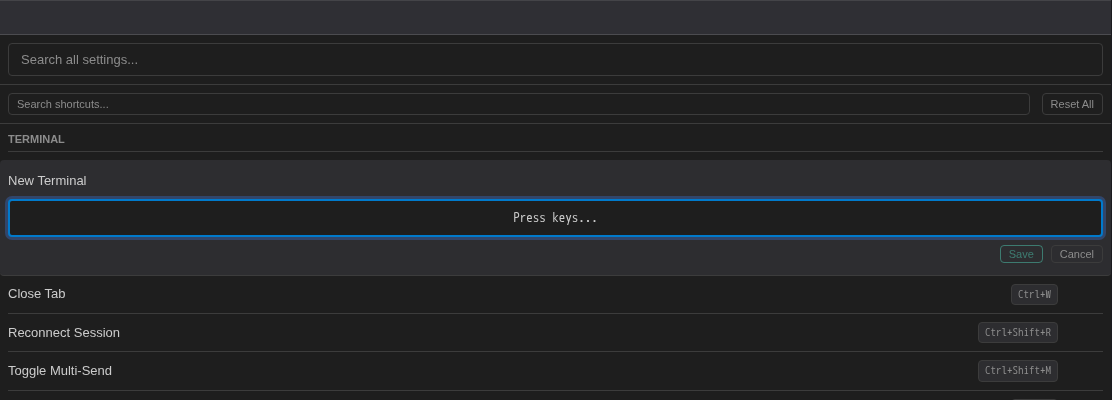
- If the combination is already used you see Already used by “<action>” — change that shortcut first., or Reserved for “<label>”.
- Reset restores one shortcut; Reset All restores every default.
- A change applies to the platform you are on (macOS bindings and Windows/Linux bindings are separate). On macOS the menu bar updates immediately.
- Shortcuts are saved to the local agent in standalone mode and to your user settings on the Controller in enterprise mode.
Mapped Keys (Send a Command)
A mapped key sends a saved command, followed by Enter, to the focused terminal when you press a key combination. For example, Ctrl+Shift+I could send show ip interface brief. No mapped keys exist until you create them.
- Open Settings → Mapped Keys (or Tools → Mapped Keys…).
- Click Click to capture key and press the combination.
- Type the Command to send and an optional Description.
- Click + to add it.
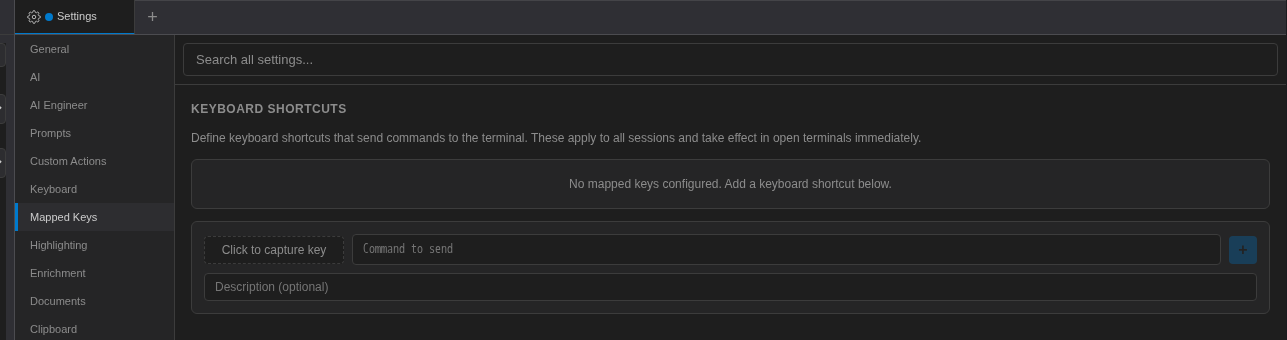
- Mapped keys apply to all sessions and take effect in open terminals immediately.
- A combination already used by another mapped key, or by an app shortcut, is refused. If a combination is one the terminal normally passes to the device, you get a warning only.
- In the standalone app you can tick Secret (encrypt command in vault) to store the command encrypted; the vault must be unlocked to use it.
- Mapped keys work in standalone sessions, Controller sessions and jumpbox shells.
Command Palette
The command palette lists every menu command with its category and current shortcut. Open it with ⌘⇧P / Ctrl+Shift+P, the status-bar palette button, or (on the desktop app) the Search everything… box in the title bar.
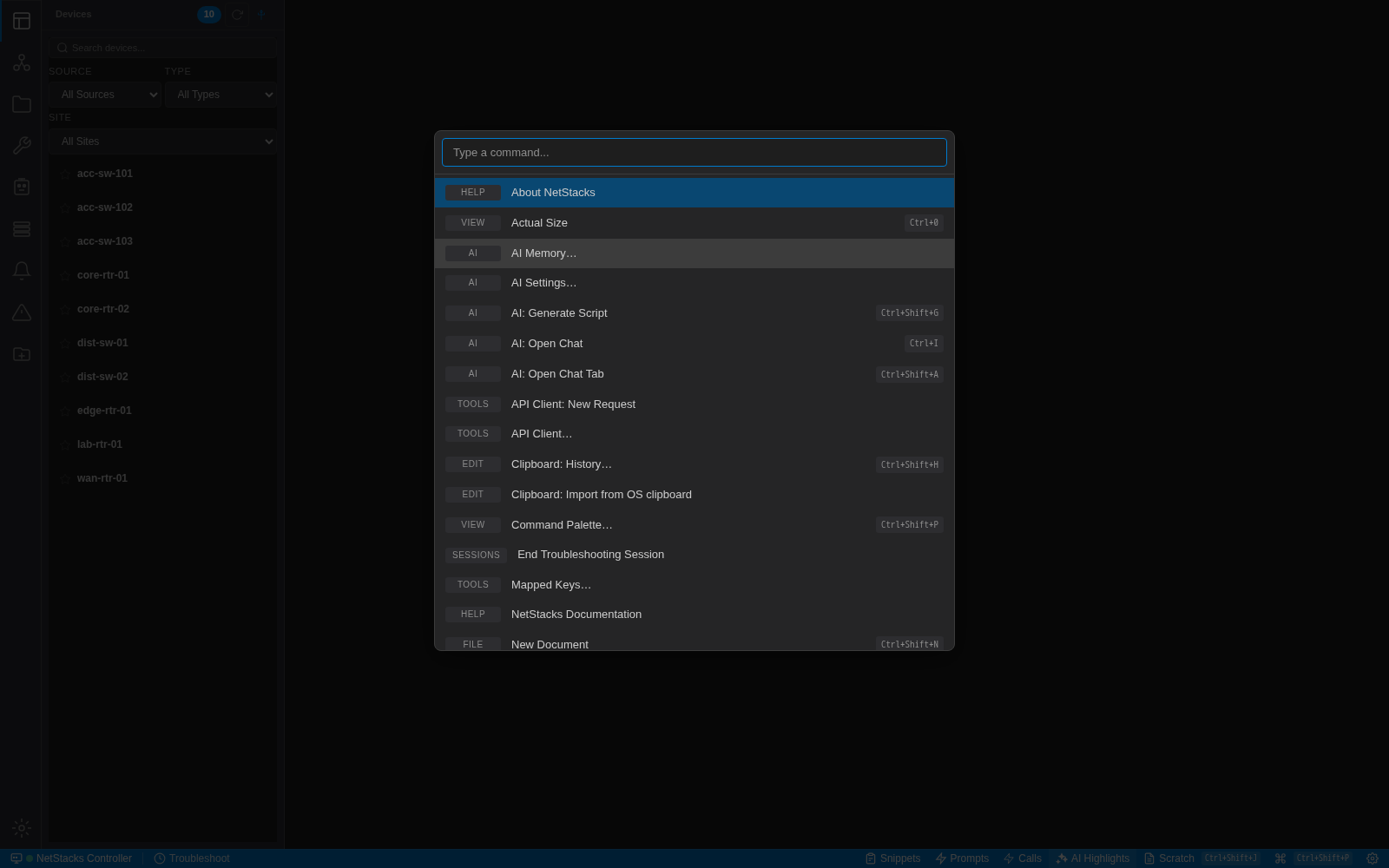
- Type to filter. Commands that don't apply right now are shown greyed out at the bottom.
- Palette-only commands include Clipboard: Paste with preview…, Clipboard: Import from OS clipboard, API Client: New Request, Setup Wizard and the Show… view commands.
- In the standalone app, typing also searches your sessions, documents, snippets, MOPs and other items; matches appear first under Results.
In the Web Terminal Enterprise
The browser keeps some shortcuts for itself, typically Ctrl+T, Ctrl+W, Ctrl+N and Ctrl+Shift+T (⌘ on macOS). Use the tab strip + button and the tab menu instead, or rebind those actions in Settings → Keyboard. The web terminal has no menu bar, so the command palette (Ctrl+Shift+P) is the way to reach menu commands.