
SSH Tunnels & Port Forwarding
Create local (-L) and dynamic SOCKS5 (-D) SSH port forwards in NetStacks, either per session or as standalone tunnels with auto-start and auto-reconnect.
Overview
SSH tunnels let you reach services behind a device or bastion through an SSH connection, for example a web UI on a management network, or a SOCKS proxy for your browser. NetStacks offers two ways to define them:
- Per-session forwards start and stop with a terminal session.
- Standalone tunnels run on their own, with optional auto-start when NetStacks launches.
Forward Types
| Type | OpenSSH equivalent | What it does |
|---|---|---|
| Local (-L) | ssh -L 8443:10.0.0.5:443 host | Listens on a port on your computer and forwards each connection through the SSH host to a remote host and port. |
| Dynamic (-D) SOCKS5 | ssh -D 1080 host | Runs a SOCKS5 proxy on your computer; applications that use it reach any destination through the SSH host. IPv4, IPv6 and hostname destinations; no proxy authentication. |
Forwards listen on 127.0.0.1 (your computer only). Remote (-R) forwarding is not supported yet.
Per-Session Forwards
- Open the session's settings and go to the SSH tab, Port Forwarding section.
- Choose Local (-L) or Dynamic (-D).
- Enter the Local port, and for Local forwards the Remote host and Port.
- Click + (tooltip Add port forward), then Save.
Forwards are listed as :LPORT -> host:port or SOCKS on :LPORT, each with an enable switch and a delete button. They start when the session connects (through the session's jump host, if any) and stop when it disconnects. Remote (-R) appears in the list but is not supported; use Local or Dynamic.
Standalone Tunnels
- Open Settings → Tunnels and click + New Tunnel.
- Fill in the Create Tunnel form (fields below).
- Click Create Tunnel, then Start on the tunnel's card.
| Field | Notes |
|---|---|
| Name | For example “Lab mgmt UI”. |
| SSH Host, Port | The SSH server the tunnel runs through. |
| Credential Profile | Login for the SSH host. |
| Jump (optional) | Inherit from the profile, or pick a session or jump host. |
| Forward Type | Local (-L) or Dynamic (-D) SOCKS5. |
| Local Port | Port on your computer. |
| Remote Host, Remote Port | Local forwards only. Remote Host defaults to localhost. |
| Auto-start | Start the tunnel when NetStacks starts. |
| Auto-reconnect, Max retries | Reconnect after failures; 0 retries means unlimited. |
Tunnel cards show an auto-start badge and uptime, with Start, Stop, Edit and Delete.
Tunnels in the Status Bar
The ⇌ Tunnels status-bar button shows the number of active tunnels (or failed tunnels, in red). Click it for a list with Tunnels and Session Tunnels sections and ⚙ Manage Tunnels.... Right-click a tunnel for Pause, Reconnect, Copy local address and Edit. Small fwd dots show the active session's forwards.
Health Checks and Reconnect
- Tunnels to the same host, port, profile and jump share one SSH connection.
- Each tunnel is health-checked every 30 seconds.
- Reconnect attempts back off exponentially, up to 60 seconds between tries.
Enterprise Mode Enterprise
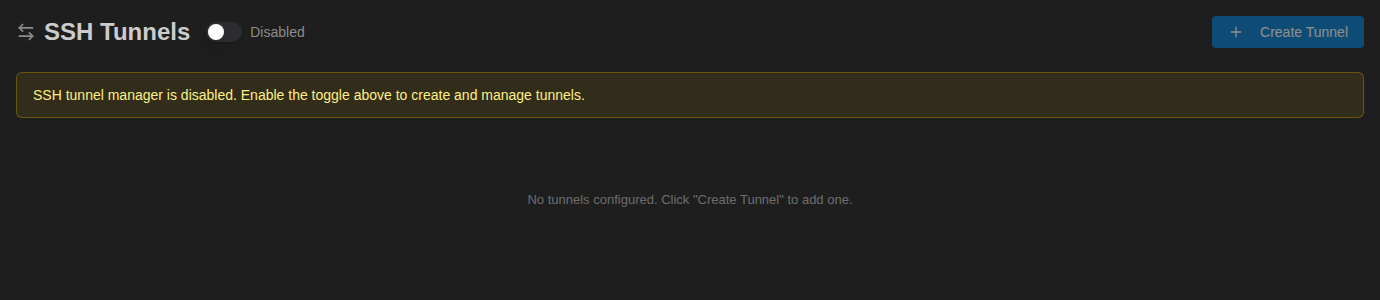
In enterprise mode the Tunnels settings tab and status-bar button are hidden. Tunnels run on the Controller and are managed by administrators in the admin console under Access & Secrets → Tunnels (page SSH Tunnels), where the tunnel manager is switched on and tunnels are created, started and stopped.
Examples
Reach a device web UI behind a bastion
Local forward through the bastion: Local Port 8443, Remote Host 10.20.0.5, Remote Port 443. Then browse to https://127.0.0.1:8443.
Browse a management network
Dynamic forward on Local Port 1080. Set your browser or tool to use SOCKS5 proxy 127.0.0.1:1080.