
Snippets & Custom Actions
Reusable commands in the NetStacks terminal: snippets from the status bar, custom right-click actions with {value} placeholders for detected IPs, MACs and interfaces, plus Quick Prompts and Quick Calls.
Snippets
A snippet is a saved command with a name, such as “BGP summary” → show ip bgp summary. Picking a snippet types the command into the active terminal without pressing Enter, so you can review or edit it first.
- Click into the terminal you want to use.
- Click Snippets in the status bar.
- Type in Search snippets... to filter, then click the snippet.
- Press Enter in the terminal to run it.
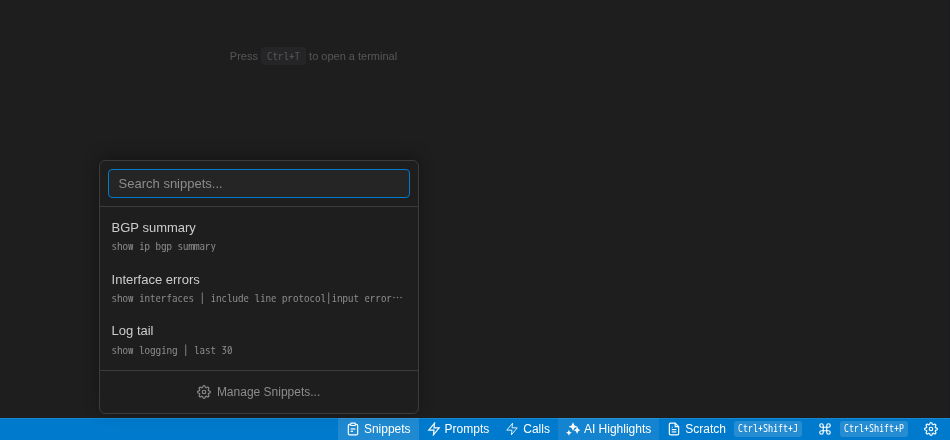
Snippets are plain text: there are no variables or placeholders. For commands that need a value from the screen, use a Custom Action.
Managing Snippets
In the standalone app, click Manage Snippets... at the bottom of the Snippets menu (or open Settings → Snippets or Tools → Snippets…). The Global Snippets page lists your snippets; click + New Snippet and enter a Name (for example “Check BGP Status”) and Command (for example show ip bgp summary). Snippets are stored by the local agent.
In enterprise mode and the web terminal, the Snippets menu lists snippets stored on the Controller, including snippets shared with your team.
Custom Actions
Custom Actions add your own items to the terminal right-click menu. An action can always appear, or appear only when you right-click a detected value such as an IP address or interface name, with that value filled into the command.
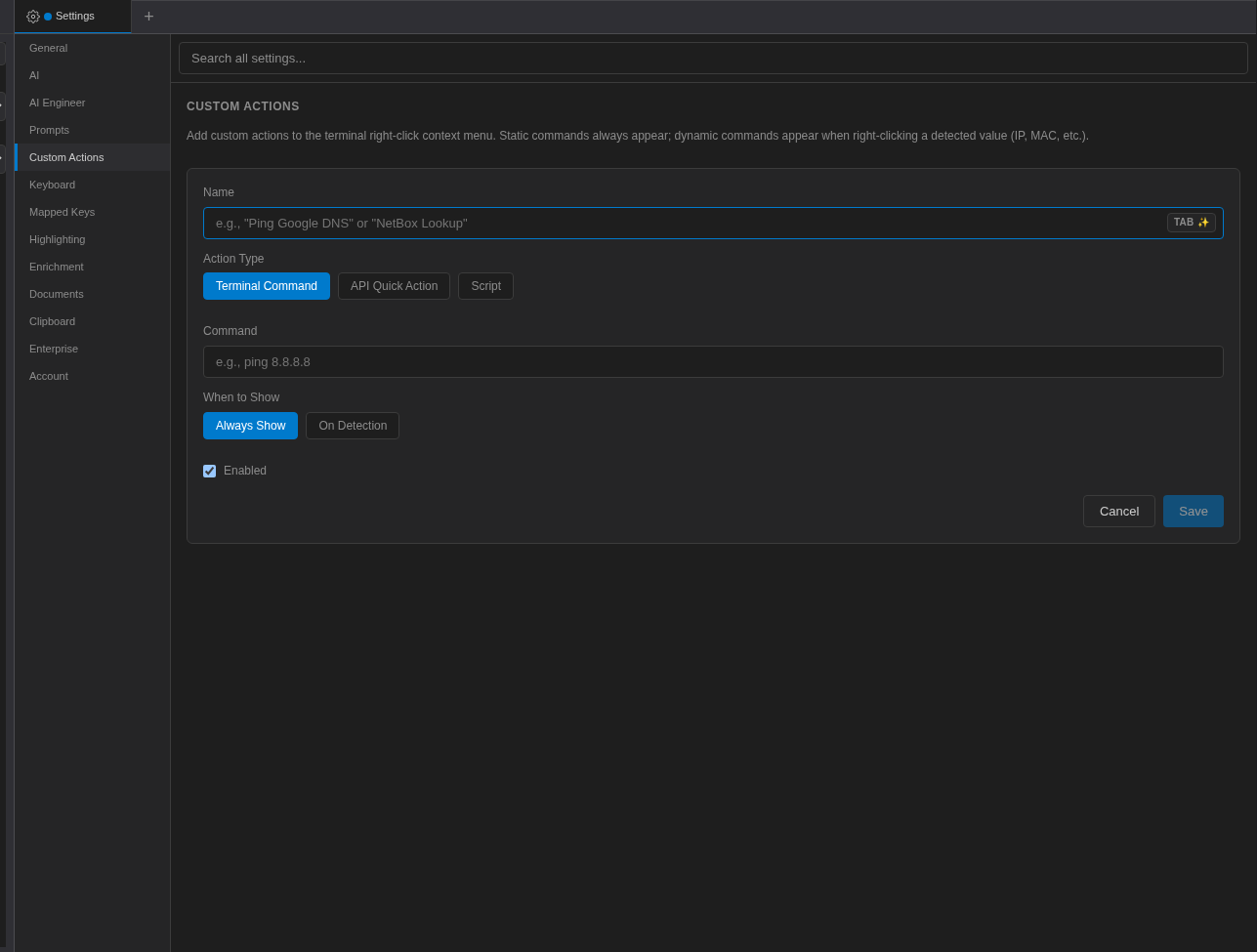
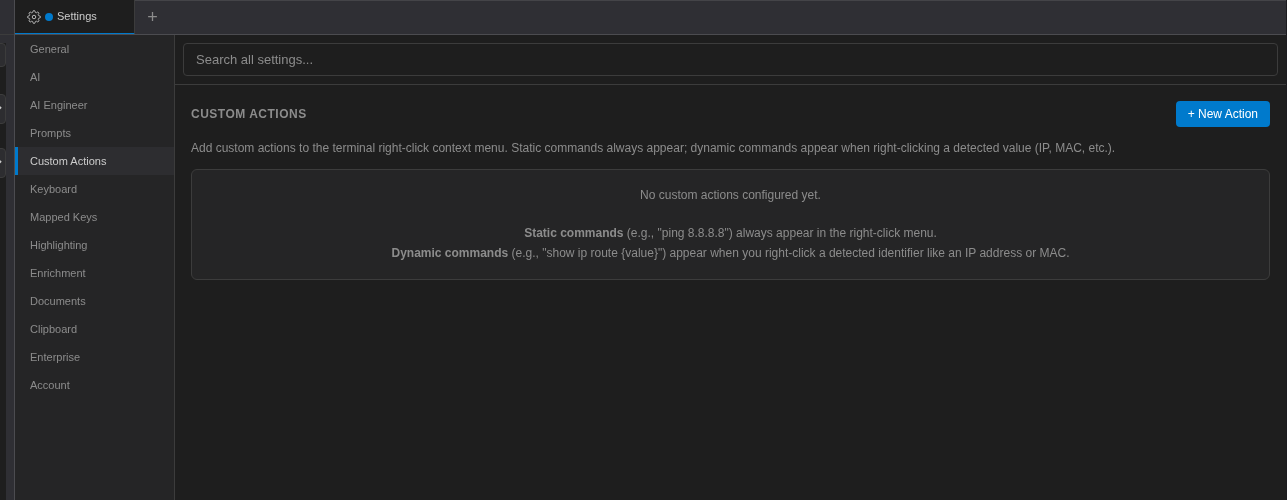
- Open Settings → Custom Actions and click + New Action.
- Fill in the fields (below) and save.
- Right-click in a terminal (or on a detected value) and choose your action.
Custom Action Fields
| Field | Options |
|---|---|
| Name | The menu label. |
| Action Type | Terminal Command sends the command to the terminal followed by Enter. API Quick Action runs a saved API request and shows the result in a notification (with Open in tab, and a Connect to <name> link when the result matches a session). Script runs a saved script. |
| Command | For Terminal Command. Use {value} for the detected value, for example show ip route {value}. |
| When to Show | Always Show or On Detection. |
| Detection Types | IPv4, IPv6, MAC, Interface, VLAN, CIDR, ASN, or Custom Regex (with a Regex Pattern). |
| Enabled | Turns the action on or off. |
| Enable in Force Touch Menu | Also shows the action in the macOS force-click menu. |
Custom actions are saved per user: by the local agent in the standalone app and on the Controller in enterprise mode.
Examples
| Name | When to Show | Command |
|---|---|---|
| Route lookup | On Detection: IPv4 | show ip route {value} |
| Find MAC | On Detection: MAC | show mac address-table address {value} |
| Interface detail | On Detection: Interface | show interfaces {value} |
| No paging | Always Show | terminal length 0 |
Force Touch Menu (macOS)
On a Mac with a Force Touch trackpad, a firm click in the terminal opens a small menu with Search the Web (for the selected text), Copy, and any custom actions with Enable in Force Touch Menu turned on. It is not available on other platforms or in the browser.
Quick Prompts and Quick Calls
Two more status-bar menus work like Snippets:
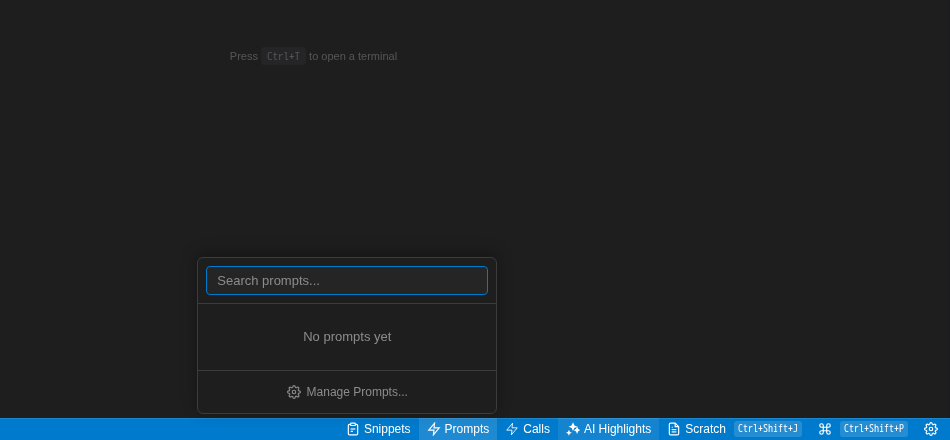
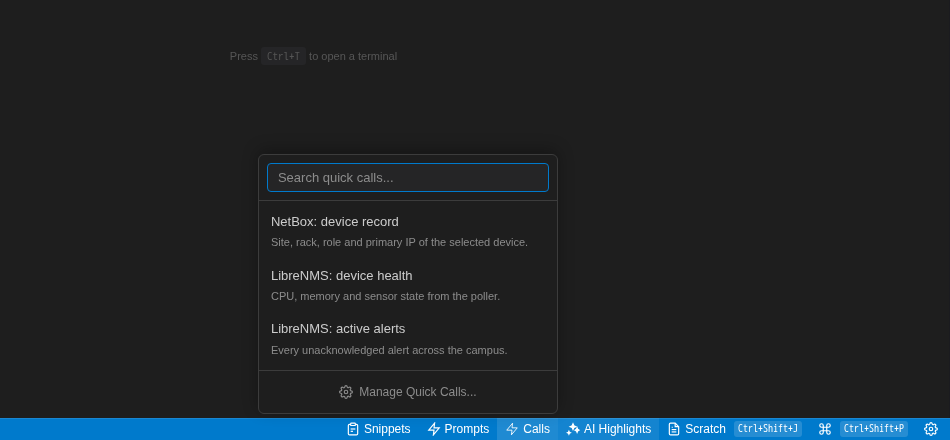
- Prompts lists saved AI prompts. Picking one opens the AI panel and sends the prompt right away, along with the active session as context. Manage them with Manage Prompts... (Settings → Prompts). See Quick Prompts.
- Calls lists saved API requests. Requests with
{{variables}}ask for values first; the result appears in a notification. See Quick Actions.
Snippets vs. Mapped Keys vs. Custom Actions
| Feature | Triggered by | Presses Enter? | Uses a value from the screen? |
|---|---|---|---|
| Snippet | Status-bar menu | No | No |
| Mapped key | A key combination | Yes | No |
| Custom action (Terminal Command) | Right-click menu | Yes | Yes, with {value} |
terminal length 0, use the session's Auto Commands on Connect (see Connecting to Devices).