
Themes, Fonts & Highlighting
Customize the NetStacks terminal: app and terminal color themes, fonts, terminal behavior settings, keyword highlighting rules and presets, the status bar, panels and hostname display.
App Theme
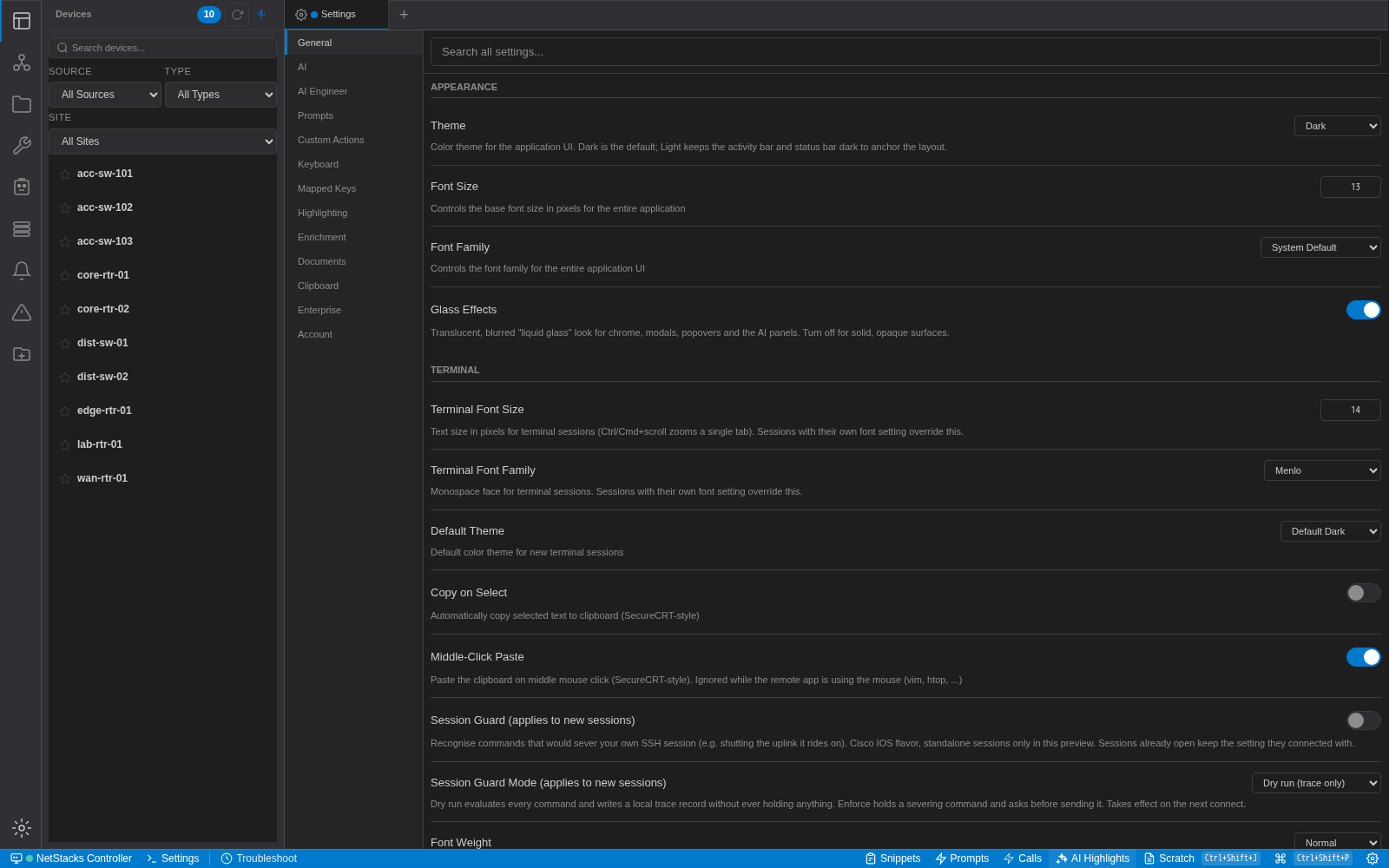
Open Settings → General. Under Appearance:
- Theme: Dark (default) or Light. Light keeps the activity bar and status bar dark.
- Font Size (default 13) and Font Family for the interface.
- Glass Effects: translucent, blurred panels and dialogs (on by default). Turn off for solid surfaces.
Terminal Color Themes
Twelve terminal color themes are built in. Choose the default under Settings → General → Terminal → Default Theme; it applies immediately to open terminals.
| Dark themes | Light themes |
|---|---|
| Default Dark (default), Monokai, Dracula, Solarized Dark, Nord, Gruvbox Dark, Cisco Blue, Matrix Green, Retro Amber, SunNight | NetStacks Light, Solarized Light |
Custom or imported color themes are not supported.
Terminal Settings
Settings → General → Terminal:
| Setting | Default | Notes |
|---|---|---|
| Terminal Font Size | 14 | 8–32. ⌘/Ctrl + scroll zooms a single tab temporarily. |
| Terminal Font Family | Menlo | Menlo, SF Mono, JetBrains Mono, Fira Code, Cascadia Code, Source Code Pro, Consolas, System Monospace. The font must be installed on your computer. Ligatures are not rendered. |
| Default Theme | Default Dark | See above. |
| Copy on Select | Off | Copy text as soon as you select it. |
| Middle-Click Paste | On | Ignored while a program such as vim or htop is using the mouse. |
| Font Weight | Normal | Normal or Bold. |
| Line Numbers | Off | Shows a line-number gutter. |
| Hover Lookups | On | Hover cards for IPs, MACs and interfaces (see Hover Enrichment). |
| Session Guard, Session Guard Mode | Off | Preview feature, see Command Safety. |
The cursor is a blinking block. Links (URLs) in output open in your browser when clicked. These settings are stored per computer or browser.
Per-Session Look
In the standalone app you can give a session its own look so production devices stand out: open the session's settings, Terminal tab, Display section, and set Terminal Theme, Font Family and Font Size (the slider previews live). Default follows the global setting.
A credential profile can also set a default theme and font for the sessions that use it. The order is: session setting, then profile setting, then the global default. A session's color also tints its tab.
Keyword Highlighting
Highlight rules color words and patterns in terminal output, for example down in red, up in green, or your own regex for interface errors. Open Settings → Highlighting.
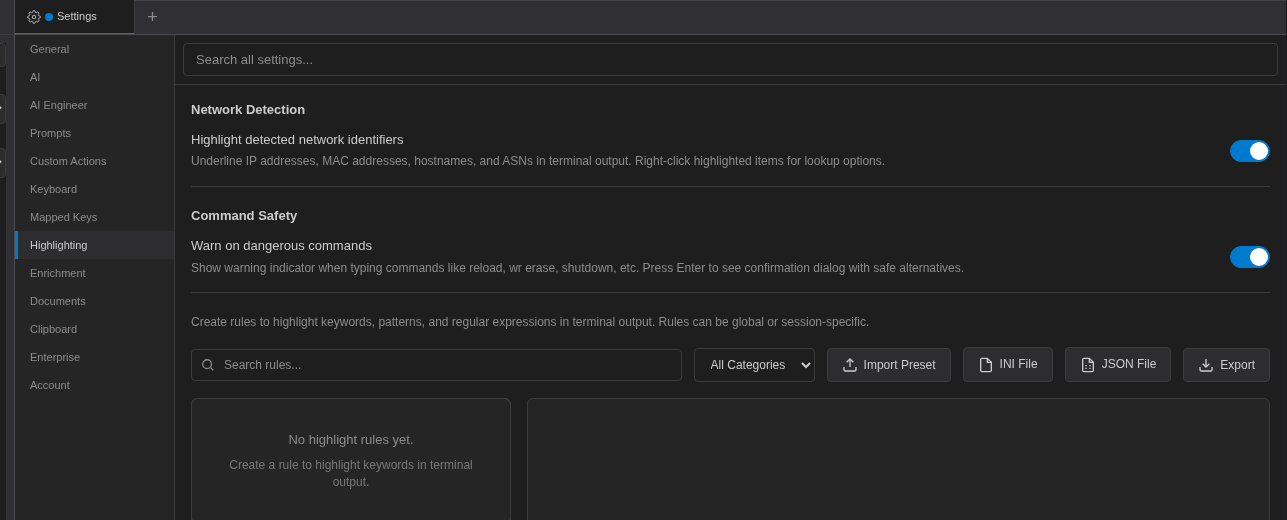
The top of the page has two switches:
- Network Detection → Highlight detected network identifiers: underlines IP addresses, MAC addresses, hostnames and ASNs so you can right-click them for lookups (on by default).
- Command Safety → Warn on dangerous commands (see Command Safety).
Create a rule
- Click Add Rule.
- Enter a Name and a Pattern, and choose Literal or Regex.
- Set Matching Options (Case Sensitive, Whole Word), foreground and background Colors and Text Style (Bold, Italic, Underline).
- Choose a Category (Network, Status, Security, Custom) and a Priority.
- Try it in the Test Pattern box, then click Save.
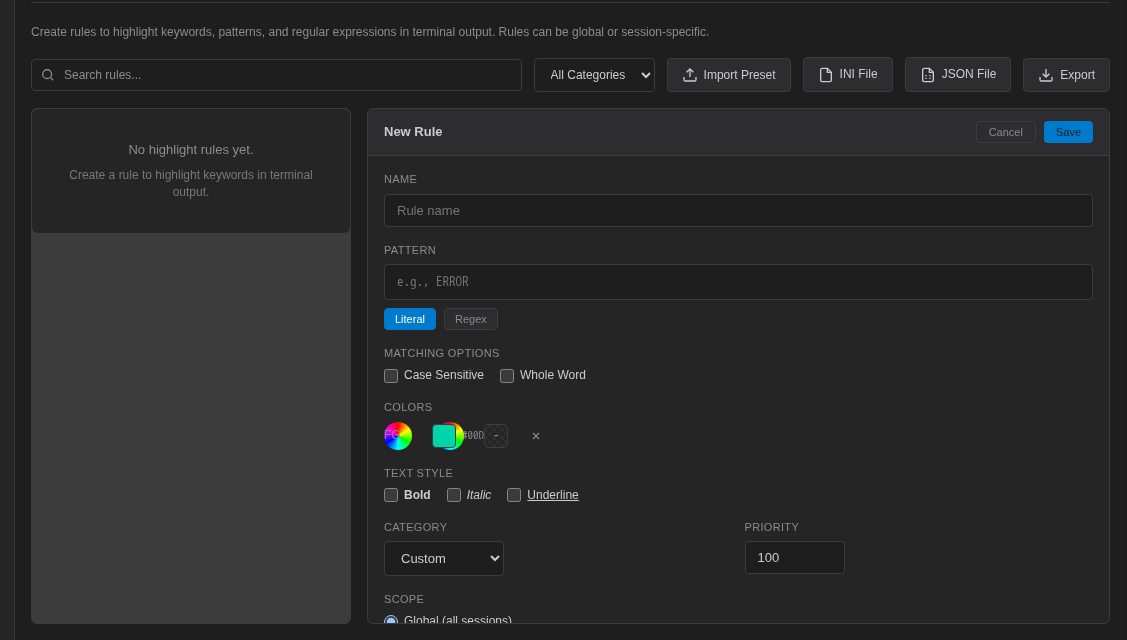
Rules apply to all sessions. In the standalone app they are stored by the local agent; in enterprise mode and the web terminal they are stored in this browser or app only.
Highlight Presets and Imports
No rules are active until you add or import them. Click Import Preset to choose from built-in sets:
- Network Fundamentals — IP addresses, MAC addresses, interface names, VLAN IDs
- Cisco IOS — interface states, BGP/OSPF neighbors, syslog messages
- Juniper Junos — commit status, interface and BGP states
- Linux / Unix — systemd states, log levels, process states
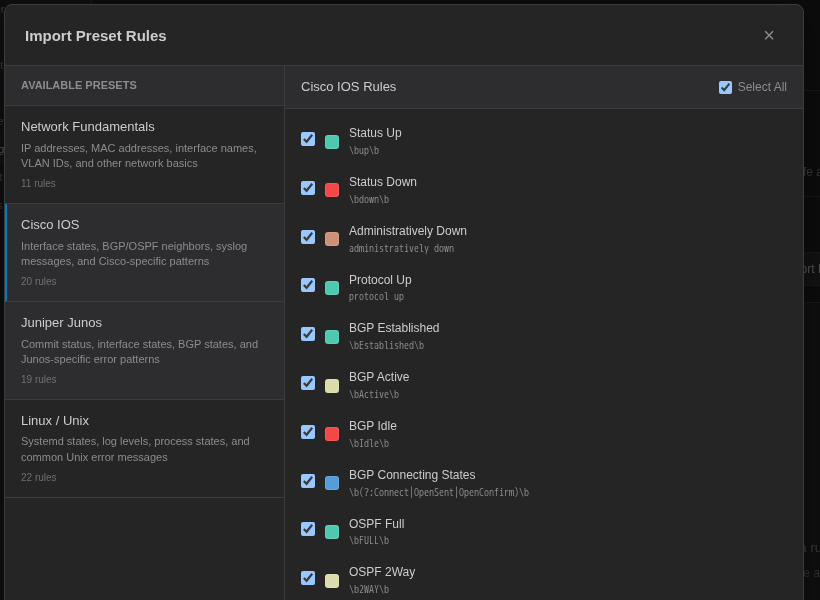
Pick a preset, tick the rules you want (rules you already have are marked Already exists) and click Import N Rules.
Coming from SecureCRT? Click INI File to import a SecureCRT words.ini keyword file. You can also import and Export rules as JSON.
Status Bar
Right-click the status bar → Customize Status Bar, or scroll to Status Bar in Settings → General.
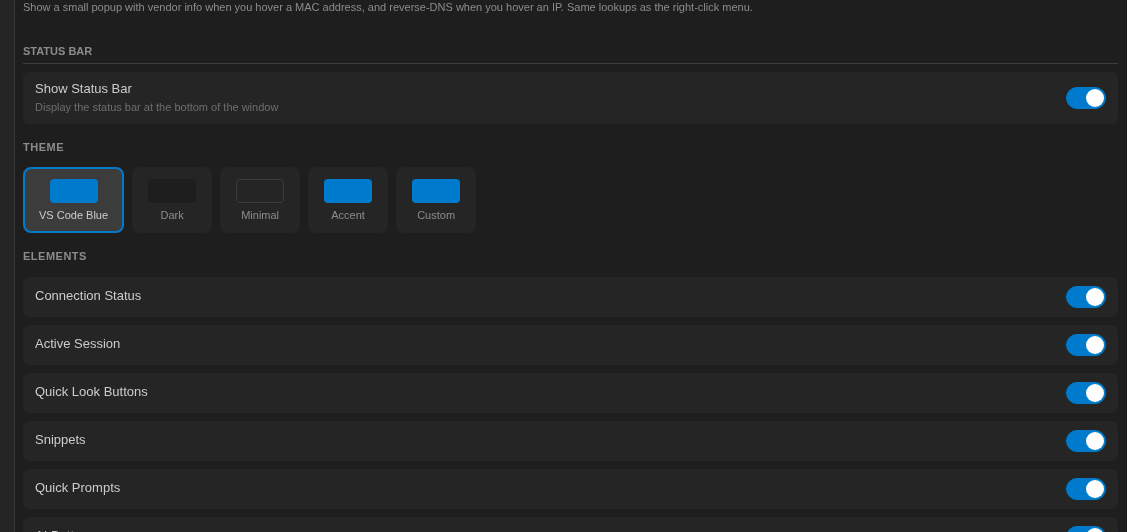
- Show Status Bar turns it on or off.
- Theme: VS Code Blue (default), Dark, Minimal, Accent, or Custom with your own Background and Text colors.
- Elements: Connection Status, Active Session, Quick Look Buttons, Snippets, Quick Prompts, AI Button, Command Palette, Scratchpad Button, Settings Button, Quick Calls.
- Style: Show Keyboard Shortcuts, Compact Mode.
Panels and Hostname Display
Panels (Settings → General):
- Left Sidebar Pinned and AI Panel Pinned (both on by default).
- Sidebar Overlay: the sidebar floats over the terminal instead of pushing it aside (off by default).
- Enable Hot Edges: moving the mouse to the left or right window edge reveals hidden panels (on by default).
Hostname Display strips repetitive domain suffixes from hostnames shown in sessions, topology and device lists (for example core-rtr-01.corp.example.com becomes core-rtr-01). Turn on Enable hostname stripping, add regex patterns (applied in order, case-insensitive) and check them with the Live test box. It only affects display; connections still use the full hostname.