
Session Sharing
EnterpriseShare a live NetStacks terminal session with a link, read-only or read-write, with expiry and viewer limits. Requires a NetStacks Controller.
Overview
Session sharing gives a colleague a live view of one of your terminal sessions through a link. Choose Read Only so they can watch, or Read Write so they can type too — useful for pair troubleshooting, escalations and training.
Each link expires after the time you choose and allows a maximum number of viewers. You can revoke links at any time.
Requirements
- NetStacks signed in to a Controller (desktop app in enterprise mode, or the web terminal). Sharing is not available in the standalone app.
- The session must be a Controller SSH session opened from the Devices list.
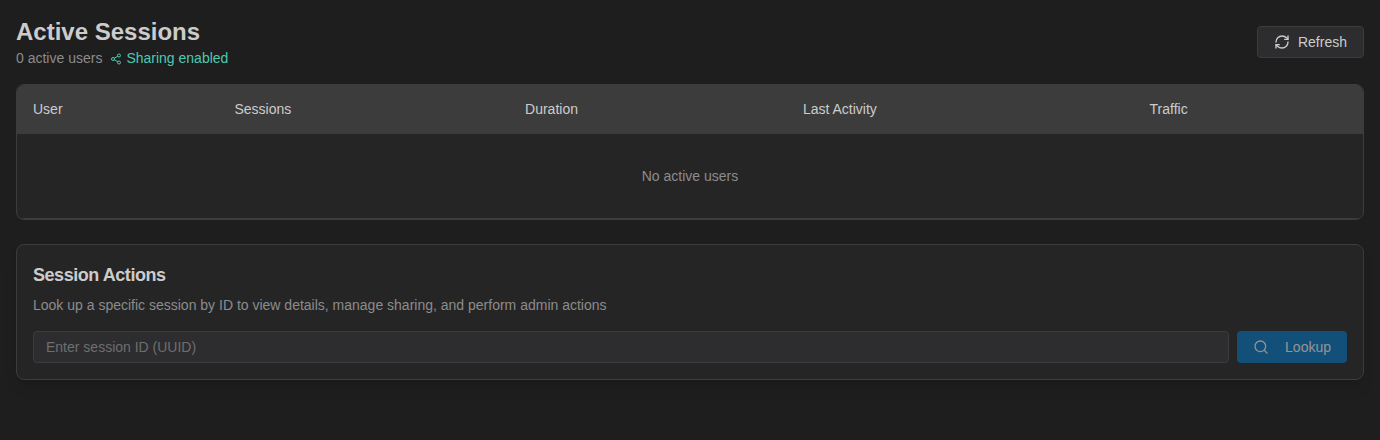
- The Controller must have Valkey configured (the admin console shows Sharing enabled on the Active Sessions page).
Share a Session
- Right-click the session's tab and choose Share Session.
- In Share Session: <name>, click New Share Link.
- Choose the Permission: Read Only (view terminal output) (default) or Read Write (can type commands).
- Set Expiry (minutes) (5–1440, default 60) and Max Viewers (1–50, default 5).
- Click Create Share Link, then Copy and send the link.
The link has the form https://<controller>/terminal/#share=<token>. While a share is active, the tab shows a sharing icon (tooltip Sharing — click to manage) and the number of connected viewers.
Manage and Revoke Links
Open Share Session again (or click the sharing icon on the tab). Active Shares (N) lists each link with its permission, expiry and token, and buttons to Copy or Revoke it. Revoke All removes every link for the session. Revoking disconnects viewers using that link.
What the Viewer Sees
- A minimal page titled NetStacks Shared Session with a status dot and a badge: Viewing (read-only) or Collaborating (read-write).
- The terminal at your terminal's size, updating live. Only read-write viewers can type.
- “Session has ended” when you disconnect, or Unable to Join Session (“The share link may be invalid or expired.”) for a bad or expired link.
Administrator Controls
In the Controller admin console, Access & Secrets → Sessions (Active Sessions) lists users with open terminal sessions. Administrators can look up a session to see its details, create a share link for it, take it over (the user is disconnected immediately) or terminate it. Session activity is recorded in the audit log.
Troubleshooting
| Symptom | Cause |
|---|---|
| No Share Session item on the tab menu | Standalone mode, or the tab is not a Controller device session (for example a jumpbox shell). |
| “Session sharing requires Valkey” | The Controller has no Valkey configured. Ask your administrator. |
| Viewer sees “Unable to Join Session” | The link expired, was revoked, or the viewer limit is reached. Create a new link. |