Host Key Verification
How NetStacks verifies SSH host keys: the first-connection and changed-key prompts, managing trusted keys, and the Controller's host-key policy in enterprise mode.
Overview
Every SSH server has a host key. Checking it protects you from connecting to an impostor. NetStacks uses trust-on-first-use: the first time you connect to a host:port you confirm its key fingerprint, and from then on the key must match. Host-key checking is always on.
First Connection
When you open an SSH session to a host NetStacks has not seen, a dialog titled 🔑 Confirm SSH host key appears. It shows the host and port and the SHA-256 fingerprint of the key the host presented.
- Compare the fingerprint with a trusted source: the device's
show crypto key mypubkeyorshow ssh server host-keysoutput, or your inventory record. - Click Trust This Key to continue, or Reject to stop.
The dialog waits up to 2 minutes (“Auto-rejects in Ns if not resolved”). When you connect through a jump host, the jump host's key is checked the same way.
When a Key Changes
If a host presents a different key from the one you trusted, the dialog is titled ⚠ SSH host key has CHANGED and shows both the previously trusted key and the new one.
Managing Trusted Keys
In the standalone app, open Settings → Trusted Hosts (or Tools → Trusted Host Keys…). The Trusted SSH Host Keys page lists every host:port you have trusted.
- Filter by host, port, key type or fingerprint.
- Revoke removes one entry; the next connection to that host prompts again. Use this after a device is legitimately re-keyed.
- Purge All removes every trusted key.
- Refresh reloads the list.
The known_hosts File
The standalone app stores trusted keys in your ~/.ssh/known_hosts file, in its own host:port key-type key line format, under the header “# SSH known hosts file managed by NetStacks”.
@cert-authority or @revoked lines in known_hosts for OpenSSH, keep a backup copy.Enterprise: Controller Host-Key Policy Enterprise
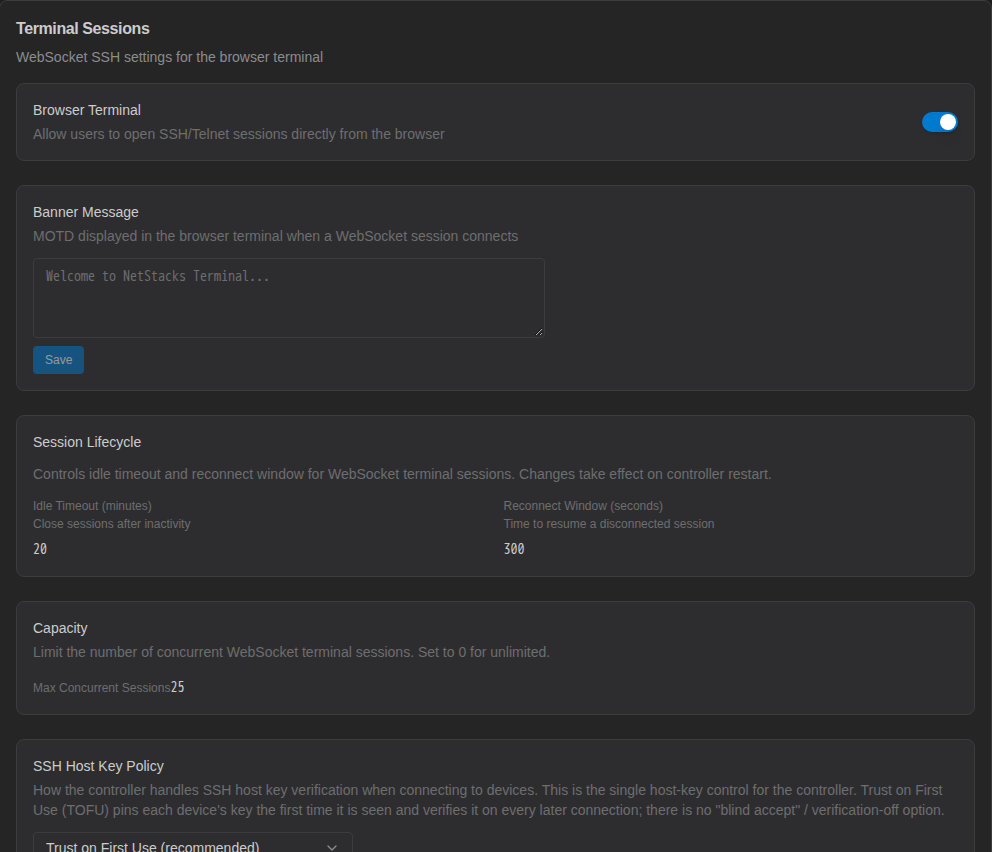
In enterprise mode the Controller makes the SSH connection, so it also checks host keys. Administrators choose the policy in the admin console under Settings → Terminal Sessions → SSH Host Key Policy:
| Policy | Behavior |
|---|---|
| Trust on First Use (recommended) (default) | New keys are accepted automatically; key changes are recorded in the audit log. |
| Trust on First Use — Strict | New keys are accepted automatically; changed keys are blocked until approved. |
| Always Prompt User | The user is asked in the terminal with the same dialog as above. |
The Trusted Hosts settings tab is hidden in enterprise mode. Automated jobs on the Controller (MOPs, agents, tunnels) refuse to connect to hosts whose keys are not yet trusted.