
AI Engineer Profile & Knowledge Packs
Give the AI assistant a name, working style, expertise and safety rules. Standalone users build their own profile; Controller admins publish profiles that users pick from.
Overview
The AI Engineer profile tells the assistant who it is and how you like to work: its name, how chatty it should be, how cautious, which vendors and technologies you focus on, and any extra safety rules for your environment. The profile is added to the AI's instructions for chat and agents.
- Standalone Terminal: you create and edit your own profile, either through a short onboarding conversation or in Settings → AI Engineer.
- Connected to a Controller: administrators create profiles in the admin console; each user picks an Active Profile in the Terminal.
The profile's name becomes the assistant's name everywhere (for example the AI panel title). Without a profile the assistant is called "AI Assistant".
Onboarding Conversation (Standalone)
The first time you open the AI panel in the standalone Terminal without a profile, it greets you with: "Welcome! I'd like to get to know how you work so I can be more helpful. Type "hi" or anything to start a quick setup conversation."
The assistant then asks a few questions, one at a time:
- What to call it (its name).
- Working style — assistant, coworker, mentor or silent.
- Which vendors you work with (Cisco, Juniper, Arista or a mix).
- Your main domain (routing, data center, security and so on).
- Autonomy — inform, suggest or act.
- Whether you want to go deeper into more detailed preferences.
When the conversation finishes, NetStacks fills in your profile from your answers. You can review and change everything afterwards in Settings → AI Engineer.
Edit Your Profile (Standalone)
Open Settings → AI Engineer. If you have no profile yet, you will see "No profile configured yet" and a Create Profile Manually button, which creates a profile named "NetBot" for you to edit.
The editor has these sections:
- Identity — AI Name, Working Style (Assistant / Coworker / Mentor / Silent) and Autonomy Level (Inform — report findings only; Suggest — suggest fixes and wait for approval; Act — fix issues and report back).
- Expertise — AI Knowledge Packs (with a budget bar, see below), Certification Perspective (Vendor-neutral / CCIE (Cisco) / JNCIE (Juniper)) and Environment Type (Lab / Production / MSP / Multi-tenant / Mixed).
- Behavior — Verbosity (Terse / Balanced / Detailed), Risk Tolerance (Conservative / Moderate / Aggressive), Troubleshooting Method (Top-down / Bottom-up / Divide and conquer), Experience Level, Syntax Style and a free-text Communication Style.
- Custom Safety Rules — click + Add Rule to add your own rules on top of the built-in ones (for example "Never suggest changes to the core routers outside the Saturday window").
- Actions — Reset Profile & Re-onboard clears the profile; the onboarding conversation starts the next time you open the AI chat.
Knowledge Packs
Knowledge packs are blocks of expert networking guidance built into the NetStacks Terminal. They are static text added to the AI's instructions — not a search index or document store — so they work offline and cost nothing extra beyond the prompt size.
- Core — always loaded.
- Domain packs — Routing, Data center, Security, Wireless, MPLS.
- Vendor packs — Cisco, Juniper, Arista.
Packs are chosen from your profile's vendor and domain focus and added in order until the size budget is full. The budget bar under AI Knowledge Packs shows how much room is used ("Packs are loaded in the order shown until the budget is full").
For searchable documents of your own (runbooks, vendor guides, past incidents), use the Controller Knowledge Base.
Built-in Safety Rules
Every profile — including the default one when you have not set up a profile — starts with eight non-negotiable rules that cannot be edited or removed:
- Never guess device state.
- Never run destructive commands (write erase, reload, format, delete startup-config, request system zeroize) without explicit human approval.
- Never send data anywhere other than the configured AI provider.
- Always sanitize credentials.
- Never fabricate CLI output.
- Never bypass change management.
- Verify after every change.
- Always identify as an AI.
These rules are instructions to the model. Hard limits on what the AI can execute are enforced separately by NetStacks — see Safety, Approvals & AI Configuration Mode.
Controller-Managed Profiles Enterprise
When the Terminal is connected to a NetStacks Controller, profiles are defined centrally by administrators. The onboarding conversation and the local editor are not used; instead each user selects one of the organization's profiles.
Create a Profile (Admin) Enterprise
- In the admin console go to Administration → AI → AI Profiles (
/admin/ai-profiles). - Click New Profile.
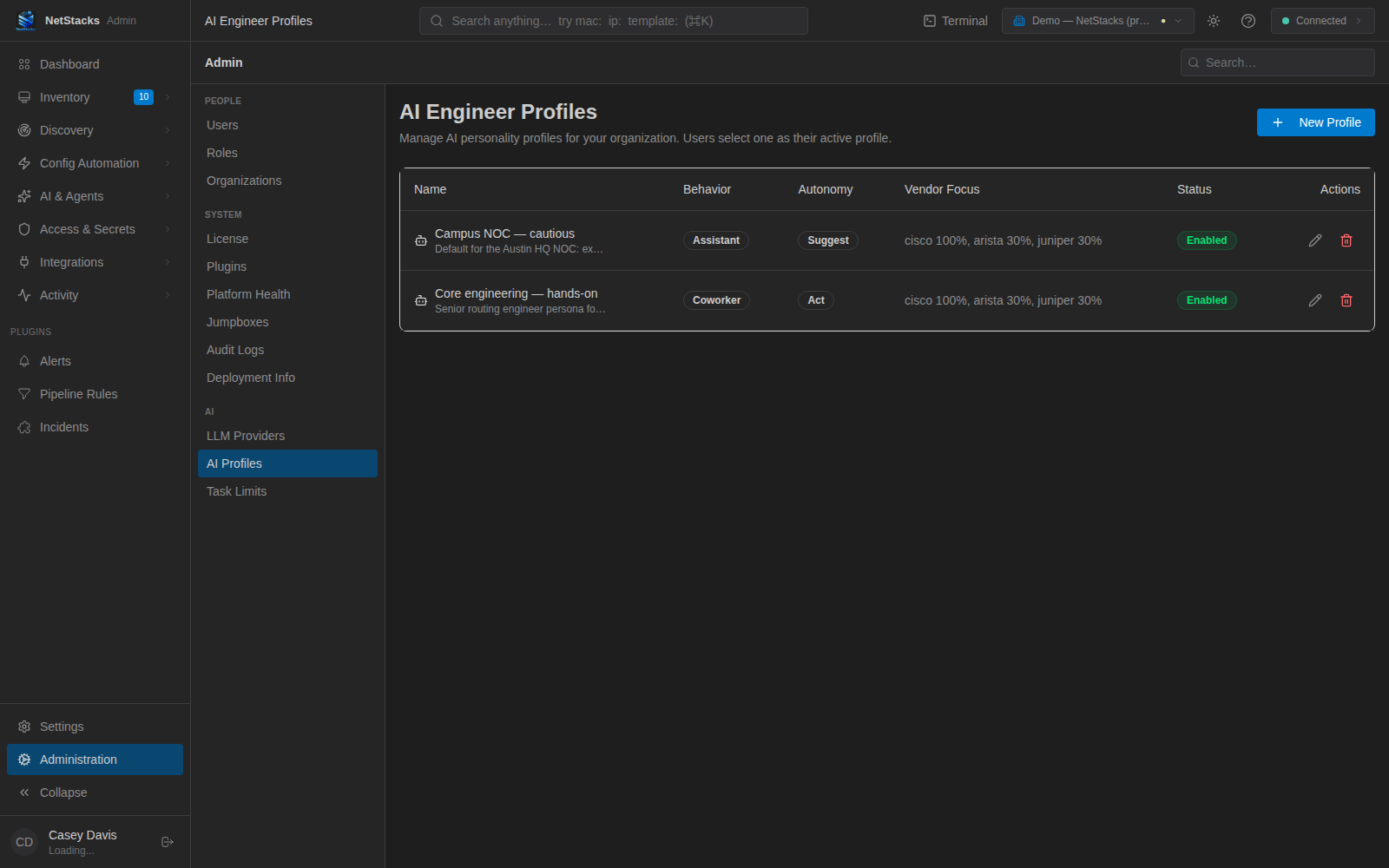
The AI Engineer Profiles list shows each profile's Behavior, Autonomy, Vendor Focus and Status.
- Fill in Identity: Profile Name, Description, Behavior Mode, Autonomy Level and LLM Provider. Leave the provider on Default (org setting), or pick a specific provider to use first for anyone on this profile ("Override which LLM provider this profile uses for AI chat and agent tasks.").
- Under Expertise, set Vendor Weights (Cisco, Juniper, Arista, Palo Alto, Fortinet, Nokia, Huawei, Mikrotik) and Domain Focus (Routing, Switching, Datacenter, Security, Wireless, Cloud, MPLS, WAN, VoIP) with the sliders, plus Certification Perspective and Environment Type.
- Under Behavior, set Verbosity, Risk Tolerance, Troubleshooting Method and Communication Style.
- Add any Custom Safety Rules for your organization with + Add Rule.
- Click Create Profile. When editing an existing profile, the Enabled switch controls whether users can select it.
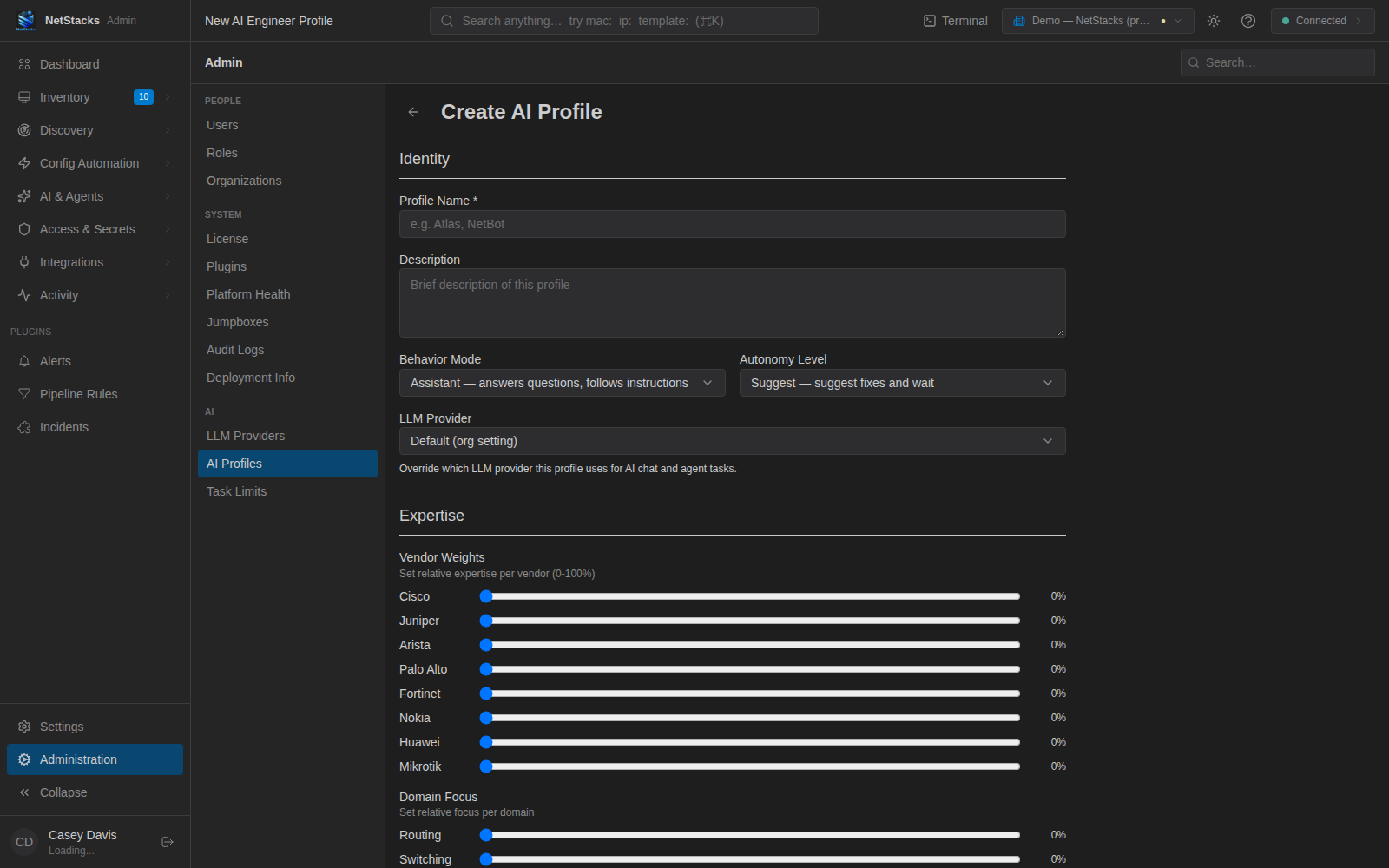
The Create AI Profile form.
Deleting a profile switches anyone using it back to the default AI.
Choose Your Active Profile Enterprise
In the Terminal (desktop or web), open Settings → AI Engineer and pick a profile from Active Profile. Choose None (use default AI) to use no profile. The page shows how many profiles are available and the details of the one you select.
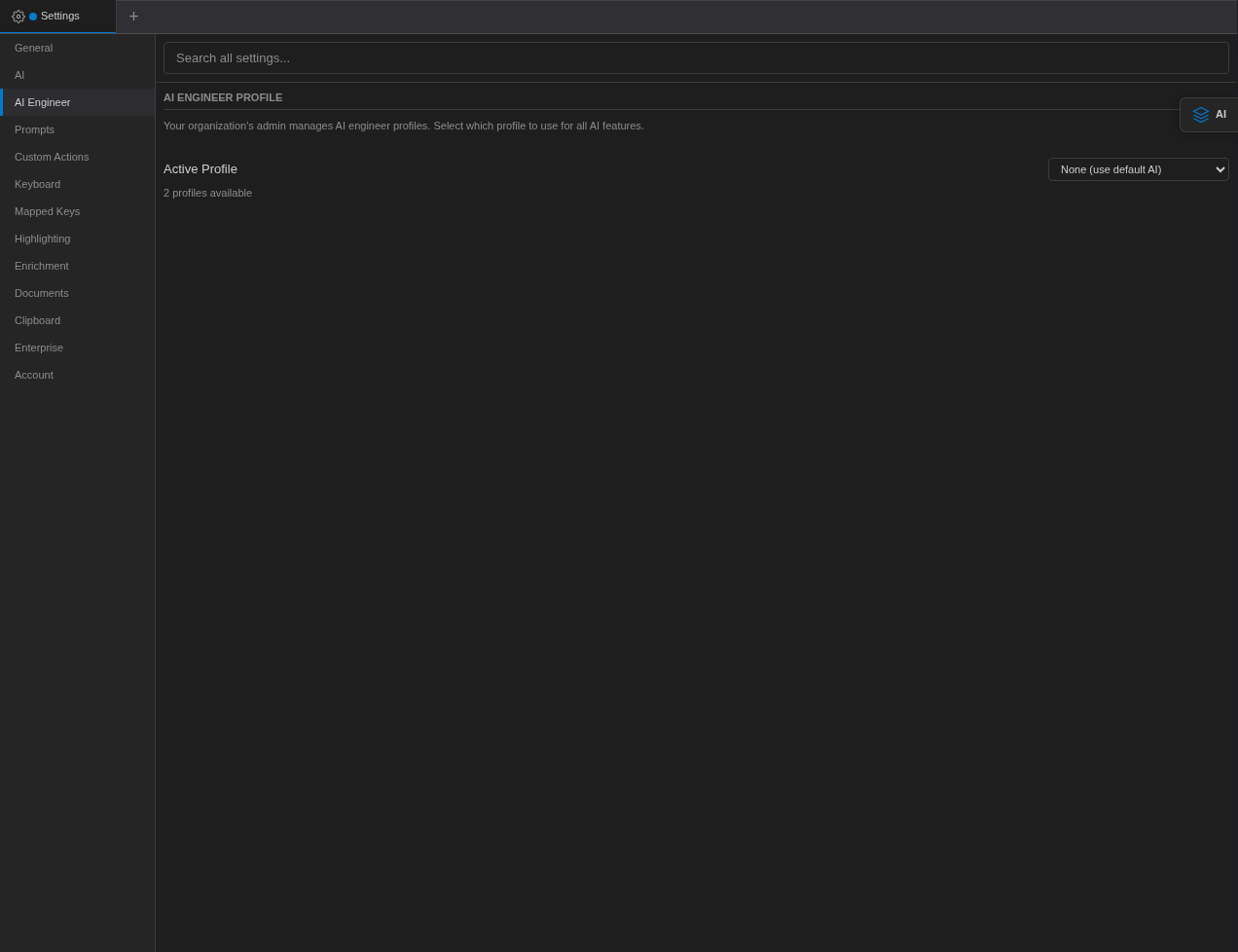
In enterprise mode the AI Engineer page is a selector: "Your organization's admin manages AI engineer profiles."