
Context & Memory: What the AI Sees
How the AI assistant knows what is on your screen, what it remembers between conversations, and how to give it standing knowledge about your devices.
Overview
Each time you send a message, NetStacks adds context to it so you do not have to paste output into the chat. Depending on your settings, the AI receives:
- The live state of the terminal you are focused on (Live Workspace Context).
- Recent messages from the current conversation.
- Facts saved in AI Memory.
- Device Memory and team notes for the selected session.
- Your AI Engineer profile and the built-in safety rules (see AI Engineer Profile).
- A short overview of your saved documents.
Everything is passed through credential sanitization before it leaves NetStacks — see Privacy & Data Sanitization. These features work in both the standalone Terminal and when connected to a Controller.
Live Workspace Context
With Live Workspace Context on (the default), every message you send is prefixed with a snapshot of the session the AI is focused on (chosen with the session picker in the AI panel). It includes:
- The device and whether it is in operational, configuration or shell mode.
- Whether there are uncommitted configuration changes.
- Whether the session is waiting at an interactive prompt (for example a confirmation).
- The last command, its result, and recent commands.
- The last N lines of scrollback.
Only the newest snapshot is kept in the conversation, so context does not pile up. The AI also uses this state to avoid unsafe moves — for example it will not answer an interactive prompt for you or leave a config session that has uncommitted changes.
Configure it in Settings → AI → AI AUTOMATION:
- Live Workspace Context — on/off.
- Terminal Scrollback Lines — how many lines to include, 20–1000 (default 200).
- Include Editor Content — tells the AI which editor file you have open and whether it has unsaved changes (or a summary of the open MOP).
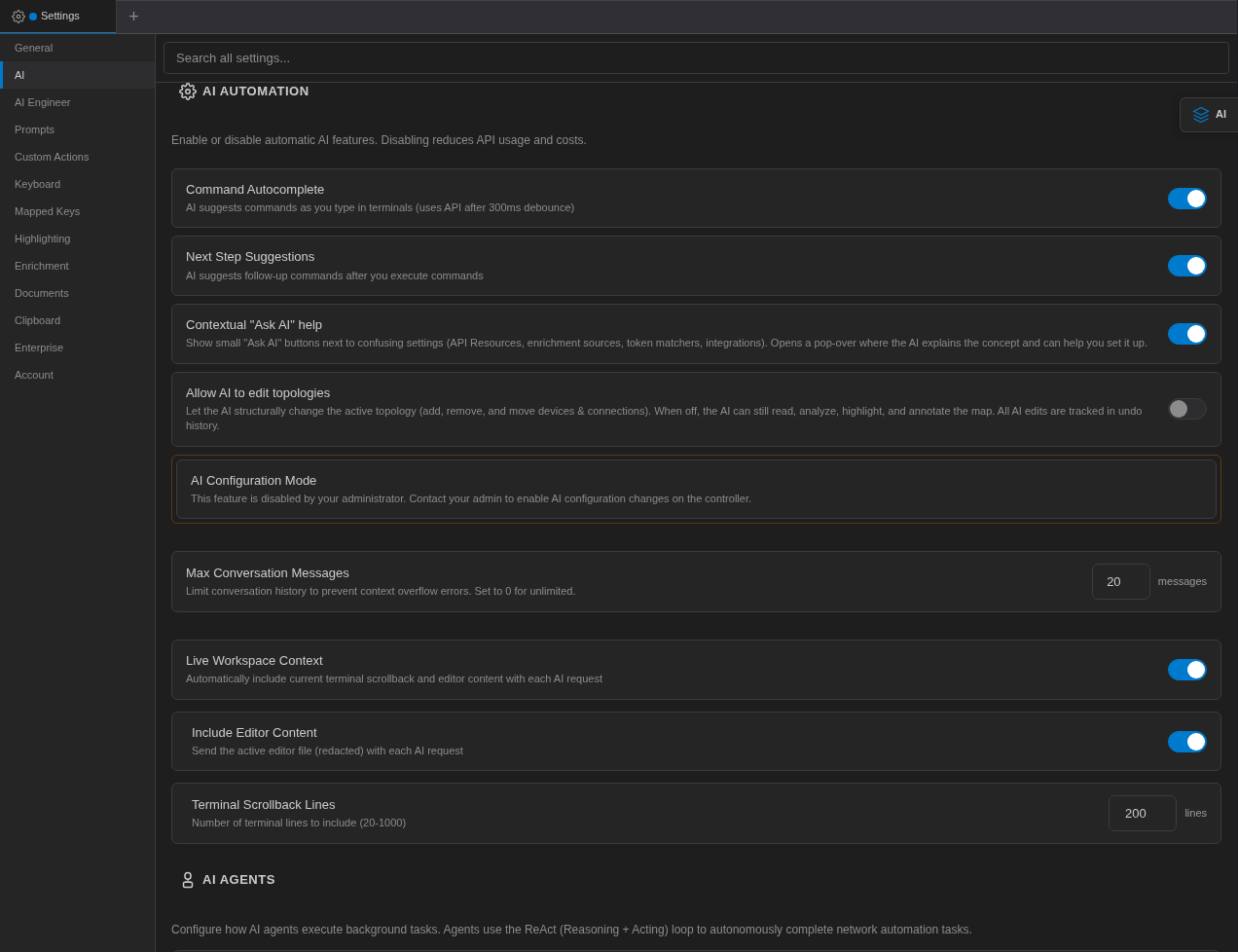
The context settings at the bottom of the AI AUTOMATION section.
Conversation Length
Max Conversation Messages (Settings → AI → AI AUTOMATION) limits how many earlier messages are sent with each request, to prevent context-overflow errors on long chats. The default is 20; set 0 for unlimited. Older messages are dropped from the request, not deleted from the conversation.
AI Memory
AI Memory holds facts the AI should remember across conversations — change windows, which switch is the spanning-tree root, quirks of a particular box. The AI can save a memory itself when you tell it something worth keeping (these are marked auto-saved), and can look memories up when answering.
Manage memories in Settings → AI → AI Memory:
- Type in Add a memory..., pick a category (general, network, device, procedure, preference) and click Add.
- Filter with All categories.
- Edit (✎) or delete (×) any entry.
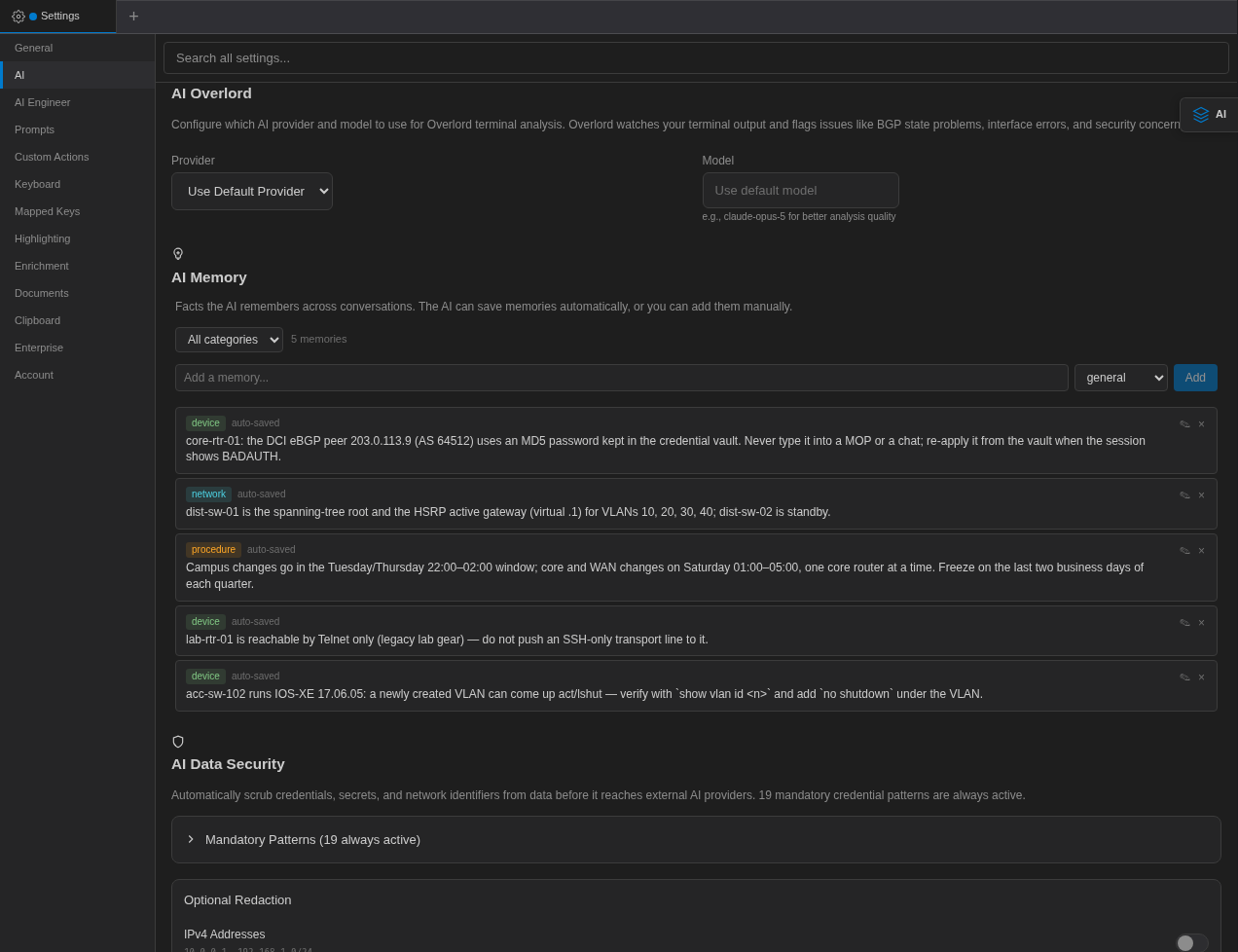
The AI Memory list. In the standalone Terminal the 30 most recently updated memories are included with every agent request.
Device Memory & Device Context
For knowledge tied to one device, open the session's Session Settings and use the Device Memory and Context tabs (they appear for saved sessions when AI tools are enabled; in enterprise mode they are also in the device editor).
- Device Memory — role, criticality, standing instructions (for example "Never reload without CAB approval") and notes, which are always included when the AI works with that device, plus a list of dated memories.
- Context — team notes about past issues: Issue / Topic, Root Cause, Resolution, Helpful Commands and Ticket Reference.
When you connect to a session that has context, NetStacks shows a Team Knowledge Available popup. Both kinds of device knowledge are added to the AI's instructions in the AI panel, the floating "Ask AI" chat and the inline AI popup. In enterprise mode they are stored on the Controller against the device and shared across the organization.
See Device Memory for the full editor.
Documents Overview
The AI receives a compact summary of your Documents (categories and counts) so it knows what it can search and read with its document tools. Secure Notes are marked as encrypted and the AI is told never to quote them.
Saved Conversations
AI panel conversations are saved automatically and titled from your first message. Click Chat history in the panel header to reopen or delete one (Delete conversation), and New chat to start fresh. When you reopen the panel, your last conversation is resumed. In enterprise mode, history is stored on the Controller under your account.