Token Budget & Usage
Track and limit AI token consumption: per-response limits and usage counters in the Terminal, and the monthly token budget and Token Analytics on the Controller.
Overview
AI providers bill by tokens. NetStacks gives you two levels of control:
- Terminal (both modes) — caps on response length and conversation history, plus usage counters.
- Controller (enterprise) — a monthly token budget with warning and hard limits, and a Token Analytics dashboard.
Limits in the Terminal
- Max Tokens per provider (standalone: Settings → AI → provider card) caps the length of each response from the AI assistant. The default is 4096; Ollama defaults to 0 (no limit sent).
- Max Conversation Messages (Settings → AI → AI AUTOMATION) limits how much chat history is sent with each request. Default 20; 0 means unlimited. Older turns are dropped first.
- Live Workspace Context → Terminal Scrollback Lines controls how much terminal output is included with each request (default 200).
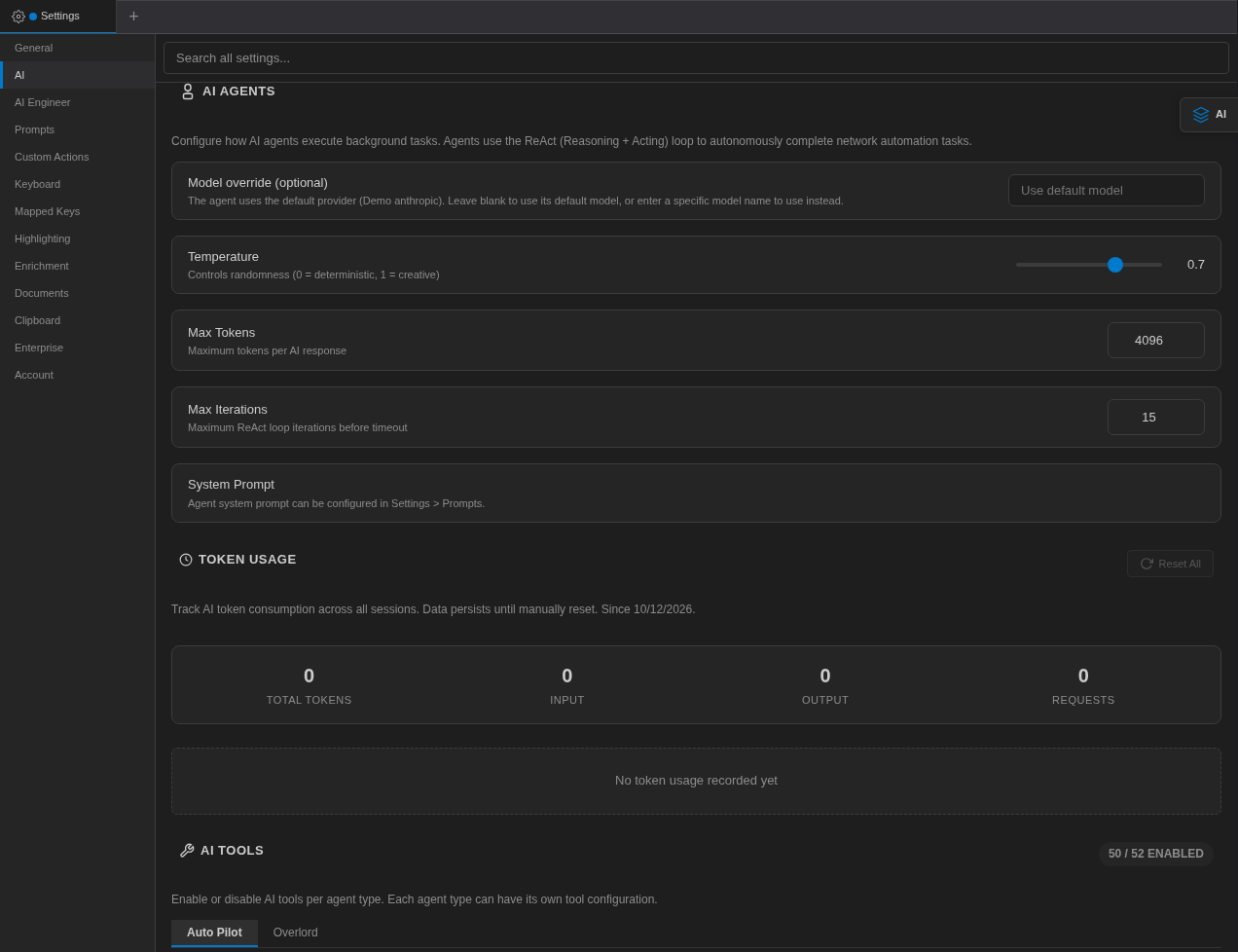
- Background agents have their own Max Tokens and Max Iterations in Settings → AI → AI AGENTS.
- Turning off Command Autocomplete, Next Step Suggestions or AI Highlights reduces background requests.
Usage Counters in the Terminal
After the first request in a chat, the AI panel header shows a clock icon with the total tokens for that chat. Hover it for In / Out / Requests; click Reset token counter to zero it.
Settings → AI → TOKEN USAGE keeps running totals — Total Tokens, Input, Output and Requests, plus a row per provider. Use Reset All (or a provider's reset) to start over. These totals are stored locally on this machine and persist until you reset them.
Controller Monthly Budget Enterprise
The Controller has one monthly token budget that covers the whole Controller. Usage is counted per calendar month (UTC) and resets on the 1st. Administrators see a banner in the admin console when usage reaches the warning threshold (amber, dismissible) or exceeds the hard limit (red), with a link to the analytics.
Set the Budget Enterprise
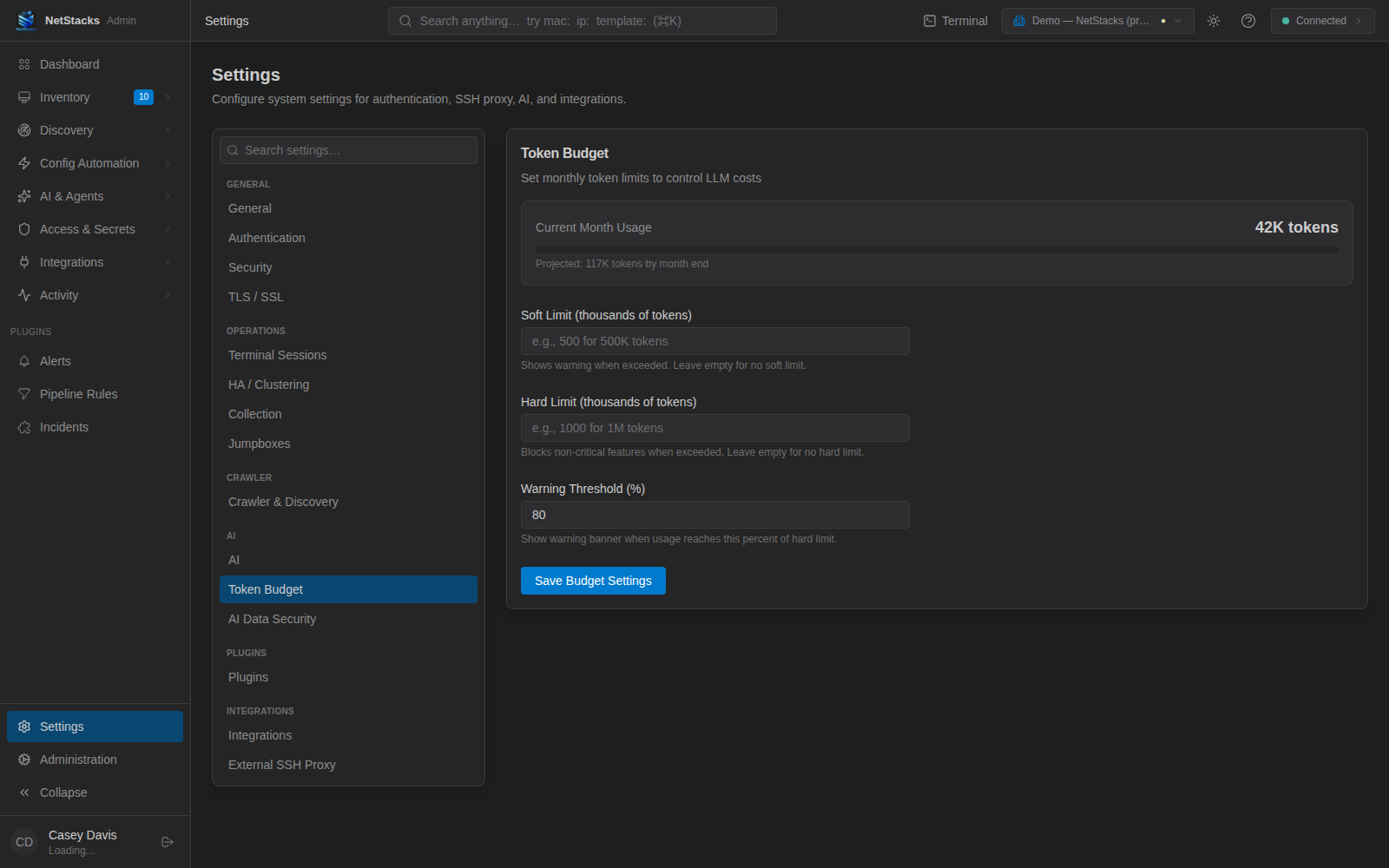
- In the admin console, open Settings → Token Budget.
- Review Current Month Usage and the projected month-end total.
- Enter a Soft Limit (thousands of tokens) — a warning when exceeded — and/or a Hard Limit (thousands of tokens), which blocks non-critical AI features when exceeded. Leave either empty for no limit. Values are in thousands:
500means 500,000 tokens. - Set the Warning Threshold (%) — the banner appears when usage reaches this percentage of the hard limit (default 80).
- Click Save Budget Settings.
What the Budget Covers Enterprise
The budget counts, and the hard limit applies to, these features (as named in Usage by Feature):
| Feature name | What it is |
|---|---|
chat | Controller AI Chat in the admin console (and plugin AI requests). |
terminal_chat | One-shot Terminal AI requests sent through the Controller, such as troubleshooting session summaries. |
terminal_agent | Non-streaming Terminal agent-chat requests. |
terminal_script_gen | AI Script Generator. |
terminal_highlight_analysis | AI Highlights analysis of terminal output. |
terminal_rag_summarize | Summarizing session output before it is added to the knowledge base. |
Token Analytics Enterprise
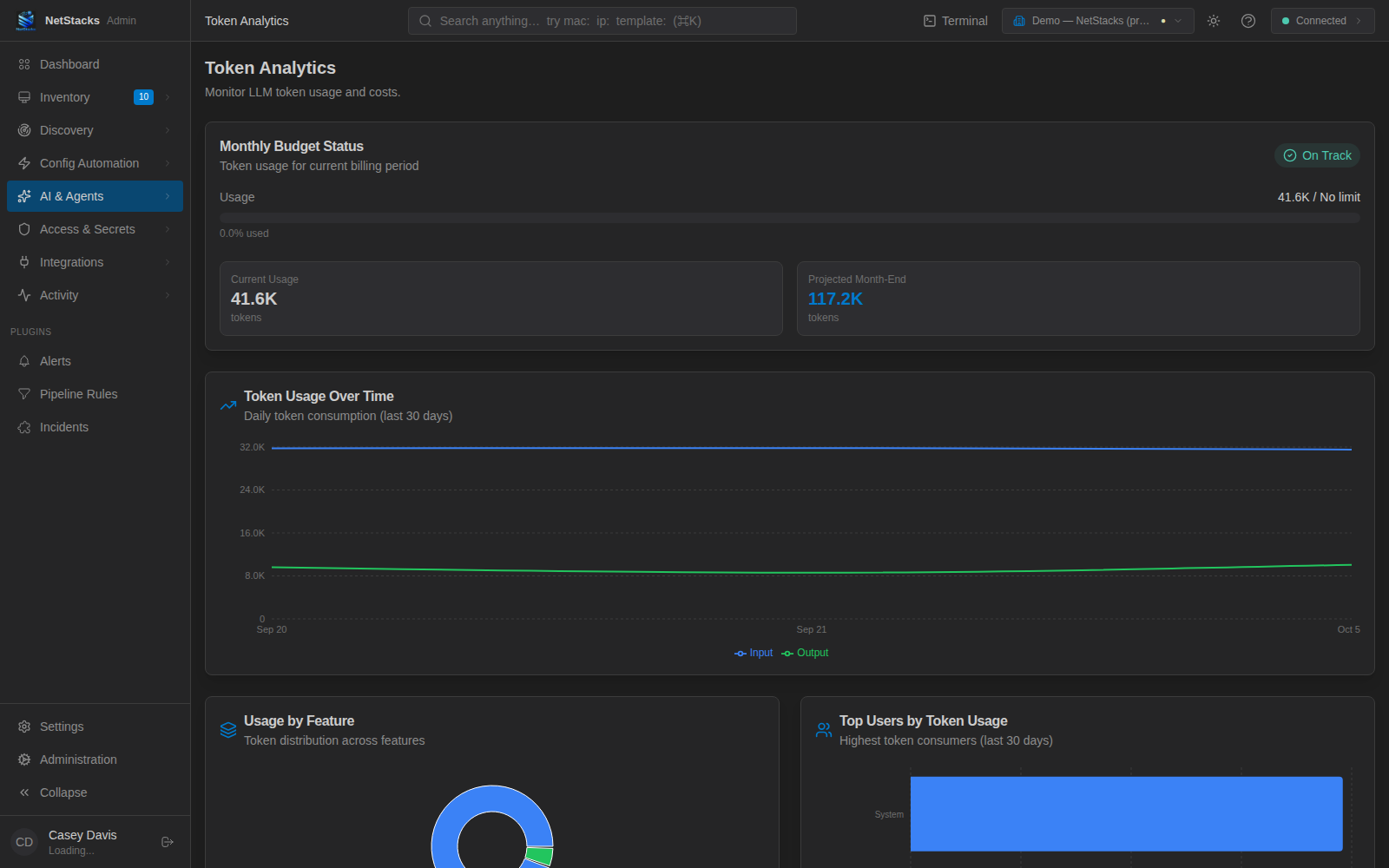
Open AI & Agents → Token Usage (/ai/usage). The Token Analytics page shows:
- Monthly Budget Status — On Track, Warning, Soft Limit Exceeded or Hard Limit Exceeded, with a usage bar, current usage and projected month-end.
- Token Usage Over Time — daily input and output tokens for the last 30 days.
- Usage by Feature — share of tokens per feature.
- Top Users by Token Usage — highest consumers over the last 30 days.
- Usage by Provider — tokens, requests and estimated cost per provider.