
Inline AI: Suggestions, Ask AI & Editor AI
AI features that work outside the chat panel: command autocomplete, next-step suggestions, the terminal right-click AI menu, Tab-to-fill form fields, inline editor edits, the script generator and other AI buttons.
Overview
Besides the AI panel, NetStacks uses the AI in small, focused places while you work. All of these features work in both standalone and enterprise mode (desktop and web terminal) and use the default provider configured in AI Providers & Models. If no AI is configured, the background features simply stay silent.
Turning Features On and Off
The automatic features each send requests to your provider, so they can be switched off in Settings → AI → AI AUTOMATION ("Disabling reduces API usage and costs.").
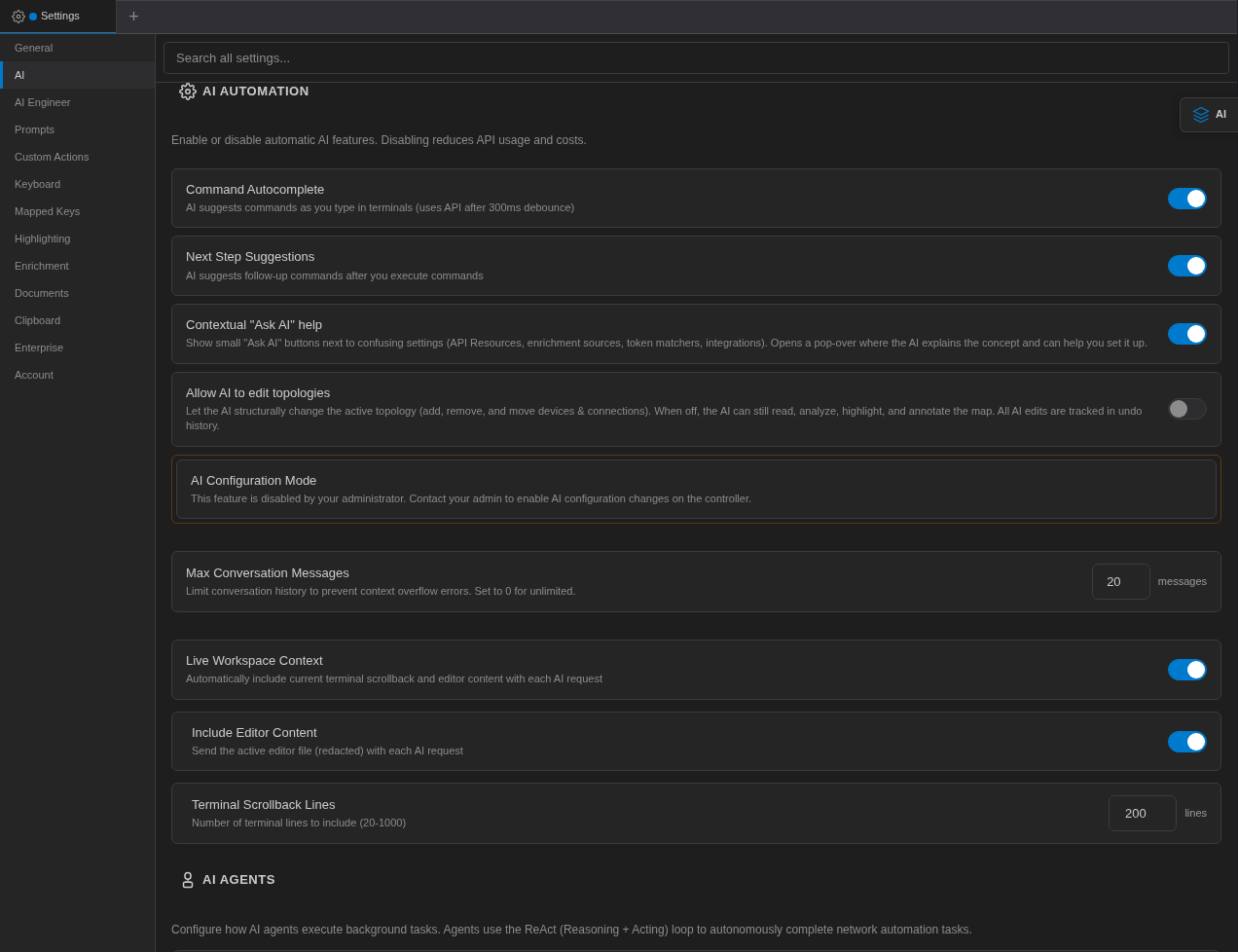
| Setting | Default |
|---|---|
| Command Autocomplete | On |
| Next Step Suggestions | On |
| Contextual "Ask AI" help | On |
| Allow AI to edit topologies | Off |
Command Autocomplete
As you type at least two characters in a terminal and pause for 300 ms, NetStacks asks the AI to complete the command, using the recent terminal output and the session's CLI flavour (for example Cisco IOS, IOS-XR, NX-OS, Juniper, Arista, Palo Alto, Fortinet or Linux).
- The suggestion appears as grey ghost text after the cursor with a small Tab hint.
- Tab accepts it — the remaining characters are typed, but Enter is not pressed.
- Esc dismisses it; pressing Enter clears it.
Next Step Suggestions
After a command finishes and the prompt returns, a Suggested Next Steps panel can appear with three follow-up commands. Each row shows a category — Verify, Related, Diagnose or Document — the command, a short description and a confidence dot.
- Click a row to type that command into the terminal (it is not executed until you press Enter).
- The panel hides when you start typing; × (Dismiss) closes it.
Terminal Right-Click AI Menu
Right-click in a terminal to get these items:
| Item | What it does |
|---|---|
| Ask AI | Opens a small floating chat next to the pointer (placeholder Ask about <session>...), seeded with any selected text. |
| AI: Explain | Available when text is selected. Opens a movable, resizable popup that immediately asks the AI to explain, fix/debug or suggest what to do with the selection. Ask follow-up questions in the popup. |
| AI: Fix/Debug | |
| AI: Suggest |
Both the floating chat and the popup have Continue in panel to move the conversation into the full AI panel. They use the same tools as the panel and run them without the approval box; closing them stops the agent.
Tab-to-Fill Form Fields
Many text fields across NetStacks show a TAB ✨ badge when they are empty and focused. Press Tab and the AI writes a value from the field's purpose, the other values already in the form and your current session or device.
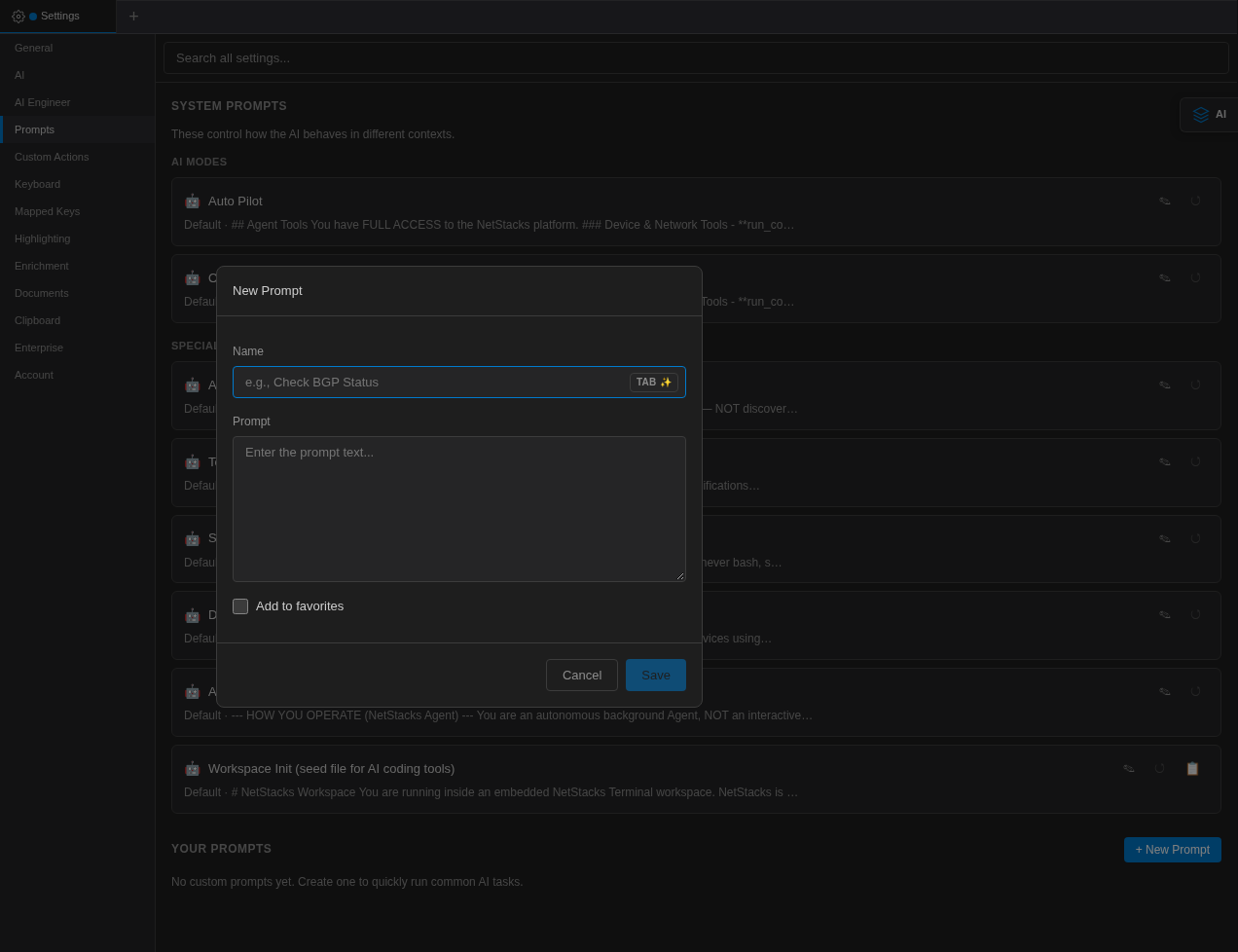
You'll find it in MOP names, descriptions and tags, troubleshooting session names, agent definitions and prompts, scheduled task prompts, script names, device memory and context fields, alert and incident comments, stack and template fields, workspace git commit messages, snippets and more.
Contextual "Ask AI" Help
Next to settings that are easy to get wrong — API Resources, enrichment sources and token matchers, integrations, NetBox sources and the Setup Wizard — a small ✨ Ask AI button ("Ask the AI to explain this and help you set it up") opens a floating chat that explains the concept and helps you fill it in. Several of these screens are only in the standalone Terminal. Switch the buttons off with Contextual "Ask AI" help.
Inline AI Edit in Editors (Cmd/Ctrl+I)
In code editors — the script editor, document editor, config template editor, backup history viewer and workspace editor — press Cmd/Ctrl+I to open an inline instruction box (Describe the edit...):
- Select the code to change, or place the cursor where new code should go.
- Press Cmd/Ctrl+I, describe the edit and press Enter.
- The change is applied and highlighted with the bar AI edit applied — review the highlighted changes. Click Accept or Reject.
In Markdown and plain-text files, Cmd/Ctrl+I opens the AI popup with your selection instead. The floating Scratchpad has a similar right-click AI Edit… item that rewrites the selection (or the whole note); undo with Cmd/Ctrl+Z.
AI Script Generator
Press Cmd/Ctrl+Shift+G or run AI: Generate Script from the command palette to open the AI Script Generator. Describe what the script should do ("Describe what you want the script to do:"), or click one of the examples such as Backup running configs from all network devices, then Generate. The generator always writes Python.
Use Edit in Panel to refine it or Save to store it as AI Script: <prompt>. In the standalone Terminal, saved AI scripts must be approved before they can run (see Safety).
AI Buttons Elsewhere
- Documents — AI Enhance ("Use AI to analyze and enhance this document") rewrites a document into structured Markdown and saves it. It is not offered for Secure Notes, CSV or JSON documents.
- MOPs — AI Review, AI Complete MOP, per-section AI suggestions, Parse with AI, Fill All Descriptions, expected-output generation, a pre-flight risk rating, AI Pilot execution and Run AI Analysis. See Method of Procedures.
- Topology — right-click items such as Discuss this topology with AI, Ask AI about this link, AI: Analyze Device and AI: Troubleshoot open the AI panel with a prepared prompt. See Topology.
- Config backups (enterprise) — right-click in the backup history viewer for AI: When did this change?, AI: Investigate change (MOP, audit), AI: Explain this config and AI: Impact analysis.
- Troubleshooting sessions — the AI writes the report at the end. See Troubleshooting Sessions.