Web Sources (Documentation Crawler)
EnterpriseCrawl documentation websites into the Controller knowledge base so the AI can search vendor guides, internal wikis and standards.
Overview
A web source is a website the Controller crawls into the knowledge base. Each crawled page becomes a document that is sanitized, chunked and indexed for AI search — useful for vendor configuration guides, carrier portals and internal wikis.
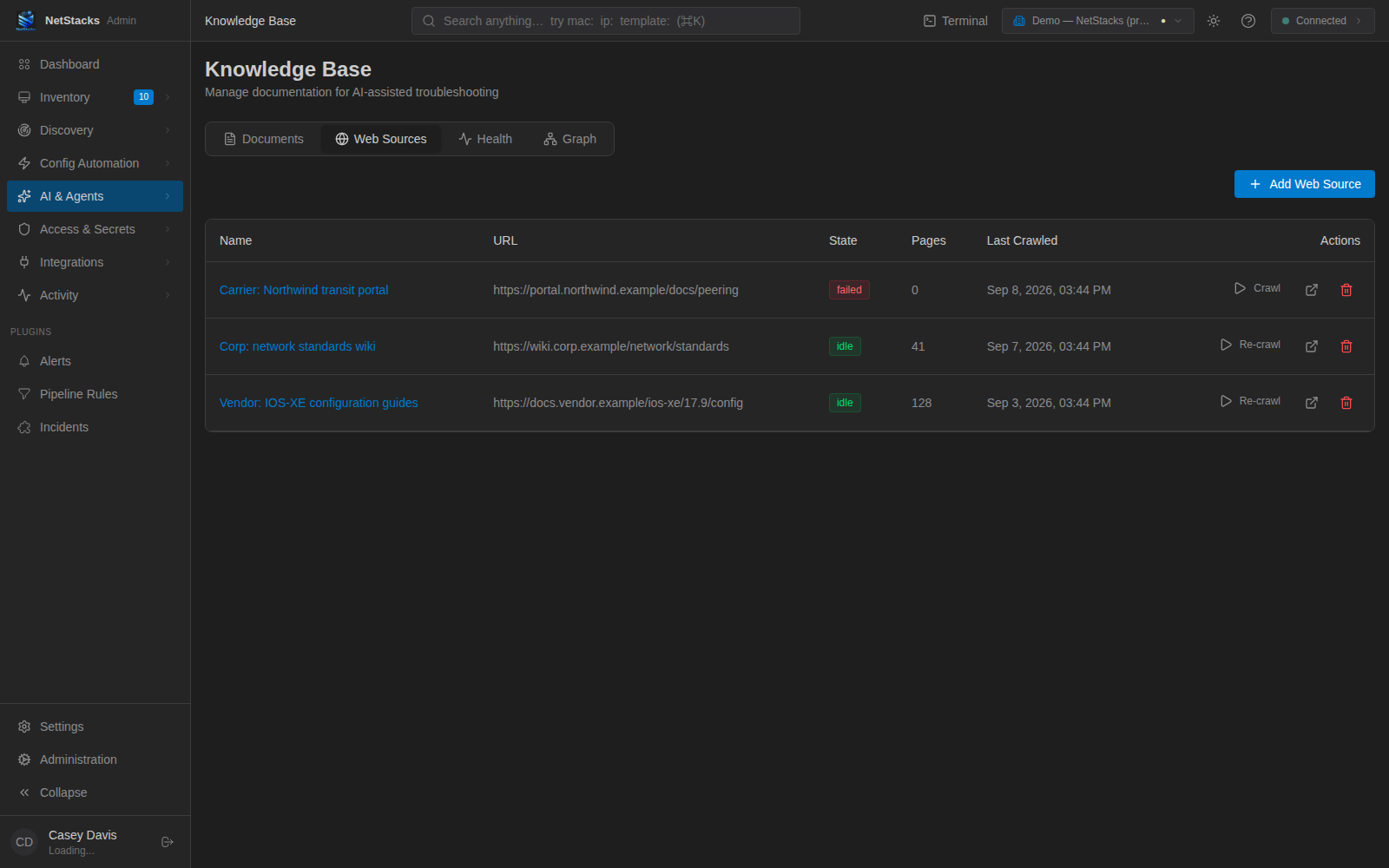
Open AI & Agents → Knowledge and select the Web Sources tab. The table shows Name, URL, State (idle, crawling or failed), Pages, Last Crawled and actions (Crawl / Re-crawl, open, delete).
Add a Web Source
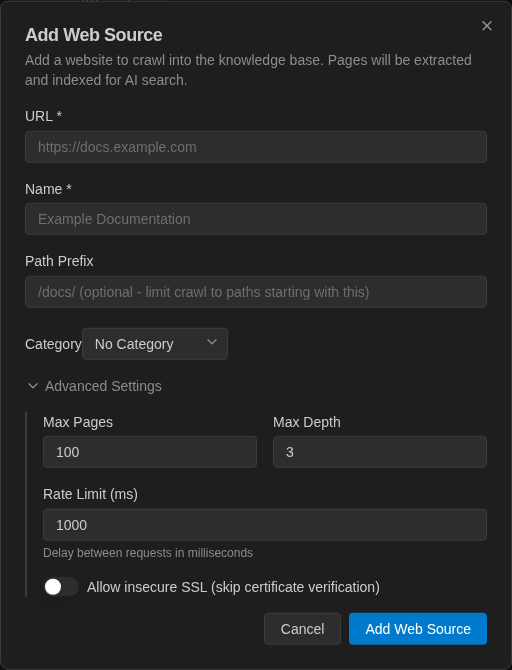
- Click Add Web Source.
- Enter the starting URL (e.g.
https://docs.example.com) and a Name. - Optionally set a Path Prefix (e.g.
/docs/) to limit the crawl to paths that start with it, and a Category. - Expand Advanced Settings to tune:
Field Meaning Max Pages Maximum pages to fetch per crawl (1–1000). Max Depth How many links deep to follow from the start URL (1–10). Rate Limit (ms) Delay between requests, in milliseconds. Allow insecure SSL (skip certificate verification) For internal sites with self-signed certificates. - Click Add Web Source.
Run a Crawl
Crawls run on demand. Click Crawl (or Re-crawl for a source that has been crawled before) in the table, or Crawl Now / Re-crawl on the source's detail page. Re-crawl whenever the site changes and you want the knowledge base to catch up.
What the Crawler Does
- Starts at the URL and follows links breadth-first, up to Max Pages and Max Depth.
- Stays on the same site and inside the Path Prefix, including after redirects.
- Fetches HTML pages only (up to 5 MB each) and converts them to text. PDFs and other files are skipped.
- Identifies itself with the User-Agent
NetStacks-Crawler/1.0. - On a re-crawl, unchanged pages are skipped, changed pages are re-indexed, and pages no longer found during a complete crawl are removed from the knowledge base.
Web Source Details
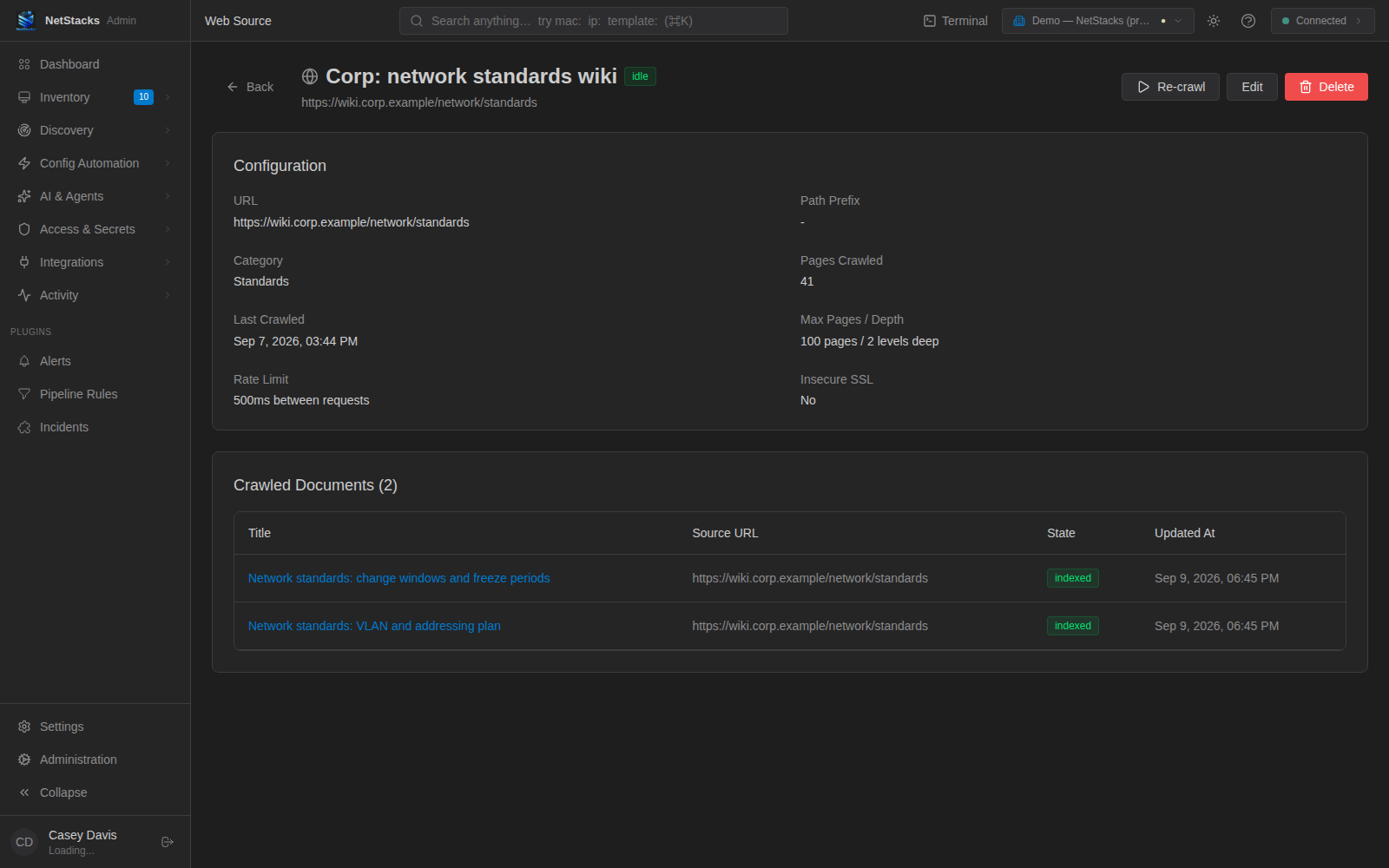
Click a source's name to open its detail page: the Configuration (URL, path prefix, category, pages crawled, last crawled, max pages / depth, rate limit, insecure SSL) and the list of Crawled Documents with their index state. If the last crawl failed, a Last Crawl Error banner explains why. Use Edit to change settings (the URL cannot be changed after creation) or Delete to remove the source.
Tips & Troubleshooting
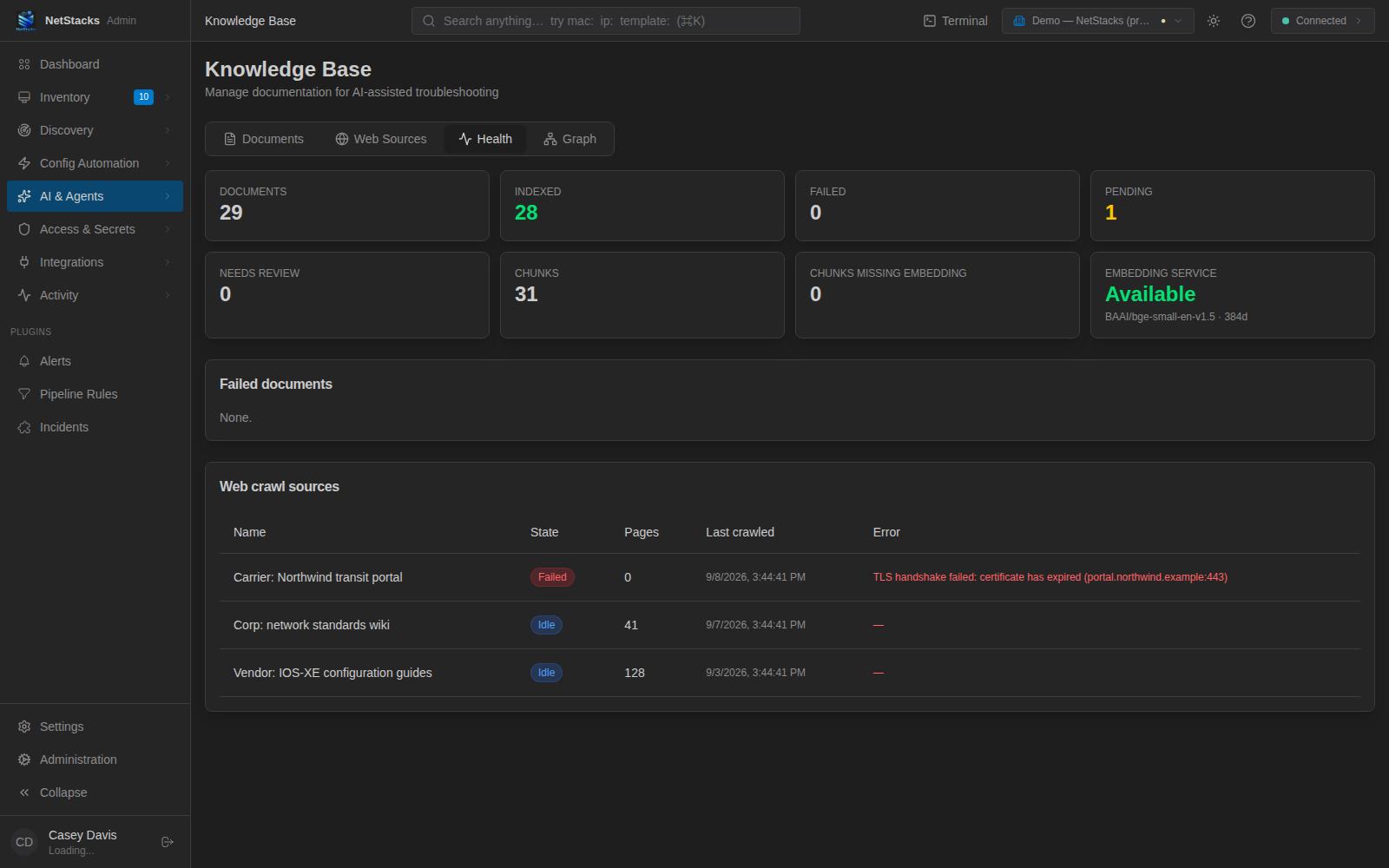
- Crawl failed — the error is shown on the detail page and in the knowledge base Health tab (for example an expired TLS certificate). For internal sites with self-signed certificates, enable Allow insecure SSL.
- Too much content — tighten the Path Prefix and lower Max Depth so only the relevant section is indexed.