
Safety, Approvals & AI Configuration Mode
The layers that limit what the NetStacks AI can do on your devices: approvals, the read-only command filter, AI Configuration Mode, AI Terminal Mode, the bash deny list and AI-generated script approval.
Overview
Several independent layers decide what the AI assistant may do. They apply regardless of which mode or permission you pick:
| Layer | What it controls | Where |
|---|---|---|
| Approvals | You approve command-type tool calls before they run | Ask permission, both modes |
| Read-only command filter | Only read-only device commands are allowed | Standalone Terminal; Controller for background SSH commands |
| AI Configuration Mode | Temporarily lifts the read-only filter for 5 minutes | Both (enterprise: only if the administrator allows it) |
| AI Terminal Mode | Lets the AI write files on hosts over your session | Standalone Terminal, off by default |
| Bash deny list | Blocks destructive local shell commands | Standalone Terminal, Auto Pilot mode |
| Script approval | AI-written scripts can't run until you approve them | Standalone Terminal |
Approvals in Ask Permission
With the permission selector on Ask, command-type tool calls (terminal commands, background SSH commands, local shell commands, remote file writes and console commands) stop in an Approval Required box in the AI panel. Review the session and command, then click Approve / Approve All or Reject. The full list of gated tools is on Modes & Permissions.
Read-Only Command Filter
In the standalone Terminal, every command the assistant wants to type into a terminal tab is checked by the local agent before it is sent. If the check can't be completed, the command is not sent.
- Allowed: commands whose first word is
show,display,get,list,ping,tracerouteortrace. - Blocked: shell metacharacters and chained commands (
;,&,|, backticks,$( ), redirects), multi-line input, vendor shell escapes,configure/conf t,write,reload,erase,format,request system rebootand similar.
A refused command returns this message to the assistant (and you see it in the tool-call row):
Command rejected by read-only filter: … Enable AI Config Mode to allow configuration changes.
terminal length 0 are refused too while the filter is active. NetStacks adds | no-more for Juniper and PAGER=cat for Linux sessions automatically.Background SSH Commands
The assistant can also run read-only commands on a saved session over a separate, background SSH connection (it never sees the credentials). In the standalone Terminal these background commands are always limited to read-only commands, even while AI Configuration Mode is on. In enterprise mode the Controller makes the connection and applies the same read-only filter, unless the user has enabled AI Configuration Mode and the administrator has turned on Allow AI Configuration Changes.
Live Session Guard
NetStacks tracks the state of each terminal (operational or configuration mode, uncommitted changes, waiting prompts). The assistant's commands are refused when a session is waiting at an interactive prompt (such as a confirmation or password prompt), and exit or commit commands are refused while a configuration session has uncommitted changes, so the AI never answers a prompt or commits work on your behalf.
AI Configuration Mode
AI Configuration Mode is the only way to let the assistant send configuration commands to devices. It is time-limited: it switches itself off after 5 minutes, and you can revoke it at any moment. It is found in Settings → AI → AI AUTOMATION → AI Configuration Mode.
While it is active, the assistant is also told it is in configuration mode, and its instructions still require it to confirm changes with you. Combine it with Ask permission so you approve every configuration command.
Standalone: Enable with Your Master Password
- Open Settings → AI and find AI Configuration Mode under AI AUTOMATION.
- Type your vault master password in Master password to enable… (the button stays disabled until at least 12 characters are entered).
- Click Enable for 5 min. NetStacks verifies the password by unlocking the vault.
- The button changes to Disable (Ns left) and a warning reads "AI is currently allowed to send configuration commands. The override expires automatically; click Disable to revoke immediately."
While active, commands the assistant types into your terminal tabs are no longer limited to read-only commands. Background SSH commands stay read-only.
Enterprise: Controller Policy Enterprise
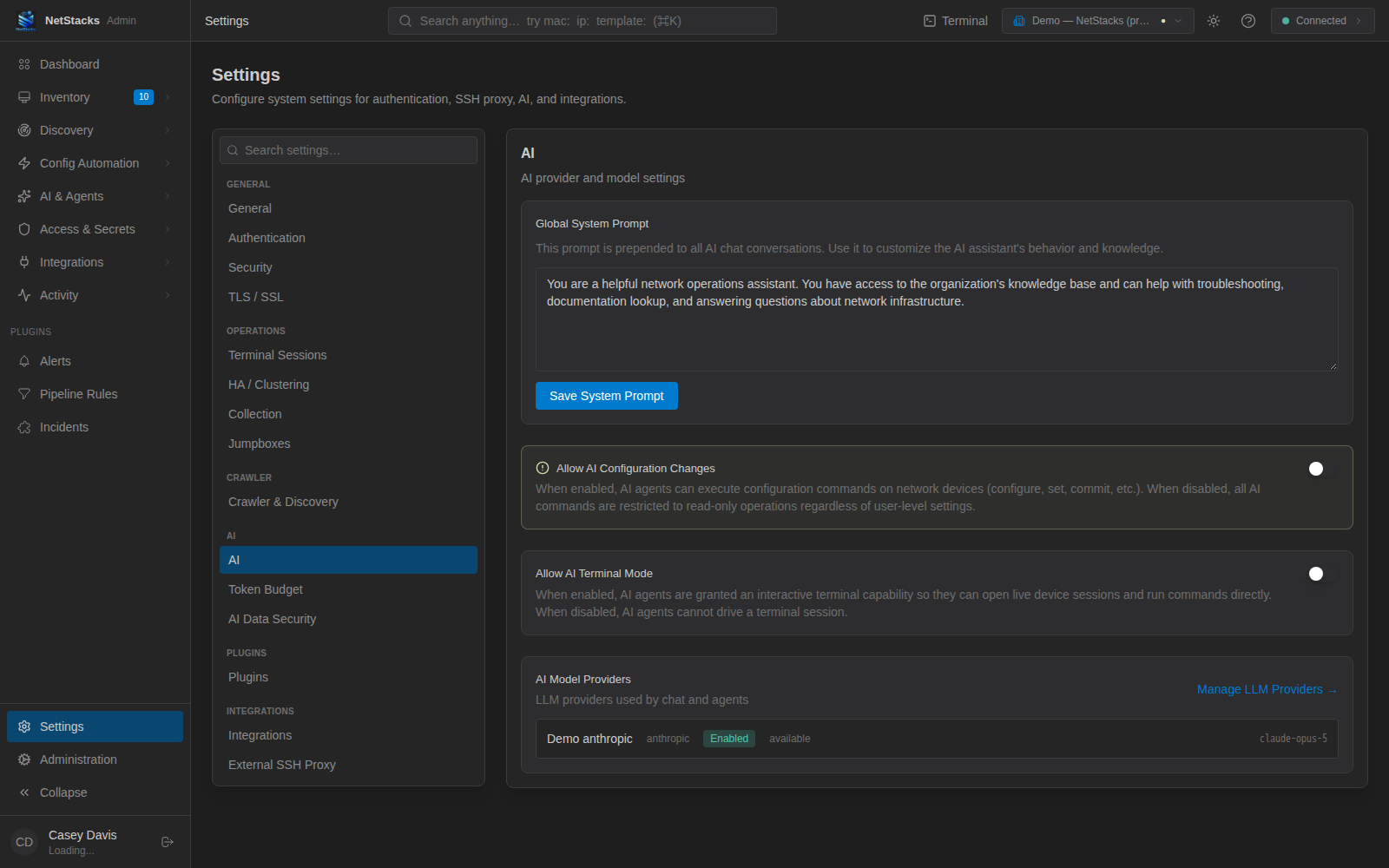
On a Controller, an administrator first decides whether AI configuration changes are allowed at all: admin console Settings → AI → Allow AI Configuration Changes (off by default). When it is off, AI commands sent through the Controller are restricted to read-only operations for everyone.
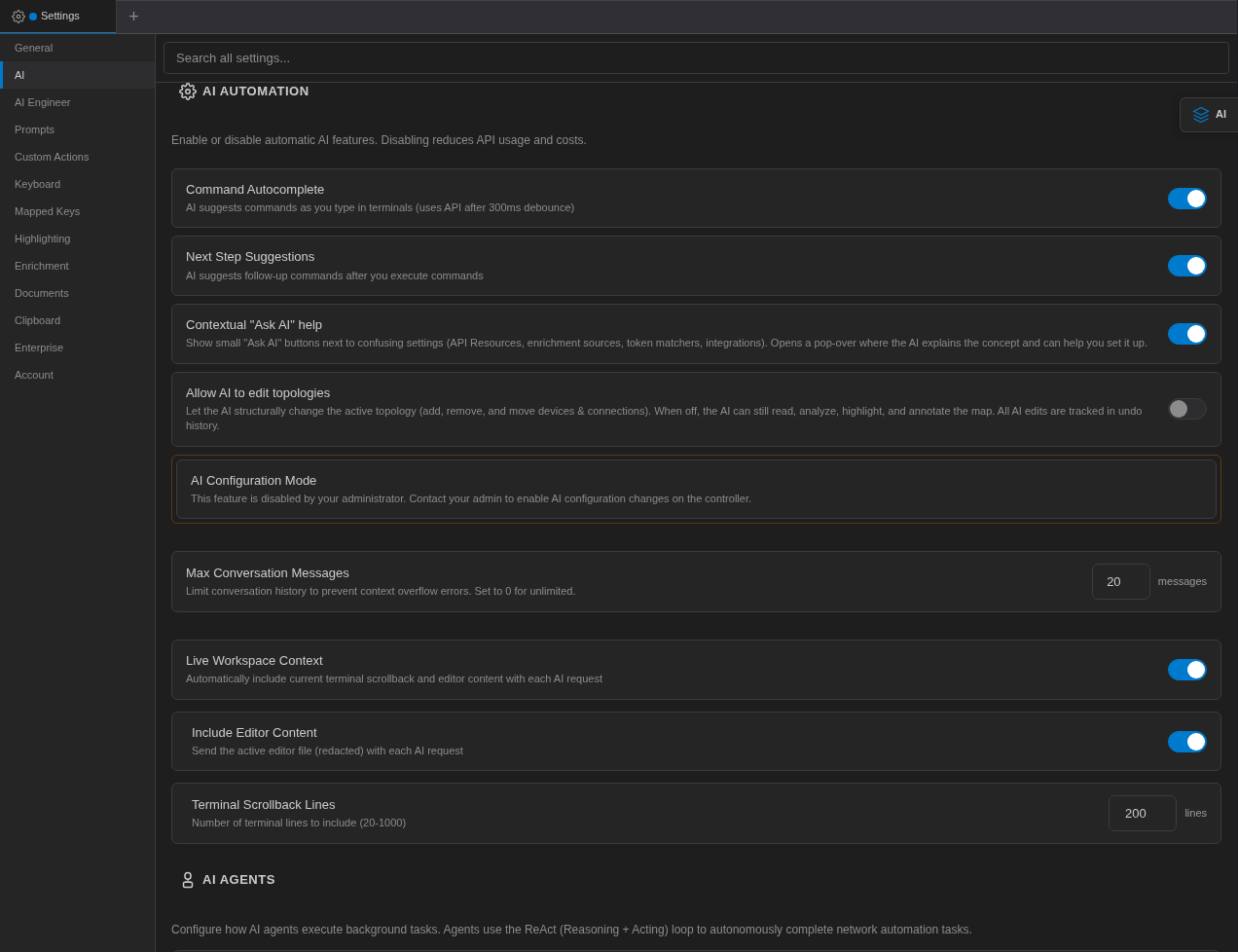
In the Terminal (desktop in enterprise mode, or the web terminal), the AI Configuration Mode card then reads "This feature is disabled by your administrator. Contact your admin to enable AI configuration changes on the controller."
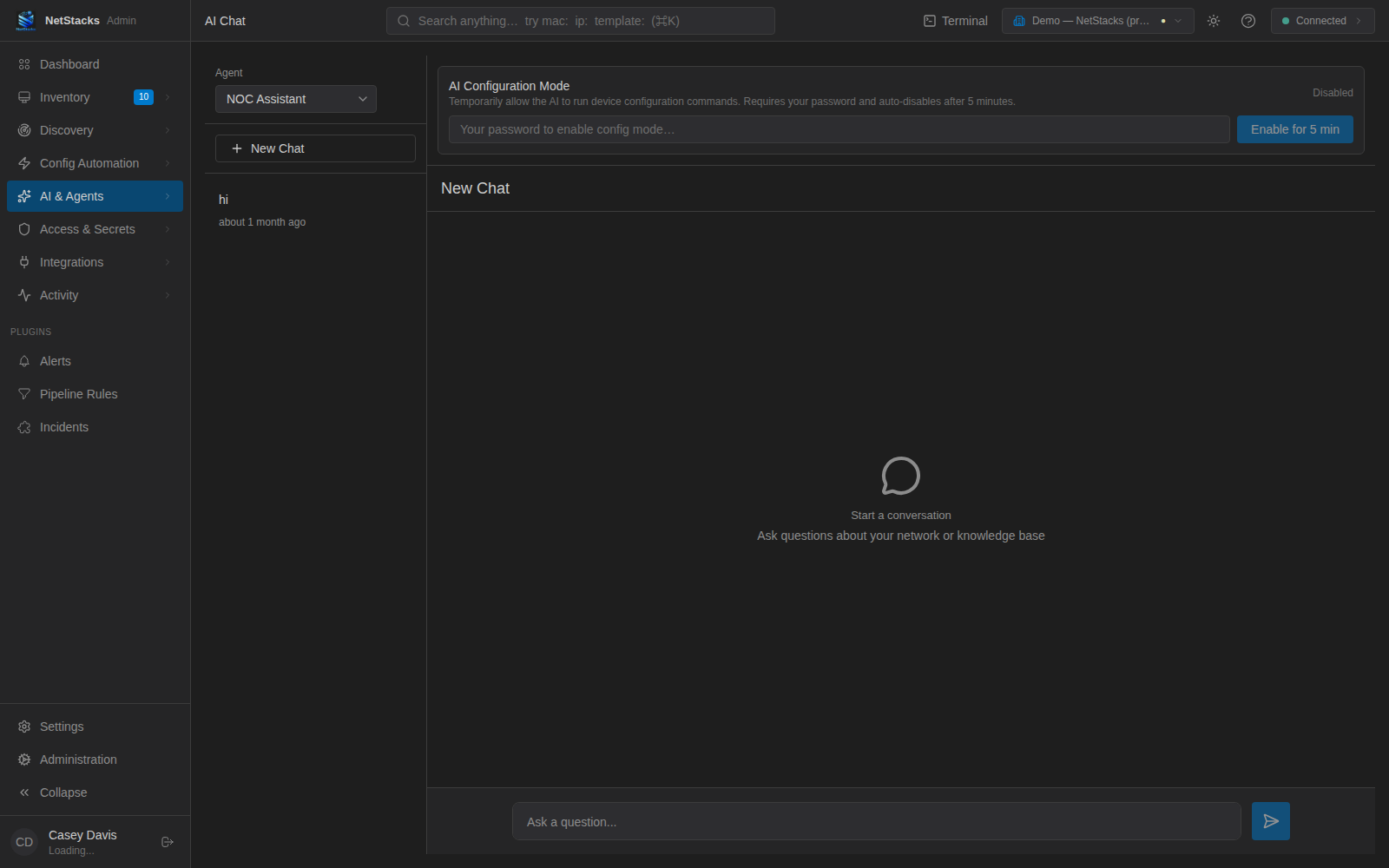
When the administrator allows it, users enable it for 5 minutes with Enable for 5 min in the Terminal (your Controller login is used, no master password). The admin console's AI & Agents → Chat page has the same AI Configuration Mode panel, which asks for your account password.
Enabling and disabling configuration mode, and refused configuration commands, are recorded in the Controller's application logs.
AI Terminal Mode
AI Terminal Mode (standalone, Settings → AI → AI AUTOMATION) gives the assistant three extra tools — write_file, edit_file and patch_file — to change files on connected hosts and devices over SSH. Files are written atomically (to a temporary file, then moved into place). It is off by default; the setting warns "with this on, the AI can change remote filesystems directly. Leave it off unless you need it."
All three tools require approval in Ask permission.
Local Shell Deny List
In Auto Pilot mode the assistant can run shell commands on your own computer. The local agent refuses destructive commands (including rm, rmdir, shred, mkfs, fdisk, dd, shutdown, reboot, kill, killall, sudo, su) and you can add more in Bash Command Deny List. You can also switch the Bash / Shell tool off entirely in AI TOOLS.
AI-Generated Scripts Need Approval
In the standalone Terminal, scripts created by the AI (for example with the AI Script Generator, Cmd/Ctrl+Shift+G) are saved as unapproved. In the script editor a banner explains the script was generated by the AI, and the Run button is replaced by Approve to Run("Review the script content, then approve before running"). Editing an AI script's content removes the approval again, so you always review the final version.
Built-in Safety Rules
Every request includes a fixed set of safety instructions that you cannot edit or remove. The assistant is told to:
- Never guess device state.
- Never run destructive commands (write erase, reload, format, delete startup-config, request system zeroize) without explicit human approval.
- Never send data anywhere except the configured LLM provider.
- Always sanitize credentials.
- Never fabricate CLI output.
- Never bypass change management.
- Verify after every change.
- Always identify itself as AI.
These are instructions to the model; the hard limits are the filters and approvals above. You can add your own rules in your AI Engineer profile.