
AI Providers & Models
Connect NetStacks to an LLM: provider setup in the standalone Terminal (Anthropic, OpenAI, OpenRouter, Ollama, LiteLLM, Custom) and Controller-managed providers with priority and failover.
Overview
NetStacks does not ship with an AI model. You bring your own provider and model:
- Standalone Terminal — each user configures providers in Settings → AI. Requests go from the desktop app straight to the provider; API keys are stored in your local encrypted vault.
- Enterprise — an administrator configures providers once on the Controller. The Terminal (desktop in enterprise mode, or the web terminal) sends AI requests to the Controller, which forwards them to the configured provider.
Standalone Terminal
Everything in this section applies to the desktop app without a Controller. API keys require an unlocked vault; if the vault is locked, AI requests fail with "Vault is locked. Unlock the vault to access AI API keys."
Supported Providers
| Provider | API key | Default base URL |
|---|---|---|
| Anthropic — "Claude models - best for complex reasoning" | Required | https://api.anthropic.com |
| OpenAI — "GPT models - versatile and widely used" | Required | https://api.openai.com/v1 |
| OpenRouter — "Access 200+ models via unified API" | Required | https://openrouter.ai/api/v1 |
| Ollama — "Run AI models locally - no API key needed" | None | http://localhost:11434 |
| LiteLLM — "OpenAI-compatible proxy for any model" | Optional (set it in the Setup Wizard) | http://localhost:4000 |
| Custom — "Connect to any OpenAI-compatible API" | Required (or OAuth2) | You enter it |
Models are bring-your-own: the model names shown in the UI are suggestions only and NetStacks never silently picks one for you. A provider without a model is treated as not configured. There are no native Azure OpenAI, AWS Bedrock or Google AI Studio providers; reach Gemini or Anthropic on Vertex AI through Custom, and other gateways through Custom or LiteLLM in OpenAI-compatible form.
First-Run Setup Wizard
The first time you start the standalone app, the Setup Wizard includes a step titled Set up the AI assistant:
- Pick a Provider (Anthropic (Claude), OpenAI, OpenRouter, Ollama (local), LiteLLM, Custom). A "Need a key? Get one from …" link opens the provider's key page.
- Paste the API key and, if needed, change the Base URL.
- Choose a Model from the live list, or leave it blank to use the first model the provider lists.
- Click Save & test. The key goes into the vault, the provider becomes the default and a connection test runs.
You can re-run the wizard later from the command palette (Setup Wizard) or Settings → General → Re-run Setup Wizard.
Adding a Provider in Settings
Open Settings → AI (Cmd/Ctrl+,). The PROVIDERS section lists every provider as a collapsible row with a status badge (Configured / Testing... / Connected / Error).
- Turn on the provider's Enable <Name> switch (only Anthropic is enabled by default) and expand the row.
- Enter the API Key and click Save Key. The field then shows "(key saved)"; Remove API key deletes it.
- Optionally change the Base URL (for a proxy or gateway) and Verify TLS Certificates (on by default).
- Add models under Models. Use the refresh button ("Refresh model list from provider") to load the provider's live list. The first model in the list is the default; reorder with move up/down.
- Set Max Tokens: (per response; default 4096, Ollama 0 = no limit sent).
- Click Test to send a short message; success reads "Connection successful".
- Click Set as Default to make this the provider used by AI features.
All AI features use the default provider and its default model. The exceptions are the Provider selector in the AI panel, the optional Model override for background agents (AI AGENTS section) and the AI Highlights provider (below).
Custom Provider Options
The Custom provider adds these fields:
- API Format: OpenAI Compatible (
/chat/completions), Gemini / Vertex AI (:generateContent) or Anthropic on Vertex AI (:rawPredict). If left unset, it is detected from the base URL and model name. - Model Name
- Authentication: API Key (Bearer Token) or OAuth2 Client Credentials. OAuth2 adds Token URL, Client ID and Custom Headers; the API Key field is used as the client secret. Tokens are fetched and refreshed automatically — useful for API gateways such as Apigee in front of Vertex AI.
Local and Self-Hosted Models
To keep all AI traffic on your own network:
- Ollama — install Ollama, run
ollama serve, pull a model and enable the Ollama provider. NetStacks detects running Ollama models ("Available Models") or shows "Ollama not detected. Run: ollama serve". - LiteLLM or Custom — point the base URL at your own OpenAI-compatible server.
Separate Model for AI Highlights
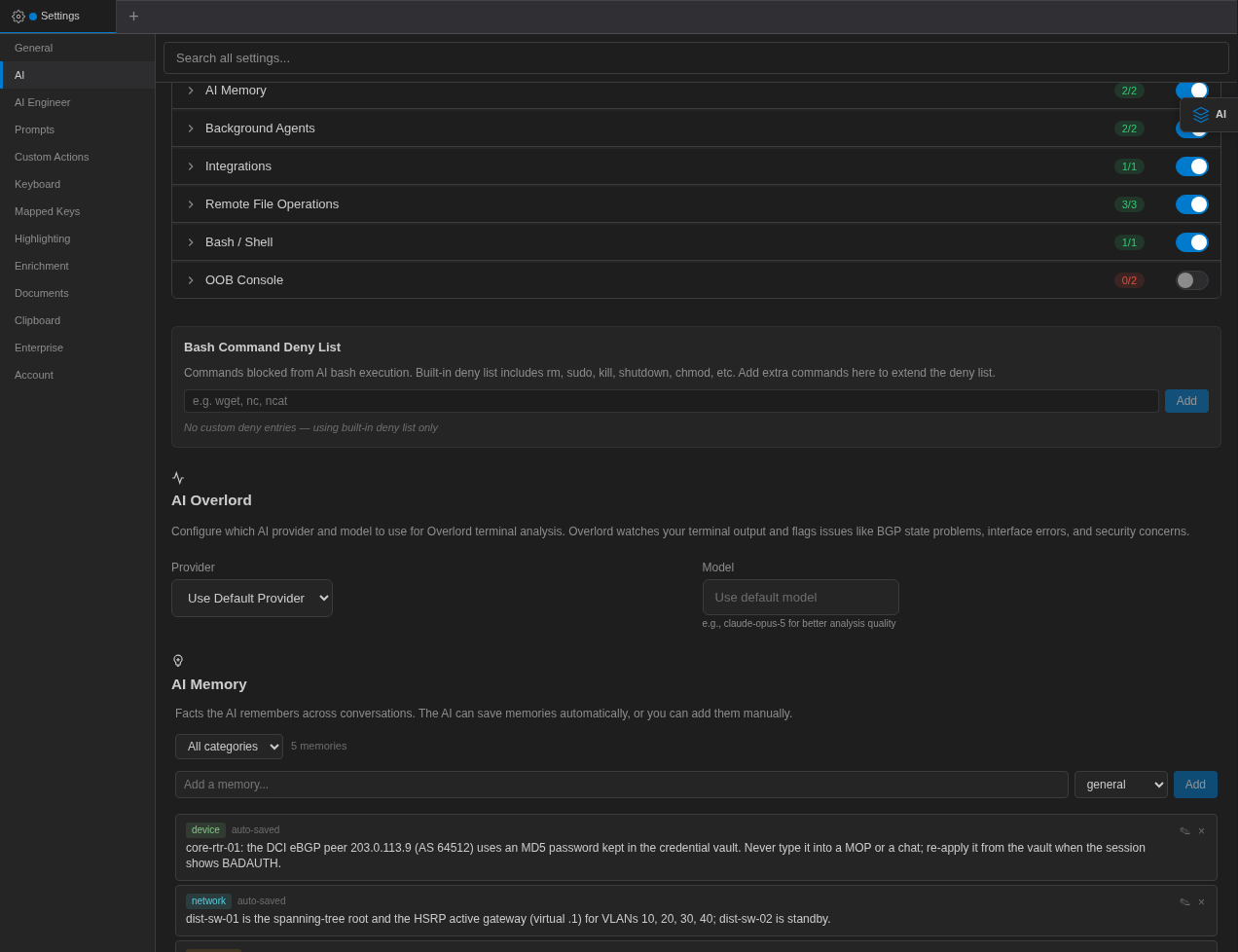
AI Highlights sends terminal output to the AI continuously, so you may want a cheaper or faster model for it. In Settings → AI → AI Overlord choose a Provider ("Use Default Provider" or an enabled provider) and an optional Model.
Controller-Provided AI (Enterprise) Enterprise
On a Controller, providers are configured by an administrator and shared by every organization on that Controller. Supported provider types: OpenAI, Anthropic, Ollama (Local), OpenRouter and Custom (OpenAI-compatible). API keys are encrypted before they are stored and are never shown again.
Open Administration → AI → LLM Providers (/llm-providers), or use Manage LLM Providers → in Settings → AI.
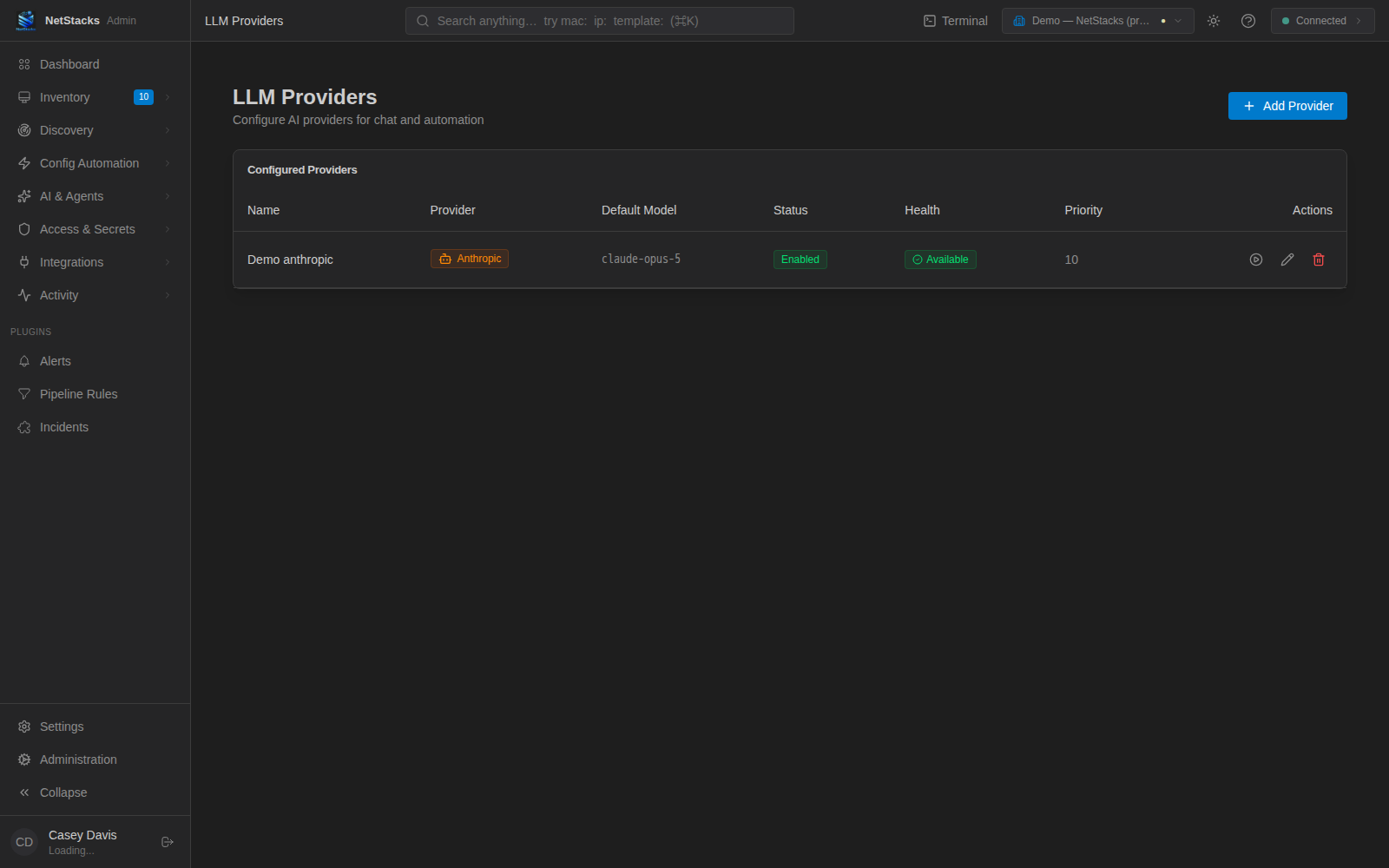
The table shows Name, Provider, Default Model, Status, Health (Available / Degraded / Unavailable) and Priority, with actions to test the connection, edit and delete.
Adding an LLM Provider on the Controller Enterprise
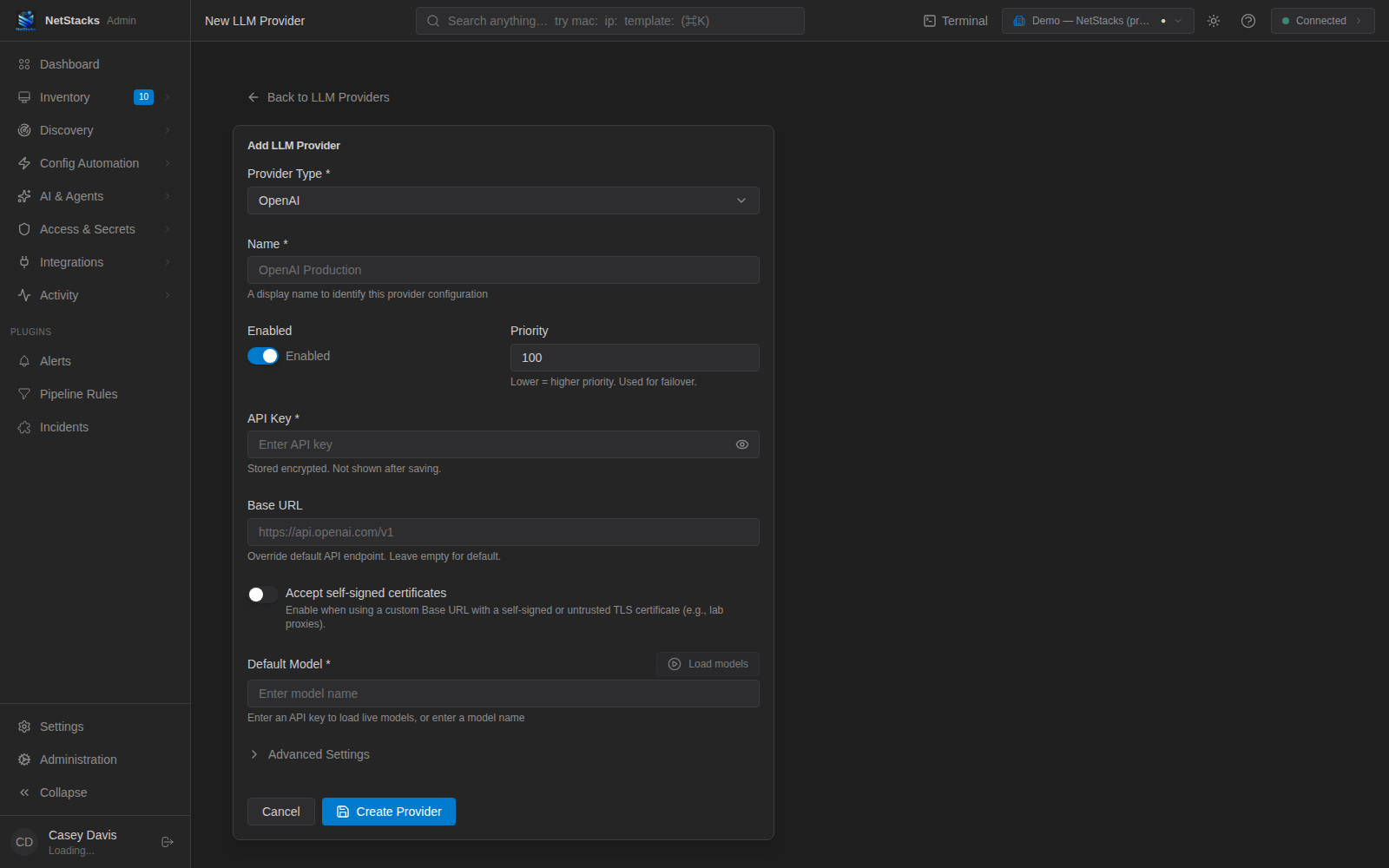
- Click Add Provider.
- Choose the Provider Type (it cannot be changed later) and enter a Name.
- Leave Enabled on and set a Priority ("Lower = higher priority. Used for failover.").
- Enter the API Key ("Stored encrypted. Not shown after saving." — optional for Ollama). For Custom providers, both an API key and a Base URL are required; use any placeholder key if your server doesn't need one.
- Optionally set a Base URL and Accept self-signed certificates (for lab proxies with untrusted certificates).
- Click Load models and choose the Default Model, or type a model name.
- Optionally open Advanced Settings for Max Input Tokens, Max Output Tokens, Temperature and Top P.
- Click Create Provider, then use the test action to check it.
Changes take effect immediately; the Controller does not need a restart.
Default Provider, Priority and Failover Enterprise
- The default provider is the enabled provider with the lowest priority number.
- Requests try enabled providers in priority order. If a provider fails or rate-limits, the next one is tried. A provider that fails repeatedly is skipped for a while and re-checked in the background.
- Each provider answers with its own Default Model.
- An AI Engineer Profile can name a specific LLM Provider; users who select that profile are served by that provider first, with the others as fallback.
What Users See in the Terminal Enterprise
In enterprise mode, Settings → AI in the Terminal hides the provider editors and shows "AI providers are managed by your NetStacks Controller administrator." with the Controller's providers and a Default badge. The rest of the AI settings (automation toggles, tools, memory) remain available as personal preferences.
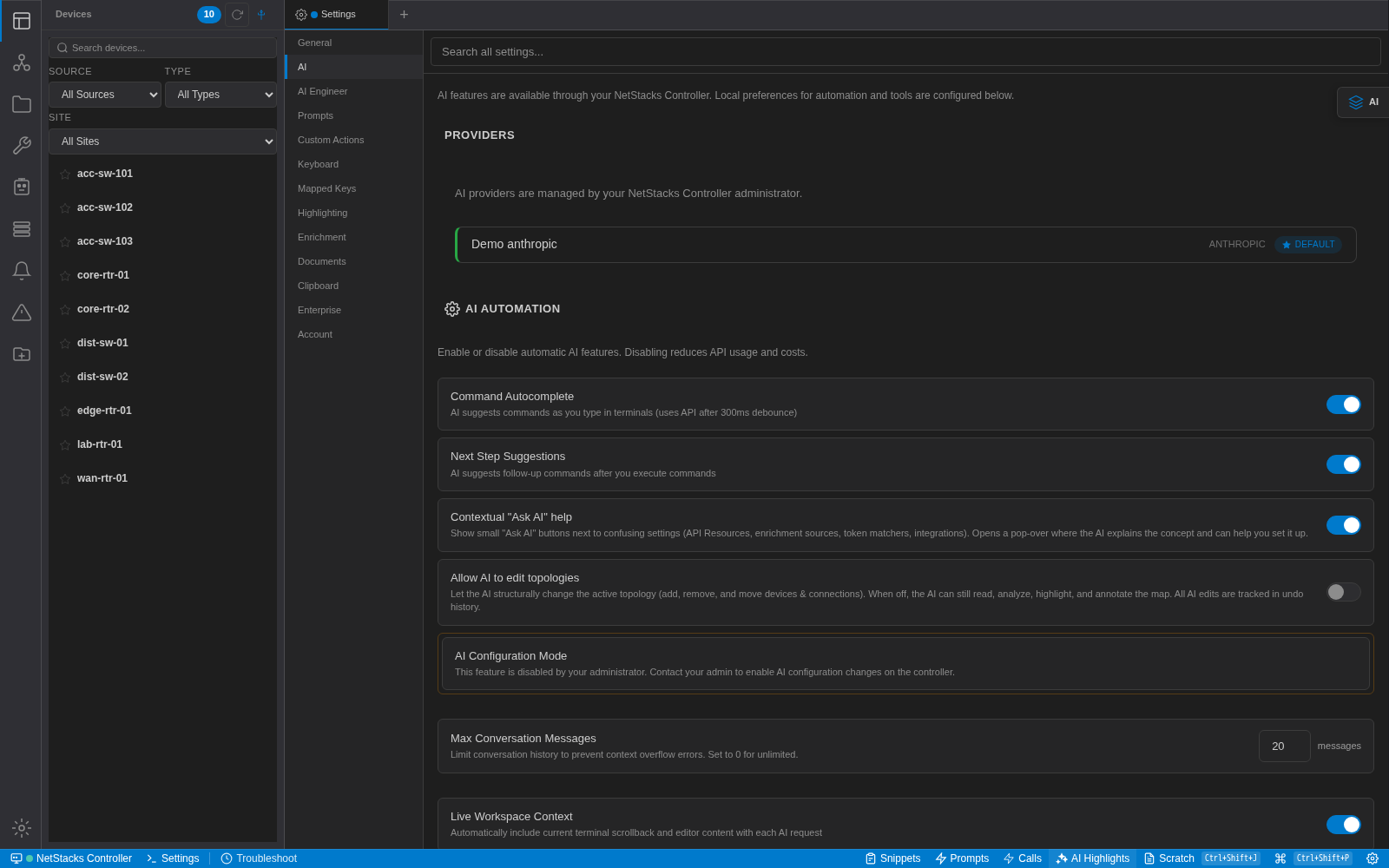
If no provider is configured on the Controller, users see "No providers configured on the Controller. Contact your administrator."
Troubleshooting
- "AI not configured. Add your API key in Settings > AI" — the default provider has no key or no model (standalone).
- "AI is not configured. Configure LLM providers in the Admin UI." — no enabled provider on the Controller.
- Model list is empty — check the API key and base URL, then use the refresh button (standalone) or Load models (Controller). You can always type a model name.
- TLS errors with a proxy — turn off Verify TLS Certificates (standalone) or turn on Accept self-signed certificates (Controller) for that provider.
- "Rate limited by AI provider" — the provider returned HTTP 429.