
Modes & Permissions
How the AI panel's Mode (Auto Pilot / Overlord) and Permission (Ask / Auto / Go Nuts) selectors work, which tool calls need approval, and how to enable, disable or rename tools.
Overview
The input bar of the AI panel has two selectors that shape how the assistant behaves:
- Mode (Auto Pilot / Overlord) — which tool set and default permission the agent starts with.
- Permission (Ask / Auto / Go Nuts) — whether you approve tool calls before they run.
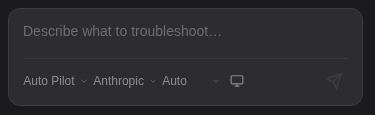
Both apply in standalone and enterprise mode. In the standalone Terminal neither one lets the assistant push configuration to a device — that requires AI Configuration Mode.
Agent Modes: Auto Pilot and Overlord
| Auto Pilot | Overlord | |
|---|---|---|
| Tooltip | "Full access — all tools + bash, runs autonomously" | "Full access — all tools, asks before acting" |
| Default permission | Auto | Ask |
Local shell (run_bash) | Yes (standalone) | No |
| All other tools | Same tool set in both modes (subject to what you disable in Settings) | |
In practice: use Overlord when you want to review each command, and Auto Pilot when you want the agent to work through a task and also be able to run commands on your own machine (for example dig, curl or a Python script). Switching mode resets the permission selector to that mode's default; you can change it afterwards.
rm, sudo, kill, shutdown and dd, and you can add your own entries.Permission: Ask, Auto, Go Nuts
| Permission | What happens |
|---|---|
| Ask | Before the agent runs a turn's tool calls, any command-type call (listed below) appears in an Approval Required box. Nothing from that turn runs until you click Approve / Approve All. Reject (or Stop) skips all of that turn's pending actions and tells the agent you rejected them. |
| Auto | Tool calls run immediately, without an approval box. |
| Go Nuts | Tool calls run immediately, without an approval box. The selector is highlighted as a warning. In the current release Go Nuts behaves the same as Auto. |
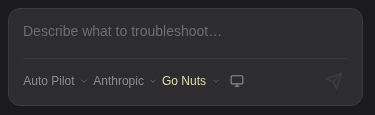
Whatever the permission, the other safety layers stay in force — in the standalone Terminal that means the read-only command filter, the bash deny list and AI Configuration Mode. See Safety, Approvals & AI Configuration Mode.
Which Tool Calls Ask for Approval
In Ask, these tools wait for your approval:
- Run commands in an open terminal tab (
run_command) - Run commands over a background SSH connection (
ai_ssh_execute) - Run local shell commands (
run_bash) - Write, edit or patch a file on a remote host (
write_file,edit_file,patch_file) - Open a console tab and run console commands (
open_console,run_console_command)
Other tools run without a prompt in every permission — for example reading scrollback, searching and saving documents, creating MOPs, writing details onto topology devices, calling your API Resources, saving memories and starting background agent tasks. If you don't want the assistant to use a tool at all, switch it off in AI TOOLS. Onboarding devices from an API response always shows its own Onboard devices? confirmation.
Choosing a Combination
| Situation | Suggested setting |
|---|---|
| Production devices, you want to see every command first | Overlord + Ask |
| Read-only investigation in the standalone Terminal, relying on the command filter | Auto Pilot + Auto |
| Scripted lab work that also needs local shell commands | Auto Pilot + Auto |
| A planned change in a maintenance window | Overlord + Ask, plus AI Configuration Mode for 5 minutes |
Enabling and Disabling Tools
Open Settings → AI and scroll to AI TOOLS. The header shows how many tools are enabled (for example 50 / 52 ENABLED).
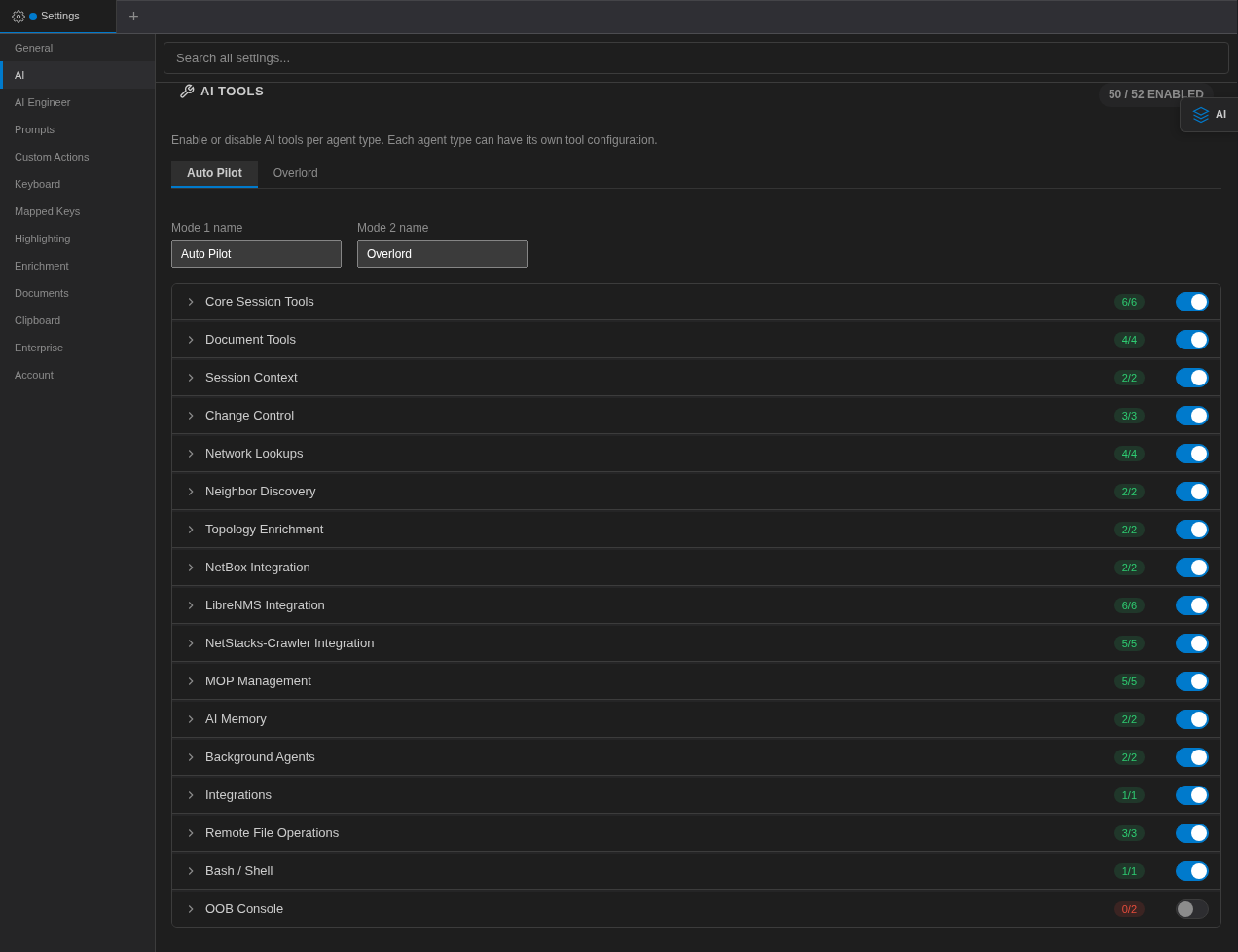
- Pick the mode tab (Auto Pilot or Overlord). Each mode has its own list.
- Use a category switch to turn a whole category on or off, or expand the category and tick individual tools.
- Changes apply to the next message you send.
Categories: Core Session Tools, Document Tools, Session Context, Change Control, Network Lookups, Neighbor Discovery, Topology Enrichment, NetBox Integration, LibreNMS Integration, NetStacks-Crawler Integration, MOP Management, AI Memory, Background Agents, Integrations, Remote File Operations, Bash / Shell, OOB Console. The OOB Console tools are off by default.
- The Bash / Shell tool is only ever offered in Auto Pilot.
- Remote File Operations are only offered when AI Terminal Mode is enabled (see AI Terminal Mode).
- Topology editing tools (add, remove, move devices and connections) also require Allow AI to edit topologies in AI AUTOMATION.
Renaming the Modes
In AI TOOLS, the Mode 1 name and Mode 2 name fields rename Auto Pilot and Overlord. The new names appear in the panel's Mode selector, in Settings → Prompts and in the instructions sent to the model.
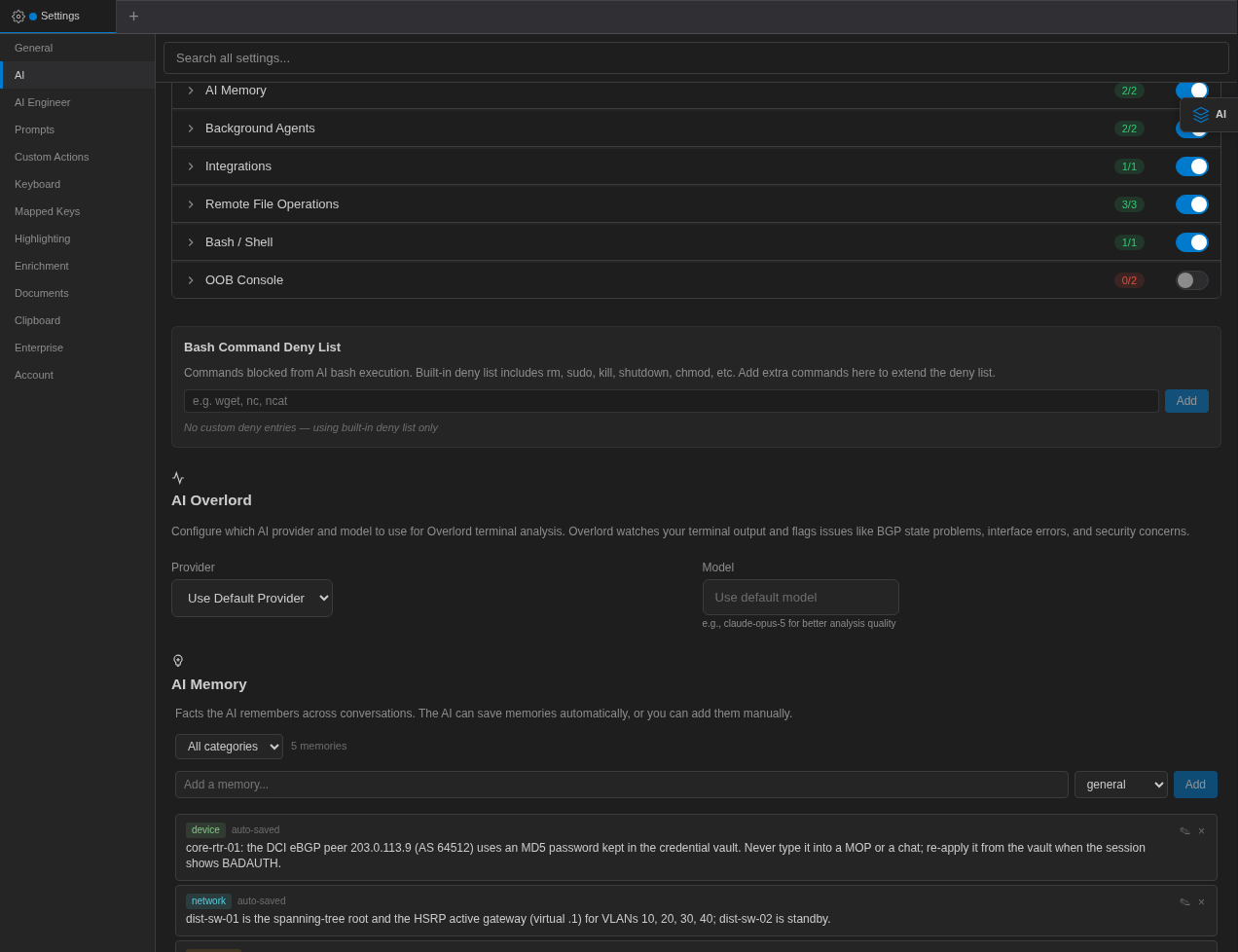
Bash Command Deny List
Below the tool list, Bash Command Deny List extends the built-in deny list ("Built-in deny list includes rm, sudo, kill, shutdown, chmod, etc."). Type a command name (for example wget, nc) and click Add. With no entries the list reads "No custom deny entries — using built-in deny list only".
Mode Prompts
Each mode has its own editable instructions under Settings → Prompts → System Prompts → AI Modes. Editing them changes the tool guidance the agent receives; the built-in safety rules and NetStacks platform knowledge are always added and cannot be edited. See System Prompts.