
MCP Servers
Connect Model Context Protocol (MCP) servers so AI tools from other systems are available in NetStacks: in the standalone Terminal for the AI assistant, and on the Controller for Controller-side use.
Overview
The Model Context Protocol lets an AI application call tools exposed by another program — a filesystem server, a NetBox or Grafana bridge, a ticketing system, and so on. NetStacks is an MCP client: it connects to MCP servers you configure and uses the tools they publish. NetStacks does not act as an MCP server for other applications, and MCP resources and prompts are not used — only tools.
There are two separate places to configure MCP servers:
- Standalone Terminal — Settings → AI → MCP SERVERS. Tools you enable here are offered to the Terminal AI assistant.
- Controller (enterprise) — AI & Agents → MCP Servers in the admin console. These servers are managed centrally for Controller-side use and are not used by the Terminal AI assistant.
MCP in the Standalone Terminal
Open Settings (Ctrl+, / Cmd+,) → AI and scroll to MCP SERVERS. With nothing configured it shows “No MCP servers configured.”and an Add MCP Server button. The connection runs from the local NetStacks agent on your machine, so stdio servers are started as local processes and URL servers must be reachable from your computer.
Add a Server
- Click Add MCP Server.
- Enter a Name (for example Filesystem Server).
- Choose the Transport:
- Command (stdio) — fill in Command (the executable to run, e.g.
npx) and Arguments (one argument per line, or a JSON array). - URL (SSE) — fill in the server URL and pick Authentication: None, Bearer Token or API Key. This option connects using MCP's Streamable HTTP transport.
- Command (stdio) — fill in Command (the executable to run, e.g.
- Pick a Server Type (Custom, Search, Database, Filesystem, Code, Monitoring, Knowledge). It “helps AI understand what this server provides” and is shown to the model next to each tool.
- Save the server.
Connect and Enable Tools
Each server row has a status dot and these buttons:
| Button | What it does |
|---|---|
| Connect | Starts the connection and discovers the server's tools. |
| Test | Tests the connection without saving the discovered tools. |
| Restart | Disconnects and reconnects, re-discovering tools. |
| Disconnect | Closes the connection; its tools are no longer offered. |
| Edit / Delete | Change or remove the server. |
Expand a connected server to see Discovered Tools. Newly discovered tools are disabled by default — turn on the switch (“Enable tool for AI agents”) for each tool you want the assistant to be able to call.
How the Assistant Uses MCP Tools
- Only enabled tools on connected servers are sent to the model.
- Each tool's description is prefixed with
[MCP:<server type> - <server name>]so the model knows where it comes from. - Enable only the tools you want the assistant to use, and leave tools that change data in other systems switched off unless you need them — see Modes & Permissions.
- The list of available tools refreshes automatically when you connect, disconnect or toggle a tool.
MCP Servers on the Controller Enterprise
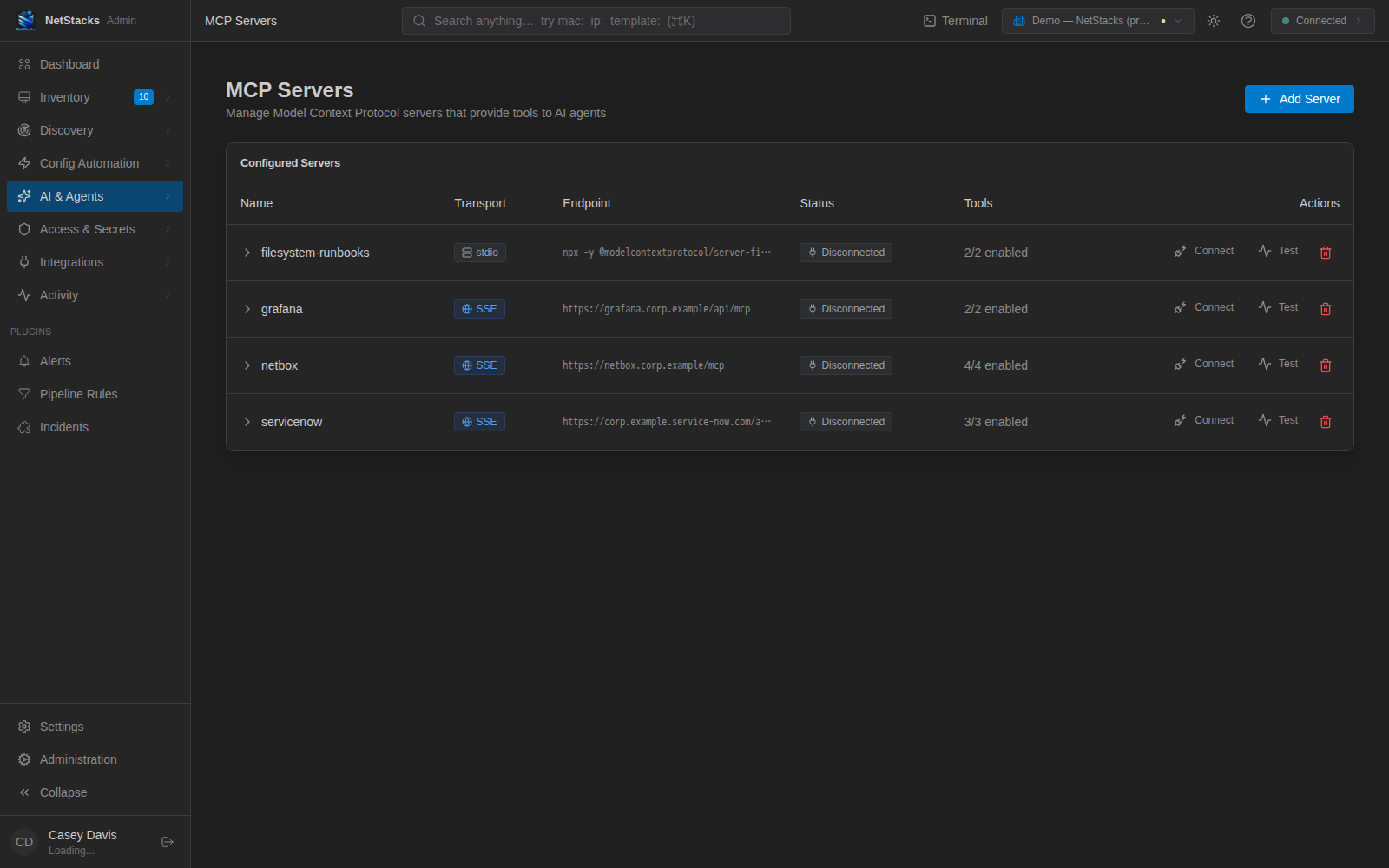
In the admin console, open AI & Agents → MCP Servers (/ai/mcp-servers). The page lists Configured Servers with the columns Name, Transport, Endpoint, Status (Connected / Disconnected), Tools (how many are enabled) and Actions. Servers belong to your organization.
Add a Server Enterprise
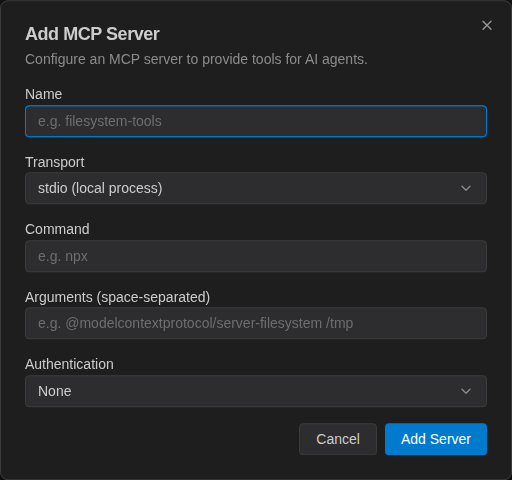
- Click Add Server.
- Enter a Name (for example filesystem-tools).
- Choose a Transport:
- stdio (local process) — a Command (e.g.
npx) and Arguments (space-separated). The process runs on the Controller host, so the command must be available there. - SSE (HTTP endpoint) — a Server URL. Like the Terminal, this uses MCP's Streamable HTTP transport.
- stdio (local process) — a Command (e.g.
- Choose Authentication (None, Bearer Token or API Key) and enter the token. Tokens are stored encrypted in the Controller vault.
- Click Add Server.
There is no edit action for an existing server; delete and re-add it to change its settings.
Connect, Test and Run Tools Enterprise
- Connect starts the server and discovers its tools; a toast confirms “Connected to "name" — N tools discovered”.
- Test checks connectivity without changing whether the server is enabled.
- Restart disconnects and reconnects; Disconnect stops it; the trash icon deletes it.
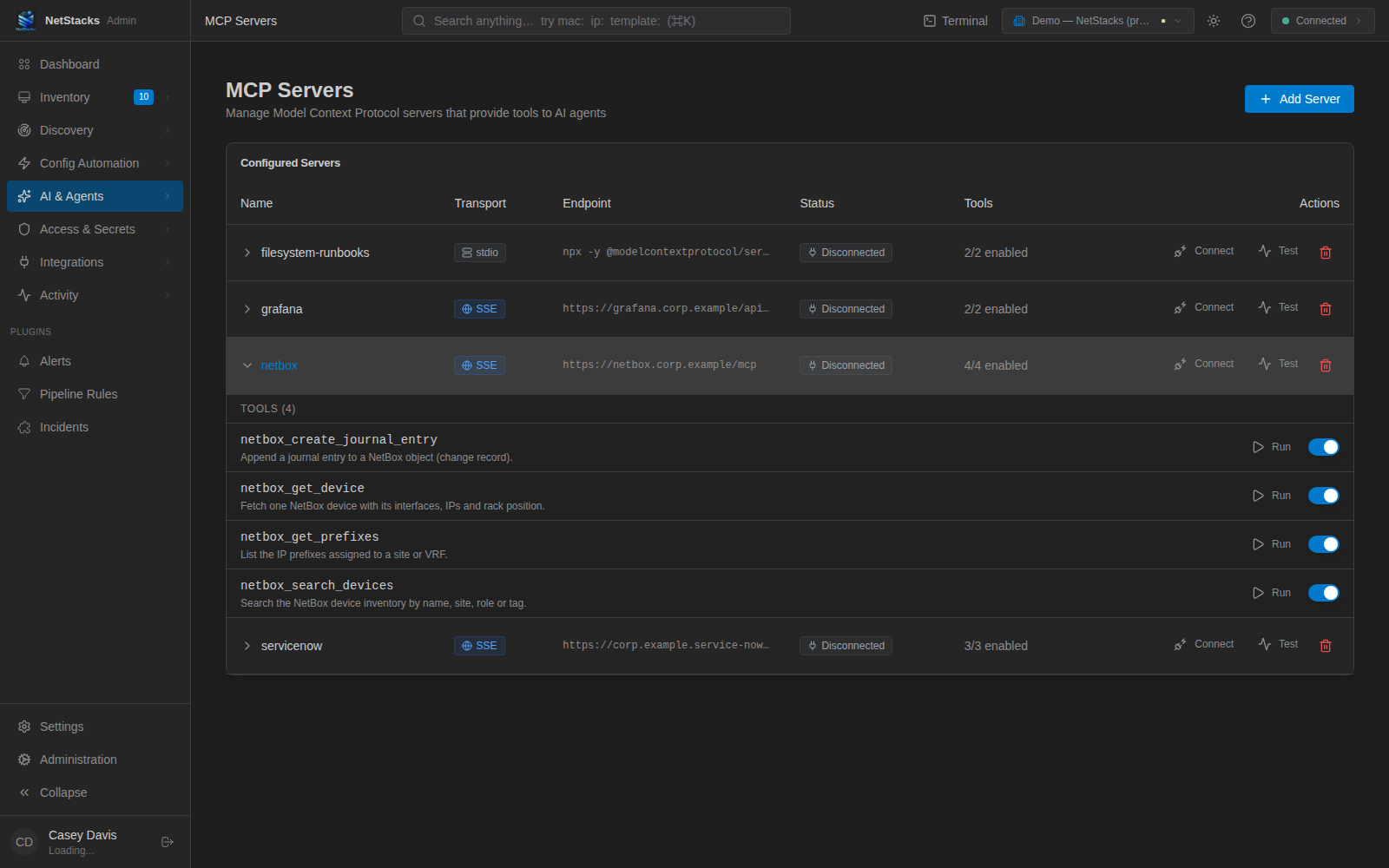
Click a server's name to expand it and list its TOOLS. Each tool has an enable switch and a Run button.
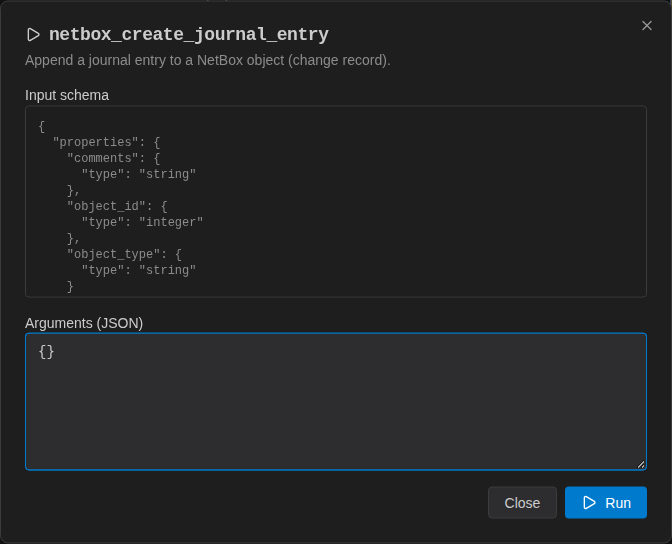
Run opens a dialog showing the tool's Input schema. Enter Arguments (JSON) and click Run; the Result appears with a Success or Error badge. This is the quickest way to confirm a server works end to end.
Tips & Troubleshooting
- stdio server won't start — the command runs on the machine hosting the connection (your computer for the Terminal, the Controller host for the Controller). Make sure the executable, e.g.
npx, is installed and on the PATH there. - URL server fails — confirm the endpoint speaks MCP over Streamable HTTP and that the token type (Bearer vs API Key) matches what the server expects.
- Assistant doesn't use a tool — in the Terminal, check the server is connected and the tool's switch is on. Discovered tools start disabled.