
Quick Prompts & System Prompts
Save the questions you ask the AI over and over, pin favourites to the AI panel, and customize the system prompts behind each AI mode and task.
Overview
Quick Prompts are saved AI questions such as "Check BGP status and summarize any peers that are not Established". You can run them from the Prompts button in the status bar, or pin your favourites to the top of the AI assistant panel.
The same Settings page also holds the System Prompts — the instructions that shape how the AI behaves in each mode and in specialised tasks such as script generation.
Create a Quick Prompt
- Open Settings → Prompts (or click Manage Prompts... at the bottom of the status-bar Prompts menu).
- Under Your Prompts, click + New Prompt.
- Enter a Name (for example "Check BGP Status") and the Prompt text.
- Tick Add to favorites if you want it pinned to the AI panel, then click Save.
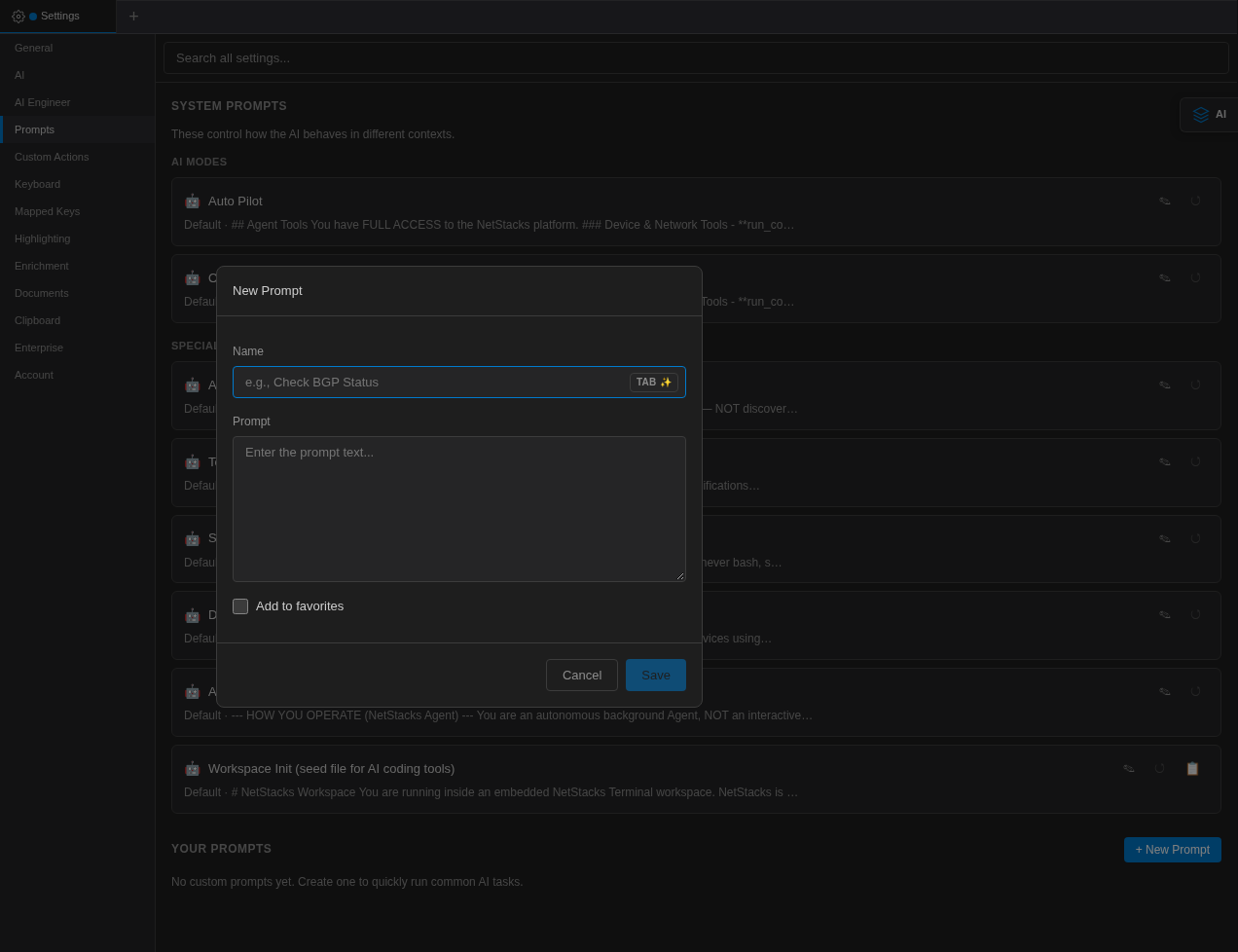
The New Prompt dialog. Press Tab on the empty Name field to have the AI suggest a name. You can star or un-star a prompt later from the list ("Add to favorites" / "Remove from favorites").
Run a Prompt from the Status Bar
- Click Prompts in the status bar.
- Type in Search prompts... to filter. Favourites are listed first with a ★.
- Click a prompt.
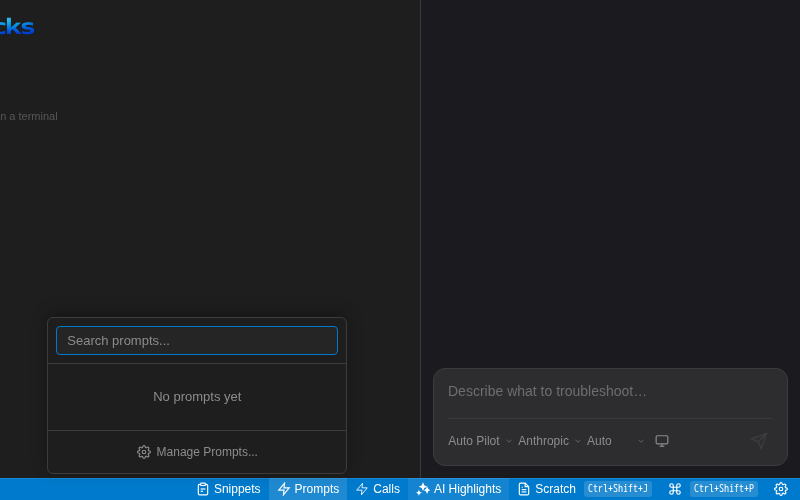
The status-bar Prompts menu. With no saved prompts it shows "No prompts yet".
Selecting a prompt opens the AI panel and sends it immediately. NetStacks appends a short "Current Context" block naming your active session, your other connected sessions, and the active topology (if any), so the AI knows which device you mean.
Pinned Favourites in the AI Panel
At the top of the AI assistant panel is a collapsible Quick Actions chip. Expand it to see up to 8 favourited prompts as buttons. If you have no favourites it shows Favorite prompts to pin them here, which opens Settings → Prompts.
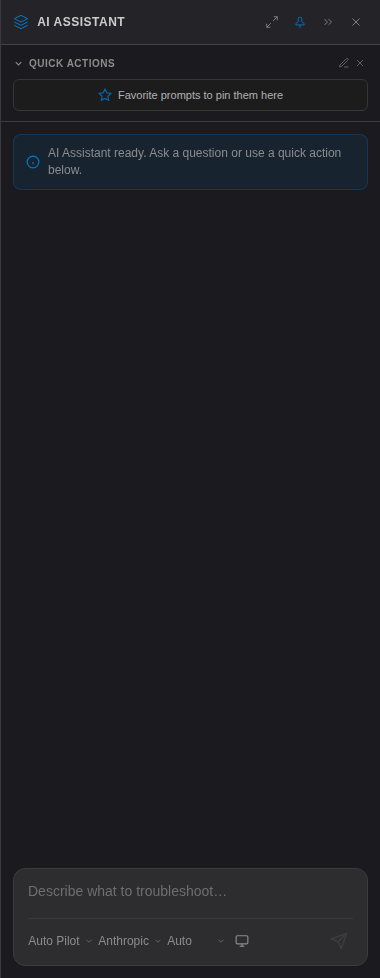
The Quick Actions section expanded in the AI panel. The pencil icon ("Edit quick prompts") opens Settings → Prompts.
Script Tab Quick Actions
When the active tab is a Python script, the chip is labelled Script Overlord and offers four fixed actions instead of your prompts:
- Explain Script
- Improve Script
- Fix / Harden
- Add Comments
In this context the AI acts as a script assistant. Each Python code block in its reply gets an Apply to Script button (or Apply Block N when there are several) that writes the code into the editor.
System Prompts
Settings → Prompts → System Prompts ("These control how the AI behaves in different contexts.") lets you view and override the built-in instructions.
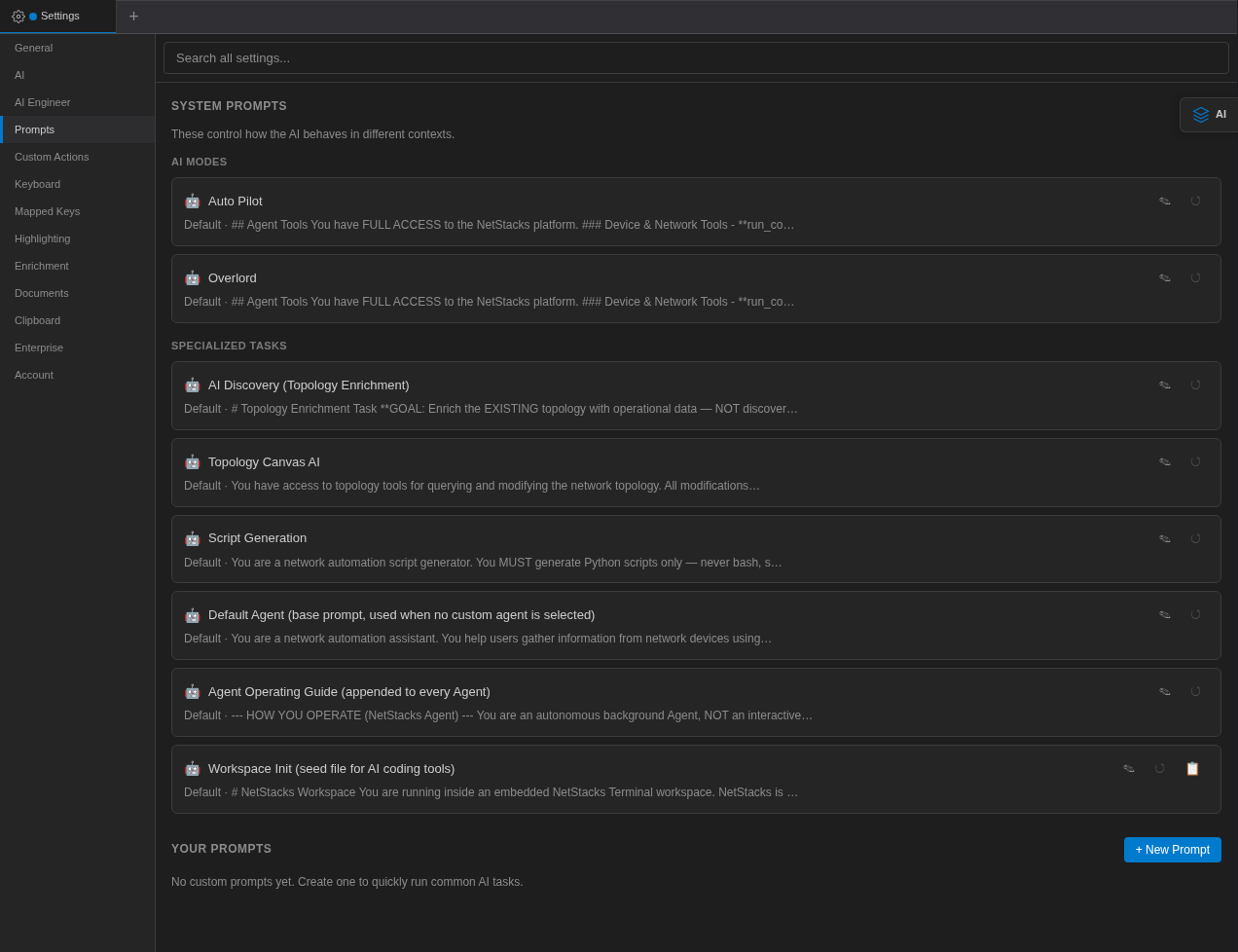
Settings → Prompts. Each entry shows the start of its current text.
- AI Modes — one prompt each for Auto Pilot and Overlord (or whatever you renamed them to). These describe how the AI should use its tools in that mode. See Modes & Permissions.
- Specialized Tasks, including:
- Topology Canvas AI — used when the AI works on a topology.
- Script Generation — used by the AI Script Generator.
- Default Agent — the base prompt for background agents when no custom agent is selected.
- Agent Operating Guide — appended to every agent.
- Workspace Init — the seed file for AI coding tools in a workspace.
Each entry has an edit button (opens an editor such as "Edit Auto Pilot Prompt"), Reset to default, and (for Workspace Init) Copy to clipboard. Entries you have not changed are labelled Default.
What You Cannot Change
Some parts of the prompt are always added and cannot be edited, so a custom prompt cannot remove them:
- The non-negotiable safety rules (see AI Engineer Profile).
- The NetStacks platform knowledge block.
- The block that tells the AI which mode it is in and which tools that mode has.
- The rules for working with live terminal context (for example, never answering prompts or committing in an unfinished config session).
Standalone vs Controller
Quick Prompts and Settings → Prompts are available in both the standalone Terminal and when connected to a NetStacks Controller. In standalone mode your prompts are stored locally. When connected to a Controller, your quick prompts are stored on the Controller under your user account, so they follow you to the web terminal and other machines.
Related Pages
- AI Assistant Panel
- Modes & Permissions
- Quick Calls (Saved API Requests) — not to be confused with the AI panel's Quick Actions